The list, a bin's page, and editing
What this is
The Locations screen lists every bin in the warehouse with how much it holds. From it you open one bin to see its stock and history, edit it, or retire it. Office staff and Administrators use it to maintain the warehouse layout. Anyone can use it to answer "what's in this bin?"
Before you start
- Role: anyone who can sign in can view locations and bins. Only Office users and Administrators see Edit, Retire, Reactivate, Relocate, Print label, Import CSV and Bulk create.
- Settings: none.
- You'll need: locations to exist. A new warehouse starts empty. See Creating many at once.
Step by step
Find a bin
-
Open Locations from the Inventory section of the sidebar.
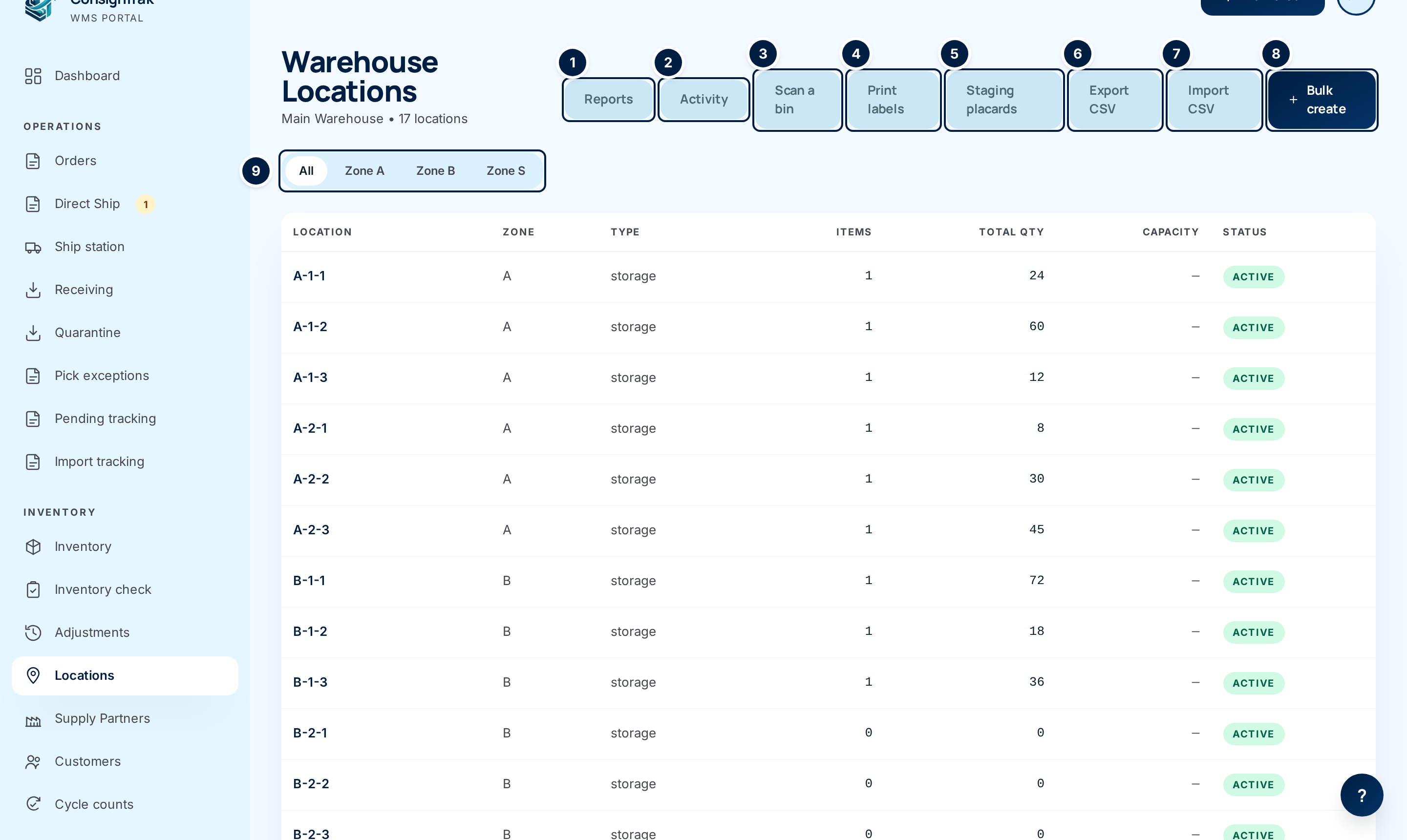
The buttons across the top are: ① Reports, ② Activity, ③ Scan a bin, ④ Print labels, ⑤ Staging placards, ⑥ Export CSV, ⑦ Import CSV and ⑧ Bulk create. The tabs at ⑨ narrow the list to one zone.
-
Narrow the list by choosing a zone tab, such as Zone A. Choose All to see every location again.
-
Open a bin by clicking its row.
You can also choose Scan a bin ③, then scan the bin's label or type its code, and choose Open bin.
Read a bin's page
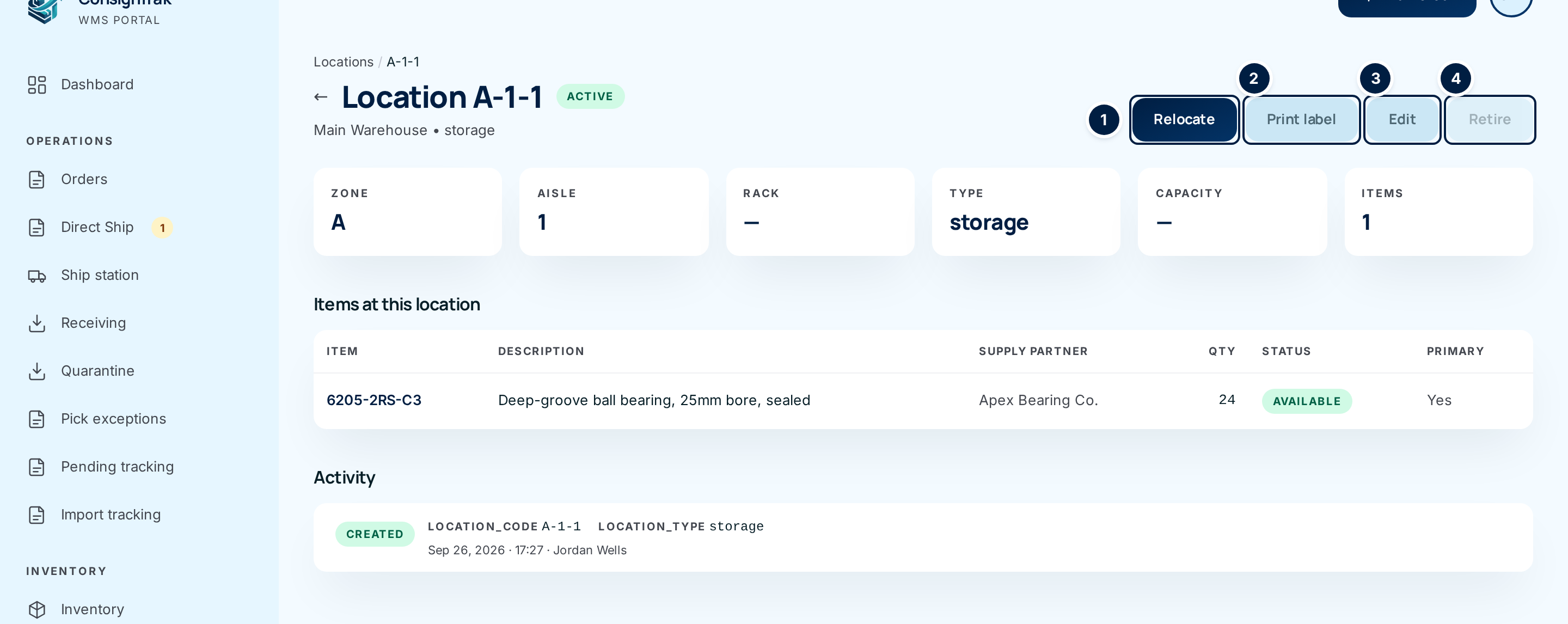
The top of the page shows the code, whether the bin is Active, the warehouse name and the type. The buttons are ① Relocate, ② Print label, ③ Edit and ④ Retire. Below them are cards for Zone, Aisle, Rack, Type, Capacity and Items.
Items at this location lists each item stored in the bin. Click a row to open that item. Activity lists every change to the bin itself, newest first. It records when the bin was created, edited, retired and reactivated, and who did it. Stock moving in and out is recorded on each item's history, not here.
Edit a bin
-
Choose Edit on the bin's page.
-
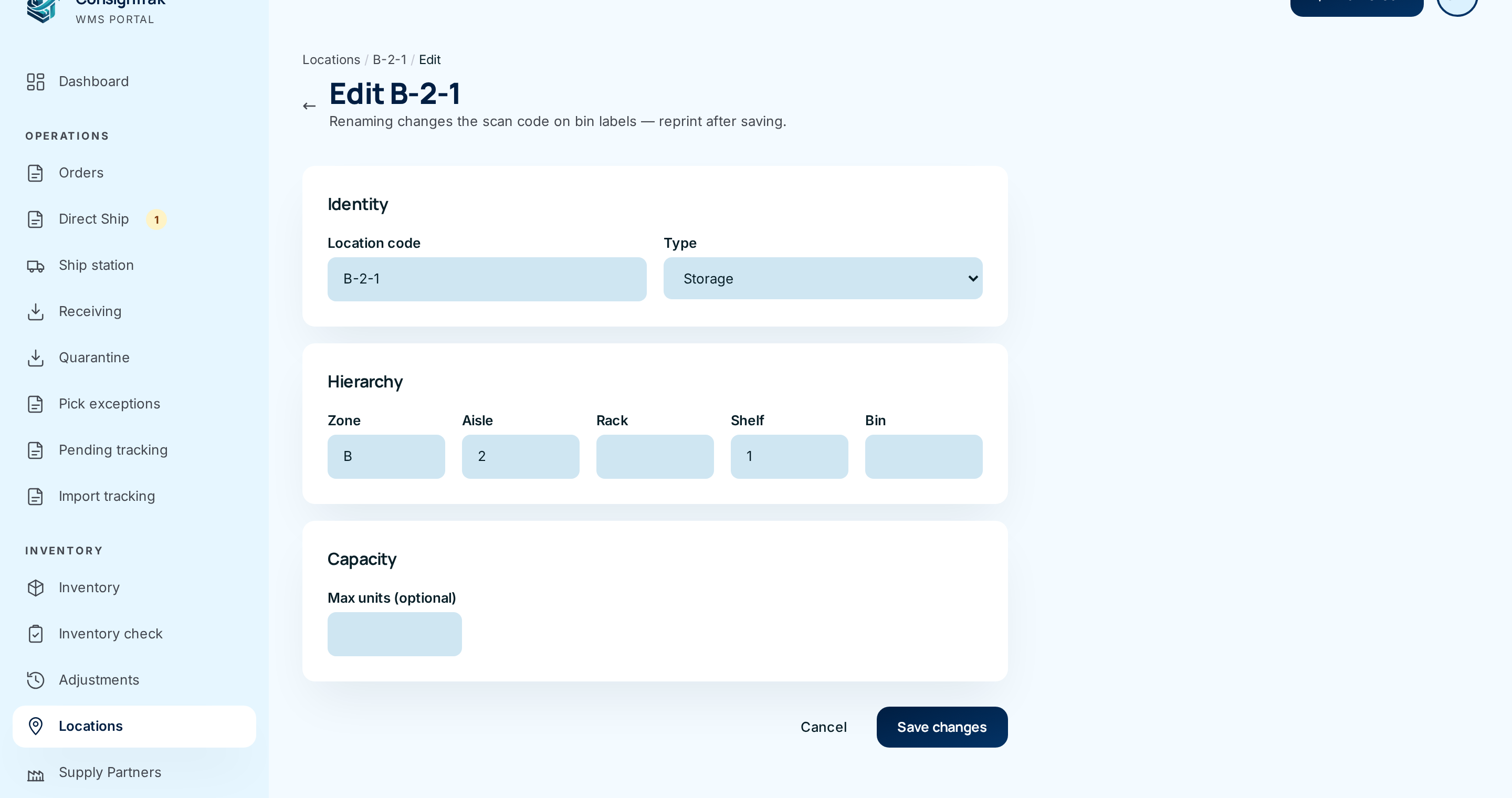
Change the fields you need. See the table below.
-
Choose Save changes. You go back to the bin's page with the message Location updated. Choose Cancel to leave without saving.
The location code is what the label's barcode holds. If you rename a bin, the old label stops working. Print a new label straight after saving.
Retire or reactivate a bin
- Empty the bin first. Retire is greyed out while the bin holds any stock. Move the stock out with Relocate.
- Choose Retire. The button turns amber and asks you to click again. Click it a second time to confirm.
- To bring a retired bin back, choose Reactivate on its page. It takes effect straight away.
See everything that changed
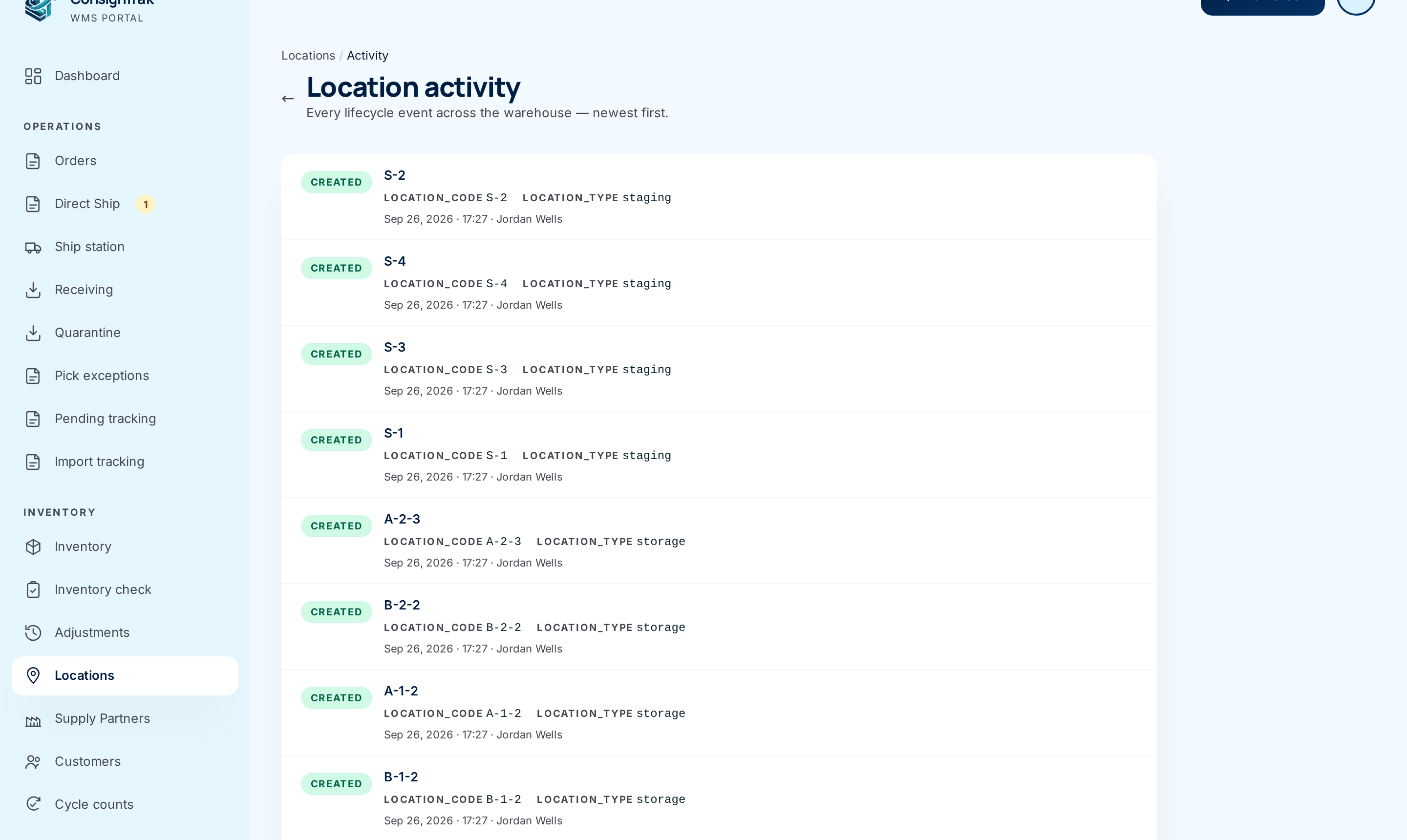
Choose Activity ② on the Locations list to see every bin change across the warehouse, newest first. Click a bin code to open that bin.
Scan a code that doesn't exist yet
If you scan or type a code on Scan a bin that isn't a location, ConsignTrak says Bin D-9-1 not found.
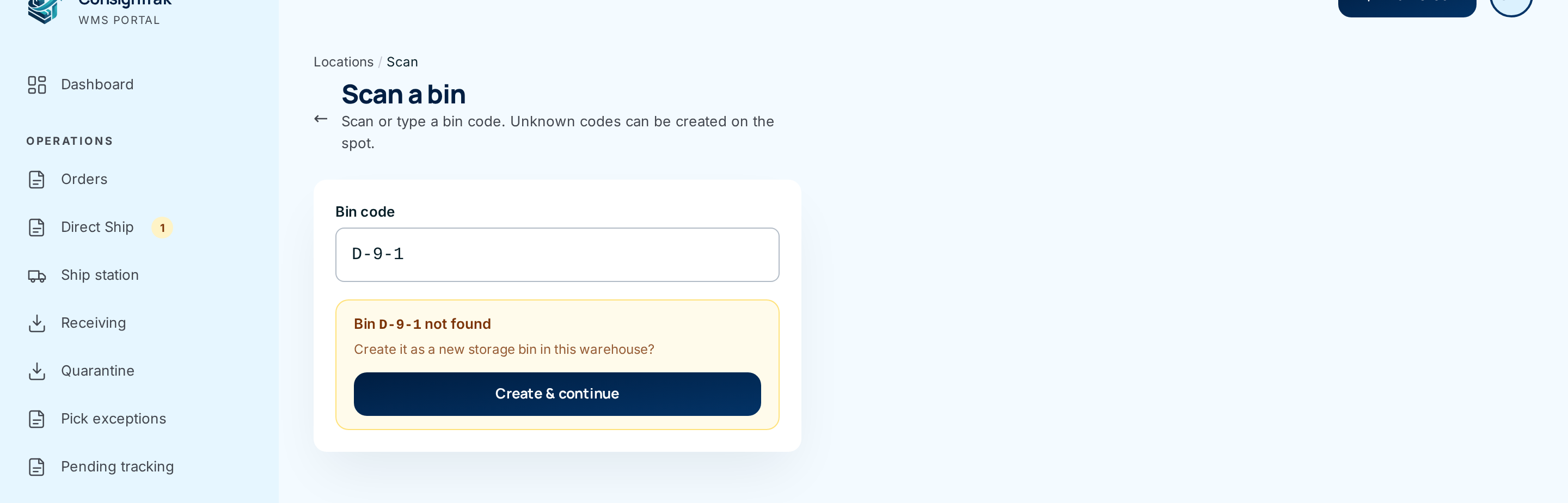
- Office users and Administrators see Create & continue. It creates the
code as a new storage bin and opens it. ConsignTrak fills in zone,
aisle and bin from the code when it's written with dashes, such as
D-9-1. Check them on Edit afterwards. - Warehouse users are asked to have an administrator create it.
Every field and option
The Locations list
| Field or control | What it means | Required | Default | What changes when you set it |
|---|---|---|---|---|
| Warehouse Locations (heading) | The warehouse name and how many locations are shown. | — | — | — |
| Reports | Opens the three location health reports. | — | — | — |
| Activity | Opens the warehouse-wide history of bin changes. | — | — | — |
| Scan a bin | Opens a box to scan or type a code and jump to that bin. | — | — | — |
| Print labels | Opens a label sheet for every location in the list. It follows the zone tab, so choose a zone first to print just that zone. See Printing bin labels. | — | — | Opens a PDF in a new tab. |
| Staging placards | Opens a label sheet for the staging locations only. Shown only when there are staging locations. | — | — | Opens a PDF in a new tab. |
| Export CSV | Downloads every location as a spreadsheet file. | — | — | Downloads a file. |
| Import CSV | Creates or updates locations from a spreadsheet. Office and Administrator only. | — | — | See Creating many at once. |
| Bulk create | Creates a whole range of locations in one go. Office and Administrator only. | — | — | See Creating many at once. |
| All / Zone A, Zone B… (tabs) | Narrow the list to one zone. There's a tab for each zone in use. | — | All | Filters the table. |
| Location | The location code. Click the row to open the bin. | — | — | — |
| Zone | The zone the location belongs to, or a dash. | — | — | — |
| Type | Storage, staging, receiving, shipping or quarantine. | — | — | — |
| Items | How many different items have stock here. | — | — | — |
| Total Qty | The total units of all items here. | — | — | — |
| Capacity | The maximum set for the bin, or a dash if none is set. | — | — | — |
| Status | Active or Inactive (retired). | — | — | — |
When there are no locations, the list says No locations found. with a Create locations link to bulk create.
A bin's page
| Field or control | What it means | Required | Default | What changes when you set it |
|---|---|---|---|---|
| Locations / A-1-1 (breadcrumb) and ← | Go back to the Locations list. | — | — | — |
| Location A-1-1 and the Active / Inactive pill | The code and whether the bin is in use. | — | — | — |
| Relocate | Move stock from this bin to others. Shown only when the bin is active and holds stock. | — | — | See Relocating stock. |
| Print label | Opens this one bin's label. | — | — | Opens a PDF in a new tab. |
| Edit | Opens the edit form. | — | — | — |
| Retire | Takes the bin out of use. Greyed out while it holds stock ("Move stock out before retiring"). Always greyed out for quarantine ("Quarantine locations are managed by the receiving flow"). | — | — | The bin becomes Inactive. It's hidden from searches but its history stays. Asks you to click again. |
| Reactivate | Shown instead of Retire on a retired bin. | — | — | The bin becomes Active again. |
| Zone, Aisle, Rack (cards) | Where the bin sits. A dash means that level isn't used. | — | — | — |
| Type, Capacity, Items (cards) | The bin's type, its maximum (or a dash) and how many different items it holds. | — | — | — |
| Item | The item's part number. Click the row to open the item. | — | — | — |
| Description | The item's description. | — | — | — |
| Supply Partner | Who owns this stock. | — | — | — |
| Qty | How many of this item are in this bin. It can be less than the item's total if it's spread over several bins. | — | — | — |
| Status | Available (can be picked), Quarantine (failed inspection), On hold (held back for review) or Damaged. | — | — | — |
| Primary | Yes when this is the item's main location. | — | — | — |
| Activity | Each change to the bin: a pill saying what happened, the fields that changed with old value struck through and the new value, then the date, time and who did it. | — | — | — |
The activity pills are CREATED, UPDATED, RETIRED, REACTIVATED and, rarely, MERGED_INTO. Changed fields show under their internal names, such as LOCATION_CODE, LOCATION_TYPE, CAPACITY and IS_ACTIVE. A bin created by scanning shows VIA floor_scan. A bin with no changes yet says No lifecycle events yet.
Edit form
| Field or control | What it means | Required | Default | What changes when you set it |
|---|---|---|---|---|
| Location code | The bin's name, printed and scanned on its label. It must be unique. | Yes | Current code | Renames the bin. Reprint its label. |
| Type | Storage, Staging, Receiving or Shipping. Quarantine (managed by receiving) is shown but can't be chosen. | Yes | Current type | Changes what the bin is used for. Staging bins show up for packing. |
| Zone, Aisle, Rack, Shelf, Bin | Where the bin sits. Leave any blank that you don't use. | No | Current values | Changes the zone tabs, the report columns and the small caption on the label. The code doesn't change on its own. |
| Max units (optional) | The bin's capacity. Leave blank or 0 for no limit. Despite the label, the report currently counts different items, not units. See Over capacity. | No | Current value | Used by the Over capacity report. It never blocks stock going in. |
| Save changes | Saves and returns to the bin. | — | — | Adds an UPDATED entry to the bin's activity, listing only the fields you changed. |
| Cancel / ← | Leaves without saving. | — | — | — |
Location activity (warehouse-wide)
| Field or control | What it means | Required | Default | What changes when you set it |
|---|---|---|---|---|
| Location activity (heading) and ← | The feed title, and a way back to the list. | — | — | — |
| Bin code (link) | The bin the event belongs to. Click to open it. | — | — | — |
| Event pill, changed fields, date and person | The same as a bin's own Activity. The feed shows the latest 200 events. | — | — | — |
Scan a bin
| Field or control | What it means | Required | Default | What changes when you set it |
|---|---|---|---|---|
| Bin code | Scan the label or type the code. A barcode scanner types into this box for you. | Yes | Empty | — |
| Open bin | Opens the bin's page. | — | — | — |
| Create & continue | Shown when the code doesn't exist, for Office users and Administrators only. | — | — | Creates a new storage bin with that code and opens it. |
| ← | Back to the Locations list. | — | — | — |
The location picker in other screens
When a screen such as a receiving line asks for a location, typing in it shows matching bins with their type and zone. Click one to choose it. If nothing matches you'll see No locations found for "…". Only active bins are offered.
What happens next
- Saving an edit updates the bin at once. Its activity gets an UPDATED entry naming the fields you changed. Stock in the bin isn't touched.
- Retiring hides the bin from location searches and pickers, so no new stock can go in. Its history and past movements stay.
- Reactivating makes the bin selectable again.
- Creating a bin by scanning adds a CREATED entry that notes it came from a floor scan.
Common problems
"Location code already in use" — Another location, active or retired, already has that code. Choose a different code, or rename the other one first.
"Location code is required" — The code box was empty. Type a code and save again.
"Cannot retire — location has stock on hand" — Something still sits in the bin. Relocate it, then retire.
Retire is greyed out — Hover over it. "Move stock out before retiring" means the bin still holds stock. "Quarantine locations are managed by the receiving flow" means it's the quarantine bin, which can't be retired.
"Scan or type a bin code" — You chose Open bin with an empty box.
"Bin … not found" with no Create button — You're signed in as a Warehouse user. Ask an Office user or Administrator to create the bin.
The activity shows names like LOCATION_CODE — That's how ConsignTrak labels the changed fields today. LOCATION_CODE is the code, LOCATION_TYPE the type, IS_ACTIVE whether the bin is in use.