Creating many locations at once
What this is
Setting up a warehouse means creating hundreds of bins. ConsignTrak gives you two ways to do it without typing each one:
- Bulk create builds every combination of the ranges you give it. For example, zone D, aisles 1 to 2 and shelves 1 to 3 gives six bins.
- Import CSV loads a spreadsheet of locations. It creates new ones and updates existing ones by code.
Both show a preview first, and nothing is saved until you confirm.
Before you start
- Role: Office or Administrator.
- Settings: none.
- You'll need: your code pattern decided. See How a location is named. For an import, a spreadsheet saved as CSV.
Step by step
Bulk create from ranges
-
Open Locations and choose Bulk create.
-
Fill in the ranges for the levels you use, and leave the others blank.
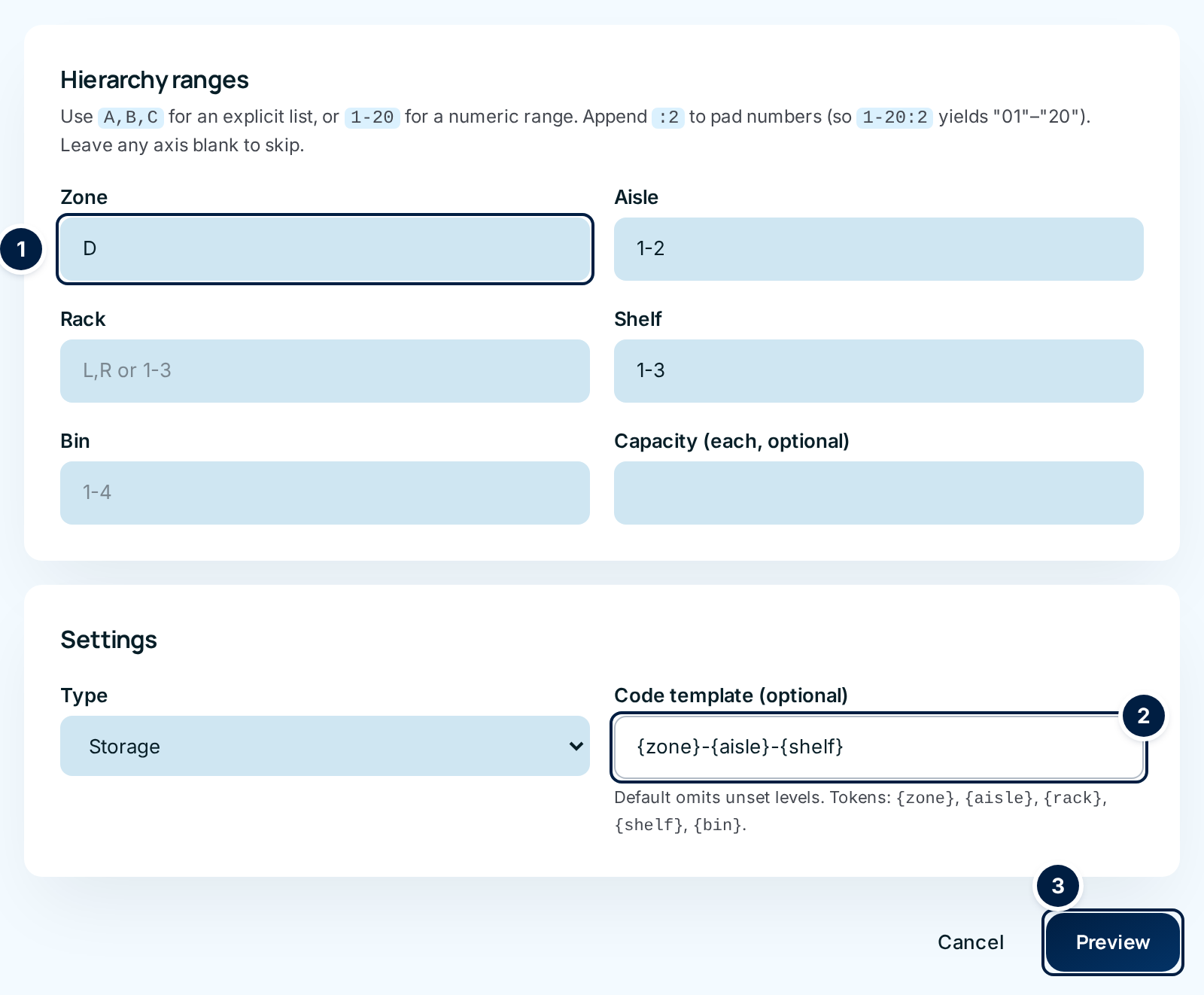
Each range box ① takes one of three forms:
You type You get A,B,CExactly those values: A, B and C. 1-20Every number from 1 to 20. 1-20:21 to 20 padded to two digits: 01, 02 … 20. Zone and Rack accept either form. Aisle, Shelf and Bin accept only number ranges.
-
Choose the Type and, if you like, a Code template ②. The template says how the code is built. For example,
{zone}-{aisle}-{shelf}makesD-1-2. See the code template below. -
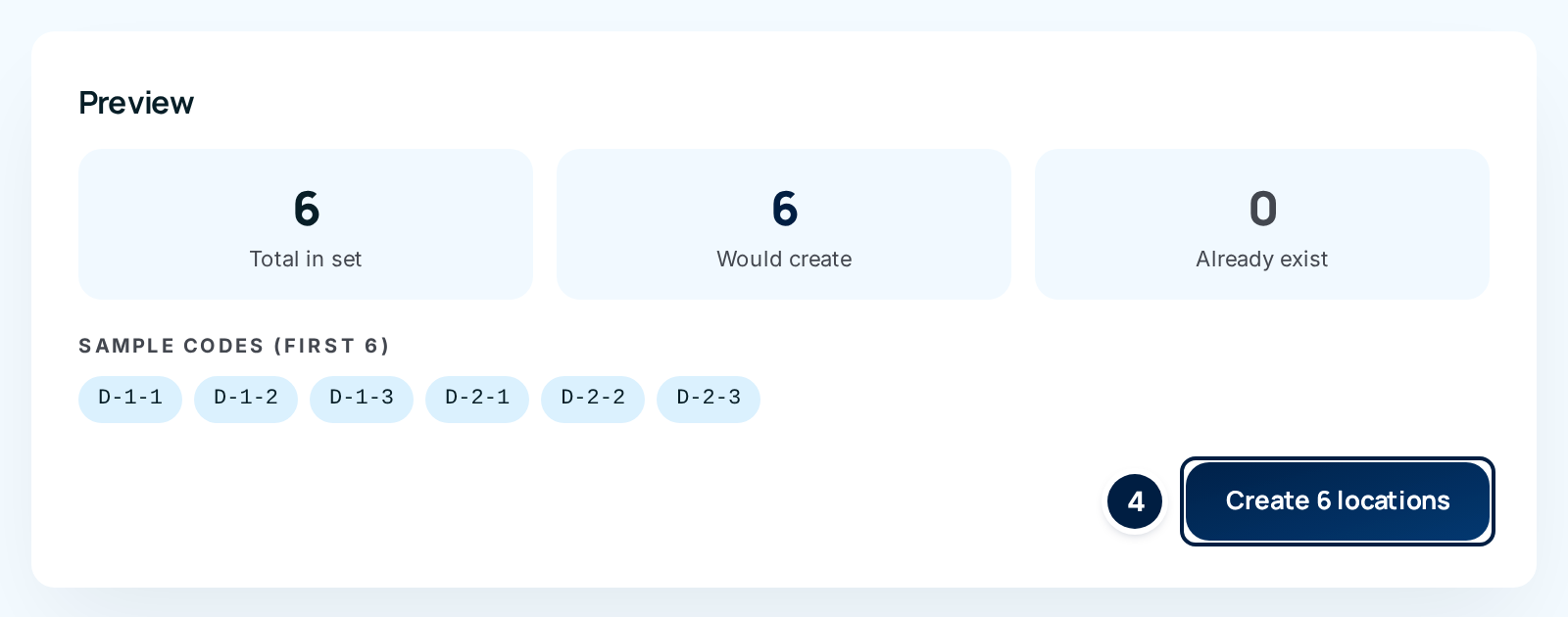
Choose Preview ③. The preview appears under the form. It shows how many locations are in the set, how many would be created, how many already exist, and up to 50 sample codes. Check the sample codes read the way your labels should.
-
Choose Create 6 locations ④ (the number matches your set). You go back to the Locations list with a message such as Created 6 locations.
If every code already exists, the preview says Nothing to create — every code in this set already exists. and there's no create button.
The code template
The template is the code with the level names in curly brackets, and any separator you like between them.
| Token | Replaced by |
|---|---|
{zone} | the zone |
{aisle} | the aisle |
{rack} | the rack |
{shelf} | the shelf |
{bin} | the bin |
- Left blank, the template is
{zone}-{aisle}-{shelf}-{bin}. - Levels you leave empty drop out, along with their dash or dot. So the
default template with only zone and bin filled in gives
A-3, notA---3.
{rack} in the templateThe default template has no {rack}. If you fill in Rack and leave the
template blank, left and right racks get the same code. The preview still
counts them all as Would create, but only one of each code is actually
made. Always type a template with {rack} when you use racks, for example
{zone}-{aisle}-{rack}-{shelf}.
Import from a spreadsheet
-
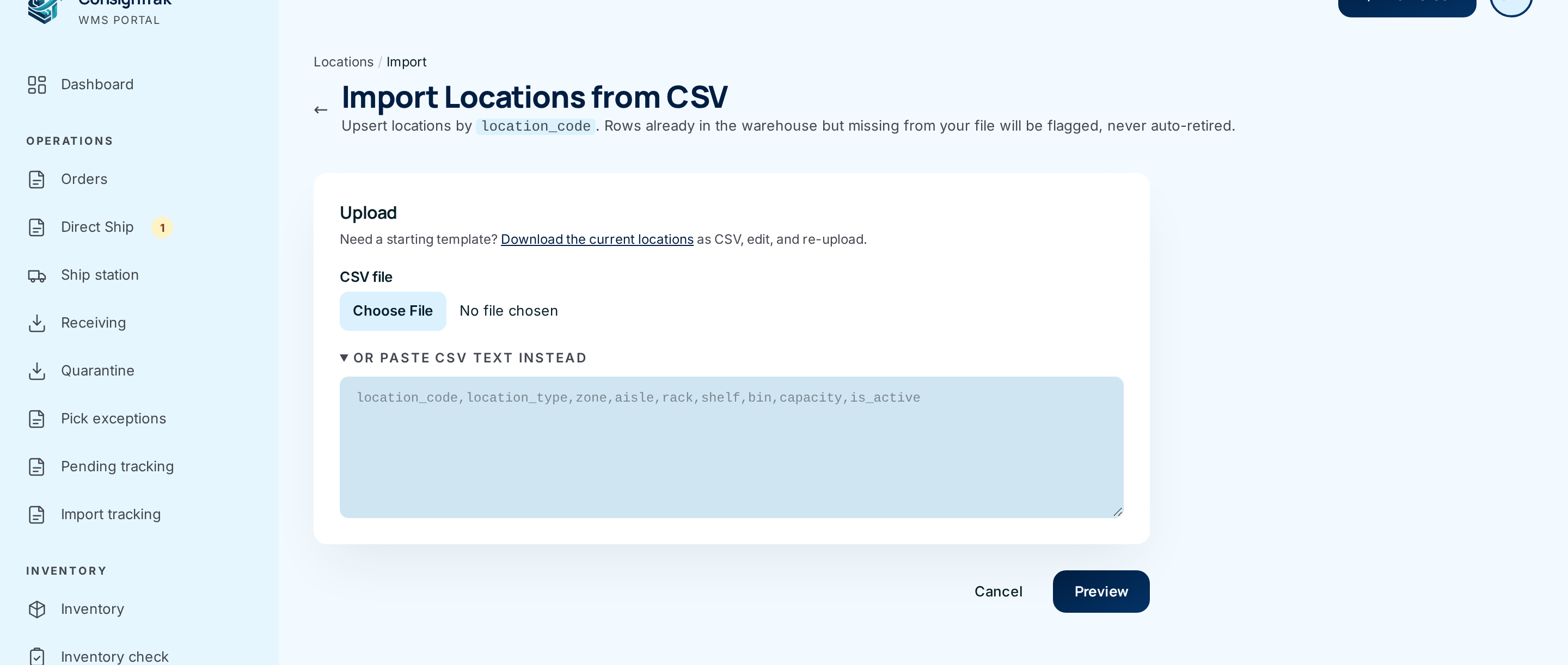
Start from the current list. Choose Export CSV on the Locations list, or the Download the current locations link on the import page. Edit that file in your spreadsheet program. It already has the right columns.
-
Open Import CSV from the Locations list.
-
Choose the file under CSV file. Or open Or paste CSV text instead and paste the rows, header included.
-
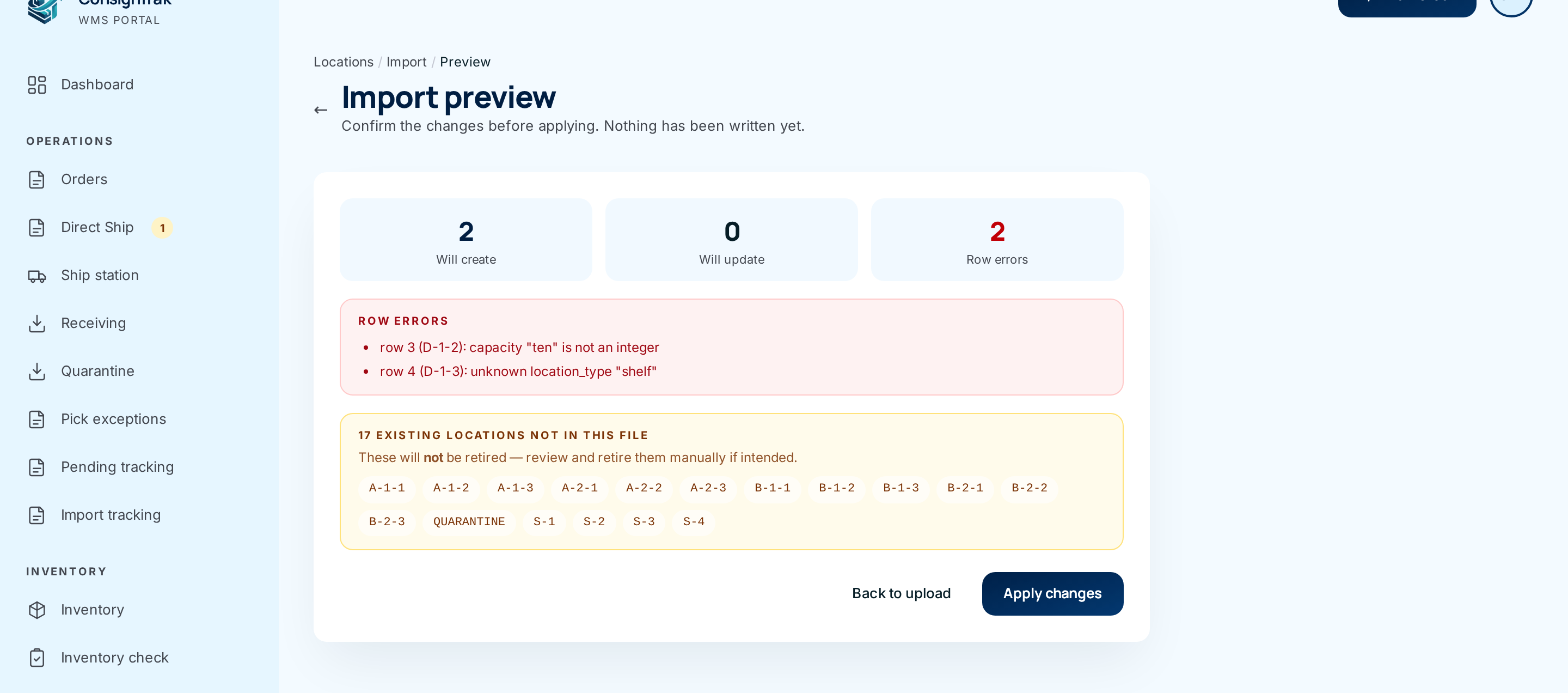
Choose Preview. The preview shows how many locations Will create, Will update and how many Row errors there are. Rows with errors are listed with the reason.
-
Check the amber list. It names existing locations that aren't in your file. ConsignTrak never retires them for you. Retire them by hand if they're really gone.
-
Choose Apply changes. Rows with errors are skipped, and the good rows are saved. You go back to the list with a message such as Imported: 2 new, 0 updated (2 row errors); 16 existing not in file. Choose Back to upload to fix the file first instead.
If no row would change anything, the preview says Nothing to apply — every row in the file matches the existing data.
The CSV columns
The first row must be exactly these nine headings, in this order. Capitals don't matter.
location_code,location_type,zone,aisle,rack,shelf,bin,capacity,is_active
| Column | What to put in it | If left blank |
|---|---|---|
location_code | The bin's code. This is how a row is matched to an existing location. | The row is an error. |
location_type | storage, staging, receiving, shipping or quarantine. | storage |
zone, aisle, rack, shelf, bin | The bin's position. | That level is cleared. |
capacity | A whole number: the bin's capacity. | No limit. |
is_active | true or false. false retires the bin. | true |
- A matching code updates the whole location. Every column in the row replaces what's saved. A blank cell clears that field.
- Blank rows are skipped. Short rows from Excel are fine; missing cells at the end count as blank.
- Numbers like
01keep their zero. The export writes them as="01"so Excel doesn't turn them into1. Import reads them back correctly. - The file can be up to 5 MB. That's far more than any real list of bins.
Every field and option
Bulk Create Locations
| Field or control | What it means | Required | Default | What changes when you set it |
|---|---|---|---|---|
| Zone | Zones to create, as a list (A,B,C) or number range. | No | Blank (not used) | One set of bins per zone. |
| Aisle | Aisles, as a number range (1-20, 1-20:2). | No | Blank | One set per aisle. |
| Rack | Racks, as a list (L,R) or number range (1-3). | No | Blank | One set per rack. Add {rack} to the template. |
| Shelf | Shelves, as a number range. | No | Blank | One set per shelf. |
| Bin | Bins, as a number range. | No | Blank | One set per bin. |
| Capacity (each, optional) | The same capacity for every new location. See Over capacity for how it's counted. | No | Blank (no limit) | Used by the Over capacity report. |
| Type | Storage, Staging, Receiving or Shipping. | Yes | Storage | Every new location gets this type. |
| Code template (optional) | How each code is built from the tokens. | No | {zone}-{aisle}-{shelf}-{bin} | Changes every code in the set. |
| Preview | Shows the counts and sample codes. Saves nothing. | — | — | — |
| Cancel / ← | Back to the Locations list. | — | — | — |
| Total in set / Would create / Already exist | How many codes the ranges make, how many are new, and how many are already locations. | — | — | — |
| Sample codes (first N) | Up to 50 of the codes, in order. | — | — | — |
| Create N locations | Saves the new locations. Codes that already exist are skipped. | — | — | Each new bin gets a CREATED activity entry. |
Import Locations from CSV
| Field or control | What it means | Required | Default | What changes when you set it |
|---|---|---|---|---|
| Download the current locations | Downloads every location as CSV, the same as Export CSV. | — | — | Downloads a file. |
| CSV file | The spreadsheet to load, saved as CSV. | One of the two | — | — |
| Or paste CSV text instead | A box to paste rows into, header included. Used only if no file is chosen. | One of the two | Closed | — |
| Preview | Checks the file and shows what would change. Saves nothing. | — | — | — |
| Cancel / ← | Back to the Locations list. | — | — | — |
| Will create / Will update / Row errors | Counts from your file. Rows that match exactly what's saved aren't counted. | — | — | — |
| Row errors (list) | Each bad row, as "row N (code): reason". | — | — | Those rows are skipped. |
| N existing locations not in this file | Codes you have that the file doesn't mention. | — | — | Nothing. They're never retired automatically. |
| Apply changes | Saves the good rows. | — | — | New bins get CREATED, changed bins get UPDATED in their activity. |
| Back to upload / ← | Returns to the upload form without saving. | — | — | — |
What happens next
- New locations appear on the Locations list straight away, Active, with a zone tab for any new zone.
- Each new location's activity shows CREATED with your name. Each updated location shows UPDATED with the fields that changed.
- No stock moves. The new bins are empty until something is received or relocated into them.
- Print labels for the new bins: choose their zone tab, then Print labels. See Printing bin labels.
Common problems
"aisle: range is reversed (from > to)" — A range was typed backwards,
such as 5-1. Type the smaller number first. The same message appears for
any level.

"shelf: use a numeric range like '1-20' for this axis" — Aisle, Shelf and
Bin take number ranges only. Type 1-4, not 1,2,3,4 or A,B.
"Too many locations — narrow the ranges (5,000-row cap)" — One bulk create can make at most 5,000 locations. Split it, for example one zone at a time.
The preview's number is higher than what was created — Some ranges made
the same code twice, usually because Rack is filled in but the template
has no {rack}. See the caution above.
"csv header mismatch: want location_code,location_type,…" — The first row isn't exactly the nine column names in order. Start from Export CSV so the header is right.
"row 4 (D-1-3): unknown location_type "shelf"" — The type must be one of storage, staging, receiving, shipping or quarantine.
"row 3 (D-1-2): capacity "ten" is not an integer" — Capacity must be a whole number, or blank.
"row 5 (D-2-1): is_active "yes" is not a boolean" — Use true or false.
"location_code is required" — A row has data but no code in the first column.
"no CSV body — upload a file or paste the contents" — You chose Preview without choosing a file or pasting anything.