Item detail
What this is
The item page answers "how much of this do we have, where is it, and what happened to it?" for one part. It shows the stock numbers, the item's details, other numbers it's known by, the bins it's in, and its latest movements. From here you open the full movement history, the sales history from the warehouse's previous system, and the actions that change the item. Office staff use it for phone and email questions. Warehouse staff use the phone version on the floor.
Before you start
- Role: anyone on the staff side can open the page. Edit, Discontinue and Reactivate work for Office and Administrator users. Adjust stock shows only to users allowed to adjust stock (Office and Administrator). View History works for Office and Administrator users.
- Settings: the Pricing card shows only when Show prices throughout the application is on (see System configuration).
- You'll need: the item. See Finding an item.
Step by step
-
Open the item by clicking its row in the Inventory list, a match in a search box, or a part number link anywhere in ConsignTrak.
-
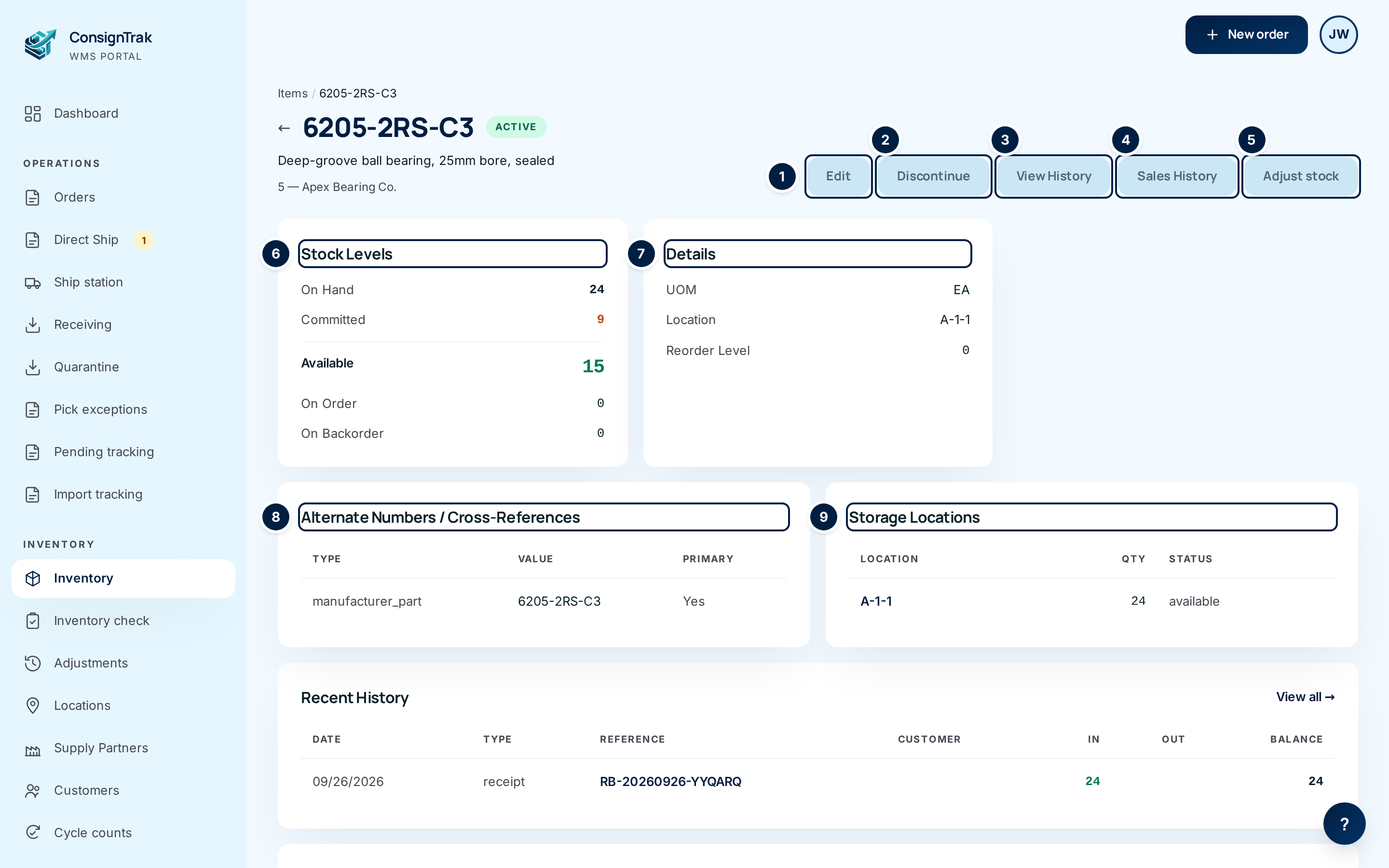
Read the header. The part number, a status pill (Active, Inactive or Discontinued), the description, any extended description, and the manufacturer code and supply partner. A discontinued item that was replaced says Superseded by with a link to the new one.
-
Use the buttons across the top: Edit ①, Discontinue ② (or Reactivate on a discontinued item), View History ③, Sales History ④ and Adjust stock ⑤.
-
Read the stock on the Stock Levels card ⑥. Available is the big number: what you can still promise. It turns green above zero and red below zero. Committed turns amber when anything is promised.
-
Check the details ⑦, the Alternate Numbers / Cross-References ⑧ and the Storage Locations ⑨. The main location on the Details card is the item's usual bin. Storage Locations is the full picture when stock is split across bins. Click a location to open it.
-
Scroll down to Recent History ① and Activity Dates ②.
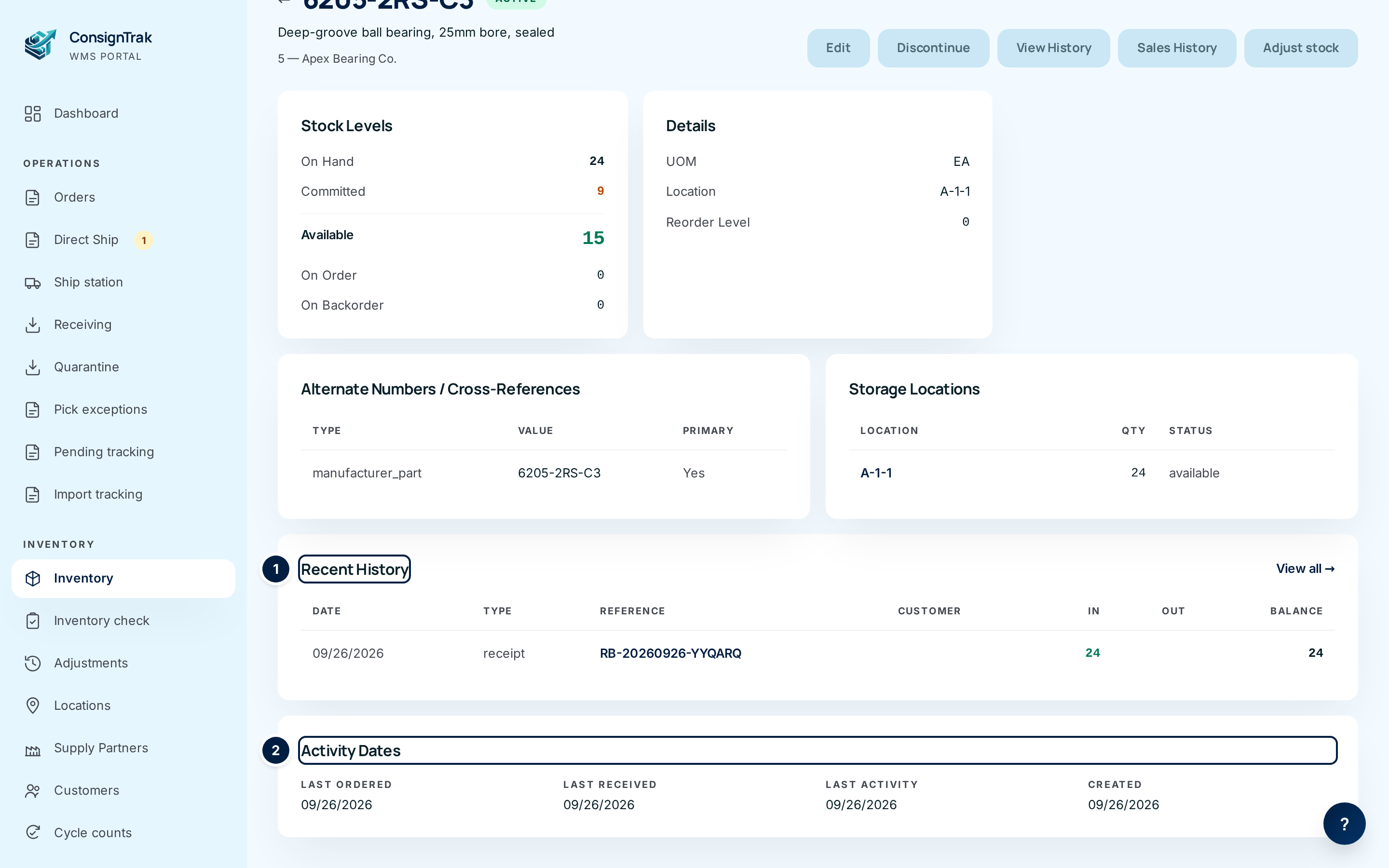
Recent History lists the last ten movements, newest first. Click a reference to open the order, receiving or cycle count behind it. View all → opens the full history.
Read the full movement history
-
Click View History. Every movement for the item is listed, newest first, with a running balance.
-
Set From and To dates and, if you like, a Type, then click Filter. With both dates set, four cards appear: stock at the start, total in, total out, and stock at the end of the range.
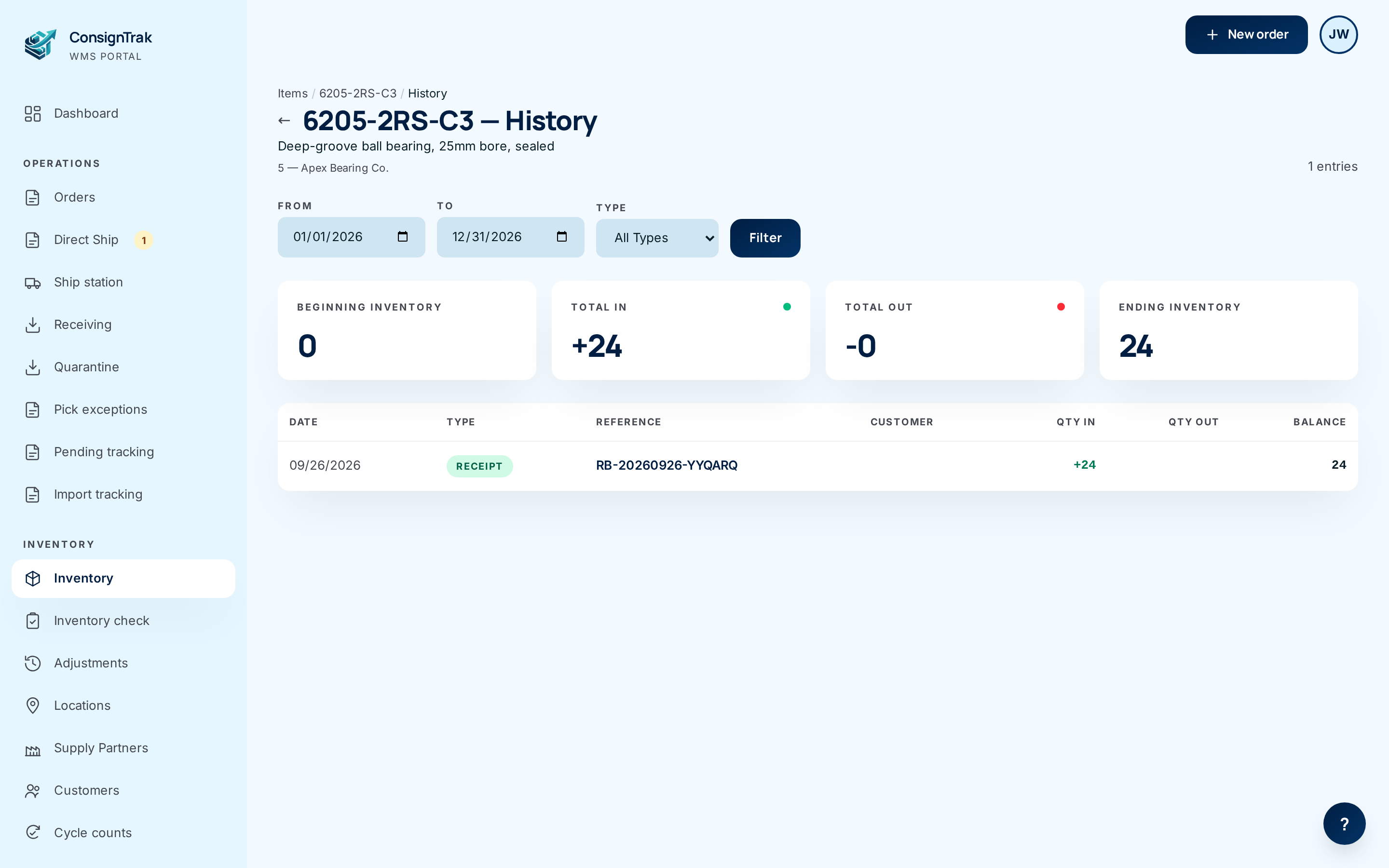
Read the Balance column from the bottom up. The first row where the balance stops matching what's on the shelf is the movement to look at.
Read the sales history
Sales History shows how this part sold in the warehouse's previous system, before ConsignTrak. It's read-only and never changes. The header names the supply partner; click it to open their page. The page shows:
- four figures: Total Sales (order lines), Distinct Orders, Distinct Customers, and Years Sold with the first and last year;
- a Monthly Velocity — last 60 months chart. Hover a bar (or tap it) for that month's orders and lines. The dark part is orders and the light part is lines. Peak month and 5-year average sit beside it;
- Top Customers, with each customer's orders, lines and last order date. Click a customer to see everything they bought;
- Recent Orders With This Item: the 25 latest closed orders, with the release number, customer, entry date and lines.
An item added after the switch to ConsignTrak, or one that never sold before, shows No archived sales for this item. That's normal.
The sales history screen still shows some wording from the previous system, such as "CAS-REP archive" and "Manufacturer:" beside the supply partner. It means the same supply partner shown everywhere else. This is being tidied up.
On a phone
The phone page shows On hand, Committed and Available, then the supply partner, unit, location, Reorder point, Unit weight and Last received. Other numbers the item is known by appear as Aliases. Four buttons follow: Adjust, Move loc (greyed out: moving stock between bins isn't on the phone yet), History and Sales History. Recent activity lists the latest movements.
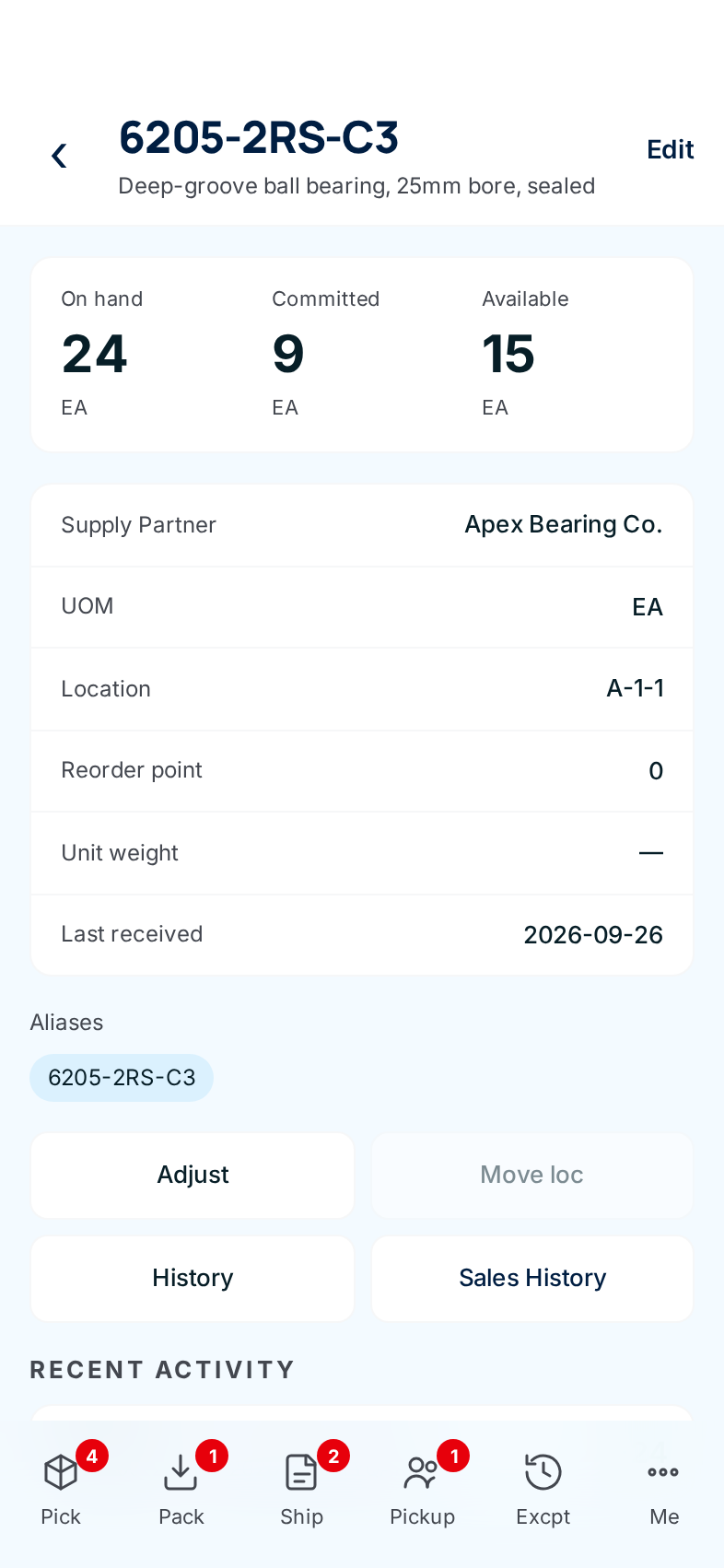
On the phone History screen, the header reads Last 30 days, but the list actually shows the item's whole history. The Change › link doesn't offer a date choice yet. Use the desktop page to filter by date.
Every field and option
Header and buttons
| Field or control | What it means | Required | Default | What changes when you set it |
|---|---|---|---|---|
| Items / part number (breadcrumb) and ← | Back to the Inventory list. | — | — | Leaves the page. |
| Status pill | Active, Inactive or Discontinued. | — | — | Read-only. |
| Superseded by | The item that replaced this one, if it was discontinued with a replacement. | — | — | Click to open the replacement. |
| Edit | Opens the edit form. See Creating and editing an item. | — | — | Opens the form. |
| Discontinue / Reactivate | Retire the item or bring it back. See Creating and editing an item. | — | — | Opens a panel; nothing changes until you confirm. |
| View History | The full movement history. | — | — | Opens the history page. |
| Sales History | Sales from the previous system. | — | — | Opens the sales page. |
| Adjust stock | The adjustment form, with this item already chosen. See Adjusting stock. | — | — | Opens the form. |
Stock Levels
| Field | What it means |
|---|---|
| On Hand | Units in the warehouse right now. |
| Committed | Units promised to released orders that haven't shipped. |
| Available | On Hand minus Committed. Below zero means more is promised than is on the shelf. |
| On Order | Units the supply partner has said are coming. For information; it doesn't change Available. |
| On Backorder | Units owed to customers from orders that shipped short. The supply partner handles backorders; this is for information. |
Details
| Field | What it means |
|---|---|
| UOM | The unit the item is sold and counted in. See Units of measure. |
| Location | The item's main bin. Shown only when set. |
| Category | The grouping label. Shown only when set. |
| Weight | Weight of one unit in pounds. Shown only when set. |
| Reorder Level | The level the supply partner wants to restock at. Zero means none is set. Items below it show on the Below reorder card. |
Pricing (only when prices are switched on)
| Field | What it means |
|---|---|
| Avg Cost, Last Cost | The average and most recent unit cost. |
| Price 1, Price 2, Price 3 | Price levels from the supply partner. |
The warehouse doesn't set these. They came across with the supply partner's data and can't be changed in ConsignTrak today. Each shows only when it has a value.
Alternate Numbers / Cross-References
| Column | What it means |
|---|---|
| Type | What kind of number it is, such as the supply partner's own part number, a replaced (superseded) number, a customer's part number or a barcode. |
| Value | The number itself. Searching for it finds this item. |
| Primary | Yes on the main part number. |
No aliases configured. means the item only has its own number. Office users can't add aliases on this page today; an Administrator adds them with a bulk import. See How items are identified.
Storage Locations
| Column | What it means |
|---|---|
| Location | A bin or staging area holding this item. Click it to open the location. |
| Qty | How many are in that location. |
| Status | Whether that stock can be used (available) or is held, for example in quarantine. |
No locations assigned. means no stock has been put away to a bin yet.
Recent History (and the full History page)
| Column | What it means |
|---|---|
| Date | When the movement happened. |
| Type | Receipt, Sale, Release, Adjustment, Cycle count, Return, or Quarantine for goods that failed a quality check. |
| Reference | The order, receiving or cycle count behind it; click to open it. On an adjustment it's the reason code, such as damaged or found_stock. |
| Customer | The customer, on sales and releases. |
| In / Out (Qty In / Qty Out) | Units added or removed. |
| Balance | On-hand after this movement. |
| View all → | Opens the full history page. |
Status History (only on items that have been discontinued or reactivated)
| Column | What it means |
|---|---|
| Date, Change | When, and from which status to which. |
| Superseded By | The replacement named at the time, if any. |
| Reason, By | The note left and the person who made the change. |
Activity Dates
| Field | What it means |
|---|---|
| Last Ordered | The last time the item was on an order. |
| Last Received | The last receiving. |
| Last Activity | The last stock movement of any kind. |
| Created | When the item was added. |
History page filters
| Field or control | What it means | Required | Default | What changes when you set it |
|---|---|---|---|---|
| From, To | The date range, both days included. | No | Empty (all dates) | With both set, the summary cards appear. |
| Type | All Types, Sale, Receipt, Release, Adjustment, Cycle Count or Return. | No | All Types | Shows only that type. |
| Filter | Applies the dates and type. | — | — | Reloads the list. |
| N entries | How many movements match. | — | — | Read-only. |
| Beginning Inventory, Total In, Total Out, Ending Inventory | Stock at the start, units in, units out, stock at the end. | — | — | Read-only. |
| Quarantined | Units that failed a quality check in the range. Shown only when there were some. | — | — | Read-only. |
| No history found for this item. | Nothing matches the filters. | — | — | — |
| Page numbers | More pages; your filters stay set. | — | Page 1 | — |
Phone item page and phone History
| Field or control | What it means |
|---|---|
| Edit | Opens the phone edit form. Office and Administrator only. |
| On hand, Committed, Available | As on the desktop. |
| Supply Partner, UOM, Location, Reorder point, Unit weight, Last received | As on the desktop. A dash means not set. |
| Aliases | Other numbers the item is known by. |
| Adjust | Opens the adjustment form. Office and Administrator only. |
| Move loc | Greyed out; not available on the phone yet. |
| History | The phone history screen. Office and Administrator only. |
| Sales History | The sales history screen. |
| Recent activity | The latest movements, with links to the order, receiving or count. |
| Change › (phone History) | Reloads the page; there's no date choice on the phone yet. |
| Received, Shipped, Balance, Quarantined (phone History) | Summary figures, shown when the page has a date range. |
| Previous / Next (phone History) | More pages. |
What happens next
Reading this page changes nothing. The buttons lead to the screens that do:
- Edit changes the item's description, unit, weight and location.
- Adjust stock records a stock movement; it appears in Recent History and on the Adjustments page.
- Discontinue hides the item from the default list and search boxes.
Common problems
Available is negative. — More is promised to released orders than ConsignTrak thinks is on the shelf. Usually a shipment was recorded before the receiving that brought the stock in, or a count is off. Open View History, find where the balance went wrong, then fix it with a receiving, a cycle count or an adjustment.
"Forbidden" when a warehouse user taps Edit, Adjust or History. — Those screens are for Office and Administrator users. The buttons show to everyone on the phone today, which is a known issue.
No Pricing card. — Prices are switched off for your warehouse. That's the default; supply partners set and invoice prices themselves.
The item page opens but the item isn't in the list. — It's discontinued. Tick Include discontinued on the list.