Inventory check
What this is
When a customer or a supply partner asks "do you have any of these?", Inventory check answers for the whole list at once. Paste the list, click Check stock, and every line comes back with its match, on-hand, available and location. It only reads. It creates no order and changes no stock.
Before you start
- Role: anyone on the staff side, including Warehouse users.
- Settings: none.
- You'll need: the list of part numbers, up to 100 lines.
Step by step
-
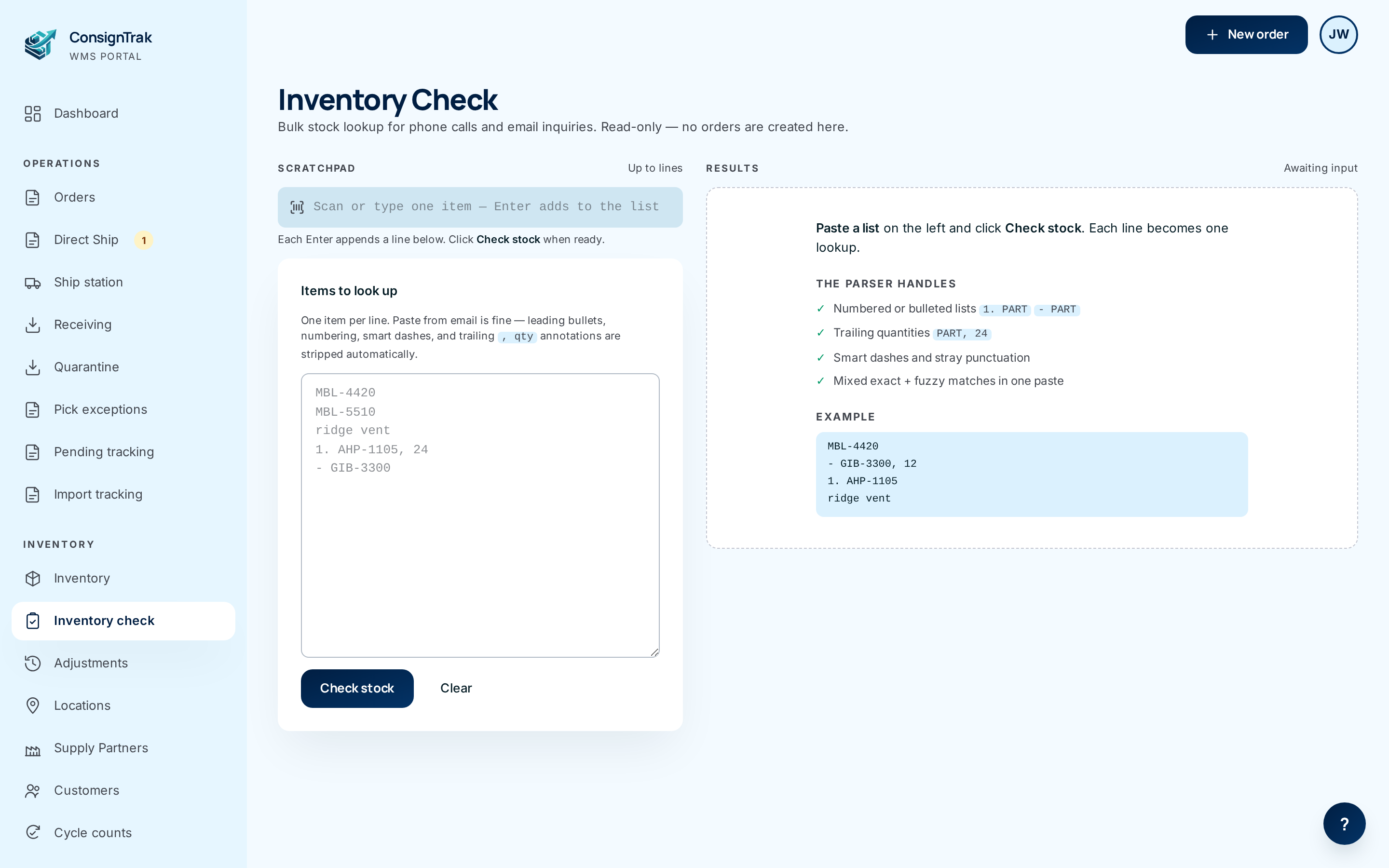
Open Inventory check in the Inventory section of the sidebar. On a phone it's under More.
-
Paste the list into Items to look up, one item per line. You don't need to tidy it. ConsignTrak strips bullets, numbering, smart dashes and a trailing quantity such as ", 24". Descriptions work too.
With a barcode scanner, click the Scan or type one item bar above the box and scan. Each scan adds a line to the list. The bar never submits on its own.
-
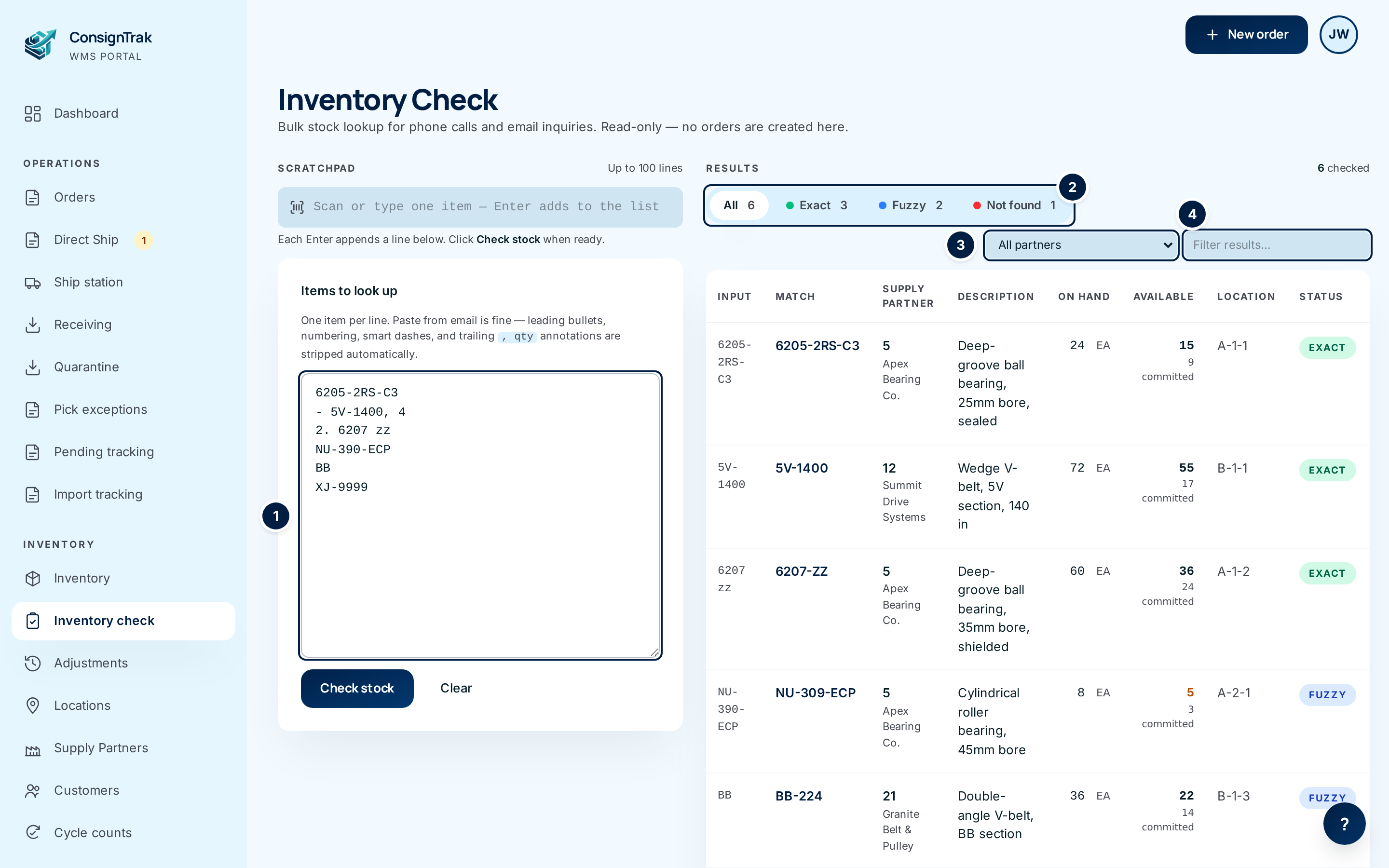
Click Check stock. Each line gets a row in Results.
-
Read the Status column. Exact means the part number matched. Fuzzy means ConsignTrak found one close match. +N more means several items matched and the row shows the first. Not found means nothing came close. Click the part number in Match to open the item.
-
Narrow the results if the list is long. The buttons ② show one kind of match (All, Exact, Fuzzy, Multiple, Not found) with a count on each. All partners ③ limits the table to one supply partner. Filter results… ④ hides rows that don't contain what you type.
-
Reply to the customer. Select the table and paste it into your email. Click Clear to start again.
A Fuzzy or +N more row is a guess. Open the item and confirm it's the part the customer means before you quote stock.
On a phone
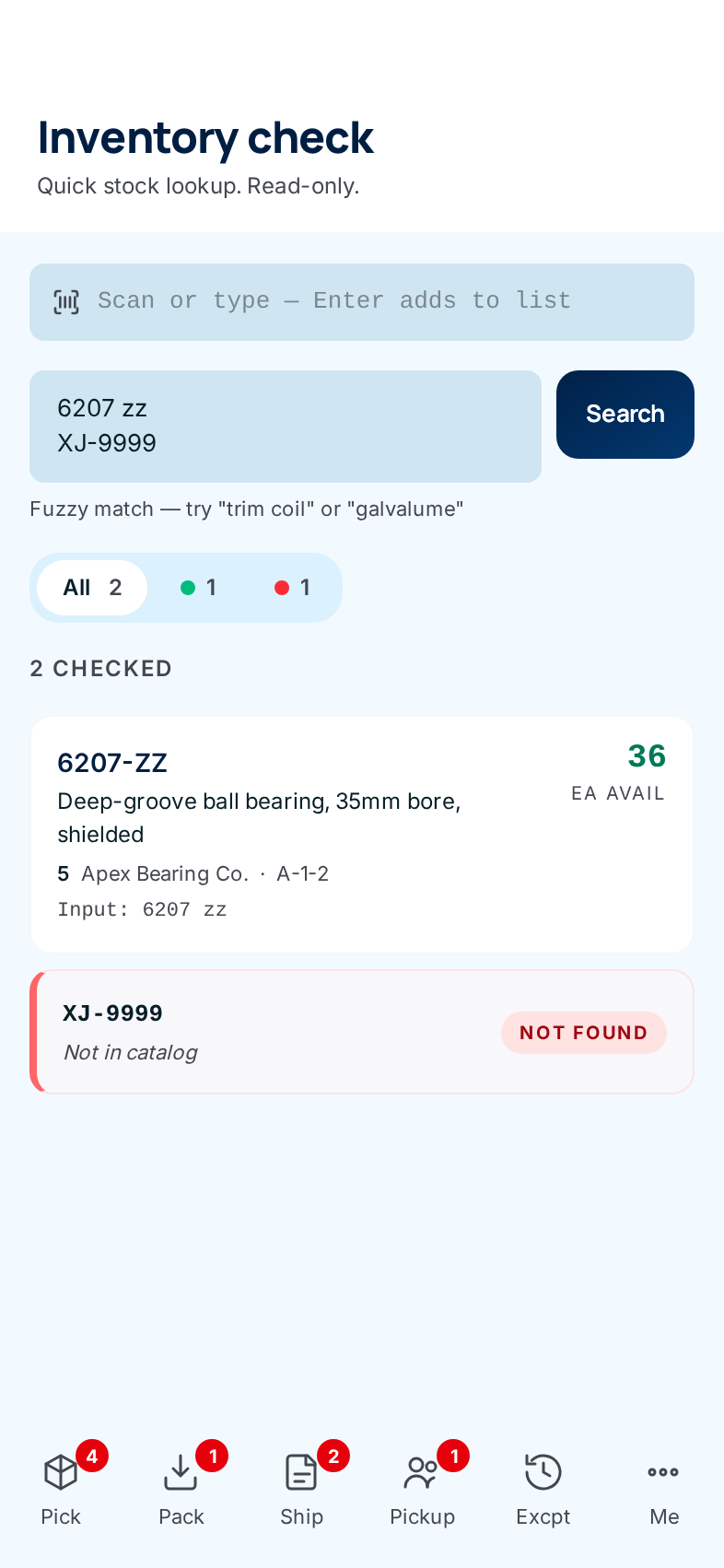
The phone version has the scan bar, a smaller list box and a Search button. Results come back as cards with the same status labels (Fuzzy match, +N more matches, Not found) and the same filter buttons.
Every field and option
| Field or control | What it means | Required | Default | What changes when you set it |
|---|---|---|---|---|
| Up to 100 lines | The limit. Longer lists are cut and a note says Input was truncated to the first 100 lines. | — | — | — |
| Scan or type one item bar | Each Enter or scan adds the text as a new line in the list below. Appears only when your browser runs scripts. | No | Empty | Adds a line. Doesn't check stock. |
| Items to look up | The list, one item per line. Part numbers, aliases or description words. | Yes | Empty | What gets checked. |
| Check stock (phone: Search) | Looks up every line. | — | — | Shows the results. Changes nothing else. |
| Clear | Empties the list and the results. | — | — | Starts over. |
| N checked | How many lines were checked. | — | — | Read-only. |
| All / Exact / Fuzzy / Multiple / Not found buttons | Show only rows of that kind. Each shows its count; a kind with no rows has no button. | No | All | Hides other rows. |
| All partners | Shows only one supply partner's rows. Appears when results span more than one. | No | All partners | Hides other rows. |
| Filter results… | Hides rows that don't contain the text, looking across the input, part number, supply partner, description and location. | No | Empty | Hides rows. |
| Clear filters | Shown when your filters hide every row. | — | — | Resets the three filters. |
| Input | The line as read, after tidying. | — | — | Read-only. |
| Match | The matched part number. | — | — | Click to open the item. |
| Supply Partner | Manufacturer code and supply partner name. | — | — | Read-only. |
| Description | The matched item's description. | — | — | Read-only. |
| On hand | Units on hand, with the unit. | — | — | Read-only. |
| Available | Units you can still promise. An Out pill and a red row mean nothing available. Amber means 5 or fewer left with some already committed. N committed shows under it when anything is promised. | — | — | Read-only. |
| Location | The item's main bin. | — | — | Read-only. |
| Status | Exact, Fuzzy, +N more or Not found. | — | — | Read-only. |
| No match in the catalog. | Nothing matched this line. | — | — | — |
What happens next
Nothing. Inventory check never creates an order, holds stock or records a movement. To take an order from the list, go to Orders.
Common problems
Every line says Not found. — Check the list is one item per line. A whole sentence on one line is read as one item.
A line matched the wrong part. — The match is Fuzzy or +N more. Open the item to check, or search for the part on the Inventory list.
The status buttons and filters are missing. — They need your browser to run scripts. The results table still works.