Finding an item
What this is
There are two ways to find an item in ConsignTrak. The Inventory list shows every item for every supply partner, and you narrow it with a search box and filters. Item search boxes on other screens (adding an order line, adjusting stock, receiving) find one item to pick, first by exact part number and then by close match. Office staff use both all day. Warehouse staff use the list on their phones.
Before you start
- Role: anyone who can sign in to the staff side. Office, Administrator and Warehouse users all see the list. Supply partners have their own list in the portal.
- Settings: none. The Missing price filter only means something if supply partners keep prices in the portal.
- You'll need: nothing.
Step by step
Search and filter the list
-
Open Inventory in the Inventory section of the sidebar. The list opens with every active item, sorted by manufacturer code and then part number.
-
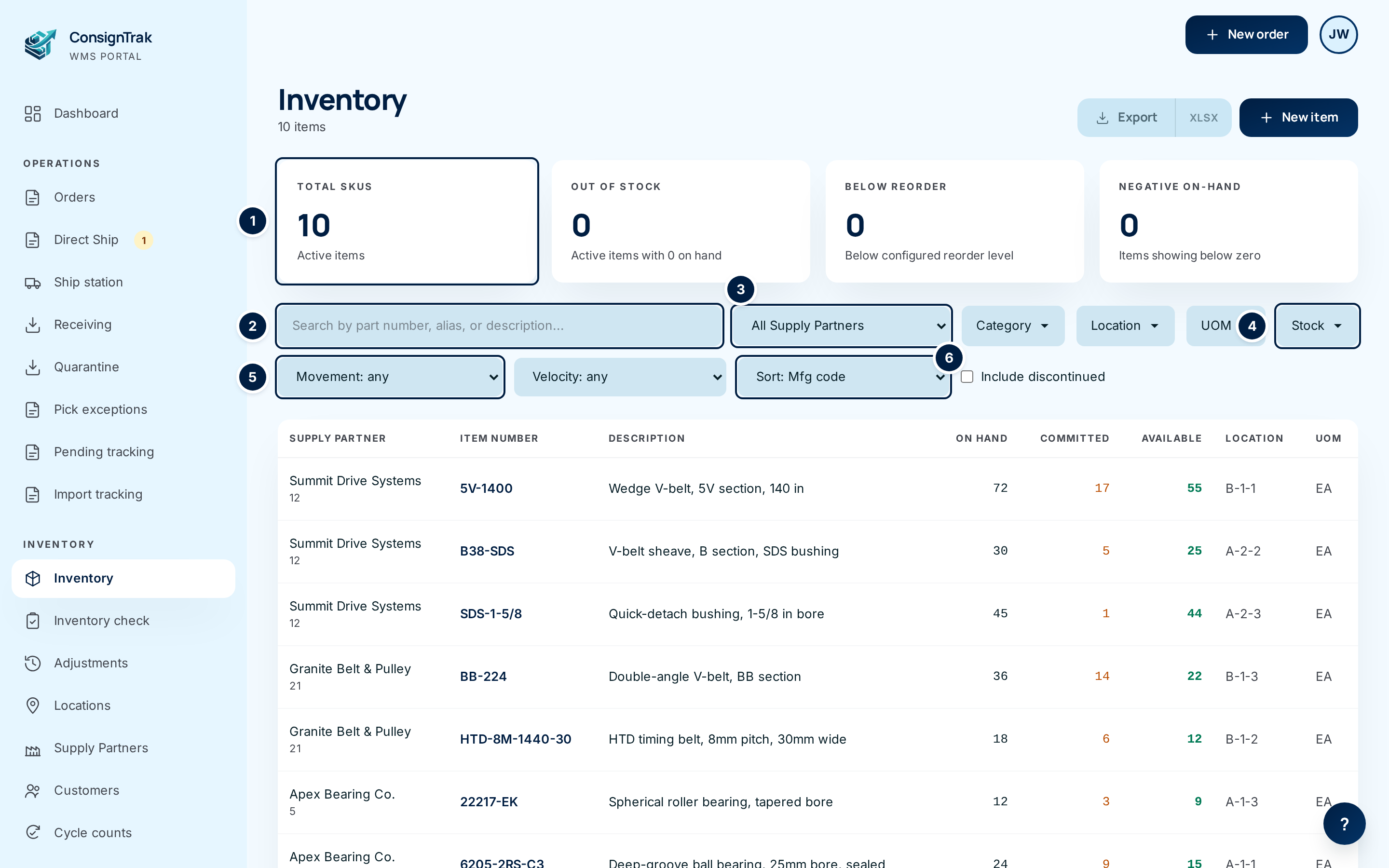
Check the headline cards ①. They count active items, items with nothing on hand, items below their reorder level, and items showing less than zero. Click a card to filter the list to just those items.
-
Type in the search box ②. Type the start of a part number, the start of another number the item is known by (an alias), or any words from the description. The list updates as you type. Dashes, spaces and capitals don't matter in part numbers.
-
Pick a supply partner ③ to see only that partner's items. The cards above the list recount for that partner.
-
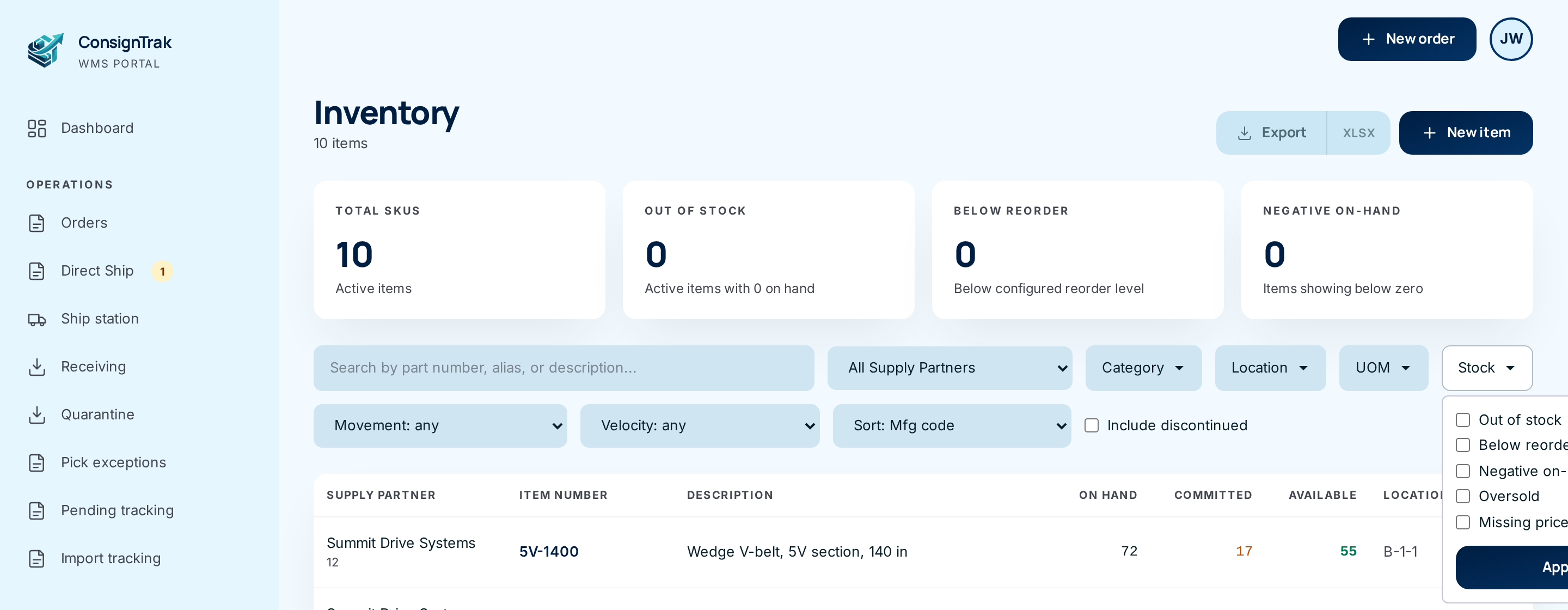
Open a filter such as Stock ④, tick one or more boxes and click Apply. Ticking two boxes shows items that match either one.
-
Narrow by activity ⑤ with Movement (items that haven't moved in a while) or Velocity (how fast an item ships), and choose an order with Sort ⑥.
-
Read the Active line. Every filter you've set appears as a chip under the filter row. Click the ✕ on a chip to drop that one filter, or Clear all to drop every filter. Clear all keeps what's in the search box.

-
Click a row to open the item. See Item detail.
Filters are part of the page address. Bookmark the page once it's filtered the way you like, and the bookmark reopens it the same way on any computer or phone.
Pick an item in a search box
Order lines, stock adjustments, discontinuing an item and receiving all use the same item search box. It works in two steps.
-
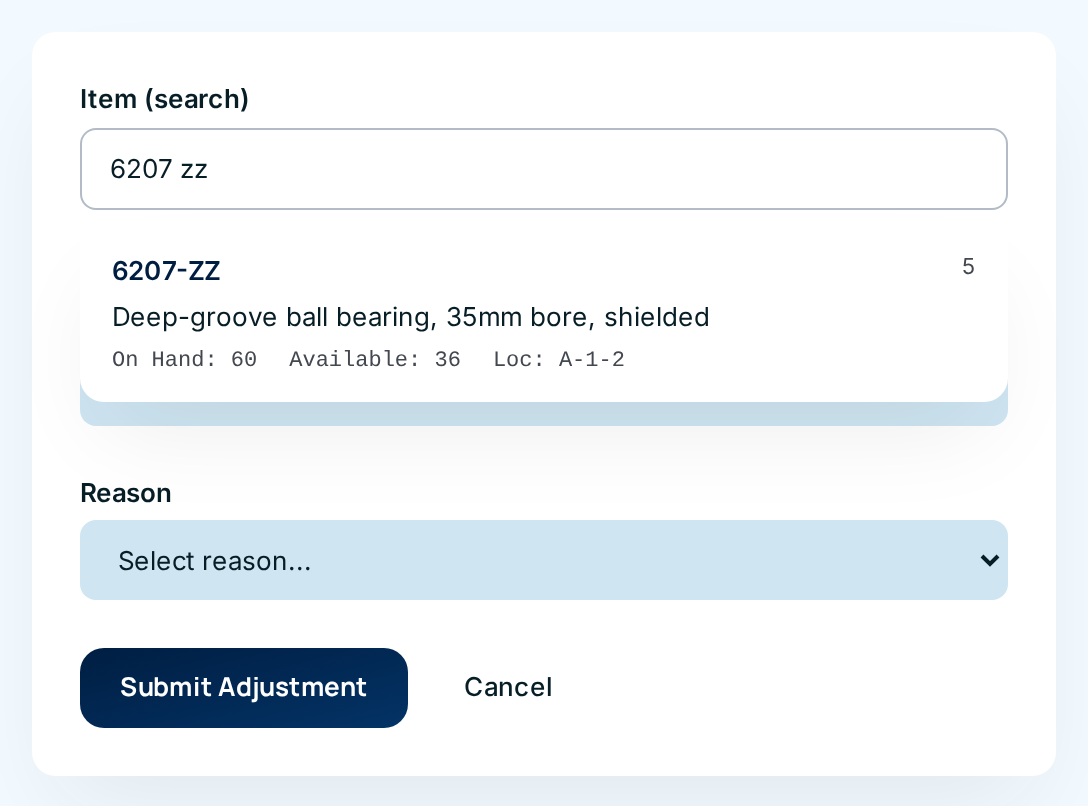
Type the part number in the box. After a short pause a list of matches drops down. Each match shows the part number, the manufacturer code on the right, the description, and the On Hand, Available and Loc (location) figures, so you can check it without opening it.
-
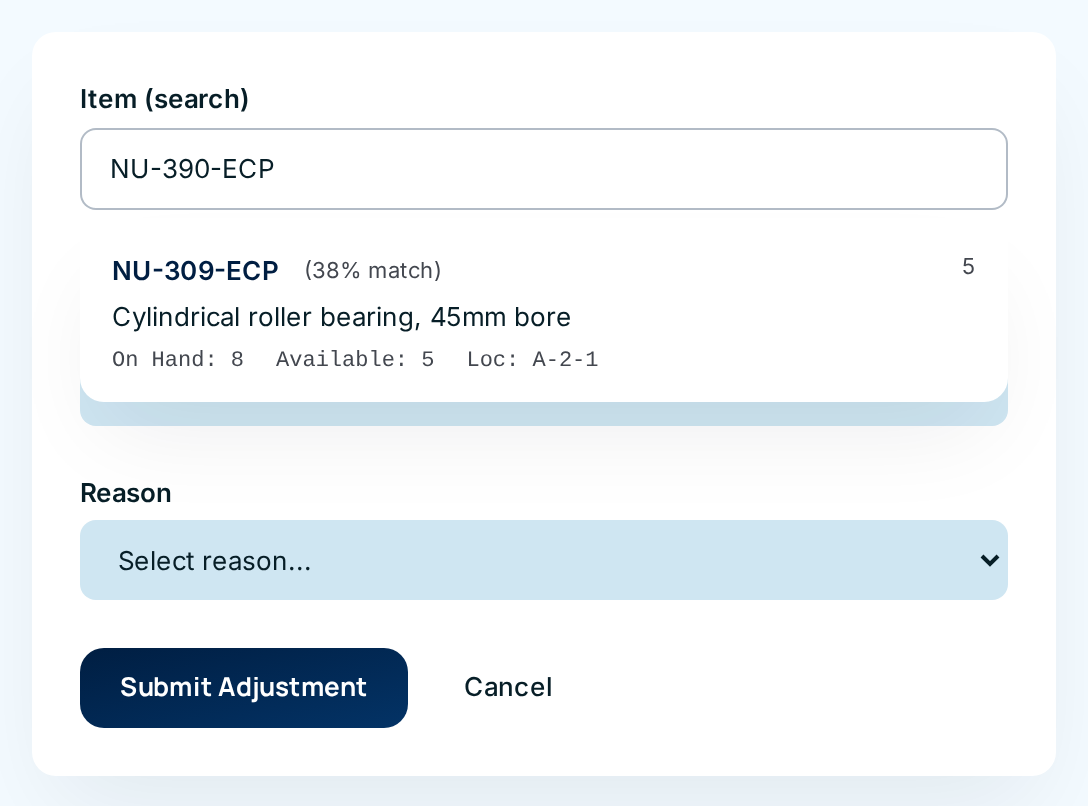
Look for a percentage. If what you typed matches a part number or alias exactly (ignoring dashes, spaces and capitals), or is the start of one, the match has no percentage. If nothing matches that way, ConsignTrak offers close matches with a percentage beside each one.
-
Click the match you want. Nothing is chosen until you click. Use the arrow keys and Enter if you prefer the keyboard; Esc closes the list.
A close match can be a different part: a C3 bearing is not a C4. Check the manufacturer code and the description before you click. If none is clearly right, check the number with the supply partner. See How items are identified.
The search box only offers active items. On an order, it only offers items for that order's supply partner.
On a phone
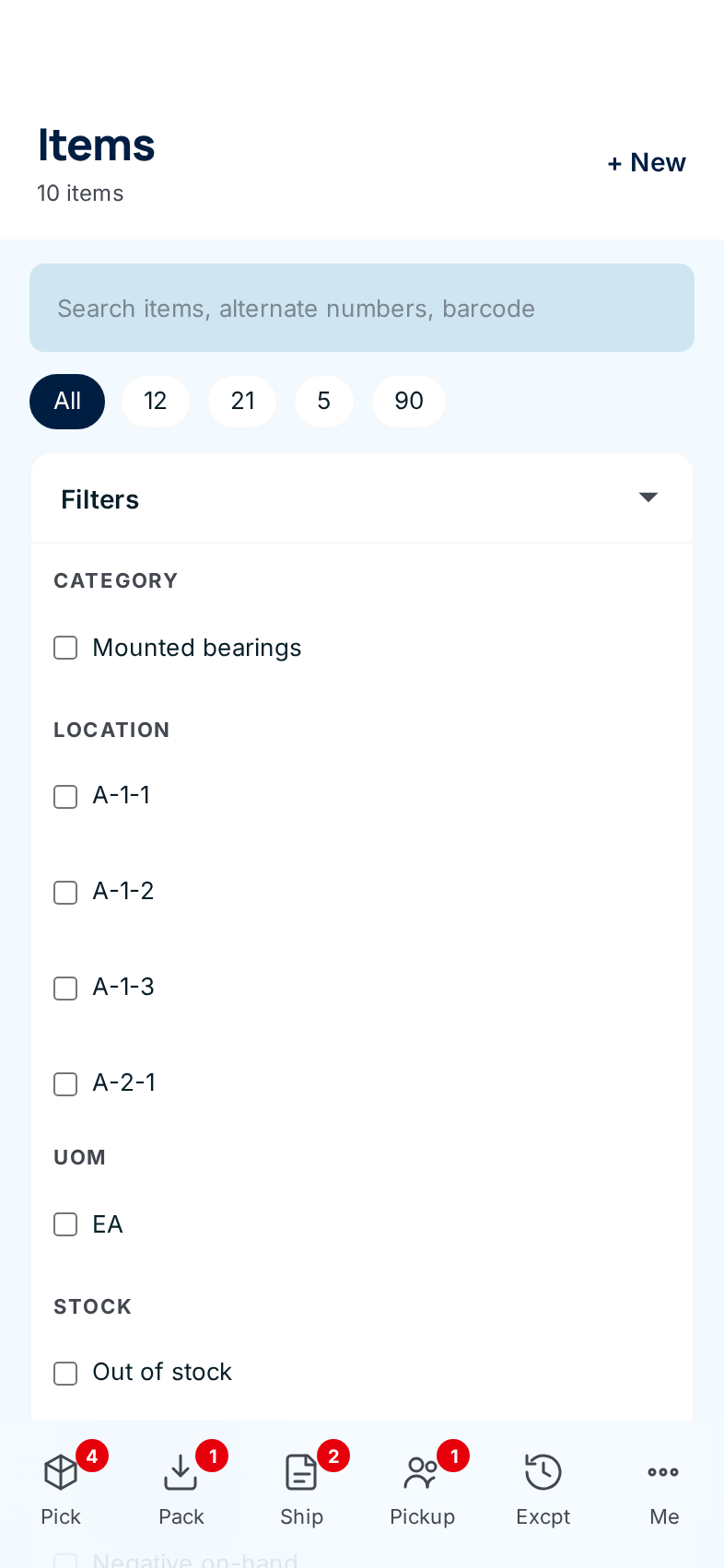
The phone list has the same search and filters. Tap a manufacturer code in the row of buttons under the search box to switch supply partner, or All for everyone. Tap Filters to open the same checkboxes and menus, then Apply filters.
Every field and option
The Inventory list (desktop)
| Field or control | What it means | Required | Default | What changes when you set it |
|---|---|---|---|---|
| Inventory (title) and N items | The page, and how many items match what you've set. The supply partner's name shows first when you've picked one. | — | — | Read-only. |
| Export / XLSX | Download the list as a spreadsheet. See Exports. | — | — | Downloads a file; changes nothing. |
| New item | Opens the form to add an item. See Creating and editing an item. | — | — | Opens the form. |
| Total SKUs card | Count of active items. | — | — | Click to list active items only. |
| Out of stock card | Active items with zero on hand. Turns amber when above zero. | — | — | Click to filter to them. |
| Below reorder card | Items whose on-hand is under the reorder level set for them. Items with no reorder level are never counted. Turns amber when above zero. | — | — | Click to filter to them. |
| Negative on-hand card | Items showing less than zero on hand. Turns red when above zero. | — | — | Click to filter to them. |
| Search box (Search by part number, alias, or description…) | Finds items whose part number or any alias starts with what you typed (ignoring dashes, spaces and capitals), or whose description contains it anywhere. | No | Empty | Narrows the list as you type. |
| All Supply Partners menu | Shows one supply partner's items, listed as manufacturer code and name. | No | All Supply Partners | Narrows the list and recounts the cards. |
| Category | Tick one or more categories, then Apply. Only appears when at least one item has a category. | No | None ticked | Shows items in any ticked category. |
| Location | Tick one or more locations, then Apply. This is the item's main location, the one on the item's Details card. | No | None ticked | Shows items in any ticked location. |
| UOM | Tick one or more selling units of measure, then Apply. | No | None ticked | Shows items sold in any ticked unit. |
| Stock | Tick any of: Out of stock (zero on hand), Below reorder, Negative on-hand (less than zero on hand), Oversold (more committed than on hand, so Available is below zero), Missing price (the supply partner has no current price for it in the portal). Then Apply. | No | None ticked | Shows items in any ticked group. |
| Apply (inside Category, Location, UOM, Stock) | Applies the boxes you ticked in that filter. | — | — | Reloads the list. |
| Movement | Movement: any, or No movement in 30d / 90d / 180d / 365d (dead): items with no stock movement of any kind in that many days, or never. | No | Movement: any | Narrows the list. |
| Velocity | How often the item shipped over the last year, compared with other items. Fast is the top quarter, Slow the bottom quarter of items that shipped at all, Dead means no shipments. | No | Velocity: any | Narrows the list. |
| Sort | Mfg code (manufacturer code, then part number), Item number, Description, On hand (high → low), On hand (low → high), Available (low → high), Recent movement. | No | Sort: Mfg code | Reorders the list. |
| Include discontinued | Also shows items that have been discontinued. | No | Off | Adds discontinued items back into the list. |
| Active: chips with ✕ | One chip for every filter, sort or partner you've set. | — | — | Clicking ✕ removes just that one. |
| Clear all | Removes every filter and the sort. | — | — | Keeps the search text. |
| Supply Partner column | The item's supply partner, with the manufacturer code underneath. | — | — | Read-only. |
| Item Number | The part number as the supply partner writes it. | — | — | Read-only. |
| Description | The item's main description. | — | — | Read-only. |
| On Hand, Committed, Available | See the three numbers. Committed shows only on wide screens. | — | — | Read-only. |
| Location, UOM | The item's main location and selling unit. Shown only on wide screens. | — | — | Read-only. |
| Page numbers | Move between pages of results. Your filters stay set. | — | Page 1 | Shows the next page. |
| Add an item (when nothing matches) | Shortcut to the New item form. | — | — | Opens the form. |
Item search box (on other screens)
| Field or control | What it means | Required | Default | What changes when you set it |
|---|---|---|---|---|
| A match row | Part number (or the alias that matched), manufacturer code, description, On Hand, Available, Loc. | — | — | Click to choose that item. |
| (NN% match) | Shown only on close matches. Higher means closer. | — | — | Read-only. |
| No items found for "…" | Nothing matched, even loosely. | — | — | Check the number and try again. |
The phone Items list
| Field or control | What it means | Required | Default | What changes when you set it |
|---|---|---|---|---|
| Items and N items | The page and how many items match. | — | — | Read-only. |
| + New | Opens the new item form. Only Office and Administrator users can use it. | — | — | Opens the form. |
| Search box (Search items, alternate numbers, barcode) | Same search as the desktop list. You can scan a barcode into it. | No | Empty | Narrows the list as you type. |
| All and manufacturer-code buttons | One-tap switch between supply partners. | No | All | Narrows the list. |
| Filters | Opens the same Category, Location, UOM, Stock, Movement, Velocity and Sort choices as the desktop. The number beside it counts what's set. | No | Closed | Nothing until you apply. |
| Apply filters | Applies everything in the panel. | — | — | Reloads the list. |
| Item card | Part number, available quantity and unit, description, location. | — | — | Tap to open the item. |
| Previous / Next | Move between pages. | — | — | Shows the other page. |
The phone list has no Include discontinued switch. Discontinued items are always hidden there.
What happens next
Nothing changes when you search or filter; these screens only read. When you click a match in an item search box, that item fills the form you're working on, such as the order line or the adjustment.
Common problems
"No items found." — Nothing matches all of your filters together. Look at the Active: chips and remove one at a time, or click Clear all. If you're looking for a discontinued item, tick Include discontinued.
The item is in the list but not in the search box on an order. — The search box only offers active items for the order's supply partner. The item may be discontinued, or it may belong to a different supply partner.
"No items found for "…"" in a search box. — Nothing is close enough. Check the number against the paperwork, try just the first few characters, or look it up in the list, which also searches descriptions.
The Category filter isn't there. — It only appears once at least one item has a category.