Creating and editing an item
What this is
Every part the warehouse holds needs an item record before it can be received, ordered or counted. You create one when a supply partner adds a part, or when something arrives that isn't in ConsignTrak yet. You edit it when the description, unit, weight or usual bin changes. When a supply partner stops making a part, you discontinue it, and you can name the part that replaces it.
Before you start
- Role: Office or Administrator.
- Settings: none.
- You'll need: the supply partner set up in ConsignTrak (see Supply partners), and the part number written the way the supply partner writes it.
To add or update a whole catalog, an Administrator uses a spreadsheet bulk import instead of this form. The bulk import is also the only place to set some fields; see the table below.
Step by step
Create an item
-
Open Inventory in the sidebar and click New item at the top right.
-
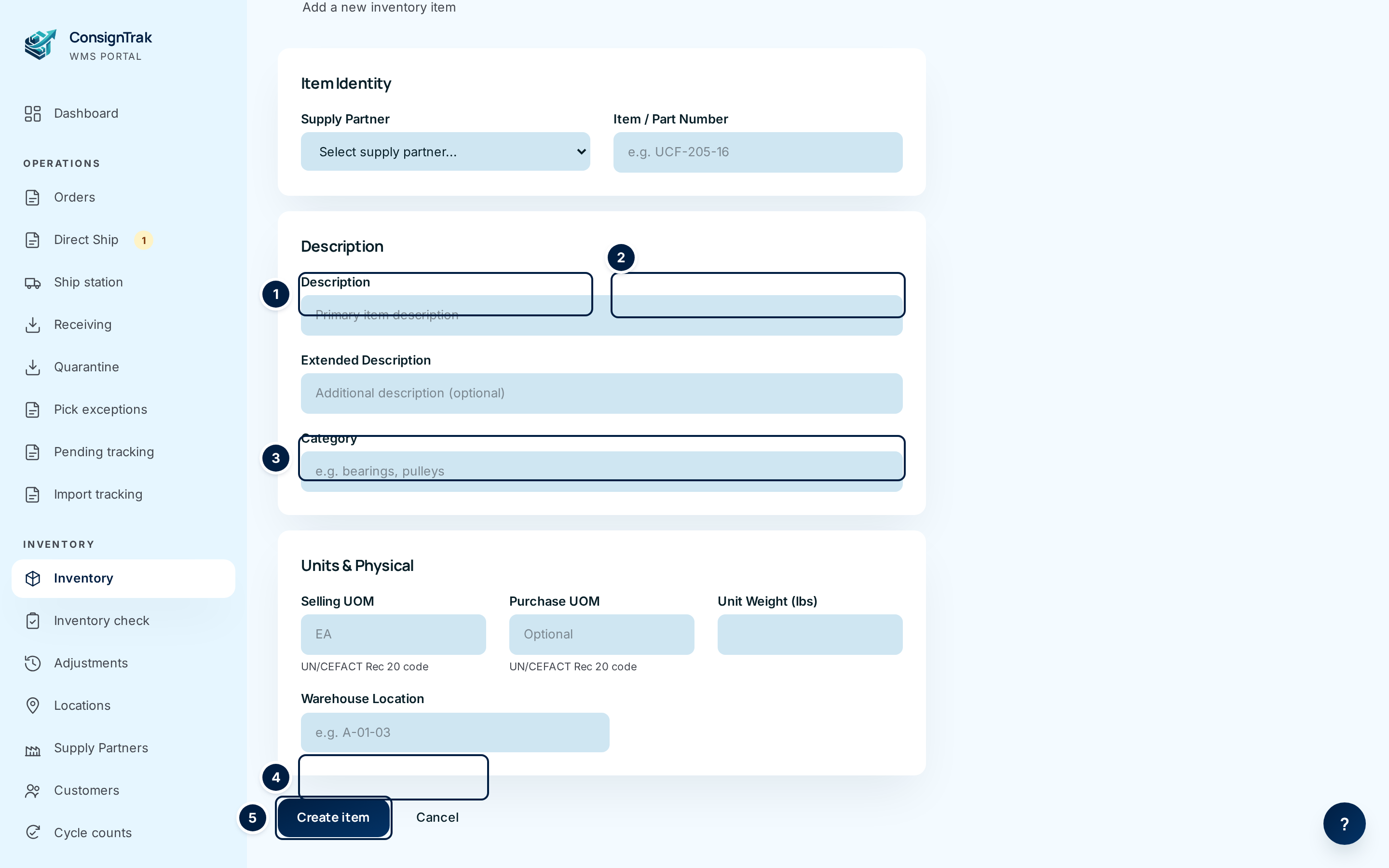
Choose the supply partner ① who owns the part.
-
Type the part number ② exactly as the supply partner prints it, with their dashes and spaces. ConsignTrak ignores those when matching, but shows the number the way you type it on every list and release.
-
Type a description ③. It shows on every list and on releases. Add an Extended Description and a Category if they help.
-
Enter the selling unit ④. Start typing and choose from the list, for example EA for each. Add a Purchase UOM only if the supply partner ships in a different unit. Add the Unit Weight and the usual Warehouse Location if you know them.
-
Click Create item ⑤. The item page opens. It starts with zero on hand: stock arrives through receiving, not here.
If you type a unit code that isn't in the standard list, ConsignTrak still saves the item but shows Saved, but UOM code(s) not recognized in UN/CEFACT Rec 20: …. Check Units of measure and fix it with Edit.
Edit an item
-
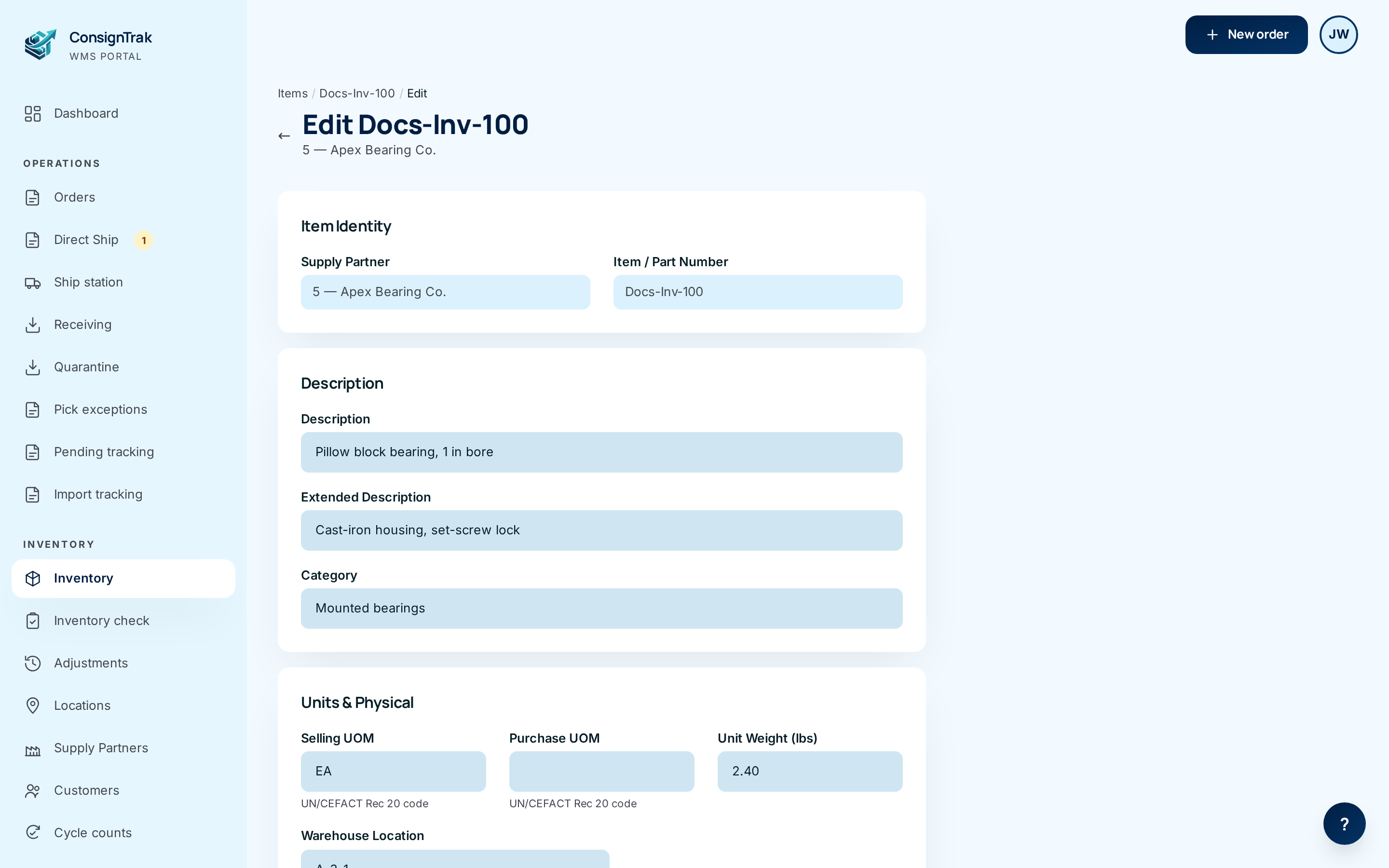
Open the item and click Edit.
-
Change what you need. The supply partner and the part number are fixed and shown greyed out. To use a different number, create a new item.
-
Click Save changes, or Cancel to leave without saving.
If you change Selling UOM from boxes to each, the on-hand number stays the same number. It doesn't multiply. Correct the quantity with an adjustment at the same time.
The phone edit screen only shows description, selling unit, weight and location. Saving it today clears the item's Category, Extended Description and Purchase UOM. Make item edits on a desktop until this is fixed.
Discontinue or reactivate an item
-
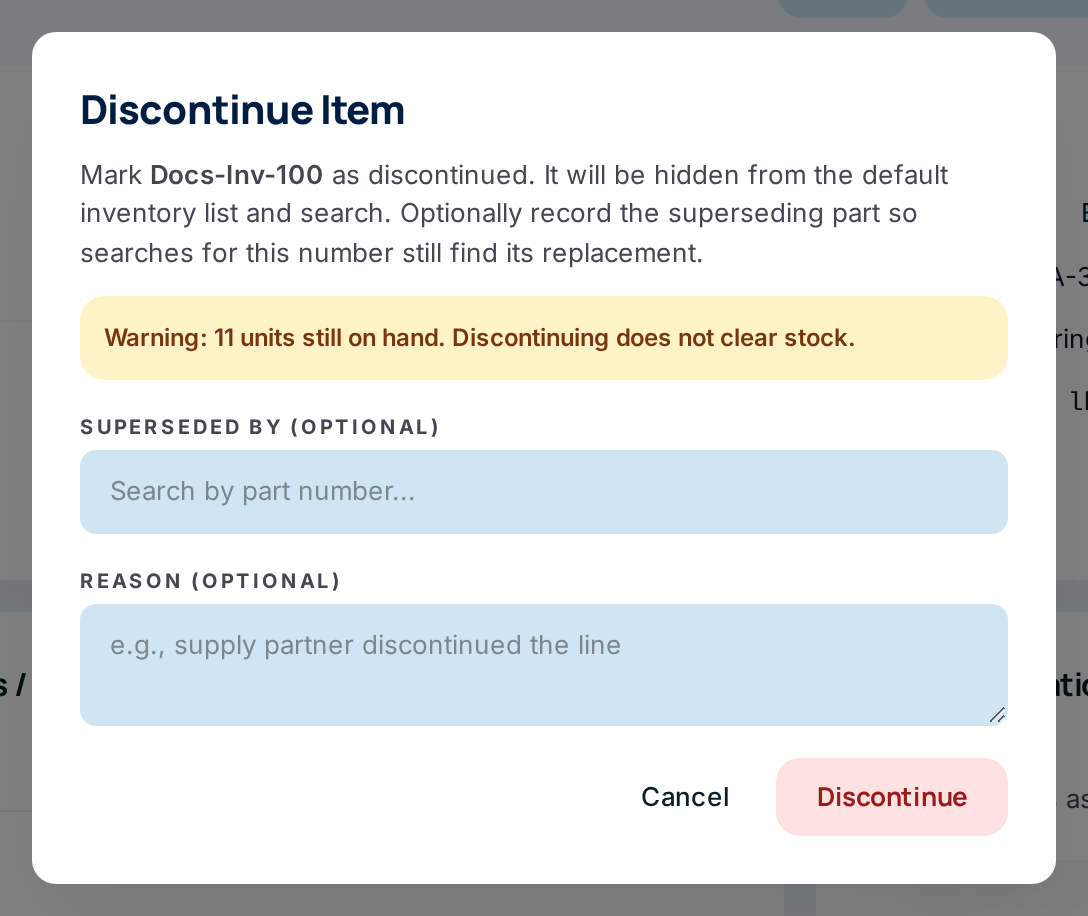
Open the item and click Discontinue. A panel opens over the page.
-
Name the replacement (optional). Type in Superseded by and click the replacement part in the list. It must belong to the same supply partner and be active. Searches for the old number will then find the new one.
-
Add a reason (optional). It's kept in the item's Status History.
-
Click Discontinue. The button turns red and asks you to click again. Click it a second time to confirm, or click anywhere else to back out.
To bring an item back, open it (tick Include discontinued on the list to find it), click Reactivate, add a reason if you like, and click Reactivate in the panel. The replacement link is kept.
If units are still on hand, the panel warns you: Warning: N units still on hand. Discontinuing does not clear stock. The stock still belongs to the supply partner. Ship it, return it, or adjust it out before or after discontinuing, as the supply partner asks.
Every field and option
New Item and Edit forms (desktop)
| Field or control | What it means | Required | Default | What changes when you set it |
|---|---|---|---|---|
| Supply Partner | Who owns the part. Listed as manufacturer code and name. Fixed after creation. | Yes | Select supply partner… | Puts the item in that partner's catalog. |
| Item / Part Number | The supply partner's number, as they write it. Fixed after creation. | Yes | — | Becomes the item's main number. |
| Description | The main description on lists and releases. | Yes | — | Shown everywhere the item appears. |
| Extended Description | A second line for size, finish or notes. | No | Empty | Shown under the description on the item page. |
| Category | A grouping label, such as "bearings". | No | Empty | Adds it to the Category filter on the list. |
| Selling UOM | The unit the item is counted and sold in (a standard code such as EA). | Yes on New | EA if left empty on Edit | Used on orders, releases and counts. |
| Purchase UOM | The unit the supply partner ships in, if different. | No | Empty | For information. |
| Unit Weight (lbs) | Weight of one unit. | No | Empty | Shown on the item page. |
| Warehouse Location | The usual bin, such as A-01-03. | No | Empty | Shown as Location on lists and the item page, and used by the Location filter. |
| Create item / Save changes | Saves and opens the item page. | — | — | Creates or updates the item. |
| Cancel | Leaves without saving. | — | — | Nothing is saved. |
| Items / New or Items / part number / Edit (breadcrumb) and ← | Back to the list or the item. | — | — | Leaves the form. |
Fields you can't set on these forms
Some item fields exist but aren't on the New or Edit form today.
| Field | Where it shows | How it gets set today |
|---|---|---|
| Aliases (other part numbers) | Alternate Numbers / Cross-References on the item page | An Administrator's bulk import, or naming a replacement when you discontinue. |
| Reorder Level | Item page; Below reorder filter | The supply partner in their portal, a bulk import, or the API. |
| Serial tracking, Backorder control | Only in the mass-update spreadsheet | A bulk import. ConsignTrak stores them but doesn't act on them yet. |
| Prices and costs | Pricing card, when prices are on | Brought across with the supply partner's data. Not editable. |
Discontinue and Reactivate panels
| Field or control | What it means | Required | Default | What changes when you set it |
|---|---|---|---|---|
| Superseded by (optional) | Search for the replacement part and click it. Same supply partner, active items only. | No | Empty | The old number becomes an alias of the replacement, and the old item shows Superseded by. |
| Reason (optional) | A note kept in Status History. | No | Empty | Saved with the change. |
| Discontinue | Asks you to click again, then discontinues. | — | — | Item becomes Discontinued and is hidden from the default list and search boxes. |
| Reactivate | Brings the item back. | — | — | Item becomes Active again. |
| Cancel | Closes the panel. | — | — | Nothing changes. |
Phone forms
| Field or control | What it means |
|---|---|
| New item: Supply Partner, Item number, Description, UOM, Unit weight (lbs), Default location | The same fields as the desktop form, fewer of them. |
| Edit item: Description, Selling UOM, Unit weight, Location | See the warning above before using it. |
| Create item / Save changes, Cancel | Save, or leave without saving. |
What happens next
- Create: the item page opens with zero on hand and the status Active. The part number is added as the item's main alias so searches find it. It appears in the list, the search boxes, and the supply partner's portal.
- Edit: the new details show at once everywhere. Orders and history keep the part number as it was when the work was done.
- Discontinue: the item drops out of the default list and the search boxes, and a row is added to Status History. Stock is untouched.
- Every create, edit, discontinue and reactivate is recorded in the audit trail with your name.
Common problems
"Supply partner, item number, and description are required" — Fill in all three and try again. What you typed is kept.
"An item with this part number already exists for this manufacturer" — That supply partner already has this part, perhaps written with different dashes or spaces. Search the list for it instead. The same number can exist under a different supply partner.
"Description is required" — On Edit, the description can't be blank.
"Superseding item must belong to the same manufacturer." — The replacement must be from the same supply partner.
"Superseding item must be active.", "An item cannot supersede itself.", "Superseding item not found." — Pick a different, active replacement.
"Another item already claims this part number as superseded." — A different item already names this old number as one it replaced. Check which item that is before going on.
"Item is already discontinued." — Someone else discontinued it first. Reload the page.
"Forbidden" on New item, Edit or Discontinue. — Only Office and Administrator users can change items.