Adjusting stock
What this is
An adjustment adds units to or removes units from an item's on-hand quantity outside the normal flow. You'd use one for damaged goods, stock that turns up, a sample handed out, or a keying mistake. Each adjustment records who made it, when, and why, and it can't be undone. That record matters because the stock belongs to the supply partner: an adjustment changes what they're told they own.
Before you start
- Role: Office or Administrator. Warehouse users can't adjust stock.
- Settings: none.
- You'll need: the item, the number of units to add or remove, and the reason.
Adjust, count, or receive?
Pick the tool that matches what actually happened. The right tool leaves the right paper trail.
| What happened | Use | Why |
|---|---|---|
| New stock arrived from the supply partner | Receiving | Receiving ties the stock to the delivery, its paperwork and its quality check. |
| The shelf count doesn't match, found on a scheduled count | Cycle count | The count and its approval become the record of the correction. |
| A picker found less than expected and the order shipped short | Tick Also correct on-hand stock when you resolve the pick exception | The correction is linked to the exception. |
| Goods failed a quality check | The quarantine process | Quarantined stock is held apart, not written off. |
| Damaged, found, sampled, or a keying mistake, with nothing else to record it | An adjustment (this page) | Nothing else fits. |
There's no undo. If you get one wrong, record a second adjustment with the opposite sign and the reason Data Correction.
Step by step
-
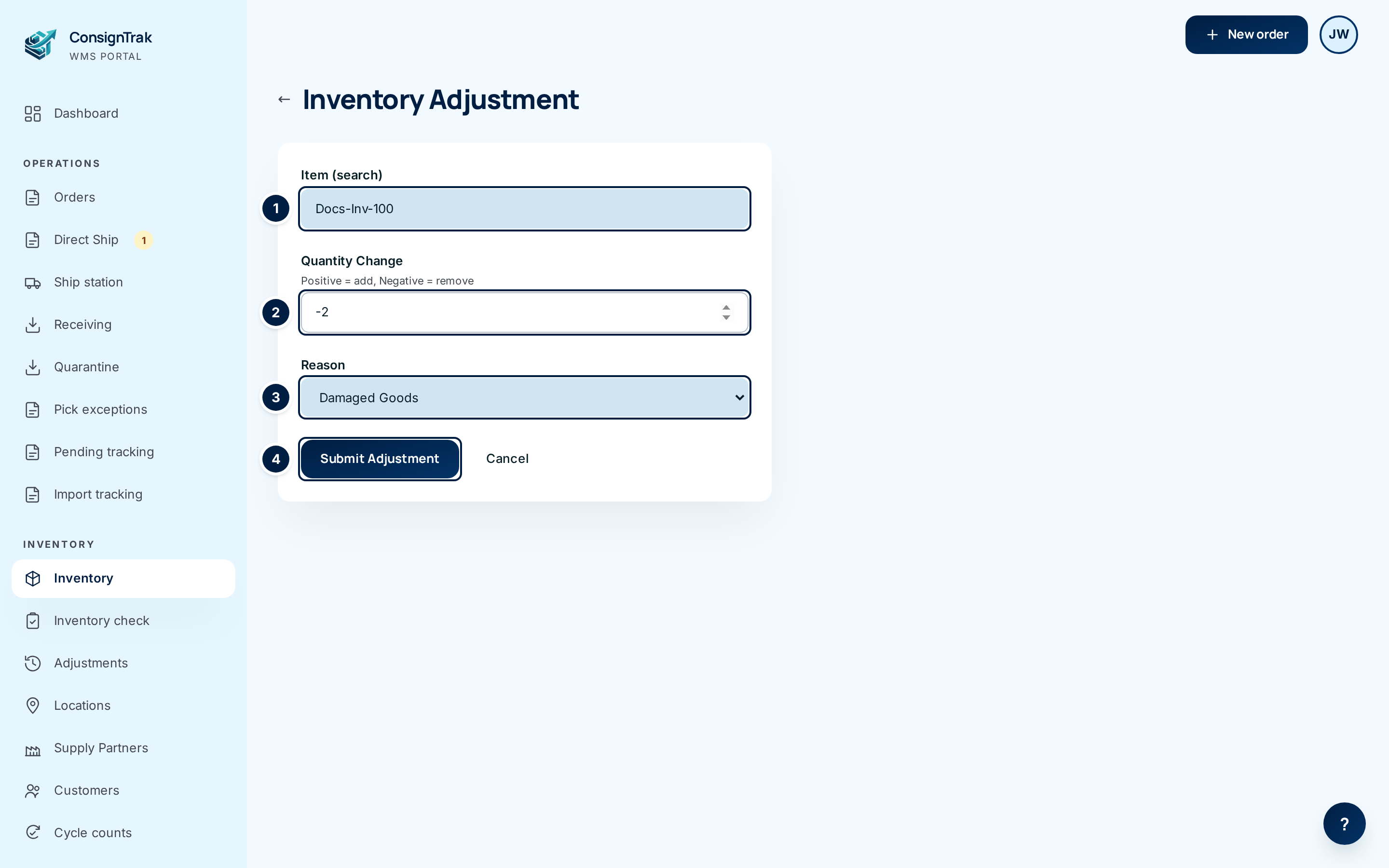
Open the item and click Adjust stock. The form opens with the item already chosen. (You can also open an item search on the form directly and pick the item there. See Finding an item.)
-
Check the item ①. It must be the exact part. If you searched, make sure you clicked a match, not just typed a number.
-
Enter the quantity change ②. A plain number adds units; a minus sign removes them. To take away two damaged units, type -2.
-
Choose the reason ③. Pick the most specific one. It's the only explanation the record keeps.
-
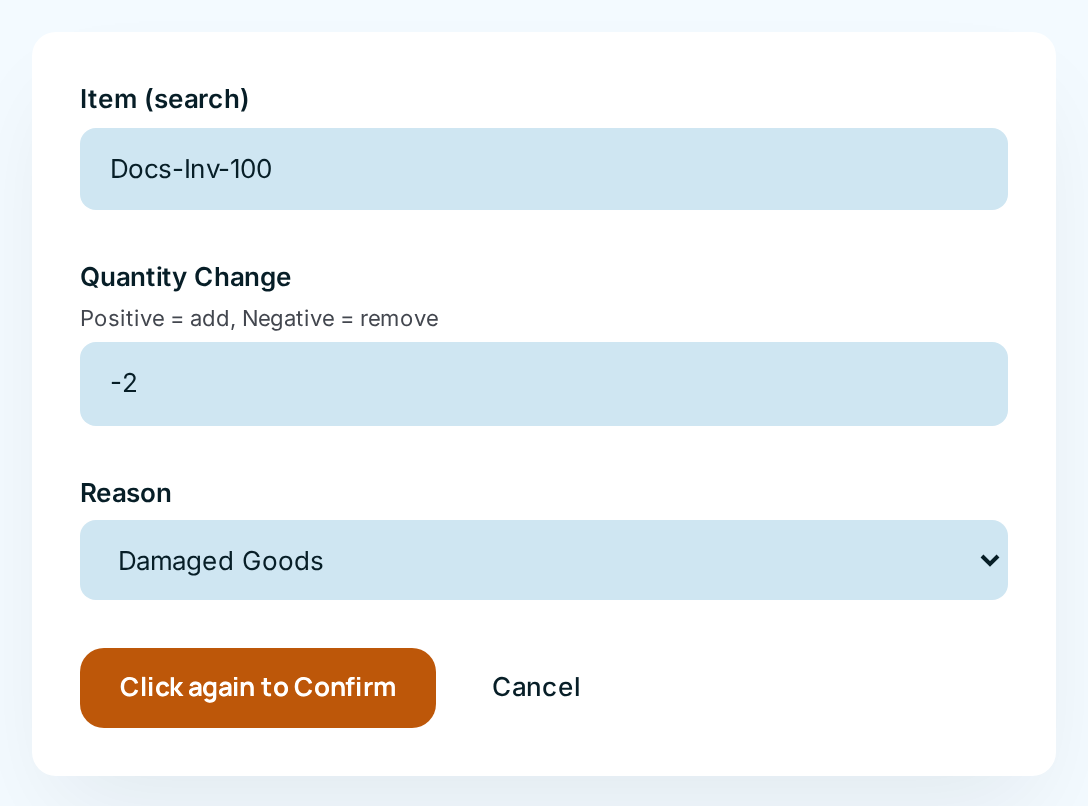
Click Submit Adjustment ④. The button turns amber and changes to Click again to Confirm. Click it a second time to record the adjustment. Click anywhere else, or wait a few seconds, to back out.
-
Check the result. The item page opens with the new On Hand. The adjustment is the newest row in Recent History, with the reason code in the Reference column.

On a phone
Office and Administrator users can adjust from the phone item page with Adjust. The form has the same Item, Quantity and Reason and the same click-twice Submit Adjustment.
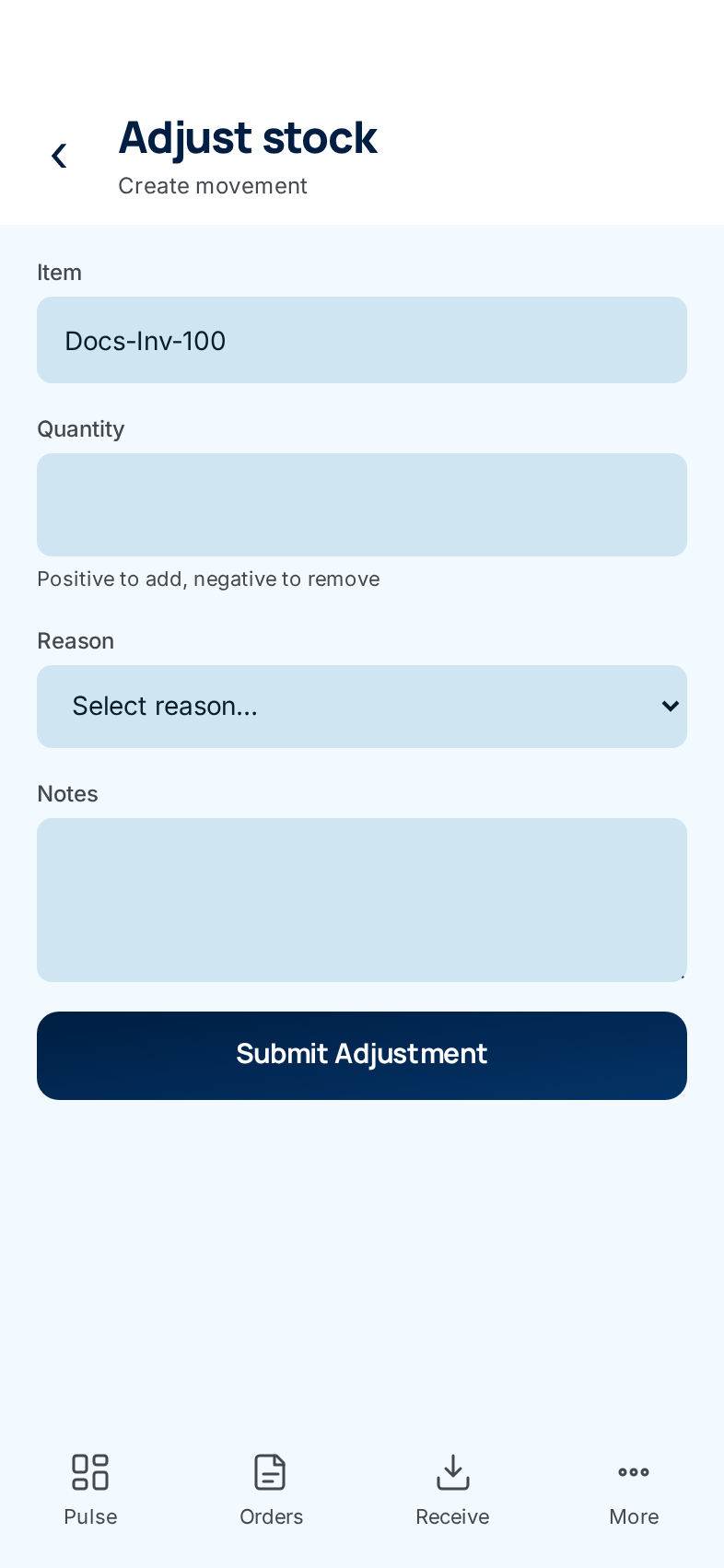
The phone form also has a Notes box, but ConsignTrak doesn't save what you type there today. Choose the reason carefully instead.
Every field and option
| Field or control | What it means | Required | Default | What changes when you set it |
|---|---|---|---|---|
| Item (search) (phone: Item) | The item to adjust. Filled in when you come from the item page; otherwise type and click a match. | Yes | The item you came from | Chooses the item. |
| Quantity Change (phone: Quantity) | Whole units. Positive adds, negative removes. Can't be zero. | Yes | Empty | The size of the change. |
| Reason | Why the stock changed (see the list below). | Yes | Select reason… | Stored with the movement and shown on the Adjustments page. |
| Notes (phone only) | A free-text box. Not saved today. | No | Empty | Nothing. |
| Submit Adjustment | Asks you to click again, then records the change. | — | — | Changes on-hand and records a movement. |
| Cancel (desktop) and ← | Back to the Inventory list without saving. | — | — | Nothing is saved. |
Reasons
| Reason | Use it for |
|---|---|
| Cycle Count Variance | A count difference you're correcting by hand, outside the cycle count screens. |
| Damaged Goods | Units that can't be sold and are being written off. |
| Found Stock | Units that turned up during a recount or a move. |
| Data Correction | Fixing a keying mistake, or reversing a wrong adjustment. |
| Sample / Demo | Units handed out as samples or used in a demonstration. |
| Other | Only when nothing above fits. |
A seventh reason, Pick Discrepancy, appears on the Adjustments page. You never choose it; ConsignTrak uses it when a correction is made while resolving a pick exception.
What happens next
- On Hand changes by the amount at once, and so does Available.
- ConsignTrak records a movement with the item, the quantity, the reason, your name and the time. It's sealed into the audit trail and can't be edited.
- If the item is in bins, the change is applied to its usable bin holding the most stock, so the bin totals still add up to on-hand.
- The adjustment shows in the item's History as an Adjustment and on the Adjustments page as Manual.
- On-hand can go below zero. ConsignTrak allows that so work isn't blocked, and the item then shows on the Negative on-hand card on the Inventory list.
Common problems
"Please select an item" — You typed a part number but didn't click a match. Type again and click the right match in the list.
"Reason is required" — Choose a reason.
"Quantity must be a non-zero number" — Type a whole number other than zero. Use a minus sign to remove units.
"Quantity must be between -100,000,000 and 100,000,000" — The number is too large. Check for extra digits.
"Item not found" — The item you chose no longer exists or you can't see it. Search for it again.
The button didn't do anything. — The first click only arms it. Click Click again to Confirm within a few seconds.
"Forbidden" — Your role can't adjust stock. Ask an Office user or an Administrator.