The triage queue
What this is
Pick exceptions is the office's list of every problem the floor has reported: short picks, mispicks and quality flags. You open one, look at what the picker or packer recorded, and choose how to clear it. Your choice unblocks the order and tells ConsignTrak what to do with it next. Office staff work this queue through the day. It works the same way on a phone.
Before you start
- Role: Office or Administrator to resolve exceptions. Warehouse users can open the queue to see what's been reported, but can't resolve anything.
- Settings: none.
- You'll need: an exception to work. They appear here the moment a picker or packer reports one — see Pick exceptions & quarantine for the three kinds.
Step by step
-
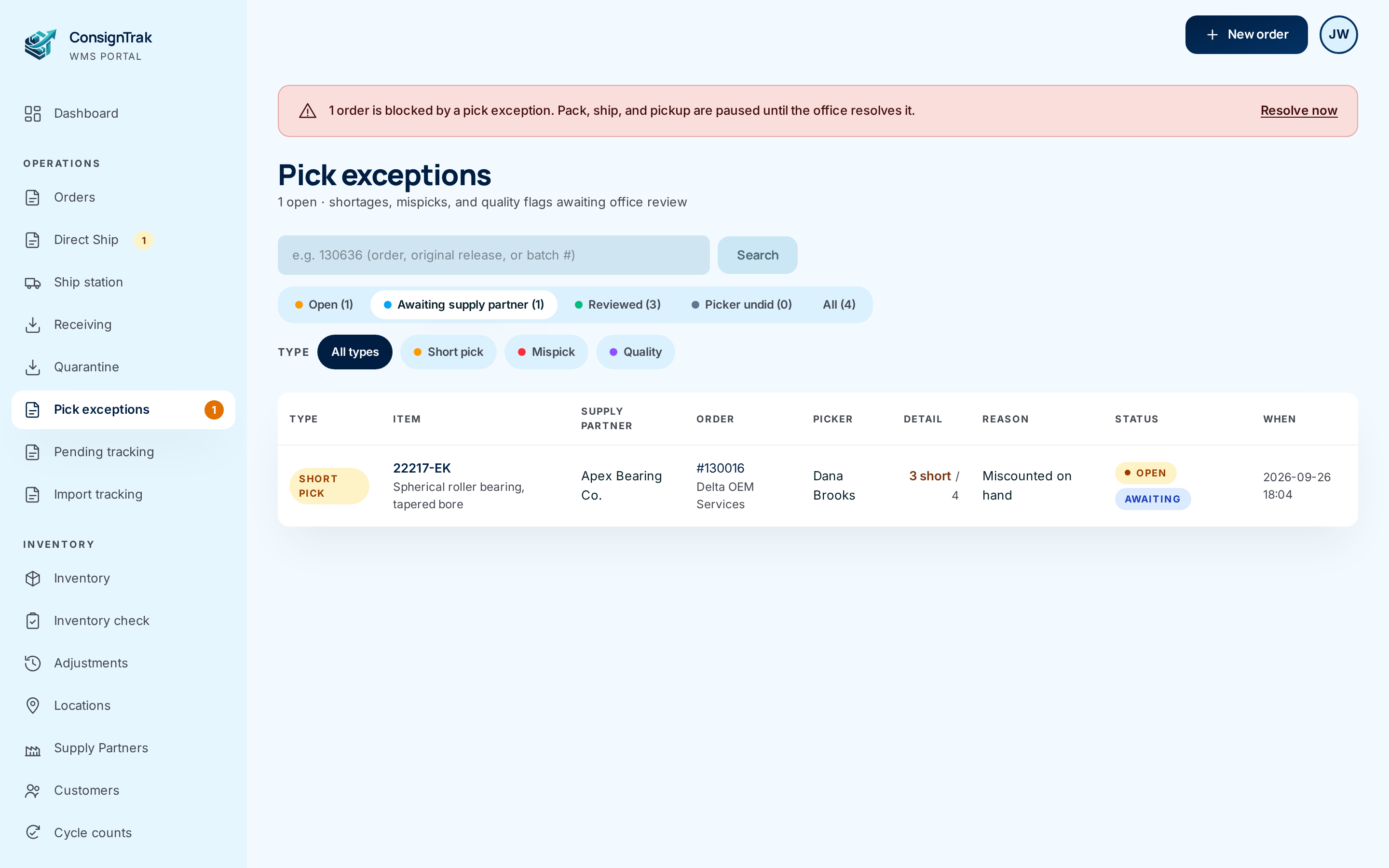
Open Pick exceptions from the Operations section of the sidebar. The orange count beside it is how many are open. If an order is blocked, the red banner at the top of every screen has a Resolve now link that brings you here too.
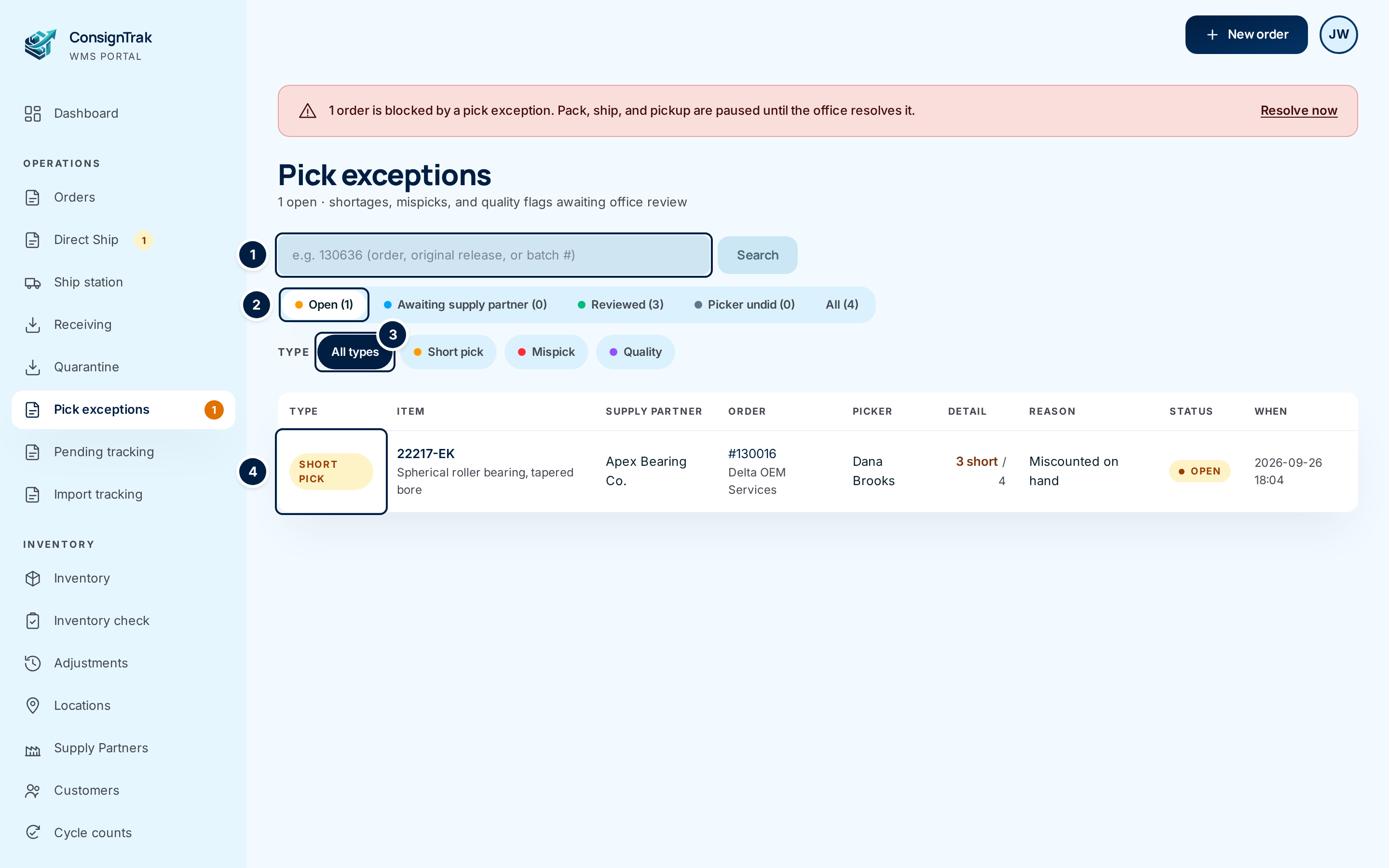
The queue opens on the Open tab ②: everything waiting for a decision. Use the search box ① to find one order, and the Type chips ③ to show only short picks, mispicks or quality flags.
-
Open the exception. Click anywhere on its row ④. The detail page leads with what went wrong. For a short pick that's three numbers:
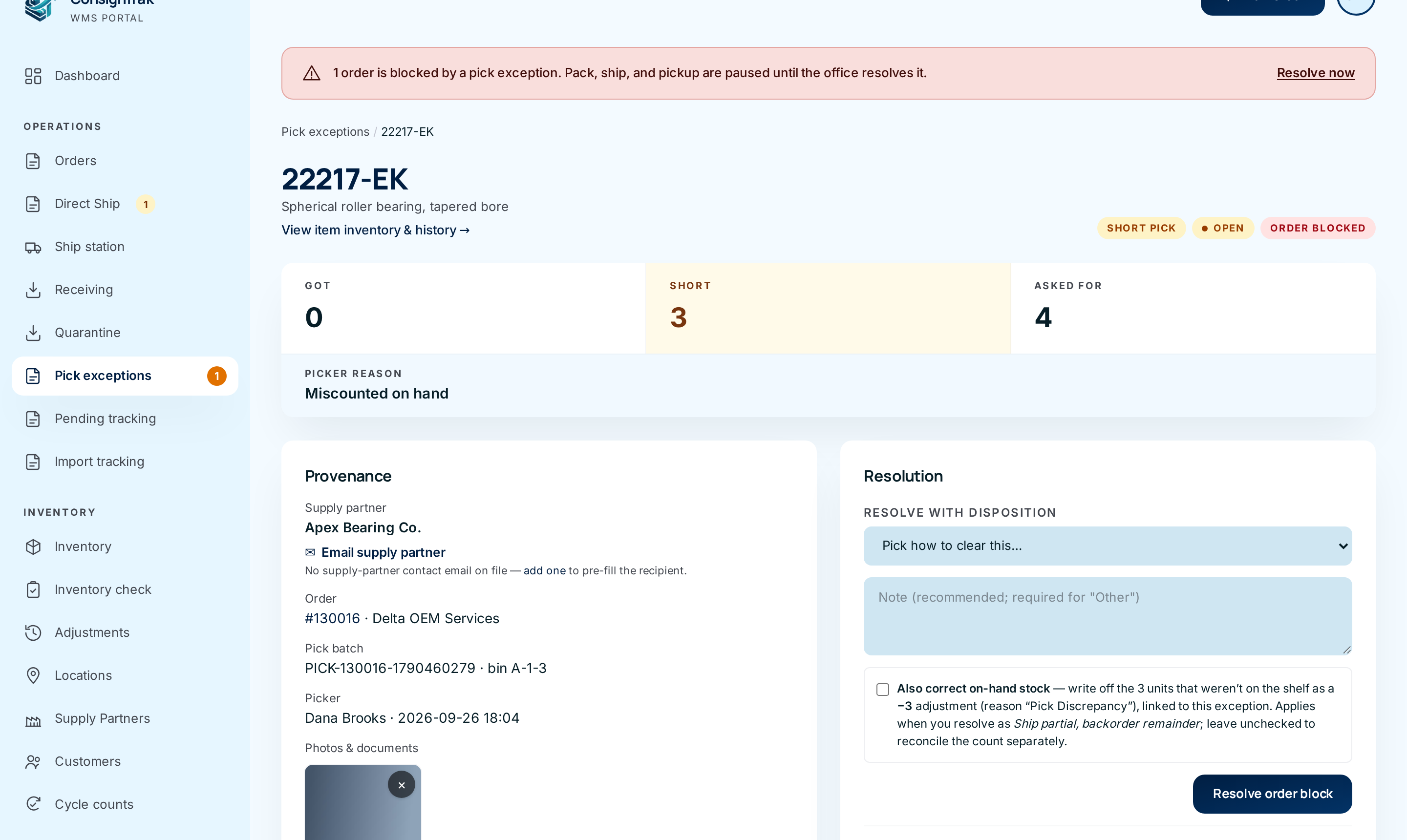
- Short is how many units the picker couldn't find. Asked for is what the order line wanted. Got is how many the picker had picked on that line before reporting the short — it doesn't include the units they found while reporting it, so Asked for minus Short is the true number picked (#1519).
- Picker reason is what they chose on the phone.
- The pills at the top right say what kind of exception it is, its status, and Order blocked while the order is held.
A mispick shows Expected (picked line) beside Actual in carton instead. A quality flag shows the Reason and the packer's note.
-
Check the evidence. The Provenance card says which supply partner, order, pick batch and bin this is, and who reported it when.
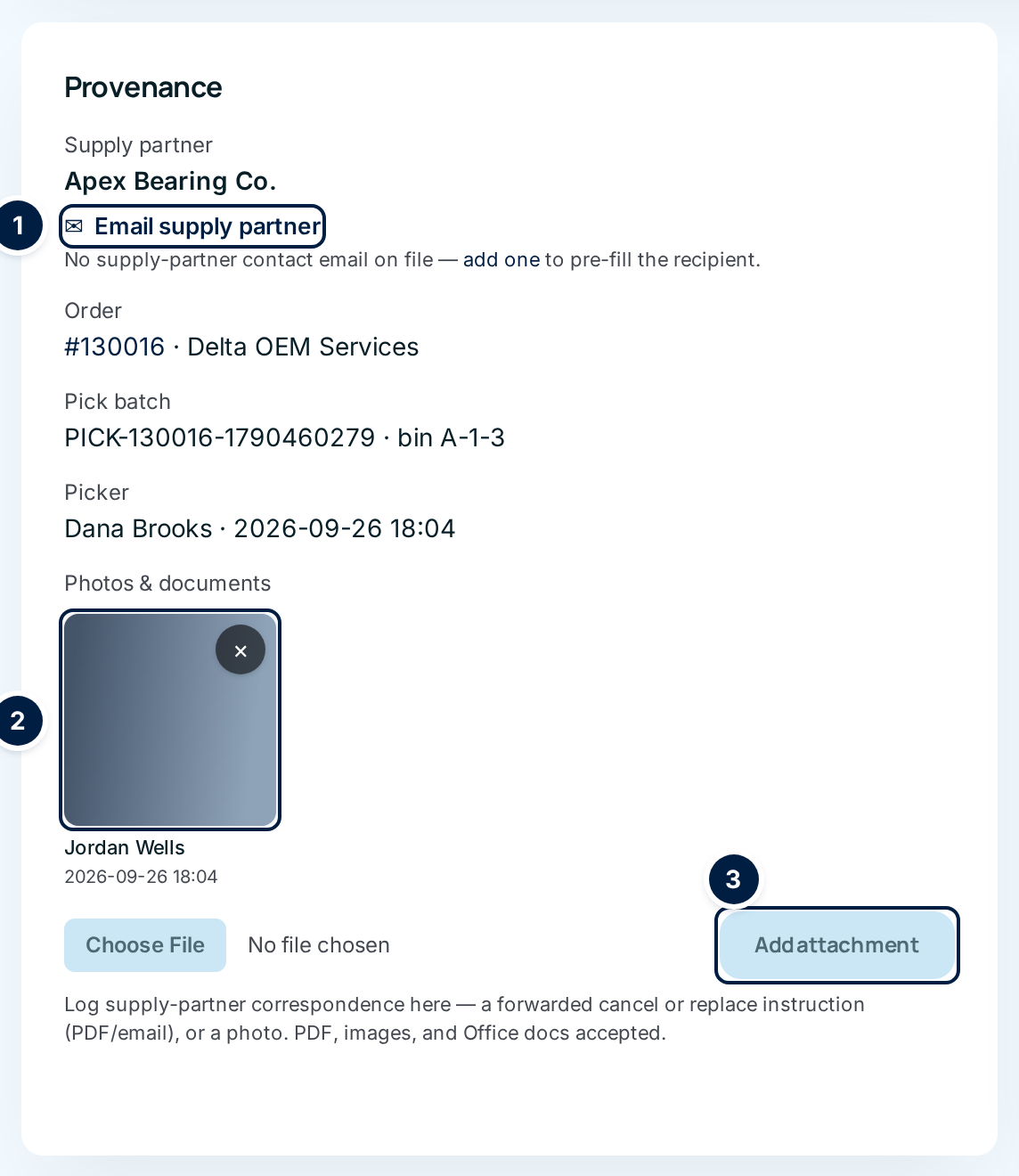
- Photos & documents ② shows anything attached. A quality flag usually arrives with the packer's photo. Click a thumbnail to see it full size; the viewer has Download, and arrows when there's more than one.
- To keep a record of the conversation — a forwarded email from the supply partner saved as a PDF, say — choose a file and click Add attachment ③.
- On a short pick, Email supply partner ① opens your email program with a message already written, telling the supply partner the order can't be filled. It's addressed to the supply partner's contact if one is on file; otherwise follow add one to add it.
-
Choose a disposition. In the Resolution card, pick how to clear the exception ①, add a note ② saying why, and click Resolve order block ④. The table under What each disposition does explains every choice. On a quality flag the button turns amber and asks you to click again — click it a second time to confirm.
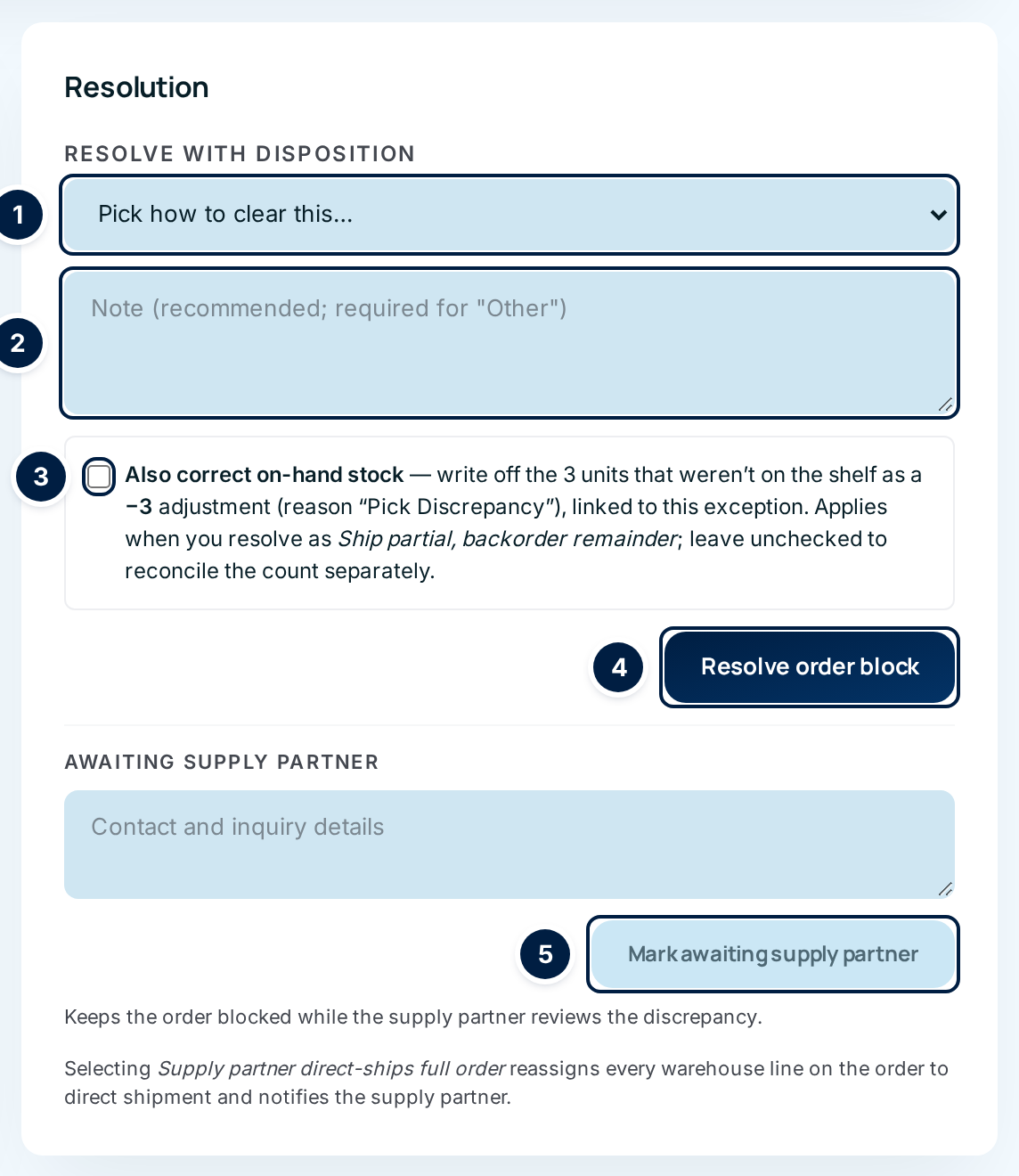
If the shelf really was short, tick Also correct on-hand stock ③ before resolving. See Correcting stock as you resolve.
-
Or wait on the supply partner. If you can't decide until the supply partner answers, write who you contacted and what you asked under Awaiting supply partner, then click Mark awaiting supply partner ⑤. The order stays blocked. The exception shows a blue Awaiting supply partner banner with your note and the time.
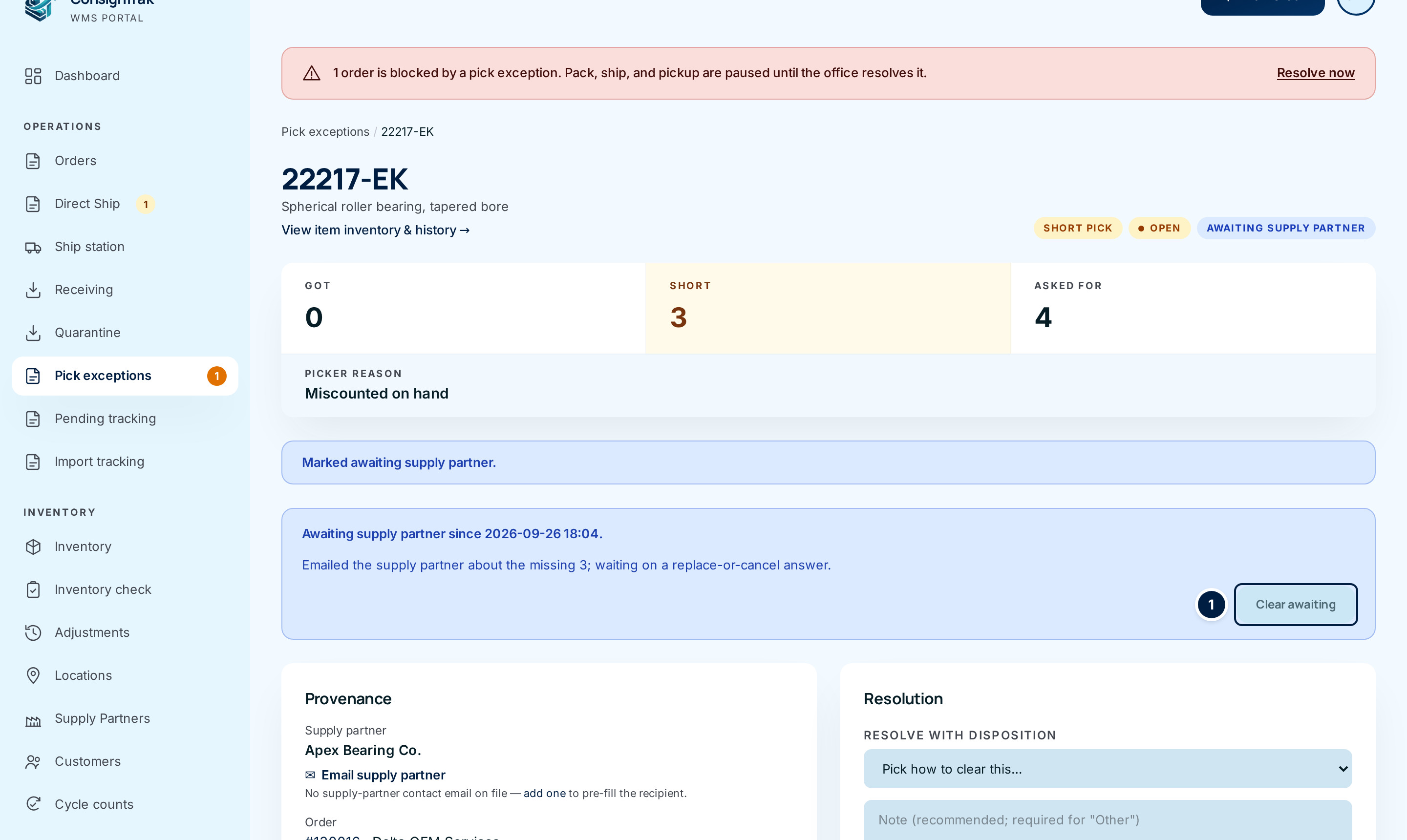
It also moves to the Awaiting supply partner tab, so the Open tab only shows what you can act on now. When the answer comes, resolve it as in step 4. Clear awaiting ① takes the flag off without resolving anything.
-
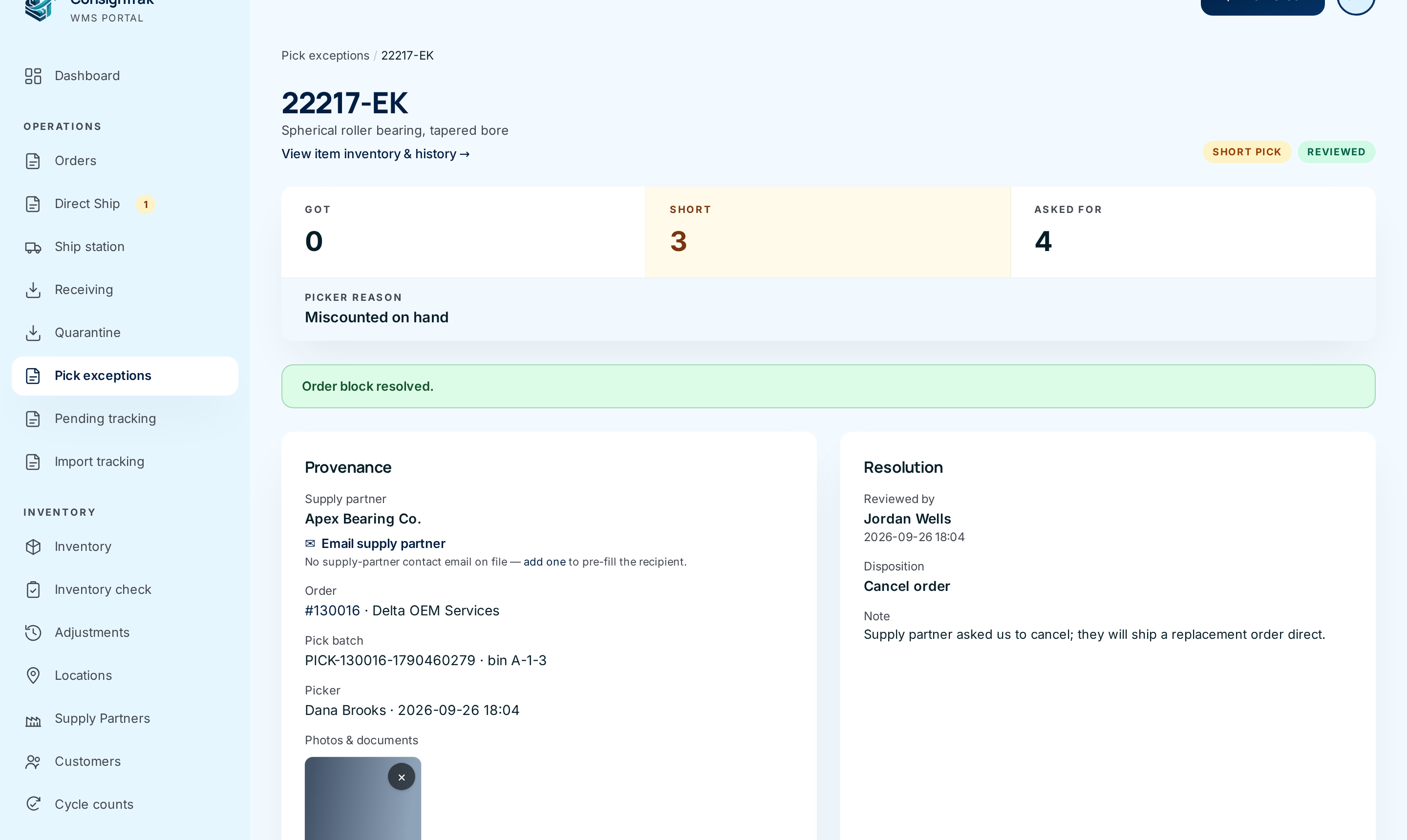
Check the result. The page reloads with Order block resolved. The exception is now Reviewed, and the Resolution card records who resolved it, when, the disposition and your note.
What each disposition does
| Disposition | Offered for | What happens to the order | What happens to stock |
|---|---|---|---|
| Ship partial, backorder remainder | Short pick | The pick is finished on the picker's behalf. Lines they never reached are marked short as Not picked — resolved by office. The order moves on to packing with what was picked; everything short goes on backorder when it ships. | Nothing, unless you tick Also correct on-hand stock. |
| Ship as is (substitution accepted) / Ship as-is | Mispick, quality | The carton ships as packed — the customer accepts the substitute or the damaged item. The same "finish the pick" rule applies. | Nothing, unless you tick the correction box (mispicks only). |
| Send back for re-pick | Short pick, mispick | The line goes back to not-picked, with its count and the packer's check cleared. The picker finds the batch waiting under Resume on their phone. | Nothing. |
| Supply partner direct-ships full order | Short pick, mispick | The warehouse pick is cancelled and every warehouse line on the order switches to supply-partner direct. ConsignTrak raises a direct-ship notice for the supply partner. Refused if anything has already shipped from the warehouse. | The warehouse's hold on the stock for this order is released. |
| Cancel order | All three | The whole order is cancelled. Its history reads "Cancelled via pick-exception resolution", followed by your note. | The warehouse's hold on the stock is released. |
| Other (note required) | All three | Only the block is cleared; nothing else changes. Use it when you've sorted things out another way, and say how in the note. ConsignTrak doesn't actually stop you leaving the note blank (#1520) — don't. | Nothing. |
Cancel order and Supply partner direct-ships full order change the whole order, not just the flagged line. Check the order first with the link in the Provenance card.
Correcting stock as you resolve
A short pick usually means the shelf holds less than ConsignTrak thinks. Tick Also correct on-hand stock and choose Ship partial, backorder remainder to write off the missing units in the same step: ConsignTrak records a minus adjustment with the reason Pick Discrepancy, linked to this exception.
On a mispick resolved Ship as is, the box reads Also correct on-hand stock for the substitution. It adds the ordered item back to the shelf (it never left) and removes the item that actually shipped, as two linked adjustments. It only appears when the packer identified the actual item and its quantity.
The box is off by default and only applies to those two dispositions. Leave it off if someone will count the bin first — Follow-up flags makes sure it isn't forgotten.
When there's no block to resolve
A quality flag for wrong packaging, an unreadable label, or Other never blocks its order. Its Resolution card has an optional note and Acknowledge instead; the button turns amber and asks you to click again. Older short picks and mispicks recorded without a block show Mark reviewed, which works the same way. Either one just takes the exception off the Open tab.
Return to shelf
If an order is cancelled after its picked items were already set down in a staging area, a Return to shelf card appears above the list. It names the area and lists each item, quantity and bin to put back. When the stack is back on the shelf, click Restocked; the button turns amber and asks you to click again. The card disappears.
Every field and option
The queue
| Field or control | What it means | Required | Default | What changes when you set it |
|---|---|---|---|---|
| Pick exceptions (title) and N open | How many exceptions are waiting across the warehouse. | — | — | Read-only. |
| Search box | Find exceptions by order number, original release number or pick batch number. | No | Empty | A search looks across every status and type, and the tab counts are hidden. A line reports N matches for "…". |
| Search | Runs the search. | — | — | — |
| Clear search ✕ | Removes the search. | — | — | Back to the full queue. |
| Search every status and type | Shown when a tab or chip is narrowing a search. | — | — | Widens the search to everything. |
| Open (N) | Exceptions waiting for a decision. | — | Selected | Shows open ones only. |
| Awaiting supply partner (N) | Open exceptions you've marked as waiting on the supply partner. | — | — | Shows those only. |
| Reviewed (N) | Exceptions that have been resolved or acknowledged. | — | — | Shows those only. |
| Picker undid (N) | Exceptions the picker or packer took back before the office reviewed them — they found the item after all. | — | — | Shows those only. |
| All (N) | Everything. | — | — | Shows every status. |
| Type: All types, Short pick, Mispick, Quality | Narrow the list to one kind. | — | All types | Filters the rows; works with the tab. |
| Return to shelf card, Restocked | See Return to shelf. Only shown to users who work for the whole warehouse. | — | — | Clears the card after the second click. |
| Type column | Short pick (amber), Mispick (red) or Quality (violet). | — | — | — |
| Item column | The part number and description, linking to the exception. A quality flag on a whole batch reads Batch-level flag. | — | — | Opens the exception. |
| Supply Partner column | Who owns the stock. | — | — | — |
| Order column | Order number (links to the order) and customer. Batch-level flags also show the batch number. | — | — | Opens the order. |
| Picker column | Who reported it. | — | — | — |
| Detail column | Short pick: N short / N asked. Mispick: the item found instead, or unknown. Quality: —. | — | — | — |
| Reason column | The reason chosen on the phone. Short pick: Location empty, Damaged, Miscounted on hand, Other. Mispick: Wrong item (identified), Wrong item (unidentified), Other. Quality: Damaged in pack, Damaged from manufacturer, Wrong packaging, Label illegible, Other. | — | — | — |
| Status column | Open (plus Awaiting when marked), Reviewed or Picker undid. | — | — | — |
| When column | When it was reported. | — | — | — |
The exception detail (short pick, mispick and quality share this layout)
| Field or control | What it means | Required | Default | What changes when you set it |
|---|---|---|---|---|
| Breadcrumb Pick exceptions | Back to the queue. | — | — | — |
| Heading | The part number, or Batch-level quality flag. | — | — | — |
| View item inventory & history → | Opens the item's stock, bins and movement history, to see what the shelf should hold. | — | — | Leaves the page. |
| Pills | Kind; Open / Reviewed / Picker undid; Order blocked or Awaiting supply partner while the order is held. | — | — | — |
| Got / Short / Asked for, Picker reason | Short pick only — see step 2. | — | — | — |
| Expected (picked line) / Actual in carton, Qty in carton | Mispick only. Unknown means the packer couldn't identify it. | — | — | — |
| Reason and note | Quality only. | — | — | — |
| Provenance: Supply partner, Order, Pick batch (with bin), Picker / Picker / packer / Flagged by | Where and when the problem was found. The order number links to the order. | — | — | — |
| Email supply partner, To: / add one | Short pick only, while it's not undone. Opens your email program with a message ready to send. add one opens the supply partner's page to add a contact email. | — | — | Nothing in ConsignTrak changes. |
| Photos & documents | Everything attached, with who added it and when. Click to view full size (Download, previous ‹ and next › arrows, close). | — | — | — |
| × on an attachment | Removes it. Office and Administrator only. The button turns red and asks you to click again. | — | — | The file is deleted from the exception. |
| File chooser, Add attachment | Attach a photo or document: images, PDF, Word, Excel, CSV or text. | Yes, to upload | — | Adds the file under your name. |
| Resolve with disposition | How to clear it — see the table above. | Yes | Pick how to clear this… | Decides what happens to the order. |
| Note | Why you chose it. Kept on the exception and, for a cancel, on the order. | Recommended | Empty | — |
| Also correct on-hand stock / …for the substitution | See Correcting stock as you resolve. Not on quality flags. | No | Off | Writes linked Pick Discrepancy adjustments. |
| Resolve order block | Carries out the disposition. On a quality flag it asks you to click again. | — | — | The exception becomes Reviewed and the order is unblocked. |
| Awaiting supply partner note, Mark awaiting supply partner | Record that you're waiting on the supply partner. | No | Empty | The order stays blocked; the exception moves to the Awaiting tab. |
| Clear awaiting | Removes the waiting flag. | — | — | The order stays blocked. |
| Mark reviewed / Acknowledge, optional note | Only when the exception isn't blocking anything. Asks you to click again. | — | — | The exception becomes Reviewed. |
| Reviewed by, Disposition, Note | Shown once resolved. | — | — | Read-only. |
| Picker said | Shown when the picker undid the exception: Picker found it, Picker miscounted, then corrected, Found the correct item, Found intact, Flag was in error, Other. | — | — | Read-only. |
What happens next
- The exception becomes Reviewed and moves off the Open tab. The decision, your name, the time and your note are kept for good.
- The order is unblocked, and the red banner goes away once no order is blocked. The order's own page gains a resolution history entry. What happens to the order itself depends on the disposition — see the table above.
- Stock only changes if you ticked a correction box. The adjustment appears in Adjustments with the reason Pick Discrepancy and a link back to this exception.
- Other systems your administrator has connected are told when an order is blocked and when it's resolved, so a supply partner can hear about it without you emailing them.
Common problems
"Pick a disposition before submitting." — You clicked Resolve order block without choosing from the list. Choose one and try again.
"This was already resolved — no change made." — Someone else resolved it first, or the picker undid it. The page now shows what they decided.
"This order can no longer be cancelled (it's already shipped, closed, or cancelled). The block is still open — pick a different disposition." — The order went past the point of cancelling. Choose Other and explain in the note, or another disposition that still fits.
"Order not found; it may have been removed." — The order no longer exists. Tell your administrator.
"Couldn't resolve the block — please try again." — Something else stopped it. Supply partner direct-ships full order is refused if part of the order already shipped from the warehouse; choose another disposition. If it keeps happening, tell your administrator.
The Got number looks wrong. — See step 2: read Asked for minus Short.
The queue is empty but the warehouse says they flagged an order. — The Open tab hides reviewed and undone exceptions. Search for the order number; a search looks through every status.