Quarantine
What this is
When received goods fail inspection, ConsignTrak doesn't add them to stock. It holds them in quarantine instead. The Quarantine screen lists every held line with how many units failed, and it's where you build the evidence: what was wrong, what the supply partner said, and photos. That record is what you show the supply partner when you claim the damage. Office staff, administrators and warehouse staff all use it.
Before you start
- Role: Office, Administrator or Warehouse. Only Office and Administrator users can remove an attachment.
- Settings: none.
- You'll need: a receiving where at least one line failed inspection and the receiving has been posted. Until it's posted, the failed units stay on the receiving itself.
How items get here
Quarantine is filled by inspection on a receiving, and nothing else. When someone records an inspection, they enter how many units failed. When the receiving is posted to inventory:
- units that passed become available stock, as usual;
- units that failed go to the QUARANTINE location. They're recorded as a movement with the reason QC failed — quarantine, but they aren't counted in the item's on-hand quantity and can't be ordered.
The receiving side is covered in Receiving and, on the phone, Receiving, quarantine & counts.
A short pick, mispick or damaged-in-pack quality flag stays in the triage queue. The damaged units stay in their bin; nothing moves to quarantine.
Step by step
-
Open Quarantine from the Operations section of the sidebar. On a phone it's under More. A Quarantine button also appears in an office user's bottom bar whenever a held line still has no photos or documents.
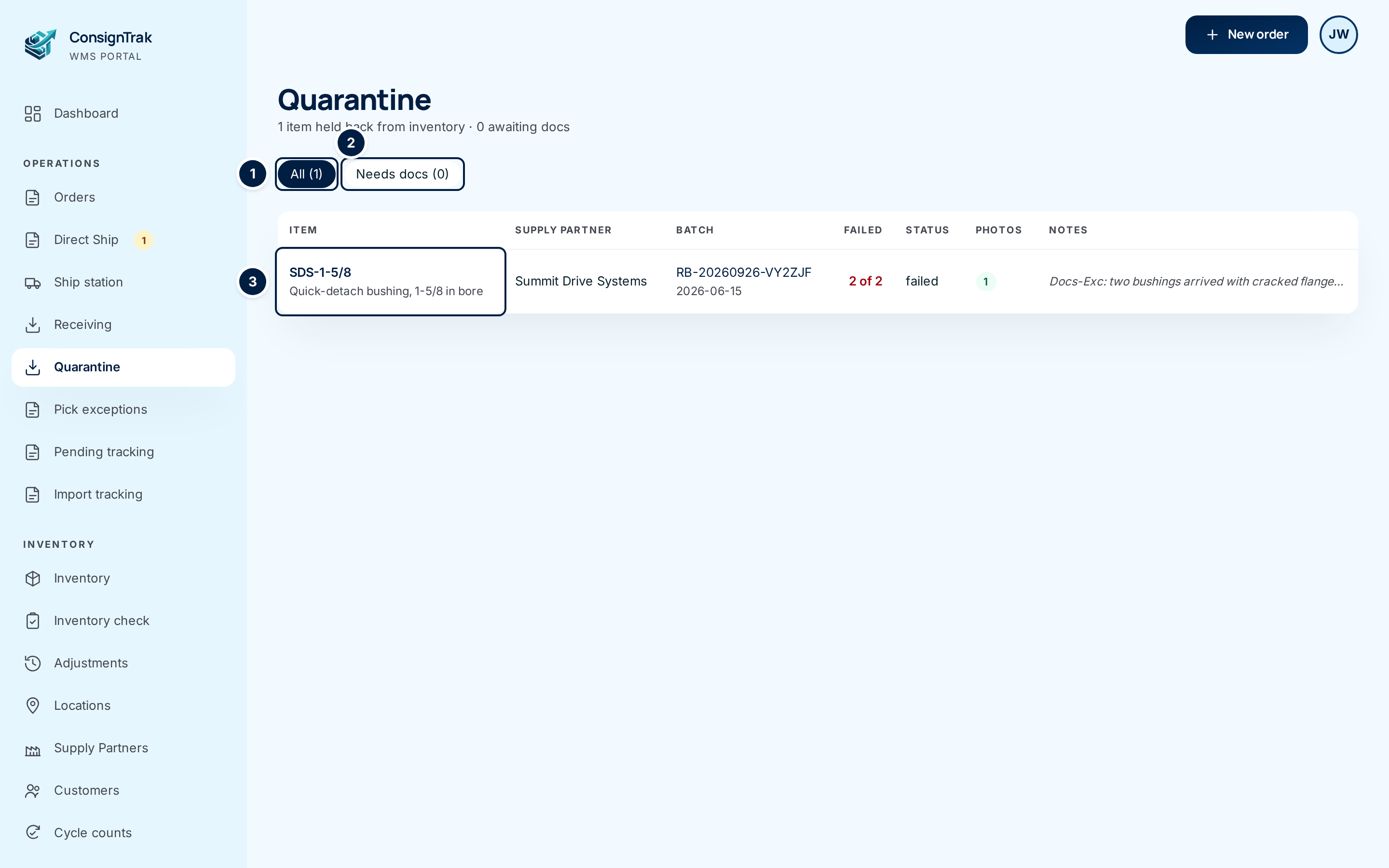
The line under the title counts the held lines, and how many still have no evidence attached. All ① shows every held line. Needs docs ② shows only the ones with nothing attached — work these first.
-
Open a line. Click its row ③.
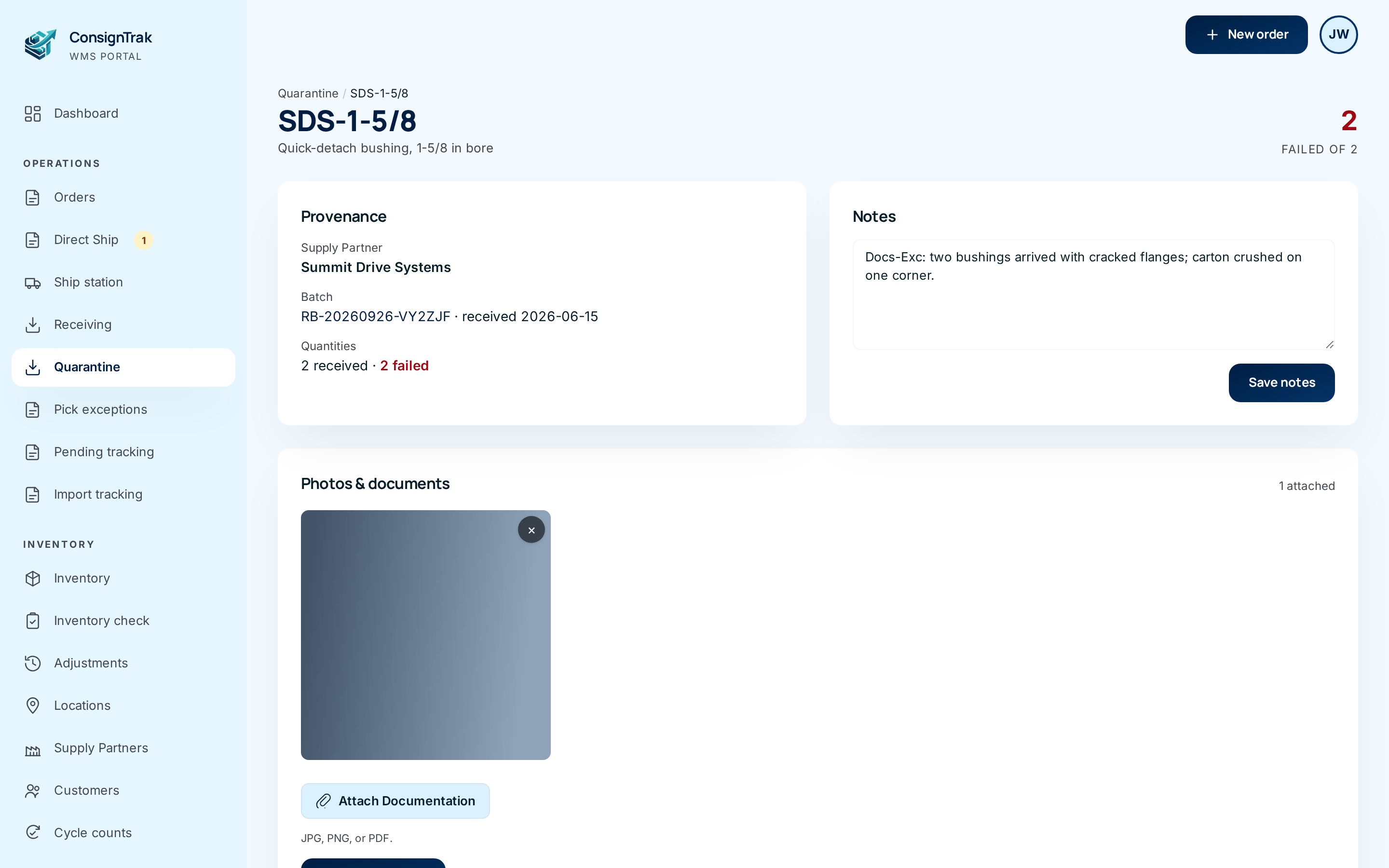
The number at the top right is how many units failed, out of how many were received. Provenance names the supply partner and the receiving batch (click the batch number to open the receiving).
-
Write the inspection notes. Describe the damage, who you spoke to at the supply partner, and what you agreed. The notes start with whatever was typed at inspection. Click Save notes.
-
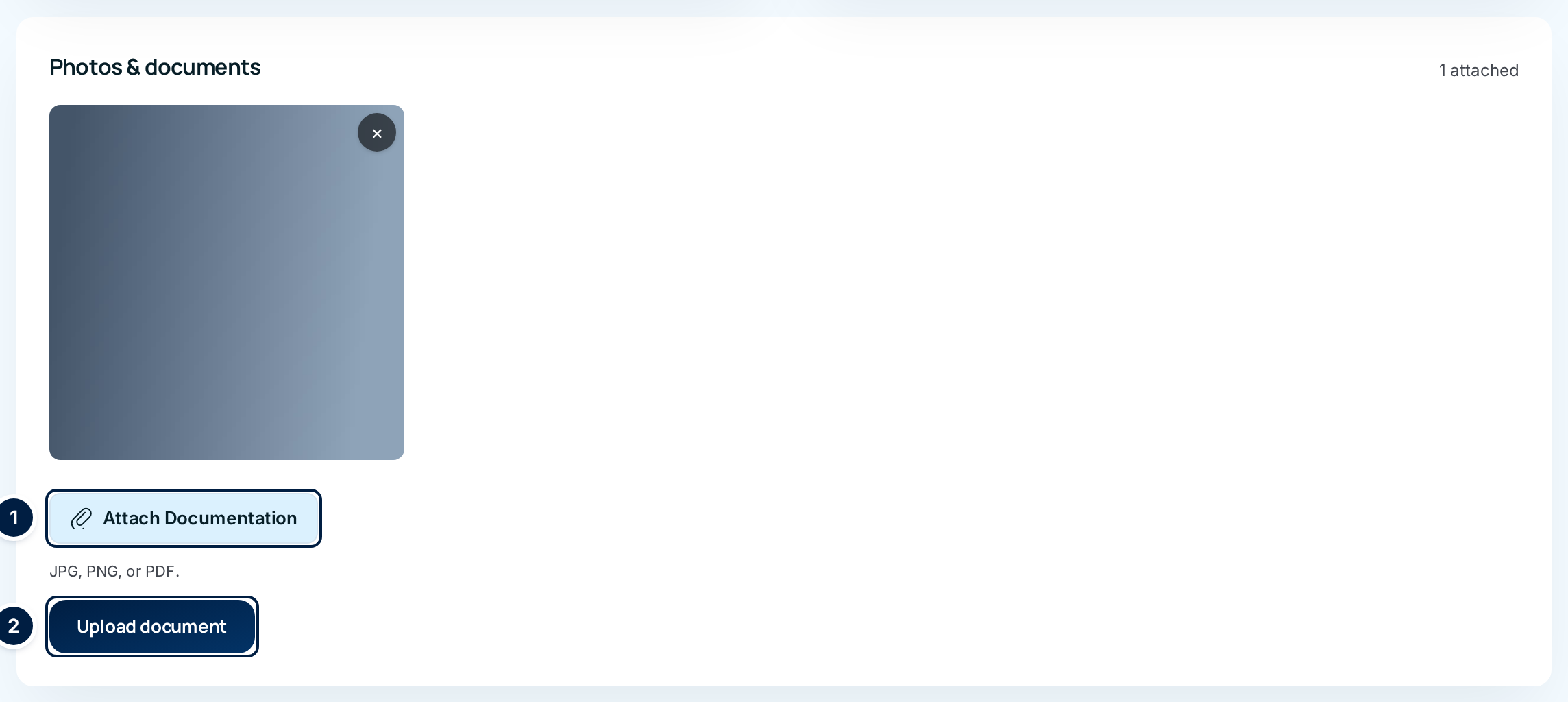
Attach the evidence. On a computer, click Attach Documentation ①, choose a JPG, PNG or PDF, and click Upload document ②.
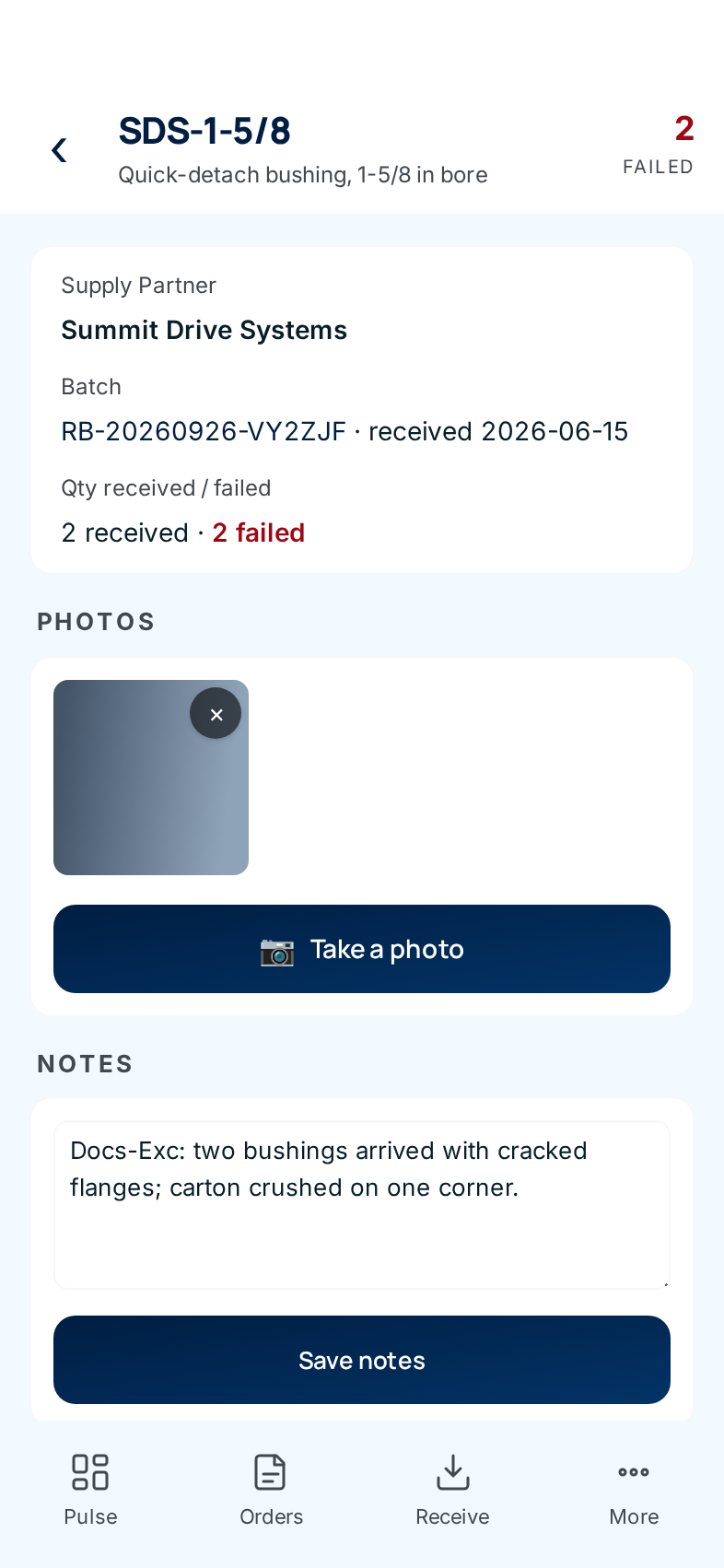
On a phone the button is Take a photo. It opens the camera directly, and the photo saves the moment you take it — tap again for the next one. There's no file browser on the phone.
Click any photo to see it full size, with Download.
-
Settle it with the supply partner. Send them the notes and photos, and agree what happens to the units — returned, scrapped, or accepted into stock after all. Record the outcome in the notes.
ConsignTrak doesn't yet have a way to return, scrap or release quarantined units. A held line stays on this list, and the units stay out of stock, until something changes it (#1518). Today:
- To release good units into stock, add them with a stock adjustment (reason Data Correction; see Adjustments), then say in the quarantine notes that you did. The quarantine line itself stays listed.
- If the whole receiving was entered wrongly, voiding the receiving batch reverses every unit on it, passed and failed. Voiding can't be undone.
- Don't move quarantined units with the relocate tool. It isn't built for held stock and would leave the counts disagreeing.
Every field and option
| Field or control | What it means | Required | Default | What changes when you set it |
|---|---|---|---|---|
| Quarantine (title), N items held back from inventory · N awaiting docs | How many held lines there are, and how many have nothing attached. | — | — | Read-only. |
| All (N) | Every held line. | — | Selected | Shows everything. |
| Needs docs (N) | Held lines with no photo or document yet. | — | — | Filters the list. |
| Item column | Part number (links to the line) and description. | — | — | Opens the line. |
| Supply Partner column | Who owns the goods. | — | — | — |
| Batch column | The receiving batch (links to it) and the date received. | — | — | Opens the receiving. |
| Failed column | Units that failed, of units received on the line. | — | — | — |
| Status column | failed (every unit failed) or partial (some passed). | — | — | — |
| Photos column | How many files are attached, or Needs docs. | — | — | — |
| Notes column | The start of the inspection notes. | — | — | — |
| Breadcrumb Quarantine | Back to the list. | — | — | — |
| Failed count (top right) | Units failed, and the inspection result of the received quantity. | — | — | — |
| Provenance: Supply Partner, Batch (link), Quantities | Where the goods came from and how many failed. | — | — | — |
| Notes box, Save notes | The inspection notes: damage, conversations, the plan. | No | What was typed at inspection | Replaces the saved notes. |
| Photos & documents, N attached | Everything attached to the line. Click one to view it full size, with Download and close. | — | — | — |
| × on an attachment | Deletes it permanently. The button turns red and asks you to click again. Office and Administrator only. | — | — | The file is removed. |
| Attach Documentation, Upload document (computer) | Choose a JPG, PNG or PDF, then upload it. | Yes, to upload | — | Adds the file. |
| Take a photo (phone) | Opens the rear camera; the photo saves as soon as it's taken. | — | — | Adds the photo. |
What happens next
- Saving notes or attaching a file changes only the evidence. Stock doesn't move.
- The line leaves Needs docs as soon as it has one attachment, and the bottom-bar Quarantine button on phones disappears when no line needs docs.
- On the item's movement history, the held units show as a receipt with a Quarantine pill, and the history summary adds a Quarantined total. They're kept out of the item's in and out totals.
- The line stays on this list — see the caution above.
Common problems
"Quarantined item not found" — The line no longer qualifies, usually because its receiving was voided. Go back to the list.
The failed units aren't in quarantine. — The receiving hasn't been posted yet. Open it from Receiving and post it.
I can't find the file picker on my phone. — By design. Phones take a photo with the camera; attach PDFs and existing files from a computer.
The × on a photo won't delete it. — Only Office and Administrator users can remove attachments.