The Documents page
What this is
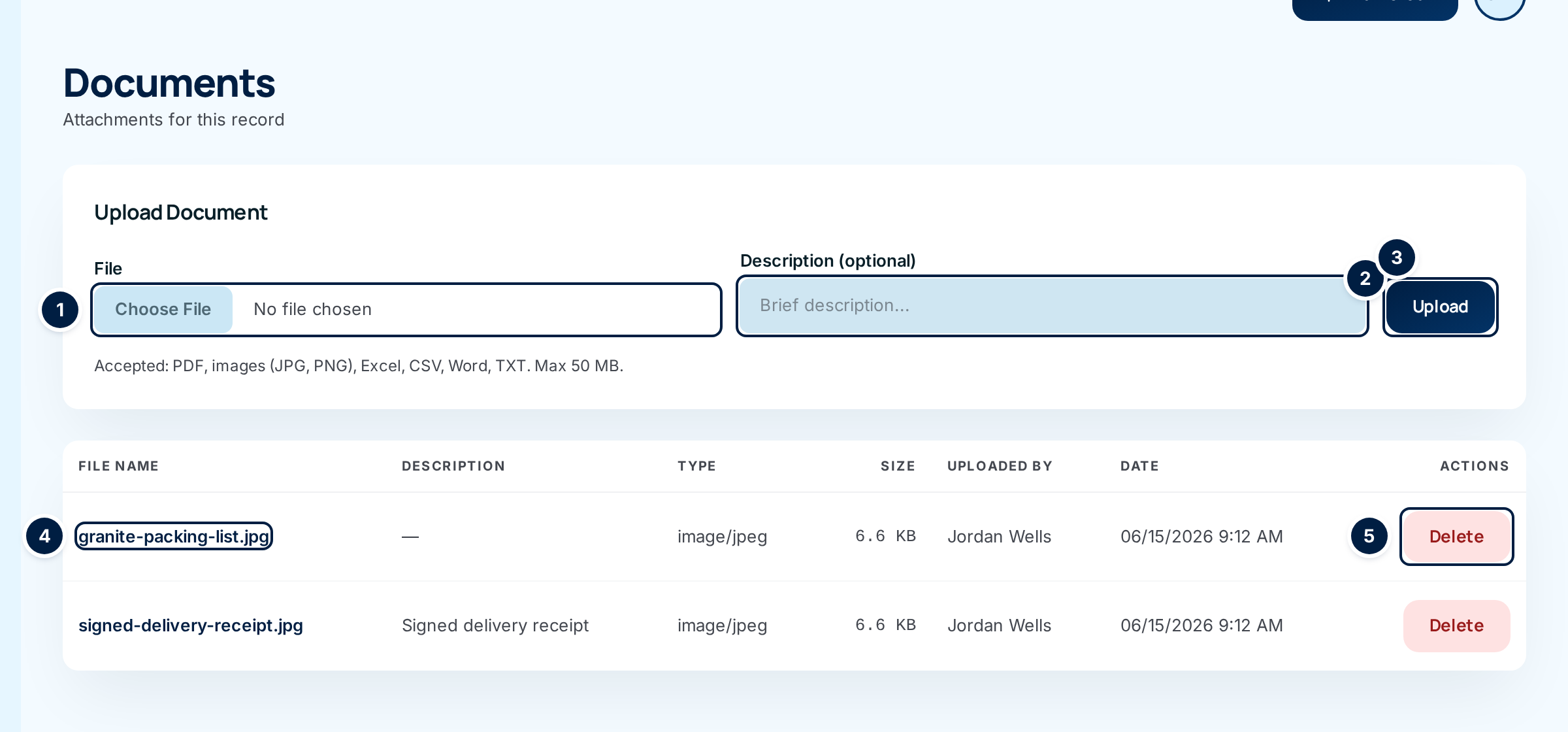
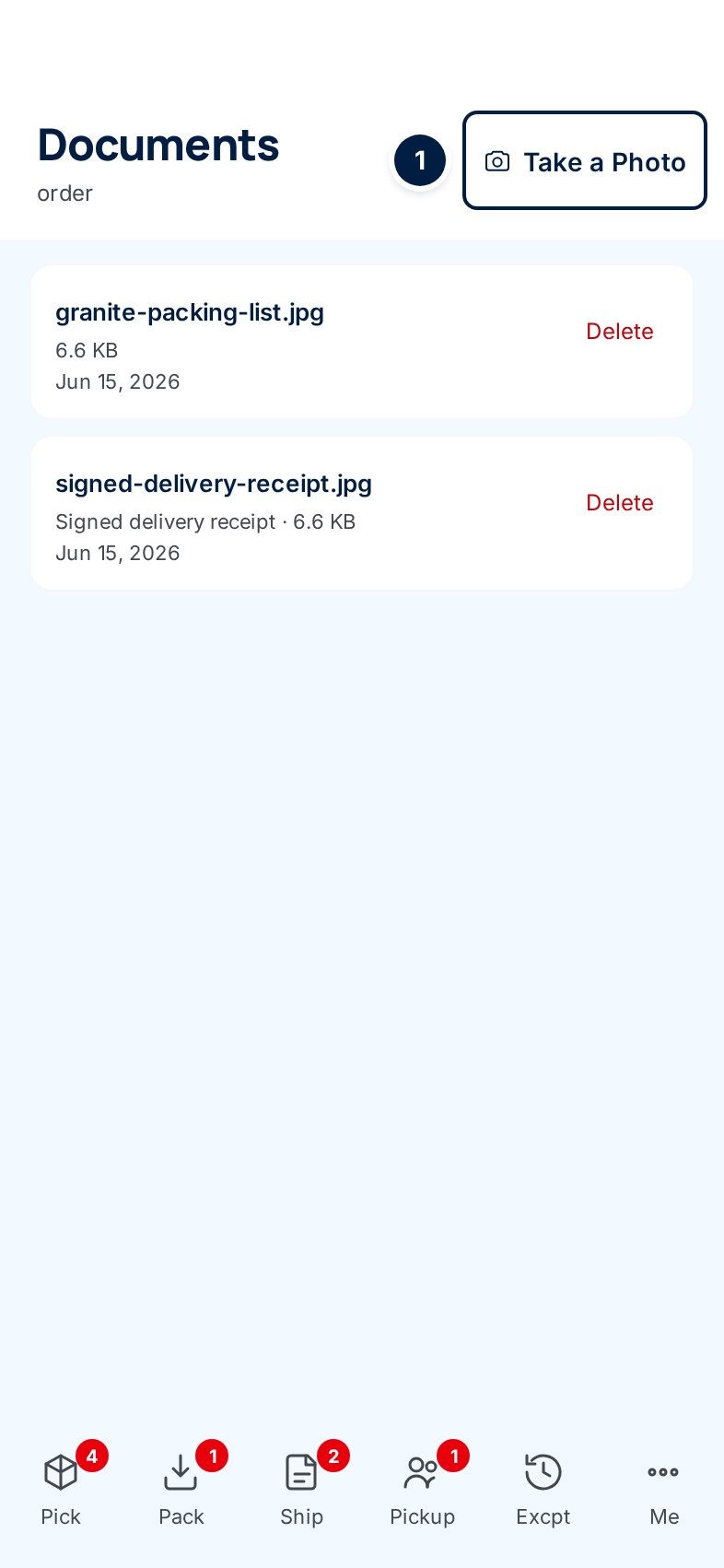
The Documents page lists every file attached to one record in a single table: who uploaded it, when, what type and how big. On a desktop you can upload any accepted file. On a phone the same page becomes a camera: Take a Photo adds a picture to the record.
Most of the time you'll work from the record itself instead, such as the order's Attachments card. This page is the complete, plain list. It includes files the record's own screen keeps in a separate card, such as the supply partner packing list.
Before you start
- Role: anyone who can see the record can view and upload here. Only Office users and Administrators can delete.
- Settings: none.
- You'll need: the page's address. No menu or button links to this page today (issue #1490). Ask your administrator if you need the address for a particular record.
Step by step
On a desktop
-
Look over the list. Each row is one file.
-
Download a file. Click its name ④. It downloads to your computer.
-
Upload a file. Choose Choose File ①, add a Description ② if it helps, and choose Upload ③. The new file appears in the table.
-
Delete a file. Choose Delete ⑤ on its row. The button turns red and asks you to click again; click it a second time to delete the file.
On a phone
-
Take a photo. Tap Take a Photo ①. The rear camera opens. Take the picture and confirm it; it uploads straight away and appears in the list. Tap again for the next photo.
-
Open a file. Tap its name.
-
Delete a file. Tap Delete, then tap it again to confirm.
Every field and option
Desktop
| Field or control | What it means | Required | Default | What changes when you set it |
|---|---|---|---|---|
| Documents (heading) / "Attachments for this record" | The page title. | — | — | — |
| Upload Document (section) | The upload form. | — | — | — |
| File | The file from your computer. Accepted: PDF, images (JPG, PNG), Excel, CSV, Word, TXT, up to 50 MB. | Yes | — | Upload won't start without it. |
| Description (optional) | A short label for the file. | No | Blank | Shown in the Description column. |
| Upload | Saves the file to the record. | — | — | A new row appears; the upload is recorded in the audit trail. |
| File Name (column, link) | The file's original name. Click to download it. | — | — | Nothing changes. |
| Description (column) | What was typed at upload, or — when blank. | — | — | Read-only. |
| Type (column) | The kind of file, as the browser reported it (for example "image/jpeg", "application/pdf"). | — | — | Read-only. |
| Size (column) | The file size in KB or MB. | — | — | Read-only. |
| Uploaded By (column) | The person who uploaded it. | — | — | Read-only. |
| Date (column) | When it was uploaded. | — | — | Read-only. |
| Actions (column) / Delete | Deletes the file. Click twice. | — | — | The file is gone for good; the deletion is recorded. |
When there are no files, the table says "No documents uploaded yet."
Phone
| Field or control | What it means | Required | Default | What changes when you set it |
|---|---|---|---|---|
| Documents (heading) | The page title. The line under it names the kind of record. | — | — | — |
| Take a Photo | Opens the rear camera. Photos only; there's no file browser on a phone. | — | — | The photo uploads as soon as you take it. |
| File name (link) | Opens the file. | — | — | Nothing changes. |
| Description, size and date | Shown under each file name. | — | — | Read-only. |
| Delete | Deletes the file. Tap twice. | — | — | The file is gone for good. |
When there are no files, the list says "No documents".
What happens next
- Uploads and deletions show up straight away wherever the record displays its files. An order's tiles are one example.
- Every upload and deletion is recorded in the audit trail.
- Files are kept until someone deletes them. See How long files are kept.
Common problems
A blank white page after deleting on a phone. — The file was deleted; the page just doesn't find its way back (issue #1491). Use your browser's back button and refresh.
"Access denied" after choosing Delete. — Your role can't delete files. Warehouse users see Delete but can't use it. Ask an Office user or an Administrator.
The phone shows a technical word under the title (such as "order" or "receiving_line"). — That's the kind of record, shown in its internal form (issue #1491). It's safe to ignore.
"File type not allowed…", "File exceeds maximum size (50 MB)", "File contents do not match its extension." — see Attaching files to an order; the same rules apply here.
"404 page not found" when opening the page. — The record doesn't exist, or it belongs to a supply partner your account can't see.