Running a count
What this is
This page takes one day's cycle count from start to finish on a desktop: generate the batch, start it, count each item, approve the stock corrections you accept, and complete it. The warehouse generates and counts; the office approves and completes. Why daily counts matter, and the settings behind them, are on the Cycle counts overview.
Before you start
-
Role:
- Warehouse users generate the batch, start it and enter counts.
- Office users approve corrections and complete the batch.
- Administrators can do every step.
Every button shows to every role. Clicking one your role can't use opens an Access denied page.
-
Settings: Items per count batch decides how many items a new batch picks (see System configuration).
-
You'll need: items with a primary bin. Items without one are never picked (see Which items get picked).
Step by step
-
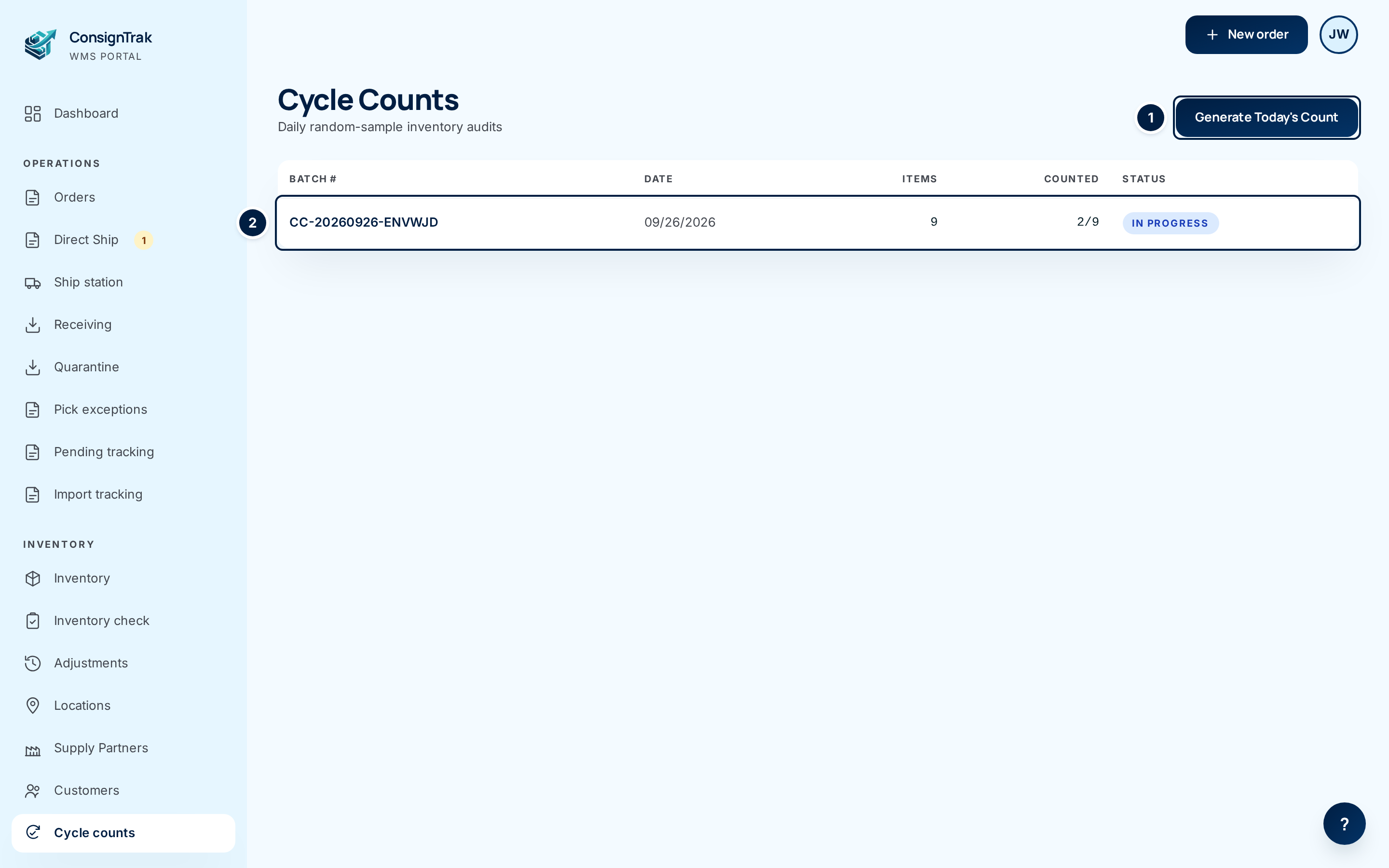
Open Cycle counts from the Inventory section of the sidebar. The list shows the most recent batches, newest first.
-
Generate the batch. Choose Generate Today's Count ①. ConsignTrak picks the items at random and opens the new batch as a Draft. (On an empty list the button in the middle of the table, Generate today's count, does the same thing.)
Generate once a day. Each click makes another batch; there's no way to delete one.
-
Start the count. Open the batch ② and choose Start Counting. The batch moves to In progress and a count box appears on every line.
-
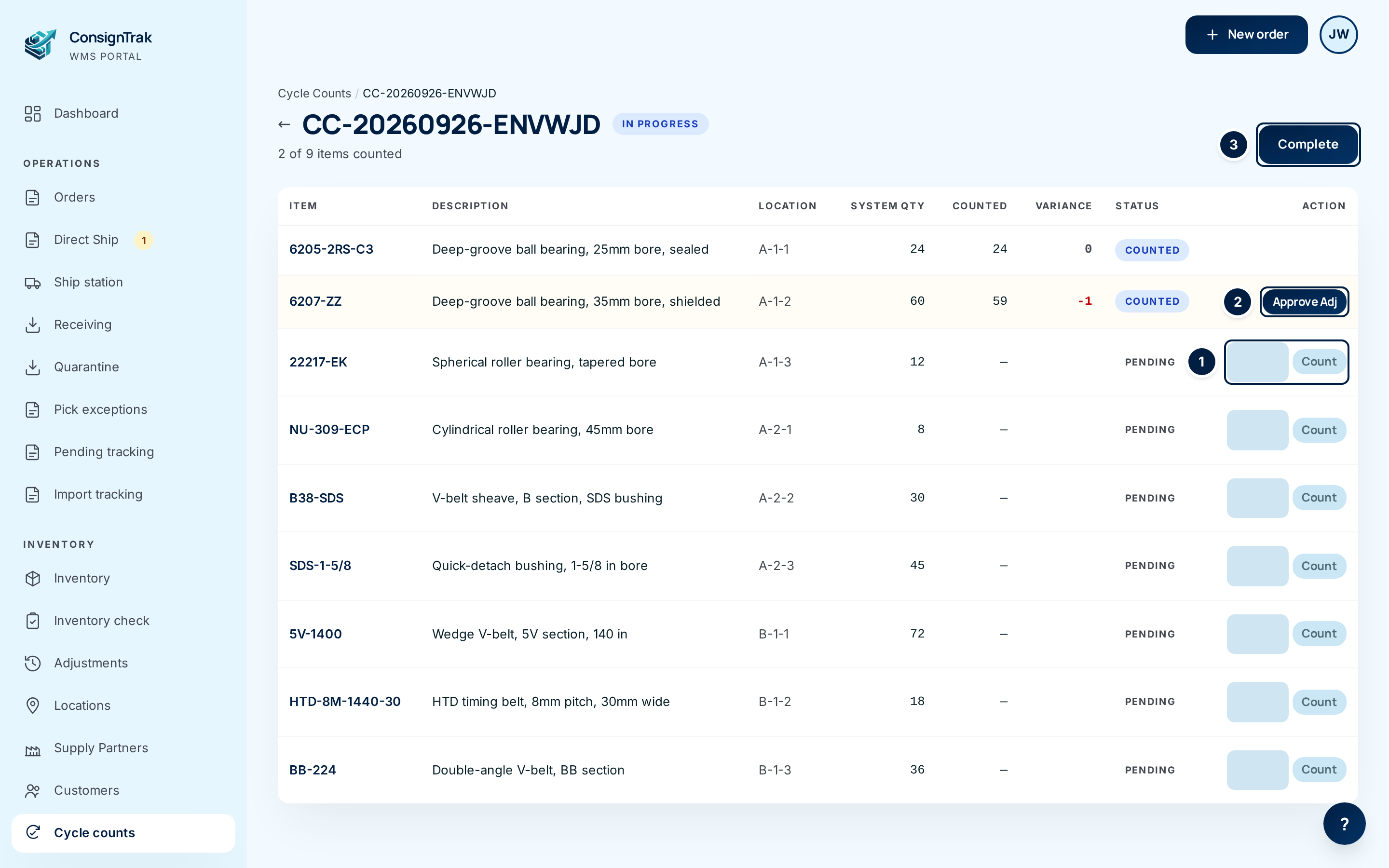
Count each line. Walk to the bin shown under Location, count what's physically there, and type the number into the box ①. Choose Count. The number appears under Counted, ConsignTrak works out the Variance, and the line's status changes to Counted.
Count carefully before you submit. Once a line is Counted you can't change the number (see When the count itself is wrong).
Counting on a phoneOn the floor it's easier on a phone, one card per bin. See Receiving, quarantine and counts. Counts entered on the phone show up here straight away.
-
Review each line with a variance. A line whose count doesn't match is shaded, with the variance in red (fewer than expected) or green (more than expected). Before approving, read Reading variance.
-
Approve the corrections you accept. Choose Approve Adj ② on the line. ConsignTrak corrects the stock straight away and the line changes to Adjusted.
Approve Adj changes stock on the first clickOn the desktop, Approve Adj doesn't ask you to click again. The correction is posted as soon as you click it, and it can't be undone from this page. On the phone, Approve adjustment does ask you to click again.
Lines that matched (variance 0) have no button. They stay Counted; there's nothing to correct.
-
Complete the batch. When every line is counted and you've approved every correction you accept, choose Complete ③. The batch moves to Completed.
Complete doesn't post anything. A variance you didn't approve is simply left alone, and the stock stays as it was.
Every field and option
The Cycle Counts list
| Field or control | What it means | Required | Default | What changes when you set it |
|---|---|---|---|---|
| Cycle Counts (page title) | The list of recent count batches. | — | — | — |
| Generate Today's Count | Creates a new batch of randomly picked items and opens it. The number of items comes from Items per count batch. | — | — | A new Draft batch. No stock changes. |
| Generate today's count | The same button, shown in the table when there are no batches yet ("No cycle counts yet."). | — | — | Same as above. |
| Batch # | The batch's number: CC, the date it was generated, and a short code, for example CC-20260926-ENVWJD. Click anywhere on the row to open the batch. | — | — | Opens the batch. |
| Date | The day the batch was generated. | — | — | Read-only. |
| Items | How many items the batch asks you to count. | — | — | Read-only. |
| Counted | How many of those have a count entered, for example 2/9. Adjusted lines count as counted. | — | — | Read-only. |
| Status | Draft, In progress or Completed (see How a count works). | — | — | Read-only. |
A batch
| Field or control | What it means | Required | Default | What changes when you set it |
|---|---|---|---|---|
| Batch number (page title) | The batch's number, with its status beside it and "N of N items counted" underneath. The Cycle Counts link above it goes back to the list. | — | — | — |
| ← (back arrow) | Goes back to the Cycle Counts list. | — | — | Leaves the page. |
| Start Counting | Shown on a Draft batch. Opens the batch for counting. | — | — | Status moves to In progress; count boxes appear. |
| Complete | Shown on an In progress batch. Closes it. | — | — | Status moves to Completed. No stock changes; unapproved variances are left as they are. |
| Item | The item's part number. Click it to open the item. | — | — | Opens the item page. |
| Description | The item's description, shortened. A dash means the item has none. | — | — | Read-only. |
| Location | The item's primary bin: where to go and count. | — | — | Read-only. |
| System Qty | What ConsignTrak had in that bin when the batch was generated. It doesn't update if stock moves afterwards. | — | — | Read-only. |
| Counted | The number you entered. A dash until you count the line. | — | — | Read-only once entered. |
| Variance | Counted minus System Qty. Red and negative means fewer than expected; green and positive means more; 0 means it matched. Blank until counted. | — | — | Read-only. |
| Status | Pending (not counted yet), Counted (count entered, nothing posted), or Adjusted (correction approved and posted). | — | — | Read-only. |
| Action | The column holding the count box or Approve Adj for the line. | — | — | — |
| Count box | The number you counted. Whole numbers, zero or more. Shown only on Pending lines of an In progress batch. | Yes, to count the line | Empty | Nothing until you choose Count. |
| Count | Saves the number in the count box for that line. | — | — | Line becomes Counted and the variance appears. No stock changes. |
| Approve Adj | Shown on a Counted line whose variance isn't 0. Posts the correction. | — | — | Stock is corrected by the variance; line becomes Adjusted (see below). |
What happens next
- Generating, starting, counting and completing never change stock. Each is recorded in the audit log with who did it.
- Approving a correction changes stock right away:
- The item's total on hand goes up or down by the variance.
- The bin you counted is set to the number you counted.
- ConsignTrak records a cycle count correction movement with the reason "Cycle count variance" and your name.
- The item's history shows a cycle-count line with the batch number and the amount in or out.
- The correction is listed under Cycle-count corrections on the supply partner's statement for that period, which the supply partner can also see in their portal.
- The correction also appears on the Adjustments page (under Inventory in the sidebar) alongside manual adjustments.
- A Completed batch stays on the list as the record of that day's count.
Common problems
"Access denied — You don't have permission to access this page." — Your role can't do that step. Office users can't generate, start or count; Warehouse users can't approve or complete. Ask someone with the other role, or an administrator.
"No items in this count." — The batch picked nothing, because no active item has a primary bin. Give items a primary bin (see Locations) and generate again.
The batch has fewer items than Items per count batch. — Only that many items qualify (active, with a primary bin). That's expected.
There's no count box on a line. — Either the batch is still a Draft (choose Start Counting), the batch is Completed, or the line was already counted.
I entered the wrong number. — You can't change a counted line. Don't approve it. See When the count itself is wrong.
"Quantity must be zero or greater" or "Invalid quantity" on a blank page. — The count must be a whole number, zero or more. Go back and enter it again.
I clicked Count or Approve Adj and nothing changed. — Someone else counted or approved that line first (for example on a phone), so your click was ignored. The page you're looking at now shows what actually happened.
Approve Adj still shows on a Completed batch. — Don't use it. Approve every correction you accept before choosing Complete; a completed batch should be treated as closed.
"Failed to generate cycle count" — ConsignTrak couldn't create the batch. Try again; if it keeps happening, tell your administrator.