Third-party freight payers
What this is
Some customers have their freight billed to someone else: their head office, their own customer, or a logistics company. A third-party payer saves that bill-to company, its address and its UPS or FedEx account number on the customer. When you enter an order with freight terms 3rd Party, you pick the payer instead of retyping the account number.
Before you start
- Role: Office or Administrator.
- Settings: none.
- You'll need: the customer on file, the payer's billing address, and the carrier account number the freight is billed to.
Step by step
Save a payer on the customer
-
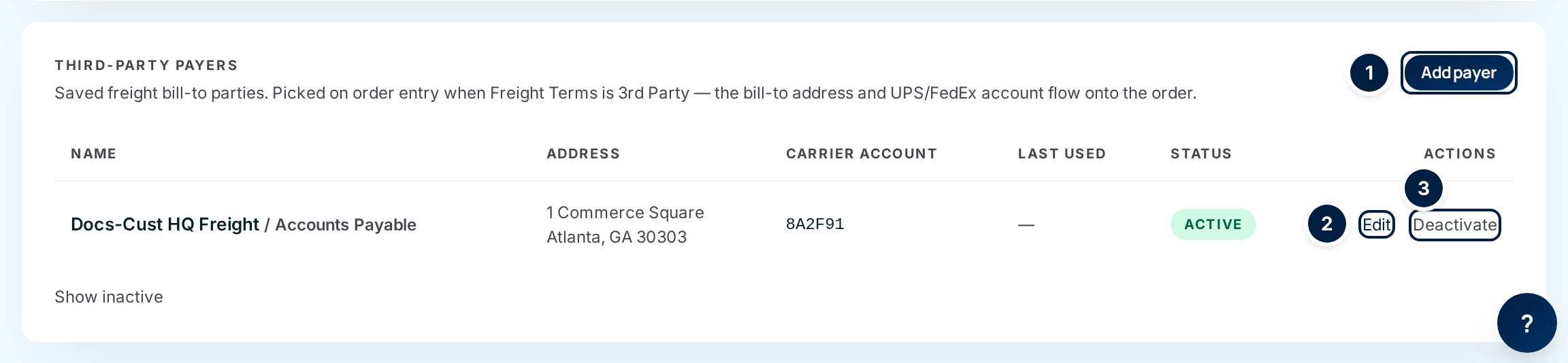
Open the customer and scroll to Third-Party Payers.
-
Choose Add payer ①.
-
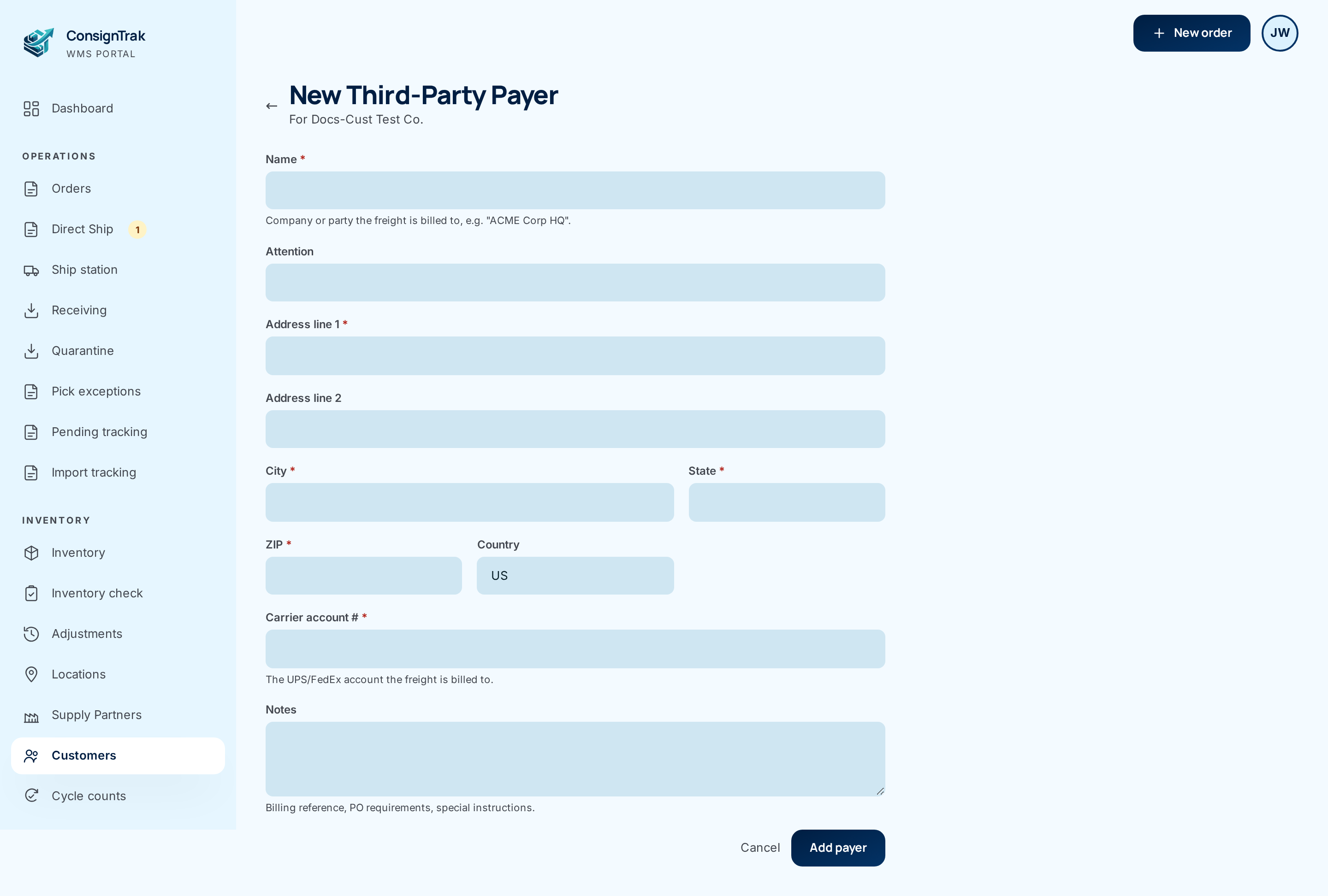
Enter the Name, the billing address and the Carrier account #.
-
Choose Add payer. You're back on the customer.
Use a payer on an order
-
Pick the customer in order entry.
-
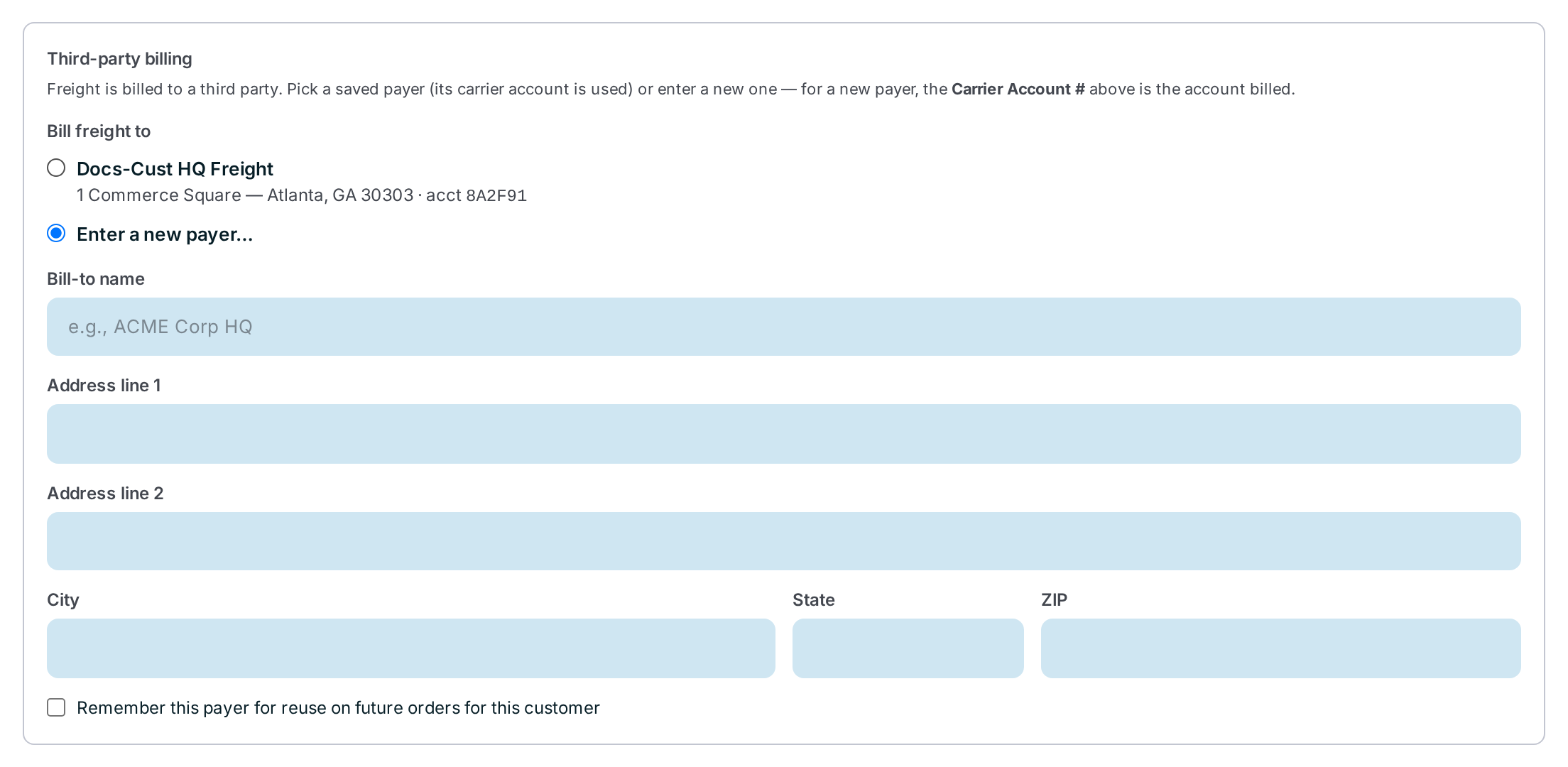
Set Freight Terms to 3rd Party. A Third-party billing box opens with the customer's saved payers under Bill freight to.
-
Choose the payer. Its address and carrier account are copied onto the order, and the fields for a new payer hide.
Enter a payer that isn't saved yet
- Choose Enter a new payer… in the Third-party billing box.
- Fill in Bill-to name and the address.
- Enter the account to bill in Carrier Account # in the Shipping section above. For a new payer, that's the account used.
- Tick Remember this payer for reuse on future orders for this customer to save it on the customer when the order is created.
The rest of order entry, including the other freight terms, is covered in Orders.
Change or retire a payer
- Edit ② opens the form with the current values. Choose Save.
- Deactivate ③ hides the payer from new orders. The button turns red and asks you to click again to confirm. Orders that already used it keep the address and account they were entered with.
- Show inactive lists deactivated payers. Choose Activate to bring one back.
Every field and option
Payer form (on the customer)
| Field or control | What it means | Required | Default | What changes when you set it |
|---|---|---|---|---|
| Name | The company or party the freight is billed to, such as "ACME Corp HQ". | Yes | — | Shown in the list and in order entry. |
| Attention | A person or department, such as "Accounts Payable". | No | — | Shown after the name. |
| Address line 1 | Billing street address. | Yes | — | — |
| Address line 2 | Suite or floor. | No | — | — |
| City | — | Yes | — | — |
| State | Two-letter code. | Yes | — | — |
| ZIP | — | Yes | — | — |
| Country | Two-letter country code. | No | US | — |
| Carrier account # | The UPS or FedEx account the freight is billed to. | Yes | — | Copied onto each order that uses this payer. |
| Notes | Billing reference, PO requirements, special instructions. | No | — | Stored with the payer. |
| Add payer / Save | Saves and returns to the customer. | — | — | — |
| Cancel and ← | Leave without saving. | — | — | — |
Third-Party Payers panel
| Field or control | What it means | Required | Default | What changes when you set it |
|---|---|---|---|---|
| Add payer | Opens the form. | — | — | — |
| Name, Address, Carrier account | The saved payer. | — | — | Read-only. |
| Last used | The date of the last order entered with this payer. | — | — | Most recently used payers are listed first. |
| Status | Active or Inactive. | — | — | — |
| Edit, Deactivate, Activate | See the steps above. | — | — | Deactivate asks you to click again. |
| Show inactive / Hide inactive | Include or hide deactivated payers. | — | Hidden | — |
Third-party billing box (order entry)
| Field or control | What it means | Required | Default | What changes when you set it |
|---|---|---|---|---|
| Freight Terms: 3rd Party | Freight is billed to a third party. | — | — | Opens the Third-party billing box. |
| Select a customer above to see saved payers. | Shown until a customer is picked. | — | — | — |
| Bill freight to: a saved payer | Name, address and account. | — | — | Its address and account are copied onto the order. |
| Enter a new payer… | Type the bill-to by hand. | — | Selected | Shows the fields below. |
| Bill-to name, Address line 1, Address line 2, City, State, ZIP | The new payer's billing address. | — | — | Copied onto the order. |
| Carrier Account # (Shipping section) | For a new payer, the account billed. | — | — | — |
| Remember this payer for reuse on future orders for this customer | Save the typed payer on the customer. | No | Off | Adds it to the customer's Third-Party Payers panel. |
What happens next
- The bill-to address and carrier account are copied onto the order when it's created. Editing the payer later doesn't change orders already entered.
- The payer's Last used date updates.
- Nothing is charged by ConsignTrak. The carrier bills the account; the account number just has to be on the shipment.
Common problems
"Please fix the following:" with name is required, address line 1 is required, city is required, state is required, zip code is required or carrier account # is required — Fill in the listed fields and save again.
No saved payers in order entry. — Pick the customer first, and check the payer isn't deactivated. Payers belong to one customer; a payer saved on another customer won't appear.
The wrong account was billed on a new payer. — For Enter a new payer… the account comes from Carrier Account # in the Shipping section.