Searching and adding from order entry
What this is
When you enter an order, the Customer field searches as you type. If the customer isn't on file yet, you can add it in a small window on top of the order and carry on. You don't lose anything you've already typed. This page covers that search and the quick add. The rest of the order is covered in Orders.
Before you start
- Role: Office or Administrator. You need permission to edit customers to see Add new customer.
- Settings: none.
- You'll need: an order open in New order (the button at the top right of every page).
Step by step
Find an existing customer
-
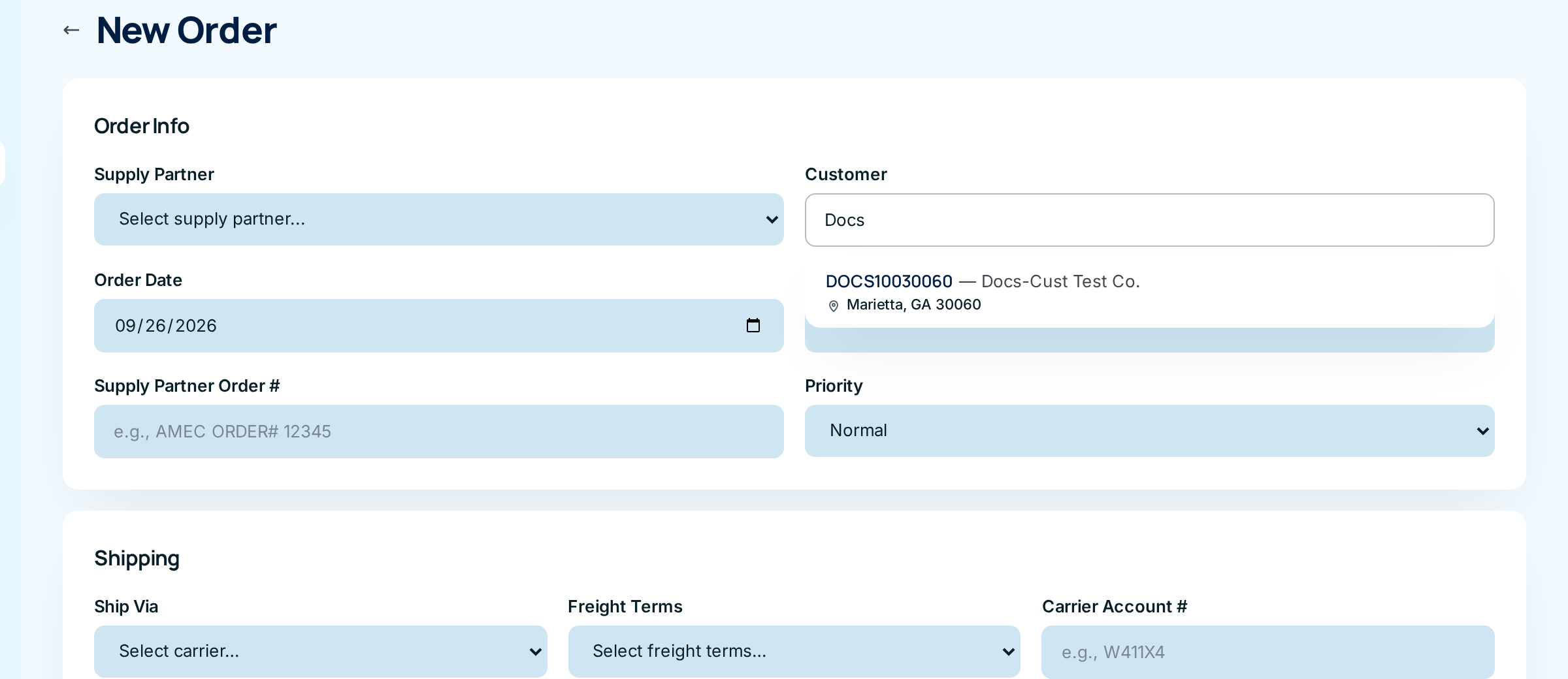
Type in the Customer field. After a short pause, up to ten matching active customers appear, each with its account number, name and city.
-
Click the right customer, or use the arrow keys and Enter.
-
Check the green Selected customer card that appears. It shows the name and city so you can confirm you picked the right branch.

Once a customer is picked, order entry also loads its saved drop-ship locations and third-party payers.
Add a customer that isn't on file
-
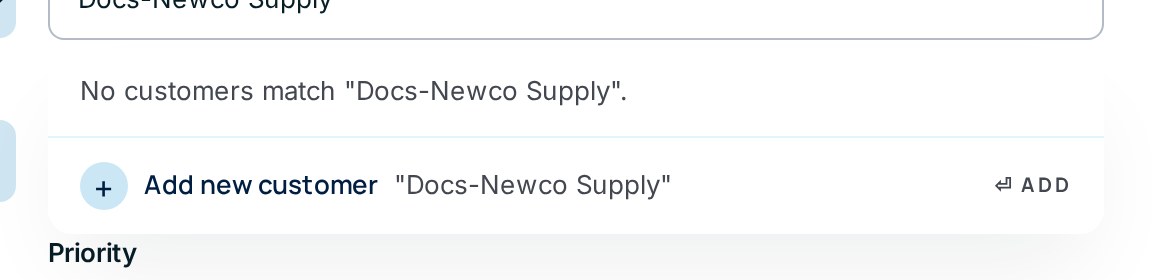
Type the company name in the Customer field. When nothing matches, ConsignTrak says so and offers Add new customer with what you typed.
-
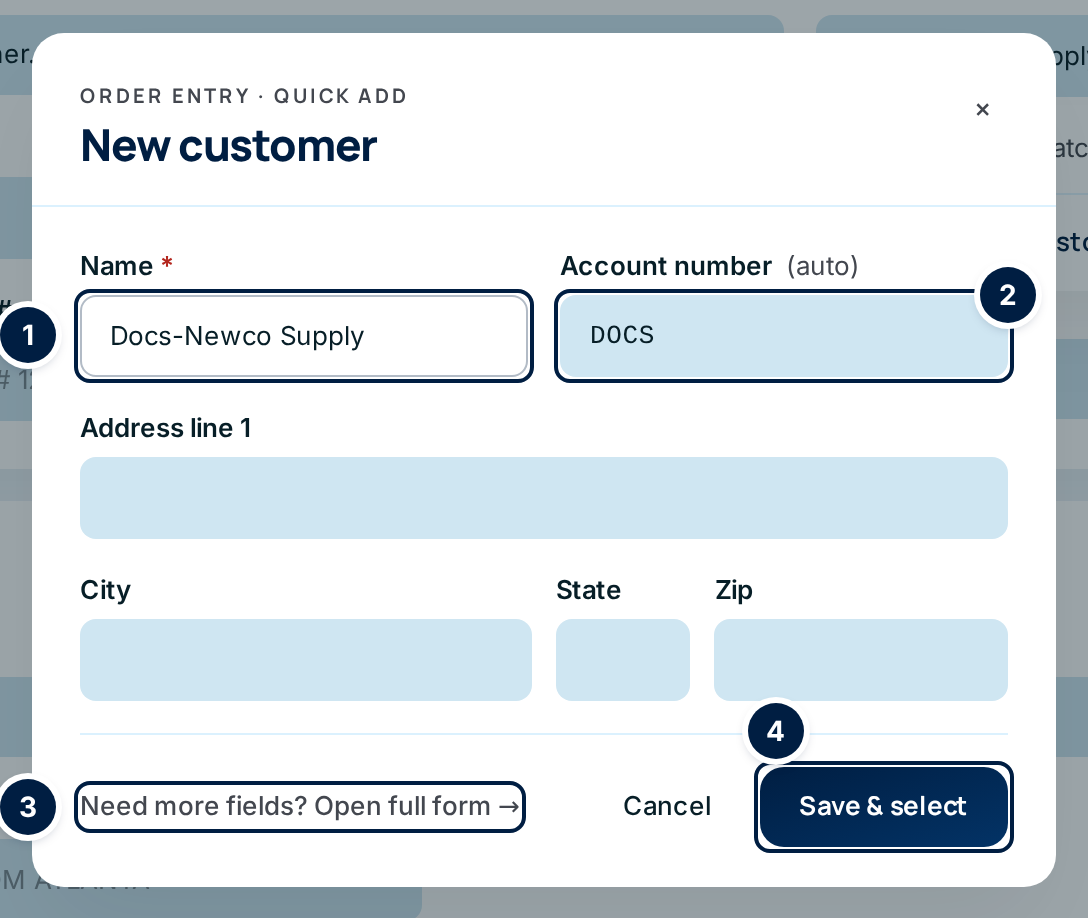
Choose Add new customer. A New customer window opens over the order with the Name ① filled in and a suggested Account number ②.
-
Check the account number. ConsignTrak suggests the first four letters and digits of the name in capitals ("Docs-Newco Supply" becomes DOCS). Add to it so it's unique: the previous system's pattern adds the first three characters of the street and the ZIP code, for example DOCS10030060. You can type anything, but it can't be changed later.
-
Add the street, city, state and ZIP if you have them. They become the customer's default ship-to.
-
Choose Save & select ④. The window closes, and the new customer is picked on the order with its city shown on the Selected customer card.
Need more fields? Open full form → ③ opens the full New Customer page with the name and suggested account number carried over, so you can set Type, Region and Address Line 2. That page doesn't return you to the order, so start the order again afterwards.
Search on the Customers list
The search box on the Customers list works the same way but also finds inactive customers when the filter is set to All or Inactive.

Every field and option
| Field or control | What it means | Required | Default | What changes when you set it |
|---|---|---|---|---|
| Customer field (order entry) | Search by any part of the name or account number, or the start of an alternate name. | Yes, to create the order | Empty | Shows up to ten active customers. Inactive customers never appear here. |
| A result row | Account number, name, and city/state/ZIP when on file. | — | — | Picks the customer. |
| Selected customer card | Confirms the pick with the name and city. | — | — | Type again in the field to change it. |
| No customers match "…". | Nothing active matches what you typed. | — | — | — |
| Add new customer "…" / ⏎ Add | Opens the quick-add window with your text as the name. | — | — | Shown only to users who can edit customers. |
| Name | The company name. | Yes | What you typed | — |
| Account number (auto) | The customer's permanent identifier. Must be unique. | Yes | First four letters and digits of the name, in capitals | Can't be changed after you save. |
| Address line 1, City, State, Zip | The default ship-to. State is two letters. | No | — | — |
| Need more fields? Open full form → | Opens the full New Customer page with the name and account number filled in. | — | — | Leaves the order. |
| Cancel / × | Closes the window without saving. | — | — | The order is untouched. |
| Save & select | Creates the customer and picks it on the order. | — | — | The customer is on file even if you then cancel the order. |
What happens next
- The new customer is saved at once, and picked on the order you're entering.
- It appears on the Customers list with only the fields you filled in. Open it later to add the type and region.
- You can edit it at any time, except the account number.
Common problems
"Pick a customer from the search results before creating the order." — Typing a name isn't enough. Click a result so the Selected customer card appears.
"A customer with this account number already exists" — The four-letter suggestion is often taken. Add the street and ZIP characters, or another suffix, and choose Save & select again.
"Account number and name are required" — One of the two is blank.
The customer exists but doesn't come up. — It may be inactive, or the name on file is spelled differently. Search the Customers list with the filter on All, or try the account number.
I don't see Add new customer. — Your role can't add customers. Ask an Office user or Administrator.