Exporting customers and contacts
What this is
You can download the whole customer list, or every contact at every customer and supply partner, as a spreadsheet. Use it for a mailing list, a territory review, or to hand the list to another system. Each export comes in two formats: CSV (opens in anything) and XLSX (Excel).
Before you start
- Role: Office or Administrator.
- Settings: none.
- You'll need: nothing.
Step by step
Export customers
-
Open Customers from the sidebar.

-
Choose Export ① for a CSV file, or XLSX ② for an Excel file. The file downloads straight away.
The file always holds every customer, active and inactive. The search box and the Active / Inactive filter on the list don't narrow it; filter in your spreadsheet instead.
Export contacts
Contacts have no list of their own, so their export sits with the bulk imports.
-
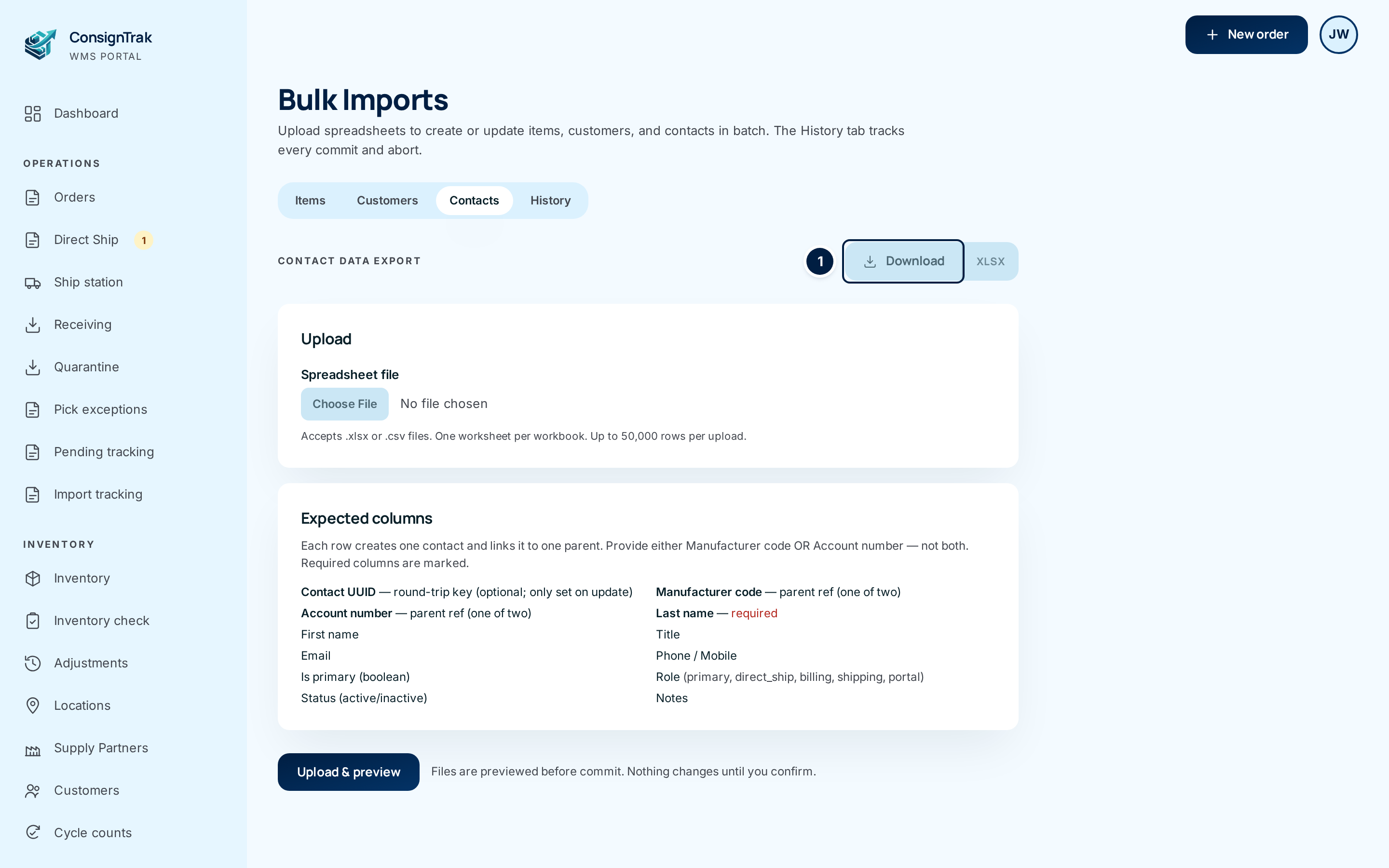
Open Bulk imports and choose the Contacts tab.
-
Choose Download ① under Contact data export for CSV, or XLSX beside it for Excel.
Export customers for a mass update
To change many customers at once, the Customers tab of Bulk imports has a Mass-update XLSX button. It downloads a file shaped for editing and uploading again. That process is covered on the Bulk imports page.
Every field and option
Buttons
| Field or control | What it means | Required | Default | What changes when you set it |
|---|---|---|---|---|
| Export (Customers list) | Downloads every customer as CSV. | — | — | Nothing changes in ConsignTrak. The download is recorded in the audit trail. |
| XLSX (Customers list) | The same, as an Excel file. | — | — | — |
| Customer data export / Download, XLSX (Bulk imports, Customers tab) | The same customer file as the list's Export. | — | — | — |
| Mass-update XLSX (Bulk imports, Customers tab) | The editable file for a mass update. | — | — | — |
| Contact data export / Download, XLSX (Bulk imports, Contacts tab) | Every contact link, as CSV or Excel. | — | — | — |
Files are named with the kind and the date, for example
consigntrak-customers-all-20260926.csv.
Customer export columns
| Column | What it holds |
|---|---|
| Customer UUID | ConsignTrak's internal key for the record. Leave it alone if you'll import the file back. |
| Account number | The account number. The file is sorted by it. |
| Name | Company name. |
| Status | active or inactive. |
| Customer type code | distributor, oem, end_user, or blank. |
| Region | — |
| Address 1, Address 2, City, State, Zip code, Country | The default ship-to address. |
| Phone 1, Phone 2, Fax, Website | Contact information. |
The Mass-update XLSX file has the same columns, with Status moved near the end, plus Notes and Complete shipments only (yes/no).
Neither customer file includes alternate names, contacts, drop-ship locations or third-party payers.
Contact export columns
There is one row for each link between a person and a customer or supply partner. A person linked to two customers appears twice. Deactivated contacts are included, with Status inactive.
| Column | What it holds |
|---|---|
| Contact UUID | ConsignTrak's internal key for the person. |
| Manufacturer code | Filled in when the row is a supply partner's contact. |
| Account number | Filled in when the row is a customer's contact. |
| Entity name | The customer's or supply partner's name. |
| Role | The person's role on that record (see Contacts and roles). |
| First name, Last name, Title | — |
| Email, Phone, Mobile | — |
| Is primary | yes or no. |
| Status | active or inactive. |
| Notes | — |
What happens next
- The file downloads to your computer. Nothing in ConsignTrak changes.
- Each export is recorded in the audit trail with the format and the number of rows.
The contacts file has names, emails and phone numbers for every customer and supply partner. Store and share it as you would any customer list.
Common problems
My export has inactive customers in it. — Customer exports always include every customer. Filter the Status column in your spreadsheet.
The export didn't follow my search. — Correct; it ignores the search box.
The spreadsheet shows account numbers like 1.23E+05. — Excel reformatted a long number when opening the CSV. Download the XLSX file instead.
I can't find Bulk imports. — Supply Partner users can't open it or download the contacts file. Ask an Office user or Administrator.