Customer records
What this is
A customer record is everything ConsignTrak knows about one company you ship to: its account number, name, type, default ship-to address, the people there, and what has shipped to it. Office staff add customers here, correct addresses, and look a customer up before answering a call.
Before you start
- Role: Office or Administrator. Warehouse and Supply Partner users don't see the customer pages.
- Settings: none.
- You'll need: the customer's company name and an account number. The account number is permanent, so decide it before you save (see How customers are identified).
Step by step
Find a customer
-
Open Customers from the Inventory section of the sidebar.
-
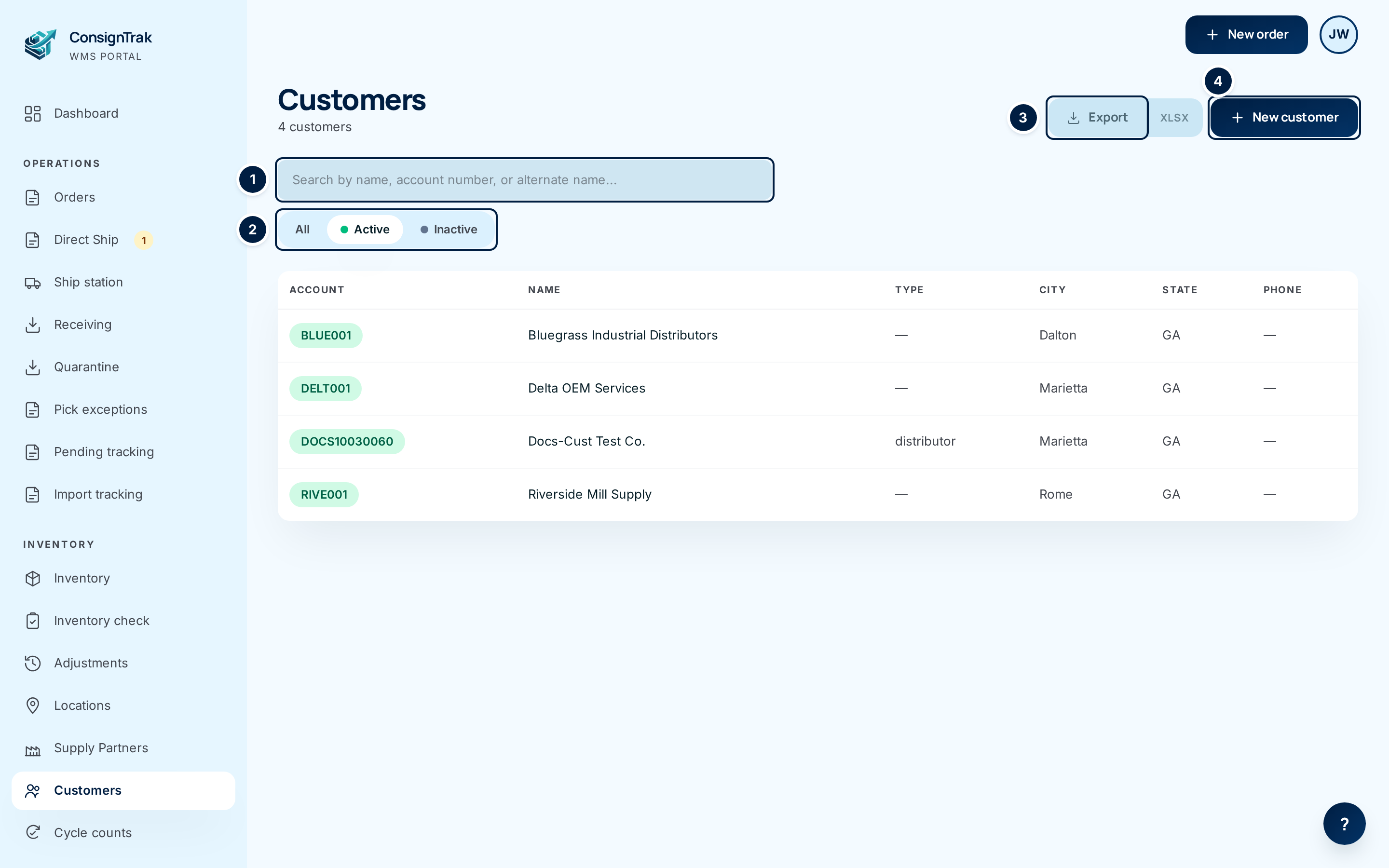
Type part of the name, the account number or an alternate name in the search box ①. The list narrows as you type.
-
Switch the status filter ② if you need an inactive customer. The list opens on Active.
-
Click a row to open the customer.
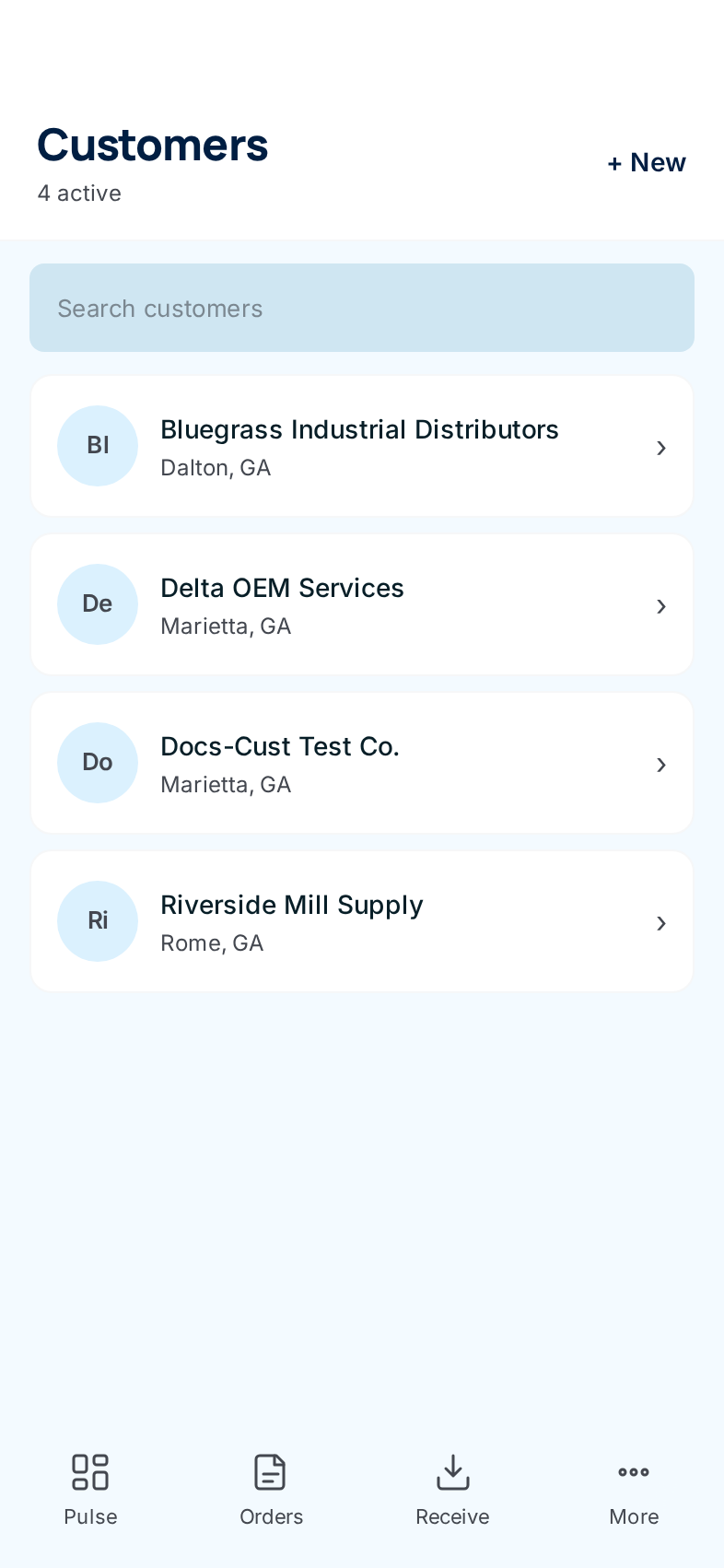
On a phone, Customers shows active customers as cards, with a search box and + New at the top. The record, the Edit form and the history open the same way.
Add a customer
-
Choose New customer ④ at the top right of the list.
-
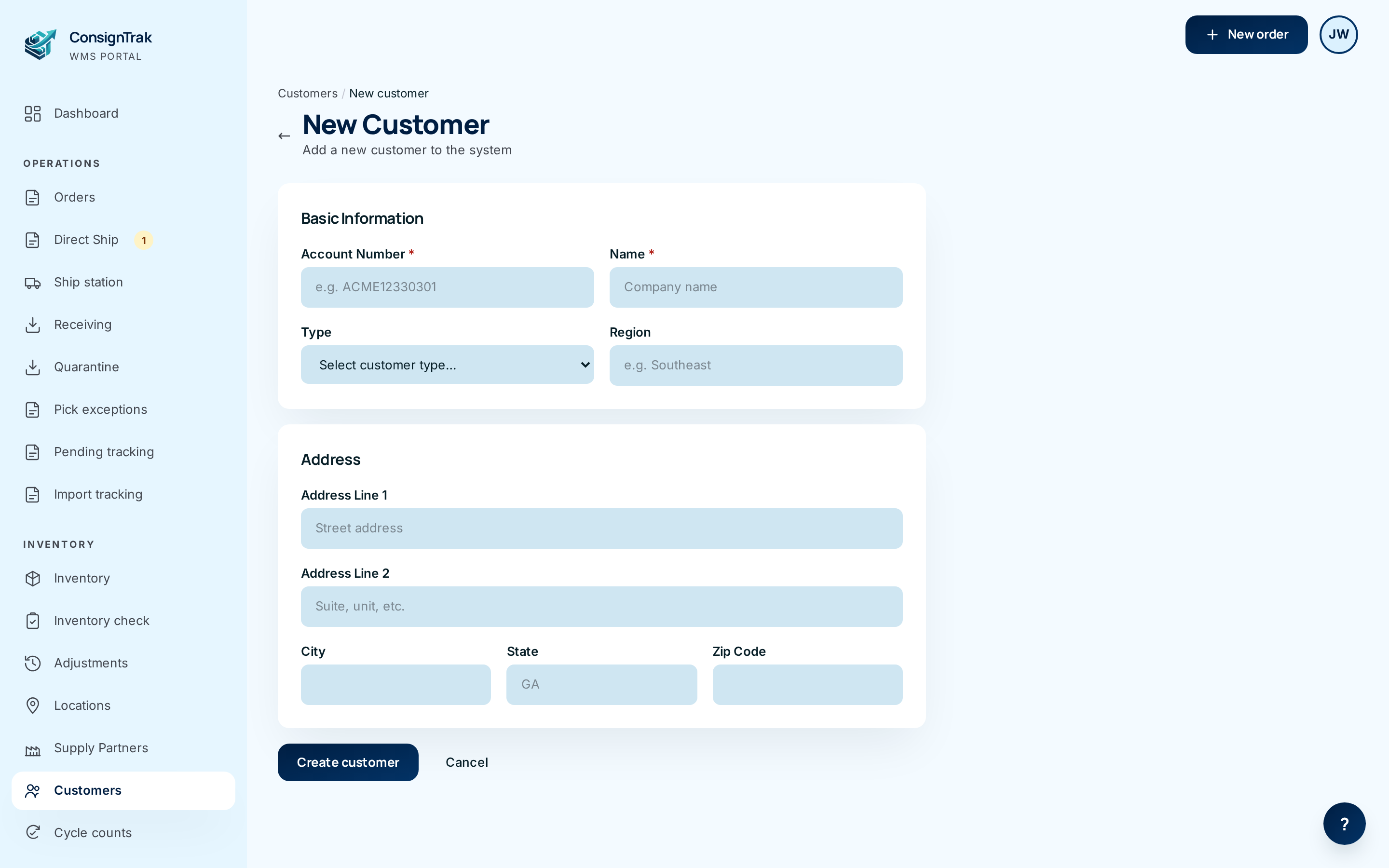
Enter the Account Number and Name. Both are required.
-
Fill in Type, Region and the address if you have them. The address is the customer's default ship-to.
-
Choose Create customer. ConsignTrak opens the new record.
You don't need to leave order entry. Search for the customer there and choose Add new customer. See Searching and adding from order entry.
Read the record
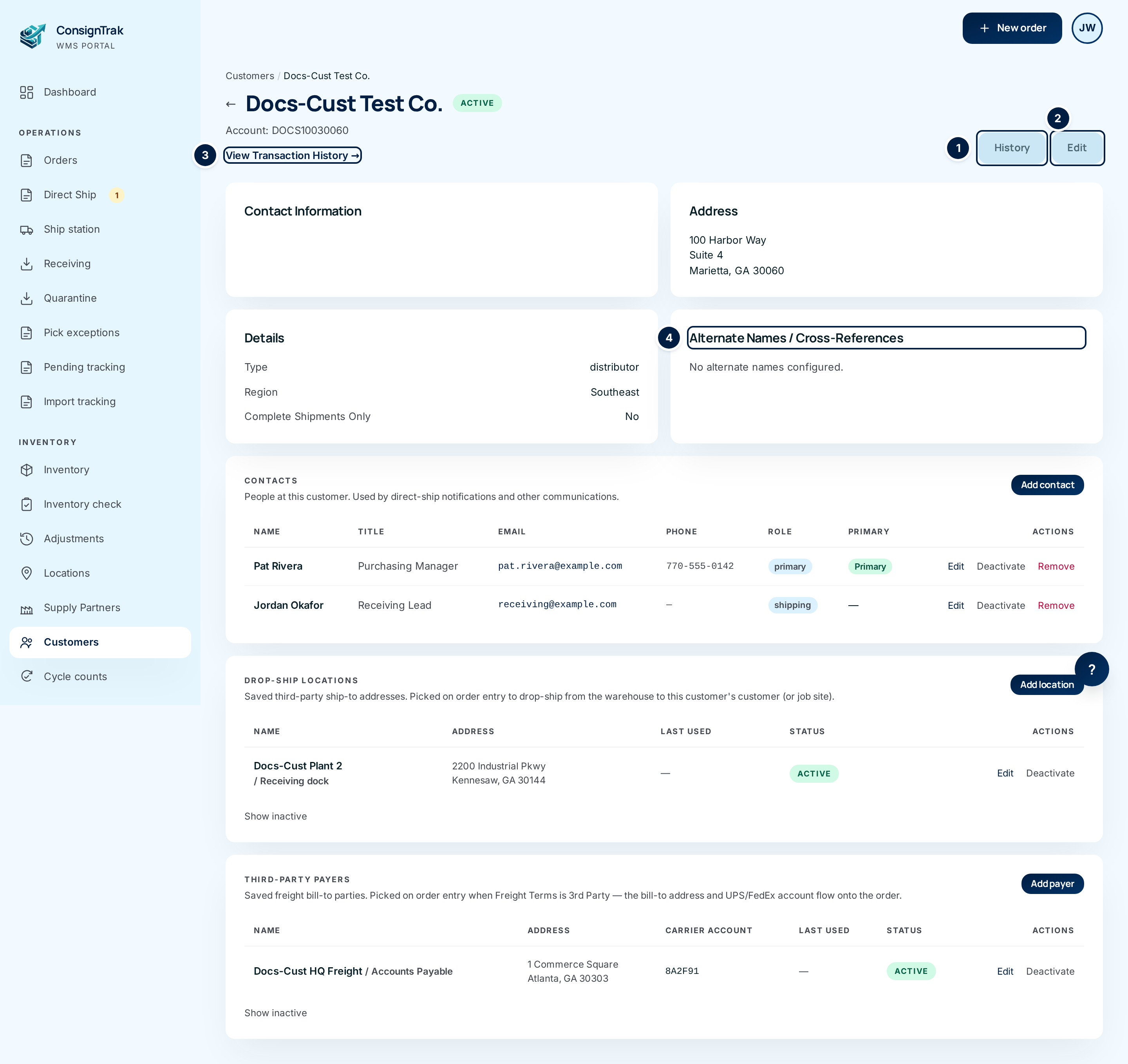
The record opens with the name, an Active pill and the account number. Below that are cards for contact information, address, details and alternate names, then the panels for contacts, drop-ship locations and third-party payers.
Edit the record
-
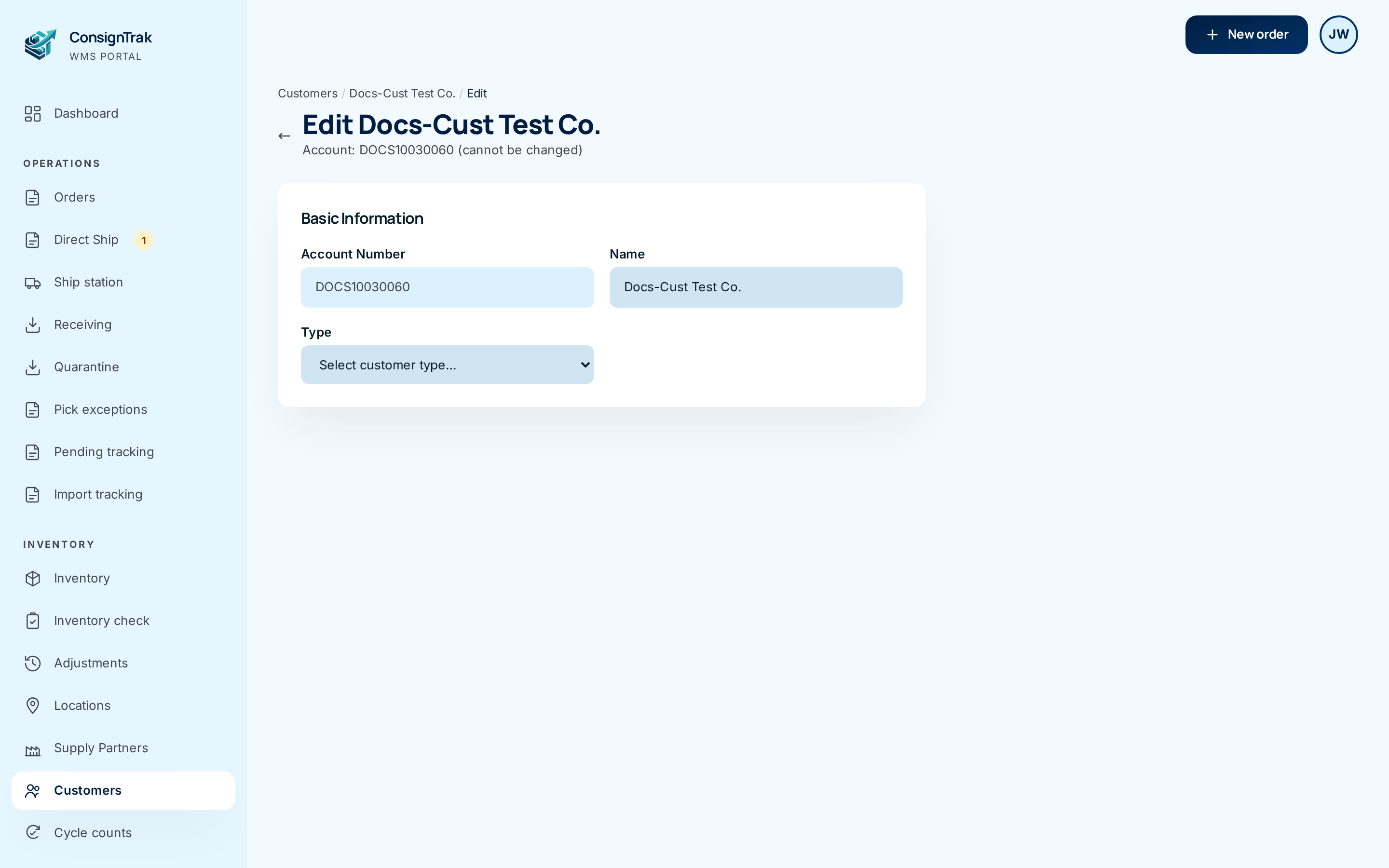
Choose Edit ② on the record.
-
Change the name, type, region or address.
-
Choose Save changes, or Cancel to go back without saving.
See what has shipped to the customer
-
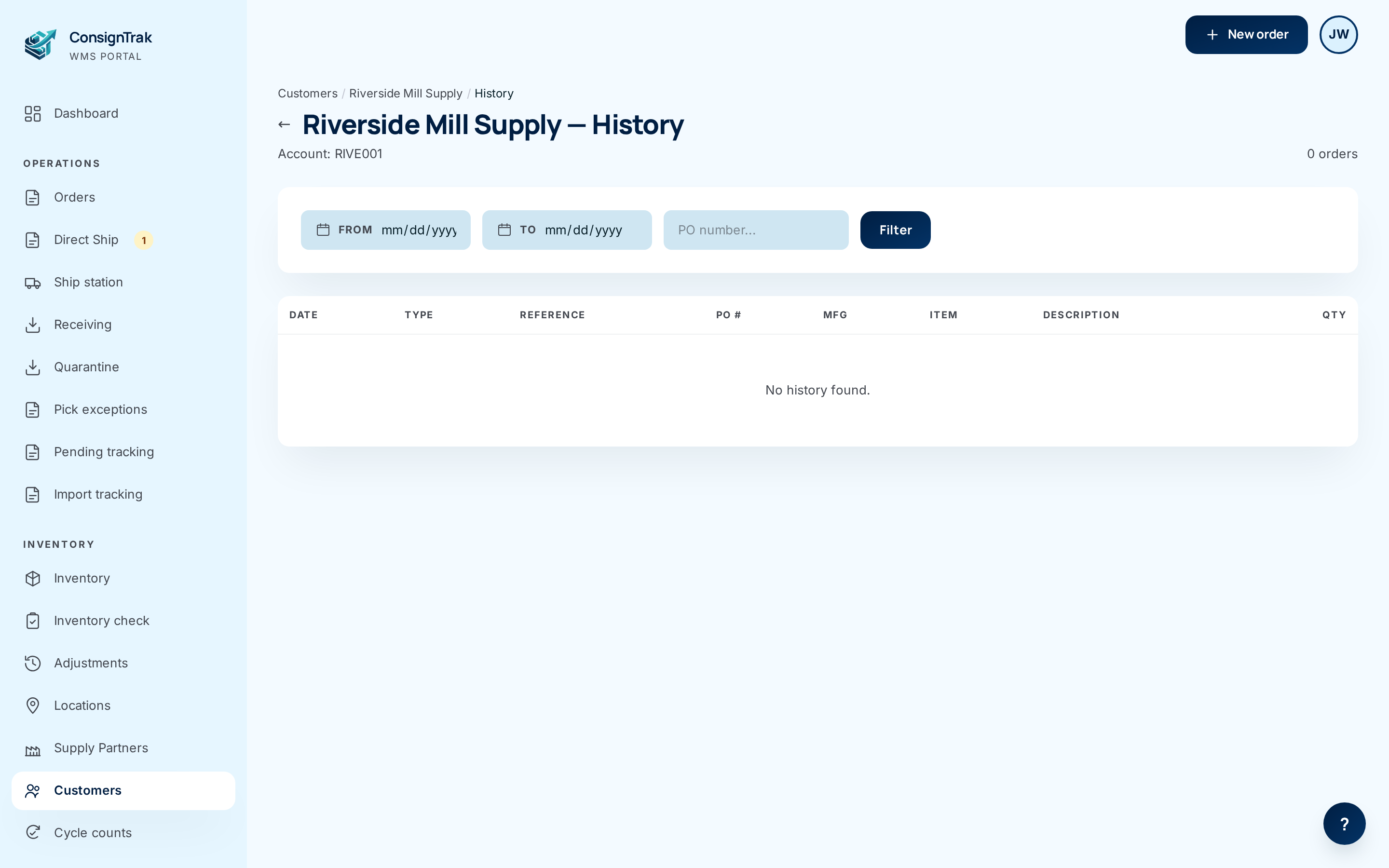
Choose View Transaction History ③. Every line ConsignTrak has shipped to this customer is listed, newest first.
-
Narrow the list with From, To or a PO number, then choose Filter.
-
Choose History ① on the record for the archive of orders carried over from the previous system. It's read-only. It shows total orders and lines, a 60-month volume chart, the customer's top supply partners and items, and recent closed orders. A customer added after the move to ConsignTrak shows No archived history for this customer.
Every field and option
Customers list
| Field or control | What it means | Required | Default | What changes when you set it |
|---|---|---|---|---|
| Customers / N customers | The page title and how many customers match the current filter. | — | — | Read-only. |
| Search box | Matches any part of the name or account number, or the start of an alternate name. Punctuation and spaces in alternate names don't matter. | No | Empty | The list narrows as you type. The search is kept in the address bar, so you can bookmark it. |
| All / Active / Inactive | Which customers to show. | — | Active | Filters the list. |
| Export / XLSX | Download the customer list. See Exporting customers and contacts. | — | — | Downloads a file. |
| New customer | Opens the New Customer form. | — | — | — |
| Account column | The account number. Green means active, grey means inactive. | — | — | — |
| Name, City, State columns | From the record. A dash means the field is empty. | — | — | — |
| Type, Phone columns | Shown on wider screens only. | — | — | — |
| Row | Opens the customer. | — | — | — |
| Previous / Next | Page through the list, 50 at a time. | — | — | — |
New customer and Edit forms
| Field or control | What it means | Required | Default | What changes when you set it |
|---|---|---|---|---|
| Account Number | The customer's permanent identifier. Must be unique. Customers carried over from the previous system use its code: the first four letters of the name, the first three of the street, and the ZIP code. | Yes, on New | — | Can't be changed after you save. On the Edit form it's shown greyed out with (cannot be changed). |
| Name | The company name, as printed on releases and shown in search. | Yes | — | Renaming affects future orders only. Orders already entered keep the name they were entered with. |
| Type | Distributor (resells), OEM (builds it into a product) or End User (uses the parts). | No | Select customer type… | Shown in the list and on the record, and used for reporting. |
| Region | A territory or area, in your own words ("Southeast"). | No | — | Shown on the record. |
| Address Line 1, Address Line 2, City | The customer's default ship-to address. | No | — | Used when an order ships to the customer rather than a drop-ship location. |
| State | Two-letter state code. | No | — | — |
| Zip Code | ZIP or postal code. | No | — | — |
| Create customer / Save changes | Saves and opens the record. | — | — | Records who made the change in the audit trail. |
| Cancel and the back arrow ← | Leave without saving. | — | — | — |
The customer record
| Field or control | What it means | Required | Default | What changes when you set it |
|---|---|---|---|---|
| Name and status pill | Active, or inactive. | — | — | Only active customers can be picked on a new order. |
| Account: | The account number. | — | — | — |
| View Transaction History → | Everything ConsignTrak has shipped to this customer. | — | — | — |
| History | The read-only archive from the previous system. | — | — | — |
| Edit | Opens the Edit form. | — | — | — |
| ← (back arrow) | Back to the Customers list. | — | — | — |
| Contact Information card | Phone, Phone 2, Fax, Website. Empty ones are hidden. | — | — | Set by bulk import only (see below). |
| Address card | The default ship-to. The country line appears only when it isn't US. | — | — | Set on the Edit form. |
| Details card | Type, Region and Complete Shipments Only (Yes/No). | — | No | See the note on Complete Shipments Only below. |
| Alternate Names / Cross-References card | Other names and codes this customer is known by, with their Type and Value. Searching by any of them finds the customer. Shows No alternate names configured. when there are none. | — | — | Read-only here. See below. |
| Notes card | Free-form notes. Appears only when there are notes. | — | — | Set by bulk import only. |
| Contacts, Drop-Ship Locations, Third-Party Payers panels | See their own pages. | — | — | — |
Transaction History
| Field or control | What it means | Required | Default | What changes when you set it |
|---|---|---|---|---|
| N orders | How many history lines match. Each line is one item on one shipment, so an order with three items counts three times. | — | — | Read-only. |
| From / To | A date range, inclusive. | No | All dates | Filters the list when you choose Filter. |
| PO number… | The customer's purchase order number. It must match exactly. | No | — | Filters the list when you choose Filter. |
| Filter | Applies the filters. | — | — | — |
| Date | The day it shipped. | — | — | — |
| Type | release for a shipment to the customer. | — | — | — |
| Reference | The release number. | — | — | — |
| PO # | The customer's PO from the order. Wide screens only. | — | — | — |
| Mfg | The supply partner's manufacturer code. Very wide screens only. | — | — | — |
| Item | The part number, linked to the item. | — | — | Opens the item. |
| Description, Qty | From the order line. | — | — | — |
| Price, Extended | The price from the order, and quantity times price. | — | — | Shown only when Show prices throughout the application is on (see System configuration). |
| Previous / Next | Page through, 50 lines at a time. | — | — | — |
History (archive from the previous system)
| Field or control | What it means |
|---|---|
| Total Orders, Total Lines, Distinct Supply Partners, Years Covered | Summary of everything in the archive for this customer. |
| Monthly Volume — last 60 months | A bar per month. Hover a bar for the numbers. |
| Top Supply Partners (Supply Partner, Orders, Lines, Last Order) | Who this customer bought from most. The name opens the supply partner. |
| Top Items (Mfg, Item, Description, Last Sold) | What they bought most. The part number opens the item. |
| Recent Closed Orders (Release, Entry Date, Ship Date) | The latest archived orders. |
| No archived history for this customer. | Shown when the customer was added after the move to ConsignTrak, or its code didn't match the archive. |
Fields you can only set by bulk import
Some fields on the record can't be changed from the Edit form today. An Office user or Administrator sets them with a customer bulk import (export with Mass-update XLSX, change the cells, upload):
- Phone 1, Phone 2, Fax, Website, Notes, Country.
- Status, to archive a customer (inactive) or restore one (active). There's no Archive button on the record.
- Complete shipments only.
- Aliases (alternate names), and only when the customer is first created by the import.
This gap is tracked in issues #1498 and #1480.
The flag shows on the record, but ConsignTrak doesn't stop a partial shipment to a customer that has it set. If the customer won't accept partial shipments, check stock before you release their orders.
What happens next
- A new customer can be picked on an order straight away.
- An inactive customer stays on file with its history, but doesn't appear when you search for a customer in order entry.
- Every create and edit is recorded in the audit trail.
- When an order ships, each line is added to the customer's Transaction History.
Common problems
"Account number and name are required" — Fill in both before choosing Create customer.
"A customer with this account number already exists" — Account numbers are unique. Search for the number; the customer may already be on file, perhaps as inactive (switch the filter to All).
"Name is required" — On the Edit form, the name can't be blank.
I need to change an account number. — You can't. Create a new customer with the right number. Ask whoever runs bulk imports to add the old number as an alternate name so searches by it still find the customer.
I can't find an Archive or Deactivate button. — There isn't one yet. Set the Status column to inactive with a bulk import (see above).
The customer doesn't appear in order entry. — It's probably inactive. Check the Inactive filter on the Customers list.