Contacts and roles
What this is
The Contacts panel on a customer lists the people you deal with there: the buyer, the receiving lead, accounts payable. Each person has a role that says what they're for. The same panel and form appear on supply partners, and that's where roles matter most, because ConsignTrak uses a supply partner's contacts to decide who gets direct-ship emails.
Before you start
- Role: Office or Administrator. Other users see the panel read-only, without Add contact or the row actions.
- Settings: none.
- You'll need: the customer on file, and at least the person's last name.
Step by step
Add a contact
-
Open the customer and find the Contacts panel.
-
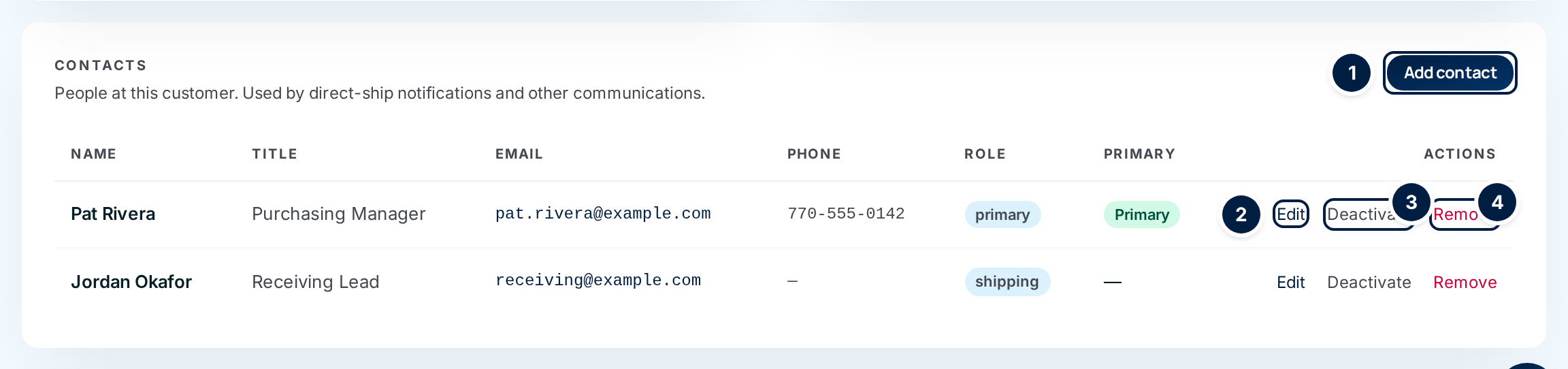
Choose Add contact ①.
-
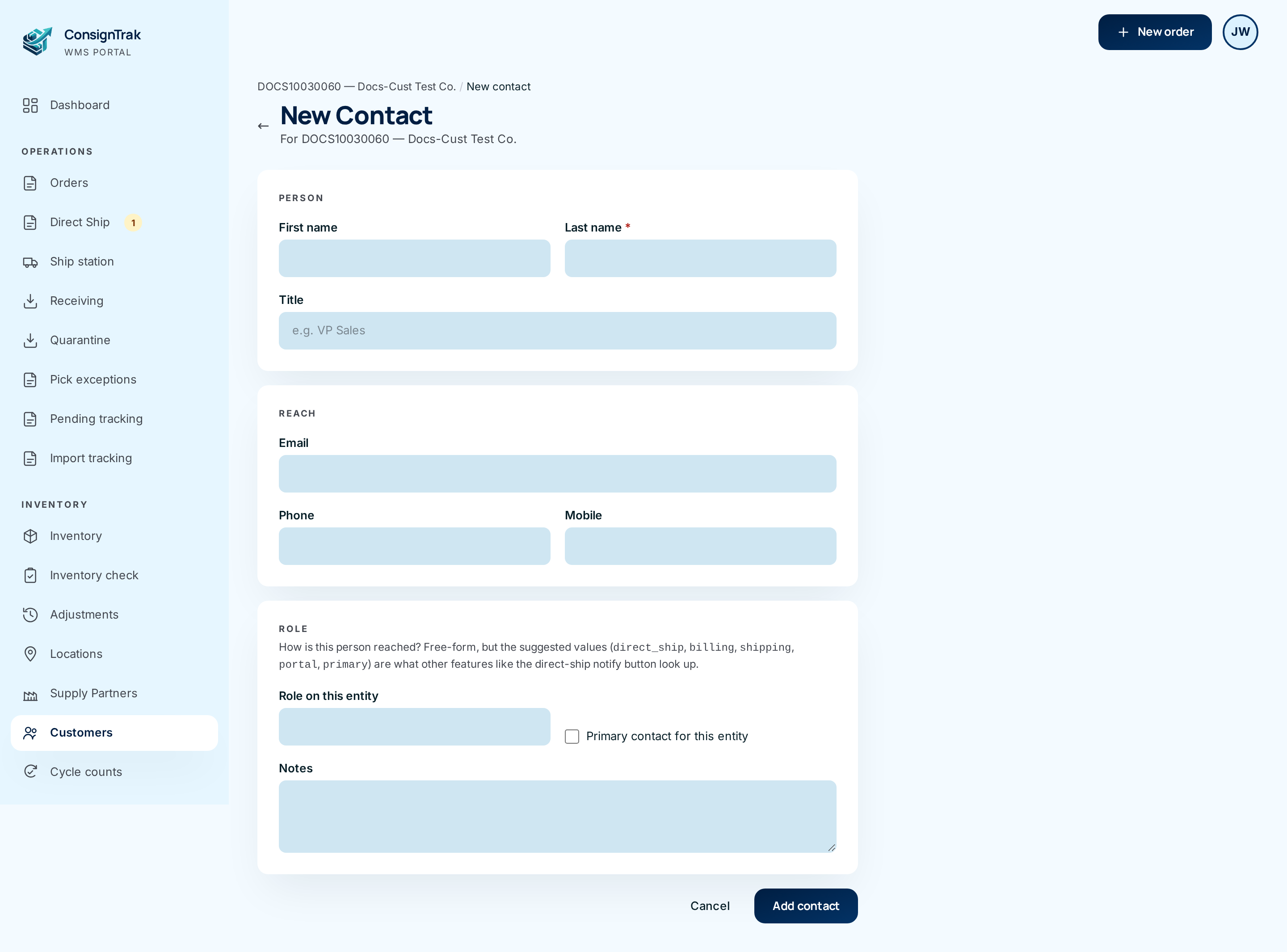
Enter the name and title under Person, and the email and phone numbers under Reach. Only Last name is required.
-
Type or pick a Role on this entity. The box suggests the standard roles (see the table below) but accepts any word.
-
Tick Primary contact if this is the main person to call.
-
Choose Add contact. You're back on the customer.
Change a contact
-
Edit ② opens the same form. Choose Save changes.
-
Remove ④ unlinks the person from this customer only. If the same person is linked to another customer or a supply partner, they stay there. The button asks you to click again to confirm.
-
Deactivate ③ hides the person from every customer and supply partner they're linked to. The button asks you to click again:
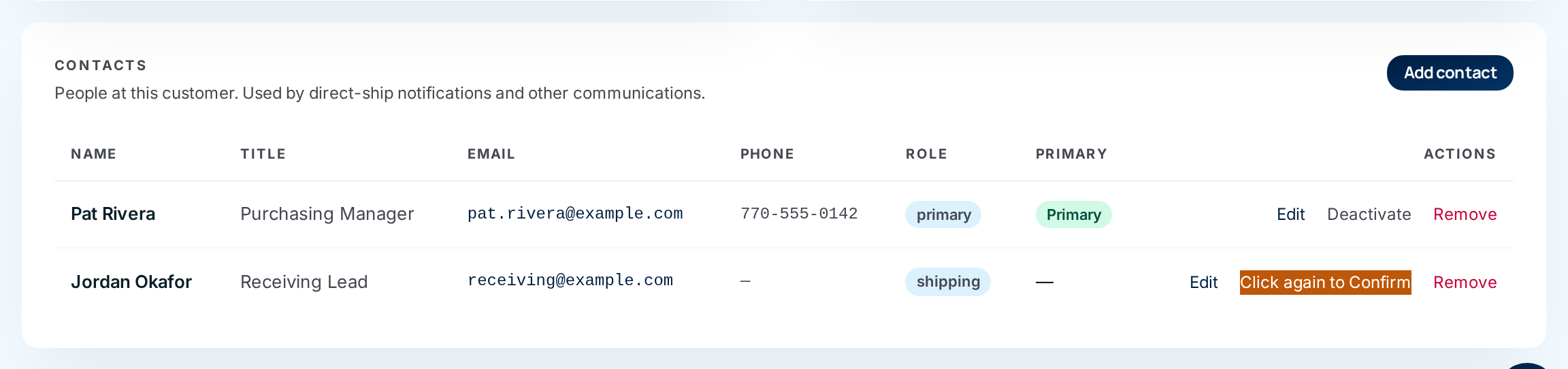
A deactivated contact disappears from every panel, and there is no Show inactive list or Reactivate button for contacts yet (#1499). To bring one back, an administrator reactivates it through the API, or you add the person again. If you only want them off this customer, use Remove.
What each role does
The Role is free text, but these five values are the ones ConsignTrak recognises:
| Role | On a customer | On a supply partner |
|---|---|---|
| primary | Not used. | Used. A short-pick exception's Notify email goes to this person. |
| direct_ship | Not used. | Used. When an order is direct-shipped, the Notify email goes to this person. The Direct Ship workspace won't let you notify a supply partner until one is on file. |
| billing | Not used yet. | Not used yet. |
| shipping | Not used yet. | Not used yet. |
| portal | Not used. | Not used yet. The supply partner's portal sign-ins are set up separately as users. |
The Primary contact tick box is the fallback on supply partners. If no contact has the direct_ship role, an order's Notify email goes to the ticked primary contact instead. If no contact has the primary role, a short-pick exception's email does the same. The Direct Ship workspace has no fallback: it needs a direct_ship contact.
ConsignTrak doesn't email customers. The supply partner invoices and talks to the customer, and the warehouse ships. Nothing is sent to a customer contact automatically, whatever its role. The panel's note, Used by direct-ship notifications, describes supply partners. Use customer contacts as your phone list, and give them roles so everyone reads them the same way.
Every field and option
| Field or control | What it means | Required | Default | What changes when you set it |
|---|---|---|---|---|
| Add contact | Opens the New Contact form. | — | — | Office and Administrator only. |
| Panel columns Name, Title, Email, Phone, Role, Primary | The contact's details. Clicking an email address opens your mail program. A dash means empty. | — | — | Read-only. Only active contacts are listed, primary contacts first. |
| Edit | Opens the Edit Contact form. | — | — | — |
| Deactivate | Hides the person everywhere. | — | — | Asks you to click again. Can't be undone on screen. |
| Remove | Unlinks the person from this customer. | — | — | Asks you to click again. |
| First name | — | No | — | — |
| Last name | — | Yes | — | — |
| Title | Job title, such as "VP Sales". | No | — | Shown in the panel. |
| — | No | — | Shown and clickable in the panel. | |
| Phone | Office phone. | No | — | Shown in the panel. |
| Mobile | Mobile phone. | No | — | Stored and exported. Not shown in the panel. |
| Role on this entity | What the person is for at this customer. Pick a suggestion or type your own. | No | — | See the roles table. The same person can have a different role at each customer or supply partner. |
| Primary contact for this entity | Marks the main person. | No | Off | Shows the green Primary pill and lists them first. The mark belongs to the person, so it shows on every record they're linked to. |
| Notes | Anything useful: best time to call, who covers when they're out. | No | — | Stored and exported. Not shown in the panel. |
| Add contact / Save changes | Saves and returns to the customer. | — | — | — |
| Cancel and ← | Leave without saving. | — | — | — |
What happens next
- The person appears in the customer's Contacts panel.
- Contacts are included in the contacts export.
- On a customer, nothing else changes. On a supply partner, the roles decide who gets direct-ship and exception emails.
Common problems
"Last name is required" — Fill in Last name. For a shared mailbox, put the department there ("Receiving").
A contact vanished from several records at once. — Someone chose Deactivate instead of Remove. See the caution above.
Primary shows on a customer where I didn't tick it. — The person is primary on another record. The mark follows the person. Untick it on the Edit form if they shouldn't be primary anywhere.
The direct-ship Notify email went to the wrong person. — That comes from the supply partner's contacts, not the customer's. Give the right person the direct_ship role on the supply partner.