Your account
What this is
Your account is your username, password, role and, for administrators, two-factor authentication. You manage the security side yourself on the Account security page: see whether two-factor authentication is on, get new recovery codes, and remove browsers you no longer trust. Everything else about your account (name, email, role, password) is set by an administrator.
Before you start
- Role: any. The Account security controls beyond the status line appear only once two-factor authentication is turned on (see Two-factor authentication).
- Settings: none.
- You'll need: your authenticator app, for anything that changes two-factor settings.
Step by step
Opening the account menu and signing out
-
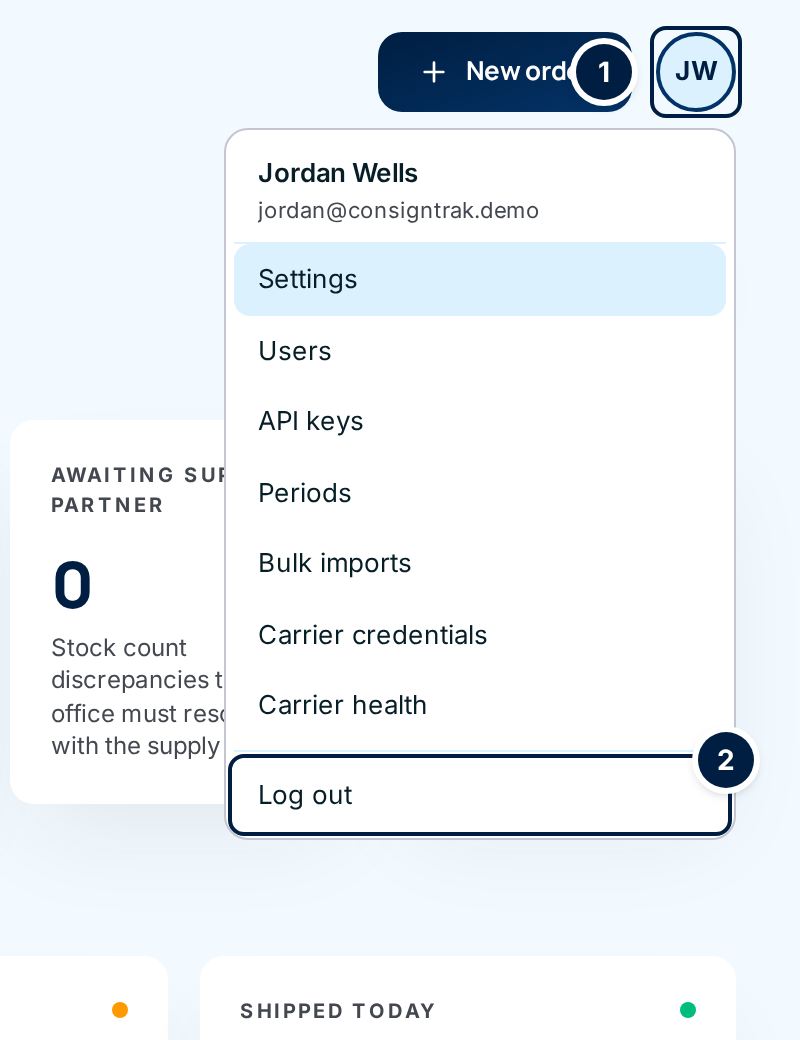
Choose your initials in the circle at the top right ① to open the account menu. It shows your name and email.
-
Choose Log out ② to sign out.
The links in between (Settings, Users, API keys and so on) are administrator tools. You see only the ones your role allows.
On a phone, tap More (warehouse workers see it as Me) in the bottom bar, scroll down and tap Sign out. View desktop site switches the phone to the computer layout.
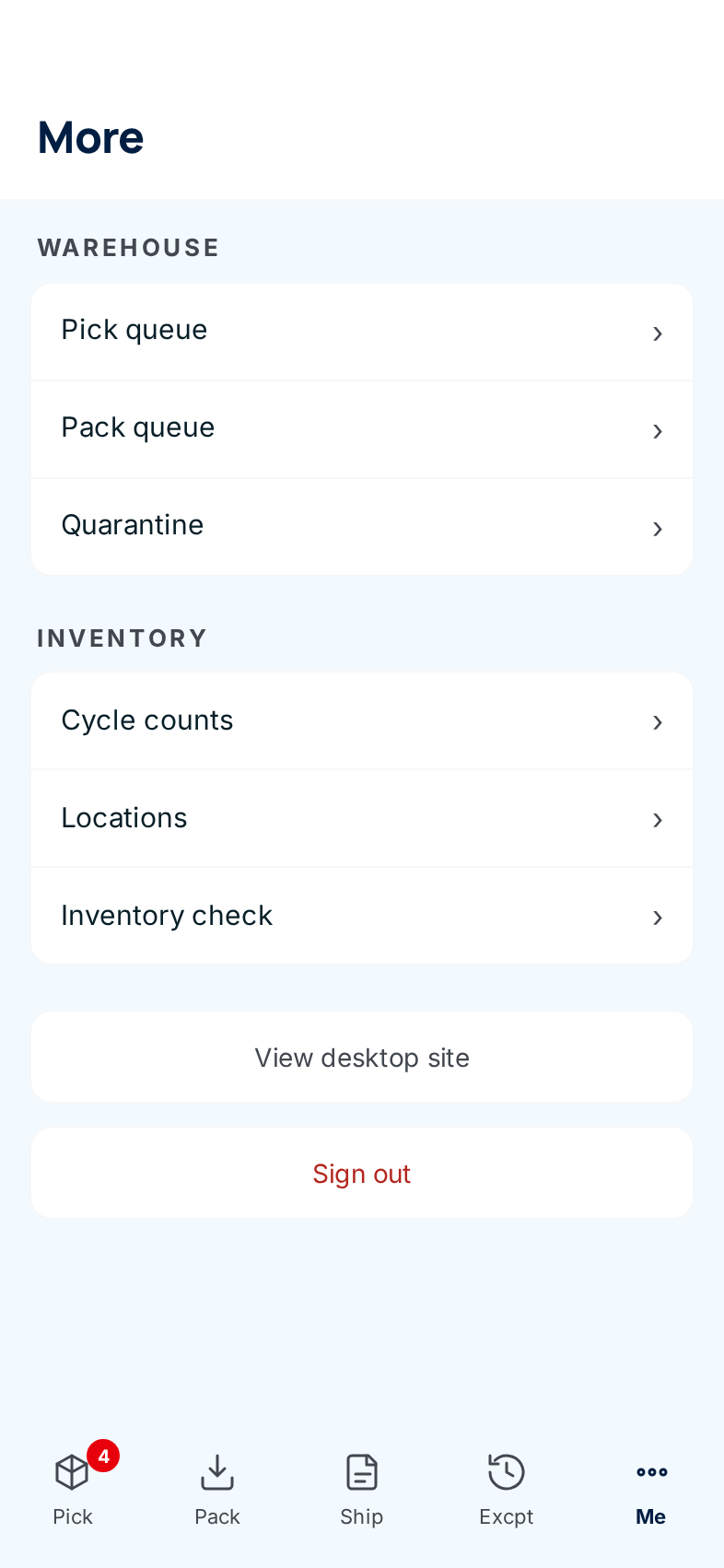
On a shared computer or warehouse phone, always sign out when you're done. Otherwise the next person works as you until your session runs out, and every change is recorded under your name.
Opening Account security
Account security doesn't have a menu item yet (tracked in issue #1475). To open it on a computer:
-
Click in your browser's address bar, after your ConsignTrak address.
-
Replace everything after the address with
/moreand press Enter. The More page opens.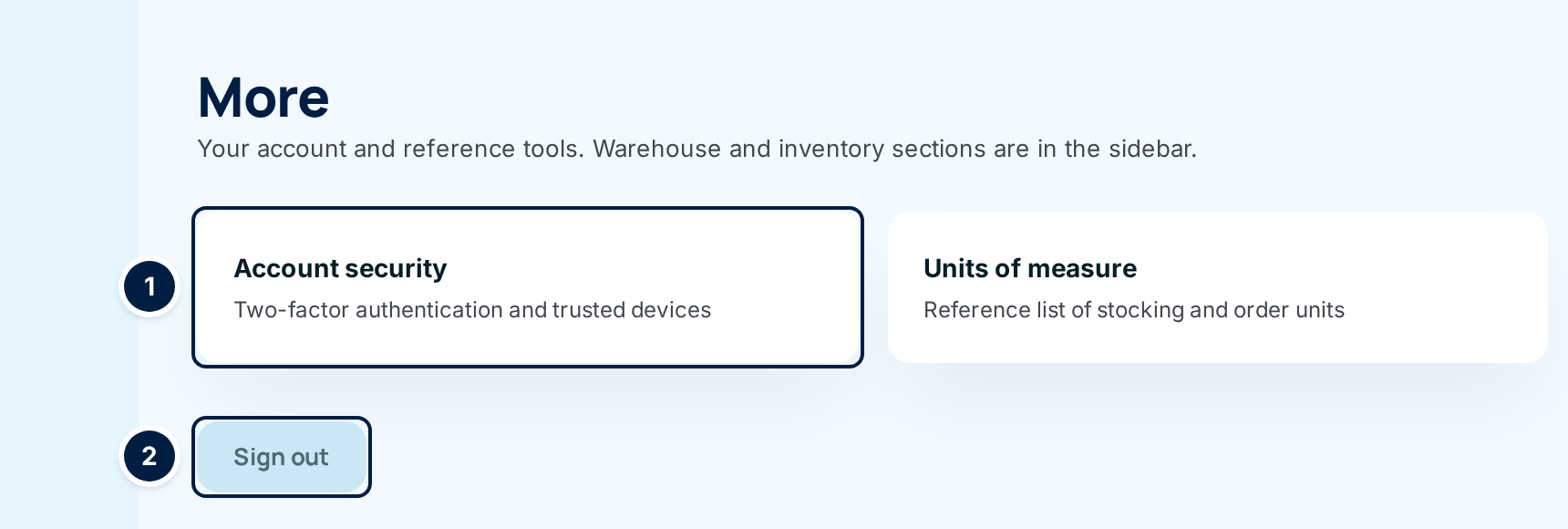
-
Choose Account security ①. (Sign out ② on this page does the same as Log out.)
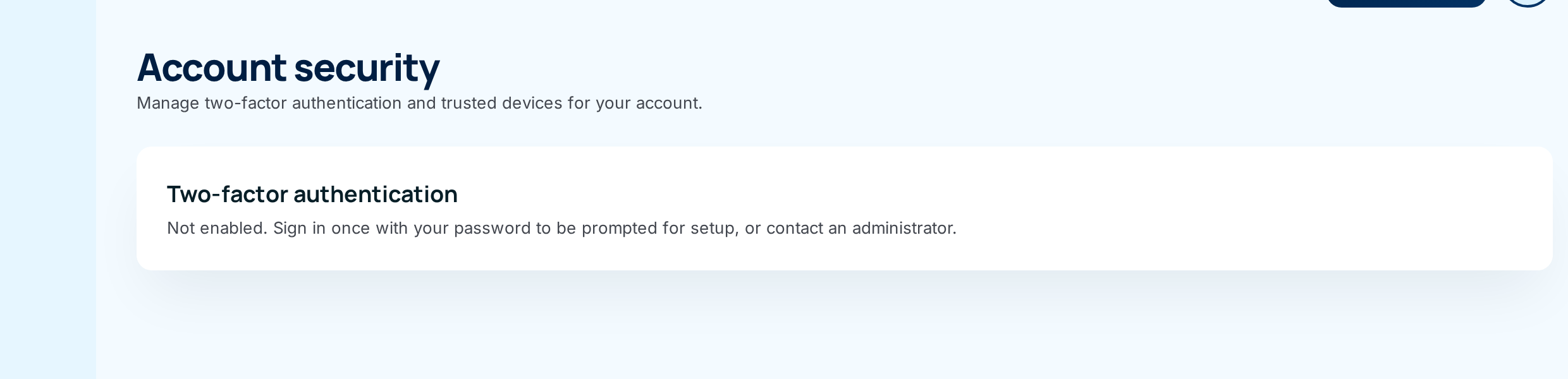
If two-factor authentication isn't on, that's all the page shows. When it's on, you also see the sections below.
Regenerating recovery codes
Do this after you've used a recovery code, or if you think someone has seen your codes.
-
Open your authenticator app and read the current code.
-
Type it into the 6-digit code box under Regenerate recovery codes.
-
Choose Regenerate. The button turns red and asks you to click again; click it a second time to confirm.
Your old codes stop workingRegenerating replaces all 10 codes. Any old codes you printed or saved stop working immediately.
-
Save the codes shown under New recovery codes with Copy or Download .txt. They won't be shown again.
Removing a trusted device
Trusted devices lists every browser where you ticked Trust this device for 30 days. Remove one you've stopped using, or a shared computer you ticked by mistake.
- Find the device in the list. It's named by browser and system, such as "Chrome on Windows".
- Choose Revoke. The button turns red and asks you to click again; click it a second time. That browser has to enter a code at its next sign-in.
Turning two-factor authentication off
- Type the current code from your app into the 6-digit code box under Disable two-factor authentication.
- Choose Disable, then click again to confirm.
If your warehouse requires two-factor authentication for administrators, you're asked to set it up again the next time you sign in. Use this when you're moving to a new phone.
Changing your password
There's no "change password" screen for you to use yourself (tracked in issue #1477). Ask an administrator to set a new password on your user record. It works straight away, and signs you out everywhere else. See Users & roles.
Every field and option
Account menu and More page
| Field or control | What it means | Required | Default | What changes when you set it |
|---|---|---|---|---|
| Initials button | Opens the account menu. | — | — | — |
| Log out (account menu) | Signs you out. | — | — | Your session ends; you return to the sign-in page. |
| More (heading, computer) | Your account and reference tools. | — | — | — |
| Account security (card) | Opens the Account security page. | — | — | — |
| Units of measure (card) | Opens the unit code list. Shown to roles that can view Supply Partners or settings. See Units of measure. | — | — | — |
| Sign out (More page) | Same as Log out. | — | — | Same as Log out. |
Account security
| Field or control | What it means | Required | Default | What changes when you set it |
|---|---|---|---|---|
| Account security (heading) | Your two-factor settings and trusted devices. | — | — | — |
| Two-factor authentication (status) | "Not enabled", or "Enabled on date" with how many unused recovery codes remain. Shows "Account locked due to MFA failures." if the account is locked. | — | — | Read-only. |
| New recovery codes | Appears only straight after you regenerate. Your new 10 codes. | — | — | Shown once. |
| Copy | Copies the new codes. | — | — | — |
| Download .txt | Saves the new codes as a text file. | — | — | — |
| Regenerate recovery codes → 6-digit code | The current code from your app, to prove it's you. | Yes | Blank | — |
| Regenerate | Replaces all recovery codes. Asks you to click again. | — | — | Old codes stop working. |
| Disable two-factor authentication → 6-digit code | The current code from your app. | Yes | Blank | — |
| Disable | Turns two-factor authentication off. Asks you to click again. | — | — | No code at sign-in, unless your role requires it. |
| Trusted devices table: Device | The browser and system, such as "Chrome on Windows". | — | — | — |
| Last used | When that browser last skipped the code. | — | — | — |
| Expires | When the 30 days run out. After that, it asks for a code again. | — | — | — |
| Actions → Revoke | Stops trusting that browser. Asks you to click again. | — | — | That browser must enter a code next time. |
What happens next
- Log out / Sign out ends your session straight away. The next person on that device sees the sign-in page.
- Regenerating codes, disabling two-factor authentication and revoking a device are all recorded in the audit trail.
- The number of unused recovery codes on the status line goes back to 10 after you regenerate.
Common problems
"Current code required" — The 6-digit code was missing, wrong or expired. Nothing changed. Type a fresh code from your app and try again.
"Device not found" — That trusted device was already removed or had expired. Refresh the page.
The page only says "Not enabled". — Two-factor authentication isn't on for your account, so there's nothing else to manage. The message suggests signing in again to set it up, but that only happens for administrators on a warehouse that requires it. See Two-factor authentication.
I can't find Account security on my phone. — The mobile More page doesn't have it yet. Use a computer, or tap View desktop site first.