Who sees what
Everyone who signs in to ConsignTrak has exactly one role. The role decides which screens you see and which buttons work for you. There are four:
| Role | Who it's for | Where they work |
|---|---|---|
| Administrator | The person who sets ConsignTrak up and runs it. | Everywhere, desktop and phone. |
| Office | Staff who enter and release orders, receive stock and look after customers. | Mostly the desktop. |
| Warehouse | Pickers, packers, shippers and receivers on the floor. | Mostly a phone. |
| Supply Partner | People at a supply partner who want to see their own stock and orders. | The portal only. |
An administrator gives each person their role (see Users & roles). For every permission, role by role, see the permissions reference.
Administrator
You can do everything the Office role can, plus:
- add users, choose their roles and reset their access;
- change system settings;
- issue API keys for other systems;
- add and edit supply partners, and set up their carrier accounts;
- close accounting periods;
- do cycle counts yourself, not only approve them.
You can't see a supply partner's portal as them. The portal is only for Supply Partner users.
Office
You can:
- enter, edit and release orders, and mark them shipped;
- see and edit customers;
- see supply partners and their records;
- create receivings, inspect them and post them to inventory;
- see and edit items, adjust stock and import stock transfer spreadsheets;
- run bulk imports of items, customers and contacts;
- approve cycle count results;
- attach and delete documents;
- fix tracking numbers, and import them from a carrier file;
- run the end-of-day shipments report and look at item and customer history;
- look at accounting periods.
You can't:
- add users or change anyone's role;
- change system settings, API keys or carrier accounts;
- add or edit supply partners;
- close an accounting period;
- do a cycle count yourself. Counting is a Warehouse or Administrator job; Office approves the results.
Warehouse
You can:
- see orders, and pick, pack and ship them;
- fix a tracking number on a shipment;
- create receivings, count them and do the quality check;
- see what's in quarantine and add notes to it;
- report pick exceptions;
- see items, stock, locations and adjustments;
- do cycle counts;
- see documents and attach photos.
You can't:
- enter, edit or release orders;
- post a receiving to inventory. The office does that after checking it;
- adjust stock or edit items;
- see the customer or supply partner lists;
- approve cycle count results;
- delete documents;
- run the end-of-day shipments report.
Supply Partner
A Supply Partner user belongs to one supply partner. They only ever see the portal, and only that supply partner's records. If they open any other address, ConsignTrak sends them back to the portal.
You can:
- see your stock at the warehouse;
- see your orders and receivings;
- see and set your item prices;
- change an item's description, reorder level and unit of measure;
- mark your direct-ship lines as shipped;
- download your activity report and monthly statements.
You can't:
- see anything that belongs to another supply partner;
- use the warehouse screens;
- have an API key.
On a phone, the bottom bar follows your role
On a phone, ConsignTrak picks one of three layouts, called personas, from your role. Each has its own home screen and its own bottom bar.
| Your role | Phone persona | Home screen | Bottom bar |
|---|---|---|---|
| Administrator | Administrator | Pulse | Pulse · Orders · Receive · More |
| Office | Office | Order flow and recent activity | Home · Orders · Receive · Items · More |
| Warehouse | Warehouse | The Pick queue | Pick · Pack · Ship · Excpt · Me |
| Supply Partner | — | The portal | The portal has its own layout. |
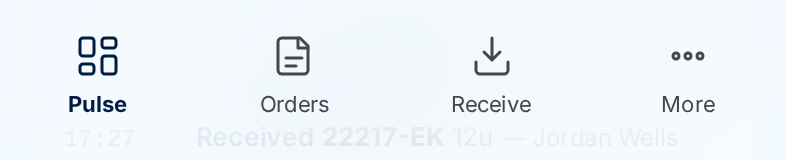
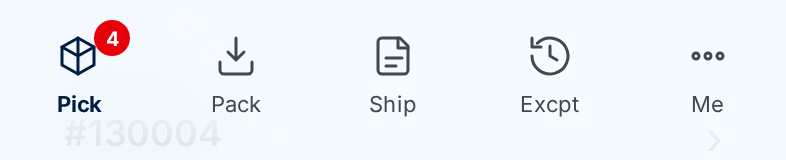
A few slots come and go:
- Pick, Pack and Ship carry a red badge with how many batches are waiting in each queue.
- Pickup appears in the warehouse bar only while a will-call order is waiting for the customer. It disappears once there are none.
- Excpt opens the pick exceptions. Its badge counts open exceptions plus items waiting to go back on the shelf.
- Quarantine appears in the office bar, between Items and More, only while quarantined goods are waiting on documents.
- Me is the warehouse name for More.
More lists the rest of what your role can open. See Finding your way around.
How long you stay signed in
Each role has a fixed session length, counted from the moment you sign in. When it runs out, your next click takes you to the sign-in page. Anything you hadn't saved yet is lost, so save before a break.
| Role | Session length |
|---|---|
| Administrator | 8 hours |
| Office | 8 hours |
| Warehouse | 2 hours |
| Supply Partner | 4 hours |
Using ConsignTrak doesn't extend the session. The clock runs from sign-in. Session lengths are set per role and can't be changed from the screens. Signing in again starts a fresh session. See Signing in and Two-factor authentication.