Staging areas
The handoff between picking and packing
A picker finishes an order and has a stack of parts in their arms. The packer may not be ready for it yet. A staging area is the labeled spot where the stack waits, and ConsignTrak records which spot it's in. Nobody has to search the tables or ask around.
A staging area is a warehouse location of the type Staging, usually a marked table or shelf with a large placard such as S-1. Each area holds one order at a time.
Staging is off until the first location of type Staging exists. Until then, finishing a pick goes straight on to packing, just as before. An administrator switches it on by adding staging locations under Locations, and prints their placards with Staging placards.
How an order moves through the areas
| Step | Who | What they see and do |
|---|---|---|
| 1. Finish picking | Picker, on the phone | ConsignTrak asks Where did you put it? and shows the areas as tiles. Tap the open area where you set the stack. If the packer takes it from your hands, tap Handed directly to packer instead. |
| 2. Find it to pack | Packer, on the phone | The pack queue leads with the area in large type, before the order number. Go to that area. The stack is the order. |
| 3. Check and pack | Packer | Tick every line against what's in the stack, then choose Mark packed. The button stays grey until every line is ticked. |
| 4. Area is freed | Automatic | Once the order is packed, the area is open for the next picker. |
| 5. Send the cartons on (optional) | Packer | Under Cartons going to, choose a shipping lane if the boxes are moving to the dock. Staying here is the default. |
An area also frees itself when an order is shipped or cancelled. A will-call order keeps its area until the customer collects it, so the counter knows where to look.
When the areas fill up
The picker's queue shows how many areas are in use, for example Staging 3/4. When every area is taken, the phone says All staging areas are full. It never blocks the picker. They can clear an area, help pack, or hand the stack directly to a packer.
When a staged order is cancelled
A cancelled order's stack is still sitting on the table. ConsignTrak marks its area Needs clearing in amber and lists a Return to shelf task with the parts and the bins they came from. Once the parts are back, tap the amber tile, then tap it again to confirm. The area opens up again. No stock count changes, because stock only comes off the count when an order ships.
What the office sees
-
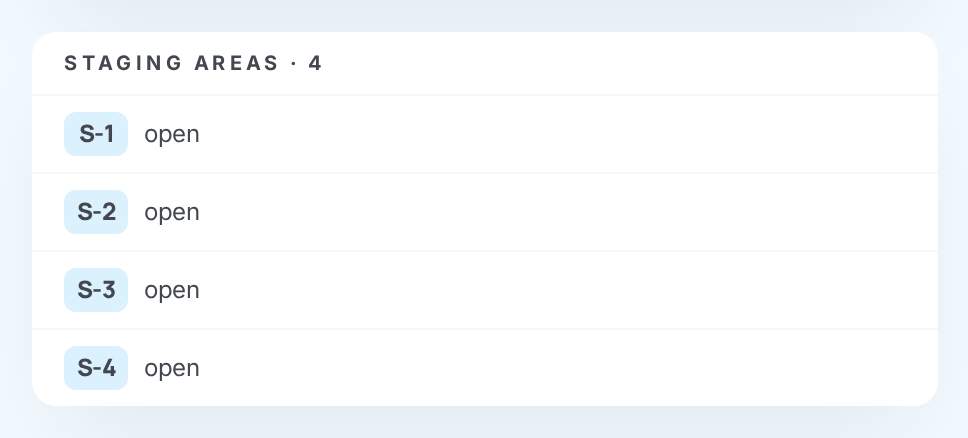
The ship station lists every staging area and what's in it, so the office can match stacks on the tables to orders.
-
The dashboard flags any order that has been Staged >2h, not packed.
-
The order page shows which area the order is in. A release printed after staging carries STAGED IN AREA: S-1 (or IN SHIPPING LANE) in bold, for anyone working from paper.
Where you'll see this
- Picking: the staging step on the phone.
- Packing, shipping and pickup: the pack queue, pack checks and shipping lanes.
- Pick, pack & ship: the ship station and the office view of the floor.
- Locations & bins: creating staging areas and printing placards.