Signing in
What this is
Everyone signs in to ConsignTrak with a username and a password. The same sign-in page serves office staff, warehouse workers on a phone, administrators and Supply Partner users. ConsignTrak works out who you are and takes you to the right place: the dashboard for staff, the portal for a supply partner.
This page also covers the one-time jobs around signing in: setting up the very first account, accepting an invitation, why you get signed out, and what to do if you're locked out.
Before you start
- Role: any. Your role decides what you see once you're in (see Who sees what).
- Settings: none.
- You'll need: a username and password from your administrator. Supply Partner users get an invitation email instead (see Accepting an invitation).
Step by step
Signing in on a computer
-
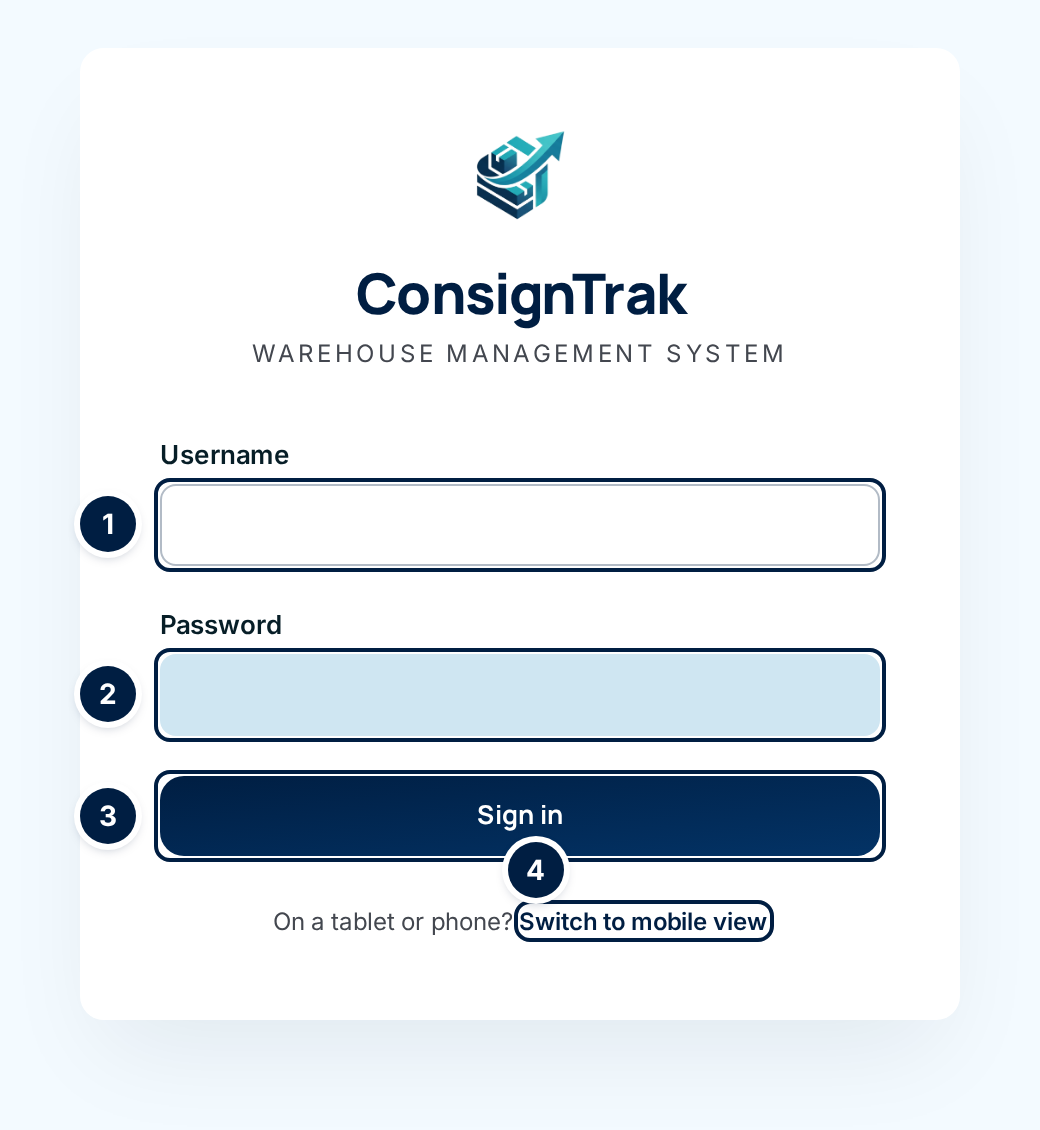
Open your ConsignTrak web address in a browser. The sign-in page appears.
-
Type your username in Username ①. Usernames are exact: type it the way your administrator gave it to you.
-
Type your password in Password ②.
-
Choose Sign in ③. You land on the dashboard.
If you've turned on two-factor authentication, ConsignTrak asks for a 6-digit code before the dashboard. See Two-factor authentication.
Signing in on a phone or tablet
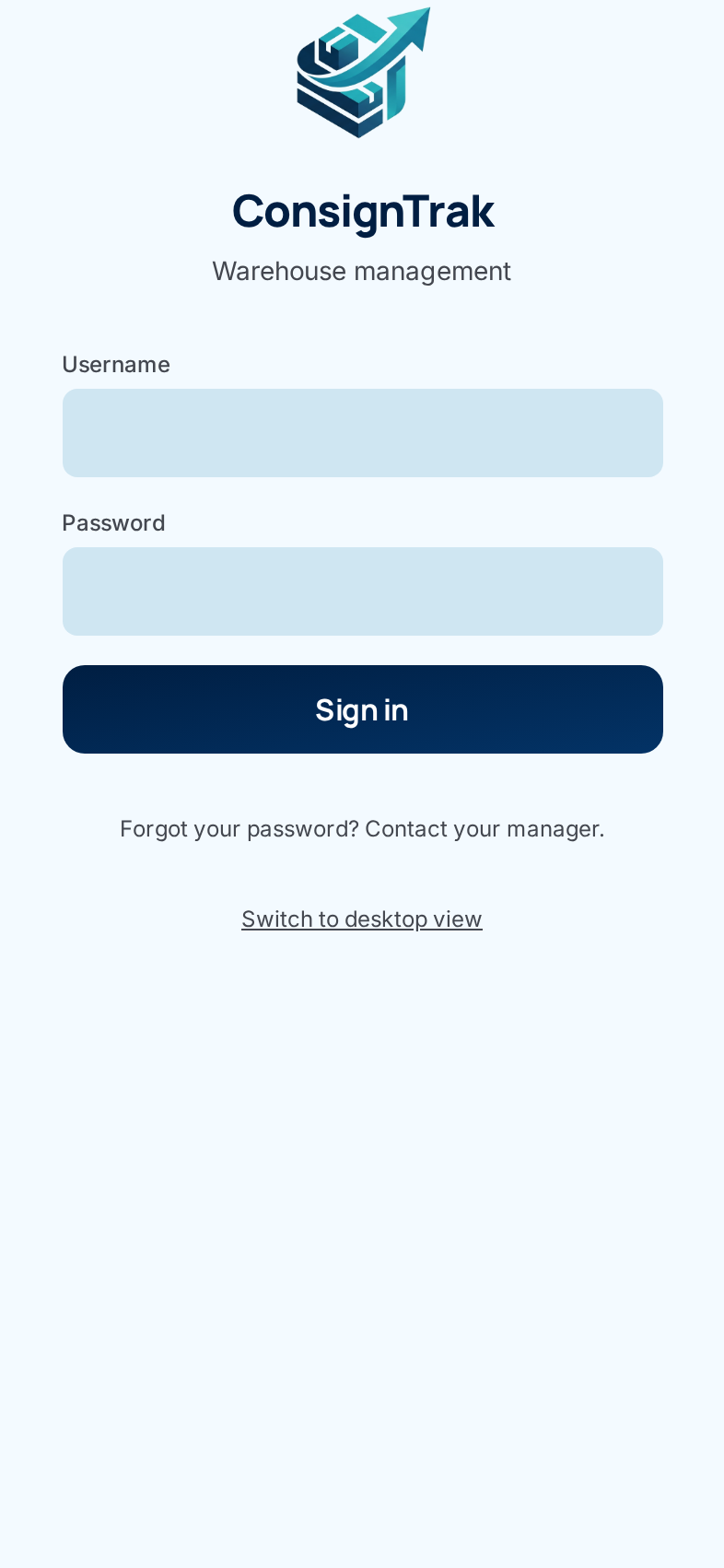
Phones open the mobile version of ConsignTrak automatically: big buttons, a bottom bar, built for one hand on the warehouse floor.
- Open your ConsignTrak web address on the phone.
- Type your Username and Password, then tap Sign in. You land on the mobile home screen.
There's no PIN or badge scan: warehouse workers use a username and password like everyone else.
A tablet sometimes gets the desktop page, and a small laptop sometimes gets the mobile one. Use Switch to mobile view ④ or Switch to desktop view at the bottom of the sign-in page to flip it before you sign in. ConsignTrak remembers your choice on that device.
Accepting an invitation (Supply Partner users)
Supply Partner users don't get a password from the warehouse. Instead an administrator invites them, and ConsignTrak emails a link.
- Open the invitation email and choose the link. It's good for 72 hours.
- Read the welcome line. It greets you by name and names the supply partner whose stock you'll see.
- Type a password in New password. It must be at least 8 characters
and include an uppercase letter, a lowercase letter, a digit and a special
character (such as
!or#). - Type it again in Confirm password (on a phone the box is labelled Confirm).
- Choose Set password and sign in. You're signed in straight away and land on your portal. From then on, sign in on the normal sign-in page with your username and this password.
Staff users (Administrator, Office, Warehouse) don't get an invitation link. The administrator sets their first password on the user's record and tells them what it is (see Users & roles).
First-time setup (a brand-new ConsignTrak)
This screen appears exactly once: the first time anyone opens a new ConsignTrak, before any account exists. It creates the first Administrator. Once that account exists, the setup screen is gone for good and the address goes to the normal sign-in page. (It can't be shown on a working system, so there's no screenshot here.)
- Open the new ConsignTrak address. The Initial Setup screen appears: "Create your administrator account to get started."
- Fill in Full Name, Email and Username.
- Type a Password and repeat it in Confirm Password. The hint says "At least 8 characters", but the full rule applies: an uppercase letter, a lowercase letter, a digit and a special character, and not a common password.
- Choose Create Admin Account. ConsignTrak creates the account, signs you in and opens the dashboard.
Next, add everyone else from Users & roles.
Every field and option
Sign-in page (computer and phone)
| Field or control | What it means | Required | Default | What changes when you set it |
|---|---|---|---|---|
| ConsignTrak (heading) | The page title with the logo. | — | — | Nothing. |
| Username | Your sign-in name, exactly as your administrator set it up. | Yes | Blank; after a failed attempt it keeps what you typed. | — |
| Password | Your password. Hidden as you type. | Yes | Blank | — |
| Sign in | Checks your username and password. | — | — | Signs you in, or shows an error above the form. |
| Switch to mobile view (computer) | Shows the phone layout on this device. | — | — | Remembered on this device. |
| Switch to desktop view (phone) | Shows the computer layout on this device. | — | — | Remembered on this device. |
| Forgot your password? Contact your manager. (phone only) | There's no self-service reset; an administrator sets a new password. | — | — | — |
Invitation page (Supply Partner users, computer and phone)
| Field or control | What it means | Required | Default | What changes when you set it |
|---|---|---|---|---|
| Welcome, your name. (heading) | Confirms the invitation is yours, and names your supply partner. | — | — | Nothing. |
| New password | Your new password: 8 or more characters with an uppercase letter, lowercase letter, digit and special character. | Yes | Blank | — |
| Confirm password (computer) / Confirm (phone) | The same password again, to catch typos. | Yes | Blank | Must match New password. |
| Set password and sign in | Saves the password and signs you in. | — | — | The invitation link stops working after this. |
First-time setup page
| Field or control | What it means | Required | Default | What changes when you set it |
|---|---|---|---|---|
| ConsignTrak / Initial Setup (headings) | Shows this is the one-time setup screen. | — | — | Nothing. |
| Full Name | The administrator's name, as it appears in the account menu and on records. | Yes | Blank | — |
| The administrator's email address. | Yes | Blank | — | |
| Username | What the administrator types to sign in. | Yes | Blank | — |
| Password | The administrator's password (same rules as above). | Yes | Blank | — |
| Confirm Password | The same password again. | Yes | Blank | Must match Password. |
| Create Admin Account | Creates the first Administrator and signs them in. | — | — | The setup screen never appears again. |
How long you stay signed in
You stay signed in for a fixed time from the moment you sign in, set by your role. Being busy doesn't extend it. When the time is up, the next thing you click takes you back to the sign-in page.
| Role | Signed in for |
|---|---|
| Administrator | 8 hours |
| Office | 8 hours |
| Warehouse | 2 hours |
| Supply Partner | 4 hours |
The times are built in; they can't be changed from the Settings screens.
Warehouse phones are often shared and left on a cart. A 2-hour session means a phone left signed in doesn't stay signed in as you for a whole shift.
You're also signed out when you choose Log out or Sign out (see Your account), and when an administrator sets a new password for you. Closing the browser usually signs you out too.
What happens next
- Staff land on the dashboard (computer) or the mobile home screen (phone). Supply Partner users land on their portal.
- If two-factor authentication is on for your account, you're asked for a code first. See Two-factor authentication.
- Every sign-in, sign-out and failed attempt is recorded in the audit trail, with the time and device.
Common problems
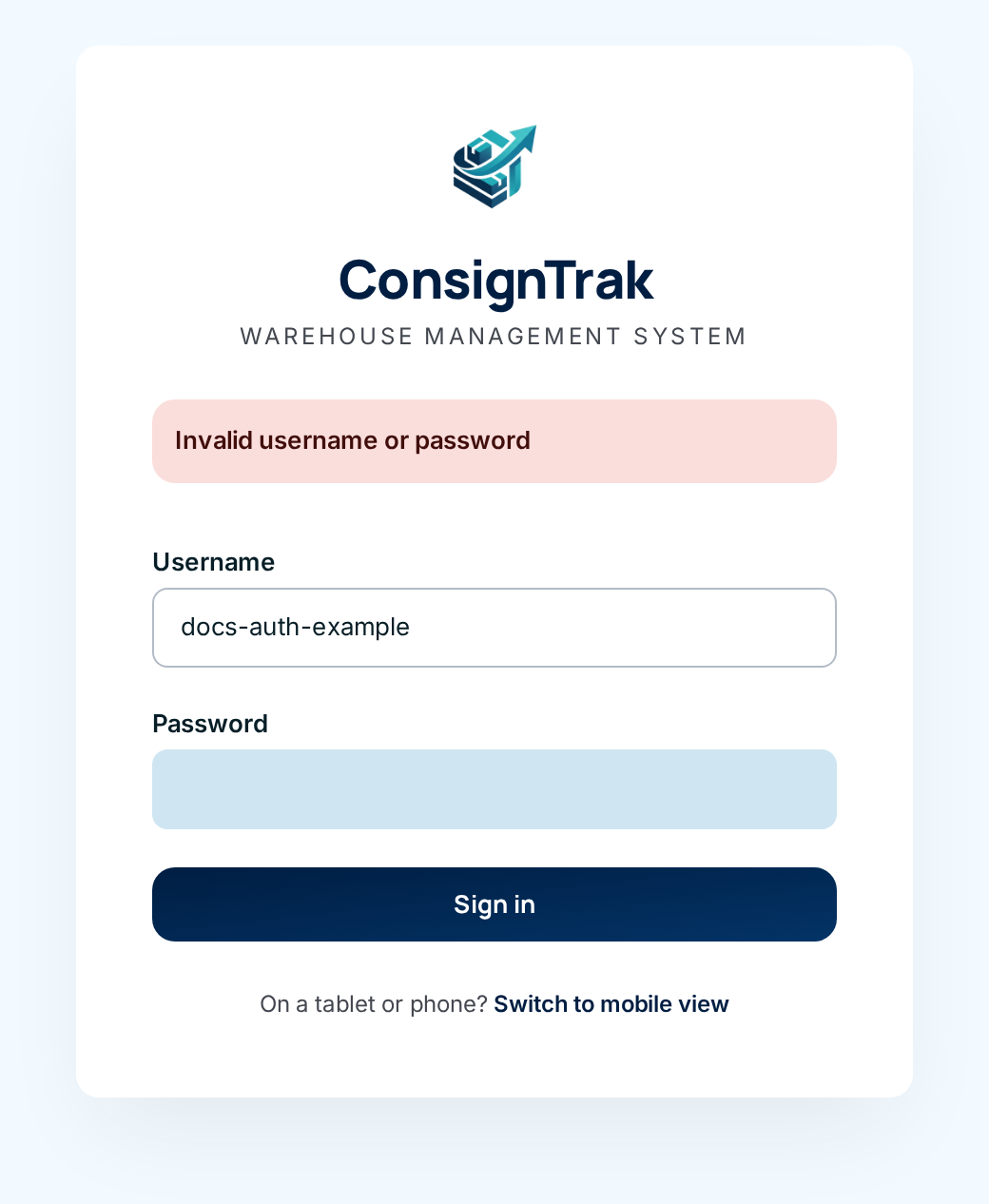
"Invalid username or password" — The username or password is wrong. Check Caps Lock and try again. ConsignTrak deliberately doesn't say which one was wrong. This same message also appears if your account has been deactivated or locked, so if you're sure the password is right, ask your administrator.
"Too many login attempts for this account. Please try again later." — After 5 wrong passwords in 15 minutes, that username is paused for 15 minutes. Wait, then try once more carefully. Your administrator can set a new password if you can't remember it.
"Too many login attempts. Please try again in N minutes." — Too many attempts came from your device or network in a short time (10 in a minute). Wait the minutes shown.
"Account locked due to repeated authentication failures. Contact an administrator." — Three wrong two-factor codes in a row lock the account. Only an administrator can unlock it (the Unlock account button on your user record). Waiting doesn't help.
I've forgotten my password. — There's no "reset by email" link. Ask your administrator to set a new one on your user record; you can sign in with it straight away. See Users & roles.
I was signed out in the middle of something. — Your role's session time ran out (see the table above), or an administrator changed your password. Sign in again. Anything you'd already saved is safe; a form you hadn't submitted yet needs filling in again.
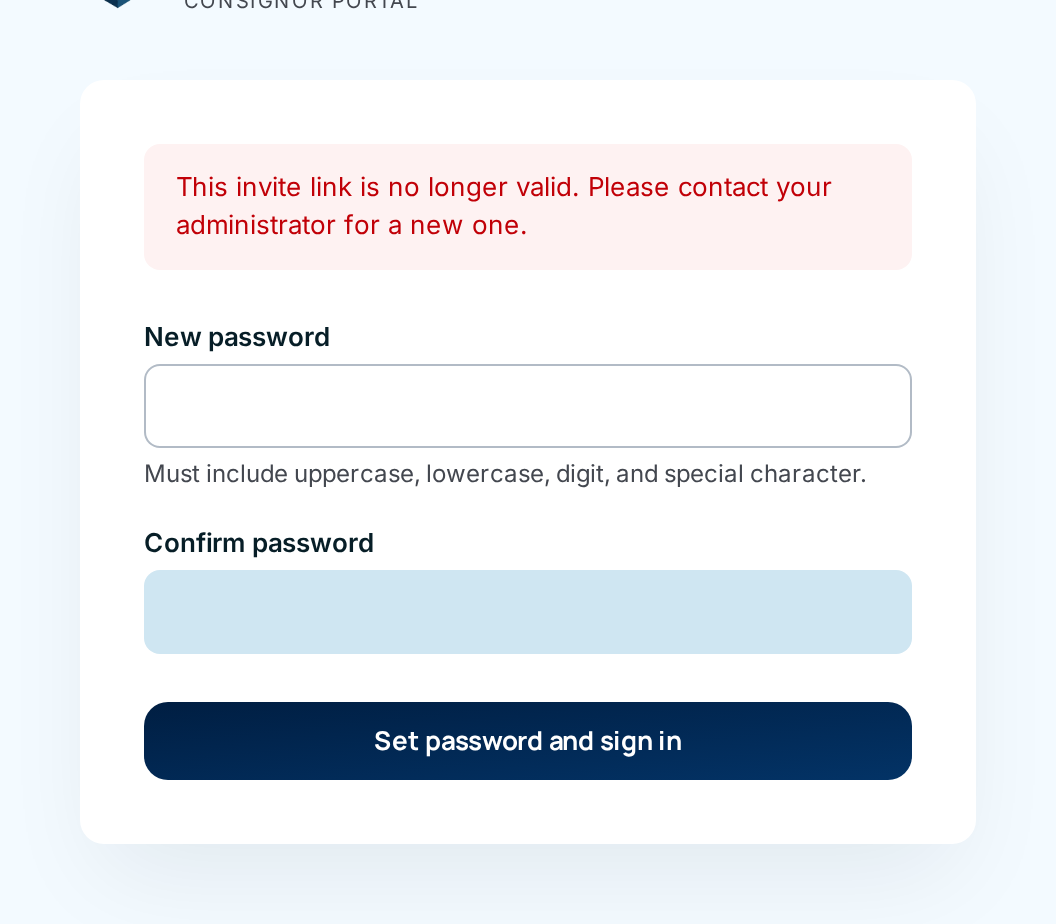
"This invite link is no longer valid. Please contact your administrator for a new one." — The link is more than 72 hours old, was already used, or was replaced by a newer invitation. Ask the administrator to choose Resend invite next to your name on the Users list. The page may still show the password boxes underneath the message; ignore them, they won't work with an old link.
"Passwords do not match." — The two password boxes differ. Type both again.
"password must include at least one uppercase letter, …" or "password is too common, please choose a stronger one" — The password doesn't meet the rules. The message lists what's missing. Choose a longer, less predictable password.
Locked out completely? — Whatever the cause (forgotten password, lost phone with your authenticator app, a locked account), the fix is the same: contact a ConsignTrak administrator at your warehouse. They can set a new password, unlock the account, or reset two-factor authentication. If you're the only administrator and you're locked out, contact whoever installed ConsignTrak for you.
Watch the video
On a phone? The warehouse version: