Finding your way around
What this is
Every ConsignTrak screen sits inside the same frame. On a desktop, a sidebar on the left lists the everyday screens, and the top-right corner holds the New order button and your account menu. On a phone, a bar along the bottom holds the four or five screens you use most, and More holds the rest. This page is a map of both, so you always know where a screen lives.
Before you start
- Role: anyone who can sign in to the warehouse side of ConsignTrak. Supply partners use the portal instead, which has its own layout (see Welcome to the portal).
- Settings: none.
- You'll need: to be signed in (see Signing in).
Not every role sees every link. The table below says who each one is for, and Who sees what explains the roles.
Step by step
-
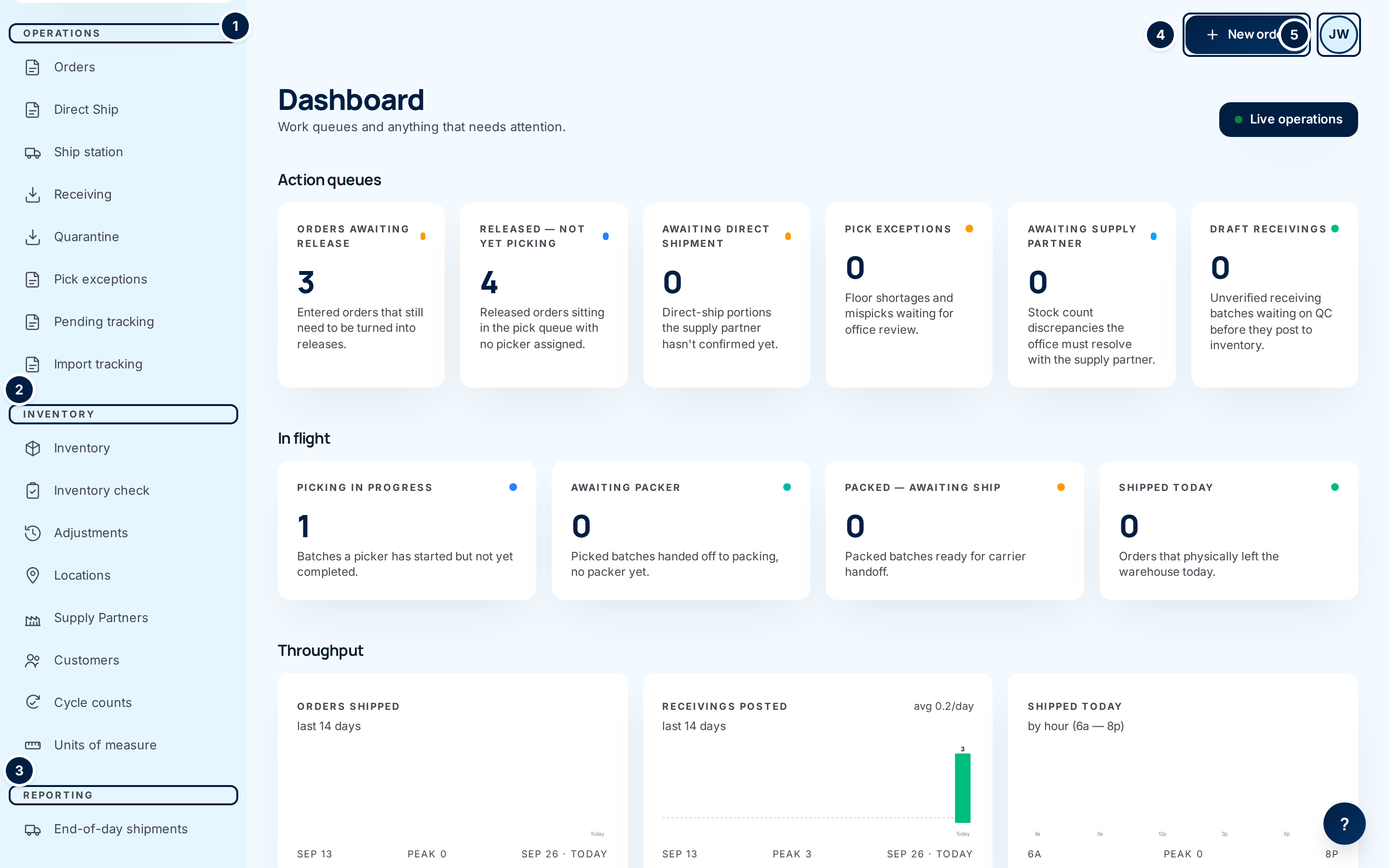
Look at the sidebar. It starts with Dashboard, then groups every other screen into three sections: ① Operations, ② Inventory and ③ Reporting. The screen you're on is highlighted.
-
Start a new order from anywhere. Choose ④ New order in the top-right corner. It's there on every desktop screen, so you never have to go to the orders list first.
-
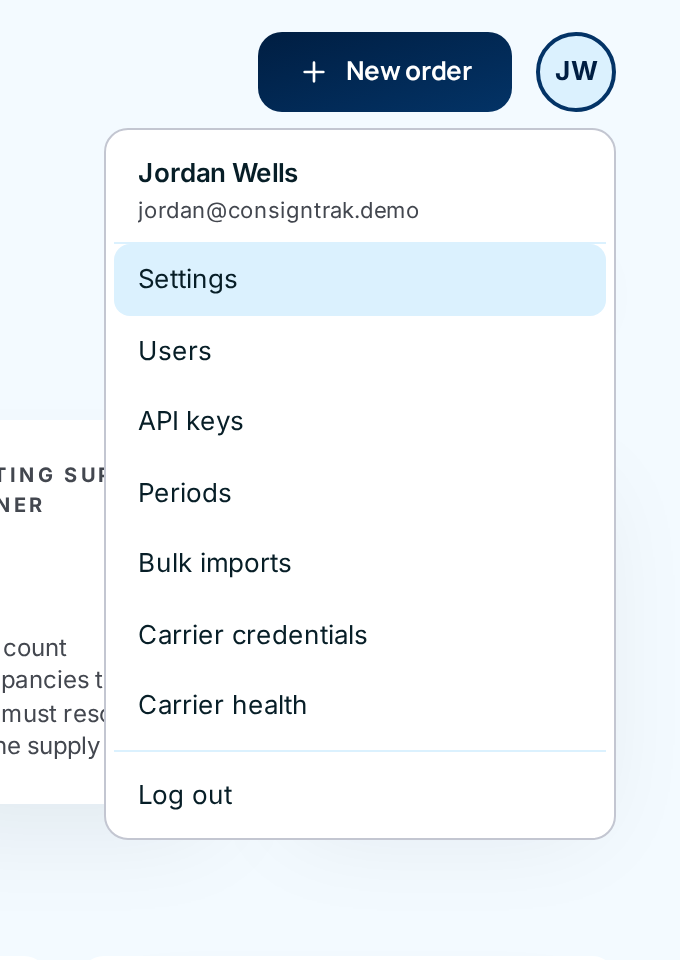
Open your account menu. Choose ⑤ the round button with your initials. The menu shows your name and email, the administration screens your role can use, and Log out. Click anywhere outside it to close it.
-
Get help on the screen you're on. Many desktop screens have a round ? button in the bottom-right corner. It opens a short guide to that screen. Choose Got it to close it.
-
On a narrow window, open the menu button. When the browser window is too narrow for the sidebar, it folds away. Choose the menu button (three lines) at the top left to slide it open, and the × to close it. The New order button and your account button move into the top bar.
-
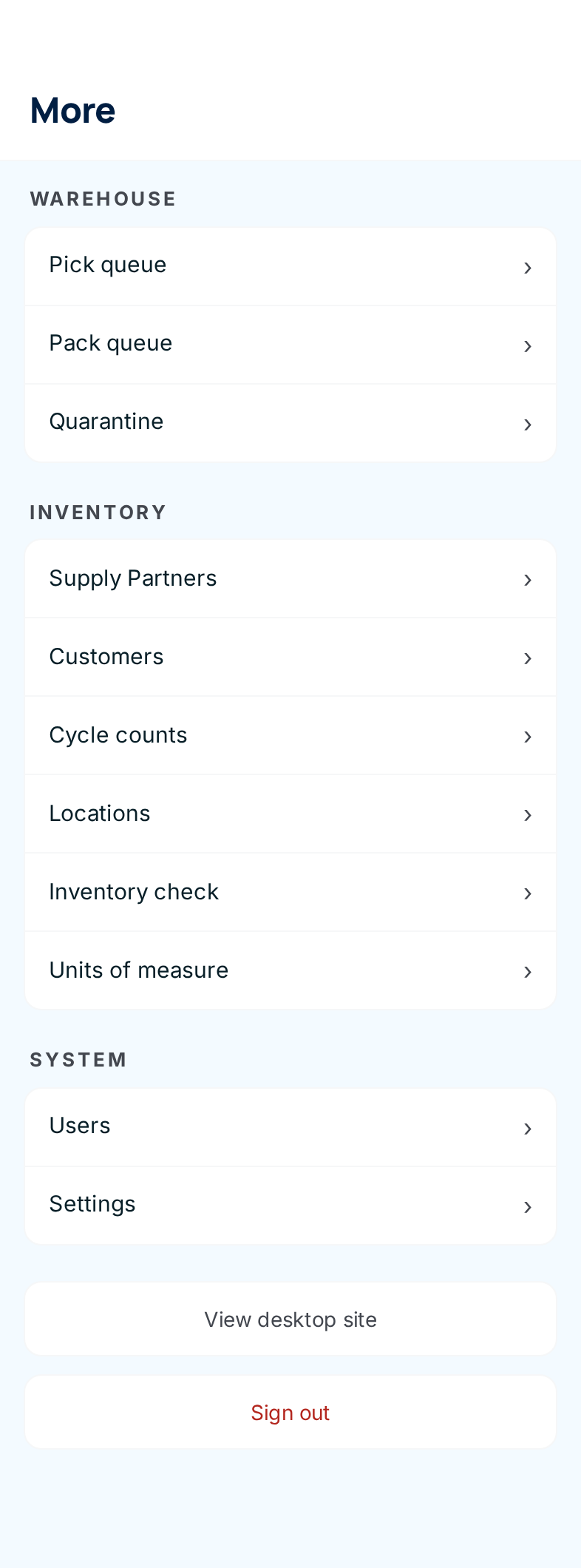
On a phone, use the bottom bar and More. The bottom bar changes with your role (see Who sees what). More (called Me for warehouse staff) lists everything else your role can open, grouped into Warehouse, Inventory and System.
-
Switch between the phone and desktop layouts if you need to. On a phone, choose View desktop site at the bottom of More. To go back, choose View mobile site in the account menu. ConsignTrak remembers the choice on that device for 30 days.
The sidebar, item by item
Who sees it is who gets the link. A few links show to roles that can't open them yet; those end on an Access denied page (see Common problems).
| Section | Item | What it's for | Who sees it |
|---|---|---|---|
| — | Dashboard | The home screen: work waiting, work moving, and anything stuck. See The dashboard. | Everyone |
| Operations | Orders | Every order, with search and status filters. Open one to edit, release or follow it. See Orders. | Everyone |
| Operations | Direct Ship | Order lines the supply partner ships from their own stock, grouped by supply partner, so you can tell each one what to send. A badge counts lines still waiting for you to notify the supply partner. See Direct ship. | Everyone |
| Operations | Ship station | Packed orders ready to hand to a carrier, plus will-call orders waiting for the customer. See Pick, pack & ship. | Everyone |
| Operations | Receiving | Incoming stock transfers from supply partners: count, inspect and post. See Receiving. | Everyone |
| Operations | Quarantine | Goods held back from stock because they failed inspection or were flagged on the floor. A red badge counts held items still waiting on documents. See Quarantine. | Everyone |
| Operations | Pick exceptions | Shortages, mispicks and quality flags reported from the floor, waiting for the office to resolve. A badge counts open ones. See Pick exceptions. | Everyone |
| Operations | Pending tracking | Shipments where the warehouse flagged the label for office follow-up, usually a missing or wrong tracking number. A badge counts them. See Shipment tracking. | Office, Administrator |
| Operations | Import tracking | Upload a file from your shipping software to attach tracking numbers to orders in one go. See Shipment tracking. | Office, Administrator |
| Inventory | Inventory | The item list: every part number, its supply partner and its stock. See Inventory & items. | Everyone |
| Inventory | Inventory check | Look up stock for many part numbers at once, for a phone call or an email. It changes nothing. | Everyone |
| Inventory | Adjustments | Every manual stock change and cycle-count correction, with who made it and why. | Everyone |
| Inventory | Locations | The bins, shelves and staging areas, and what's in each. See Locations & bins. | Everyone |
| Inventory | Supply Partners | The companies that own the stock, each with its items, orders and reports. See Supply partners. | Everyone (opens for Office and Administrator only) |
| Inventory | Customers | The companies orders ship to, with their addresses and contacts. See Customers. | Everyone (opens for Office and Administrator only) |
| Inventory | Cycle counts | Small daily counts that keep stock accurate. See Cycle counts. | Everyone |
| Inventory | Units of measure | The reference list of unit codes. See Units of measure. | Everyone |
| Reporting | End-of-day shipments | Everything shipped today, for the office's close of business. See Reports & exports. | Office, Administrator |
The account menu, item by item
| Item | What it's for | Who sees it |
|---|---|---|
| Settings | System-wide settings for this warehouse. See System configuration. | Everyone (opens for Administrator only) |
| Users | Add people, set their role, reset access. See Users & roles. | Everyone (opens for Administrator only) |
| API keys | Credentials that let another system use ConsignTrak. See API keys. | Administrator |
| Periods | Month-end accounting periods and their stock snapshots. See Accounting periods. | Office, Administrator |
| Bulk imports | Load many items, customers or contacts from a spreadsheet. See Bulk imports. | Office, Administrator |
| Carrier credentials | Each supply partner's UPS and FedEx account details, which ConsignTrak uses to fetch tracking. See Carriers, wallboard & end of day. | Administrator |
| Carrier health | Whether the carrier connections are working. See Carriers, wallboard & end of day. | Administrator |
| View mobile site | Switch back to the phone layout. | Only on a phone that was switched to the desktop layout |
| Log out | Sign out of ConsignTrak on this device. | Everyone |
Pages that aren't in any menu
Some screens have no sidebar item. Here's how to reach each one.
| Page | What it's for | How to get there |
|---|---|---|
| New order | The order entry form. | The New order button, top right. Office and Administrator only. |
| Live operations | A wallboard for a screen on the warehouse wall: who's picking, what's moving, what just finished. It updates by itself. | The Live operations button on the dashboard. |
| Pick queue and Pack queue | The warehouse's picking and packing lists. They're built for phones, but open on a desktop too. | The Picking in progress, Awaiting packer and Packed — awaiting ship cards on the dashboard. On a phone, the bottom bar or More. See Picking. |
| Pickup queue | Will-call orders staged for the customer to collect. | On a phone: the Pickup slot in the warehouse bottom bar, the Pickup tile on the administrator's home, or Awaiting customer pickup on the office home. |
| Documents | Files attached to a record: packing slips, certificates, photos. | From the record itself, such as an order, item or receiving. See Documents. |
| More (desktop) and Account security | Your two-factor authentication and trusted devices. | No menu links here yet. Type the address your administrator gives you. See Your account. |
Every field and option
| Field or control | What it means | Required | Default | What changes when you set it |
|---|---|---|---|---|
| ConsignTrak logo (sidebar and top bar) | Takes you to the dashboard. | — | — | Opens the dashboard. |
| Sidebar items | Listed in The sidebar, item by item. | — | — | Opens that screen. |
| Direct Ship, Quarantine, Pick exceptions, Pending tracking badges | Counts of work waiting on that screen. They refresh every minute, except Quarantine, which refreshes when you change screens. | — | Hidden at zero | Nothing; they're counts. |
| Menu button (three lines, Open menu) | Slides the sidebar open when the window is too narrow to show it. | — | — | Shows the sidebar over the page. |
| × (Close menu) | Closes the slide-out sidebar. Clicking the dimmed page does the same. | — | — | Hides the sidebar. |
| New order | Opens the order entry form. | — | — | See Orders. |
| Your initials (account button) | Opens and closes the account menu. | — | — | Shows the menu. |
| Account menu items | Listed in The account menu, item by item. | — | — | Opens that screen. |
| Log out | Signs you out right away. It doesn't ask you to click again. | — | — | Returns you to the sign-in page. |
| ? (help) | Opens a short guide to the current screen. Desktop only. | — | — | Shows the guide; Got it or × closes it. |
| More page: Account security card (desktop) | Opens your two-factor and trusted-device settings. | — | — | See Your account. |
| More page: Units of measure card (desktop) | Opens the unit list. Office and Administrator only. | — | — | See Units of measure. |
| More page: Sign out (desktop and phone) | Same as Log out. | — | — | Returns you to the sign-in page. |
| Phone More: Pick queue, Pack queue, Quarantine | The warehouse screens. | — | — | Opens that screen. |
| Phone More: Supply Partners, Customers | Office and Administrator only. | — | — | Opens that list. |
| Phone More: Cycle counts, Locations, Inventory check | Every staff role. | — | — | Opens that screen. |
| Phone More: Units of measure | Office and Administrator only. | — | — | Opens the unit list. |
| Phone More: Users, Settings | Administrator only. | — | — | Opens that administration screen. |
| Phone More: View desktop site | Switches this device to the desktop layout for 30 days. | — | — | The sidebar layout loads. |
| Error page: Back to dashboard / Back to home | Leaves the error and goes to your home screen. | — | — | Opens the dashboard (desktop) or your phone home. |
| Error page: Reload page | Shows only on Page out of date. Reopens the page you were on so you can try again. | — | — | Reloads that page. |
What happens next
Nothing you do on this page changes any records. Two choices stick:
- View desktop site and View mobile site set the layout for that device for 30 days, until you switch back.
- Log out and Sign out end your session on that device only.
Common problems
When something goes wrong, ConsignTrak shows a page with a big number, a title and a line of advice. Here's what each one means.
"Page not found" (404) — "That page doesn't exist. Check the address, or head back to the dashboard." The address is wrong or out of date. Choose Back to dashboard and find the page from the sidebar.
"Order not found", "Item not found", "Customer not found", "Receiving batch not found" — "That … doesn't exist or may have been removed." The link points at a record that isn't there any more. Search the list for it.
"Access denied" (403) — "You don't have permission to access this page. Contact your administrator if you need access." Your role can't open this screen. Some menu links show to roles that can't open them today: New order, Settings, Users, Supply Partners and Customers for Warehouse users, and Settings and Users for Office users. If you need one of them for your job, ask your administrator to change your role.
"Page out of date" — "This page was open too long and its security check expired. Reload the page and try again." You left a form open for a long time before saving. Choose Reload page, then fill it in and save again.
"Sign in required" (401) — "Sign in to view this page." ConsignTrak doesn't know who you are. Sign in again. Usually, when your session ends, ConsignTrak takes you straight to the sign-in page instead (see How long you stay signed in).
"Something went wrong" (500) — "The server hit an unexpected error… Try again; if it keeps failing, contact your administrator." Try once more. If it happens again, tell your administrator what you were doing and when.
I can't find a screen in the sidebar. — Check Pages that aren't in any menu, then the account menu.
My phone shows the desktop layout. — Someone chose View desktop site on this phone. Open the account menu and choose View mobile site.