The dashboard
What this is
The dashboard is the first screen you see after signing in. It answers three questions at a glance: what work is waiting, what's moving through the warehouse right now, and what looks stuck. Every number is a link to the list behind it. The desktop has one dashboard for everyone. On a phone, each role gets its own home screen.
Before you start
- Role: any warehouse-side user. Supply partners see the portal dashboard instead (see The portal dashboard).
- Settings: none. "Today" means today in the warehouse's time zone.
- You'll need: nothing. The dashboard only reads.
Step by step
-
Open the dashboard. Choose Dashboard at the top of the sidebar, or the ConsignTrak logo, from any screen.
-
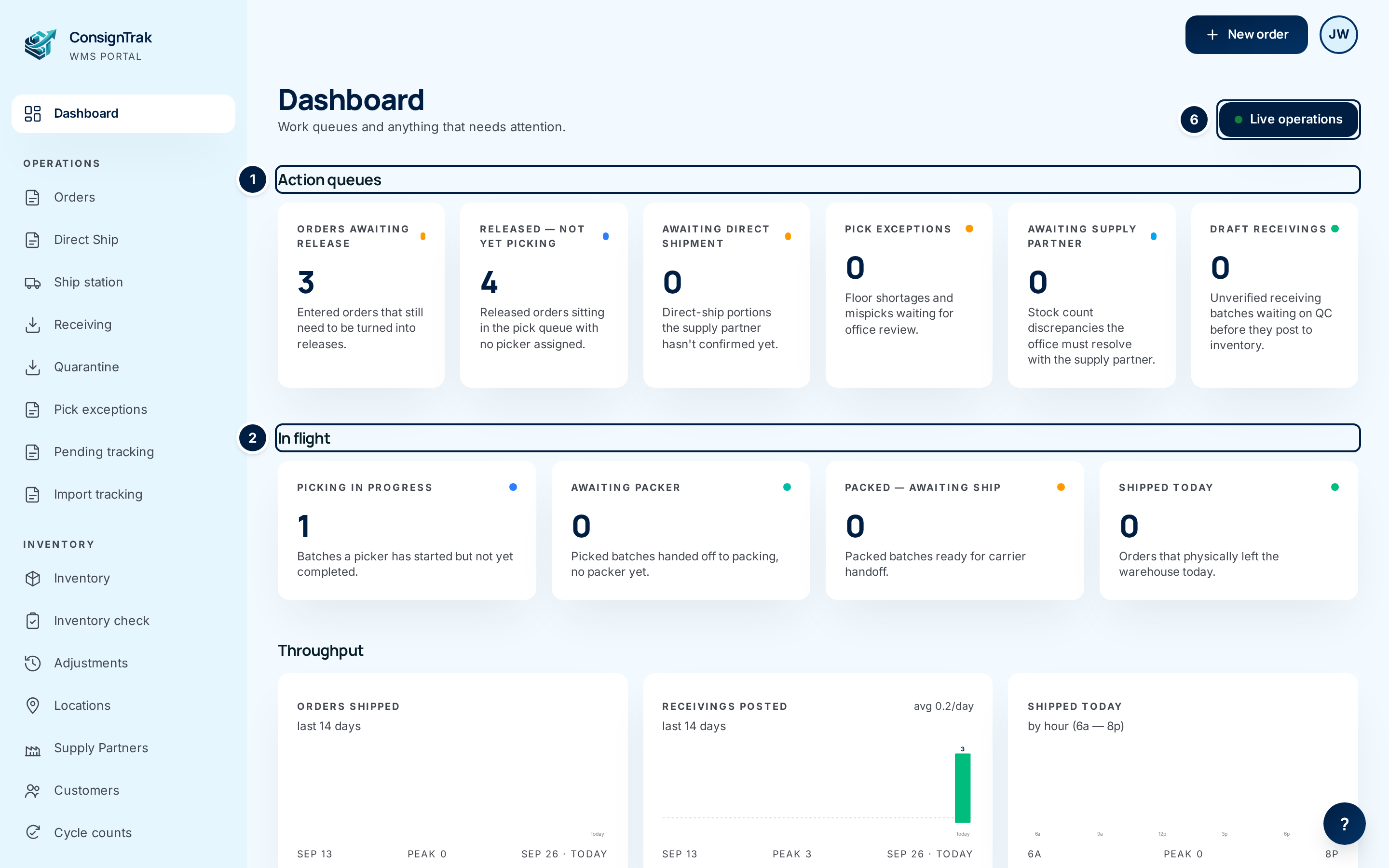
Check ① Action queues. These six cards count work that's sitting still, waiting for someone to start it. Choose a card to open the matching list.
-
Check ② In flight. These four cards count work that's moving through the warehouse. Each piece of work is counted in only one card at a time, so the cards add up without counting anything twice.
-
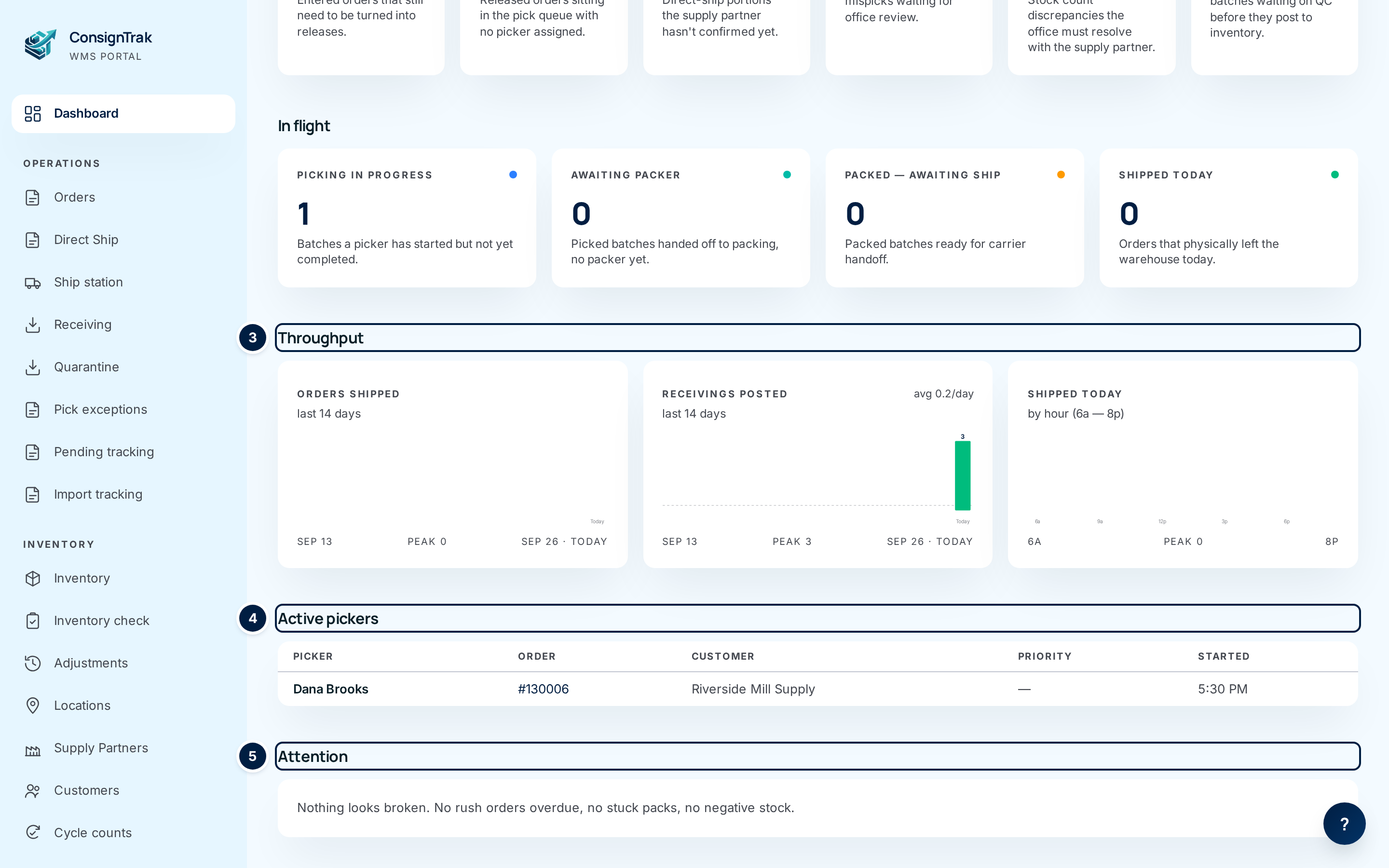
Scroll down for ③ Throughput, ④ Active pickers and ⑤ Attention.
-
Open ⑥ Live operations for a wall screen. It opens a wallboard that updates by itself, for a TV on the warehouse floor. The dashboard itself doesn't refresh on its own. Reload it to see new numbers.
-
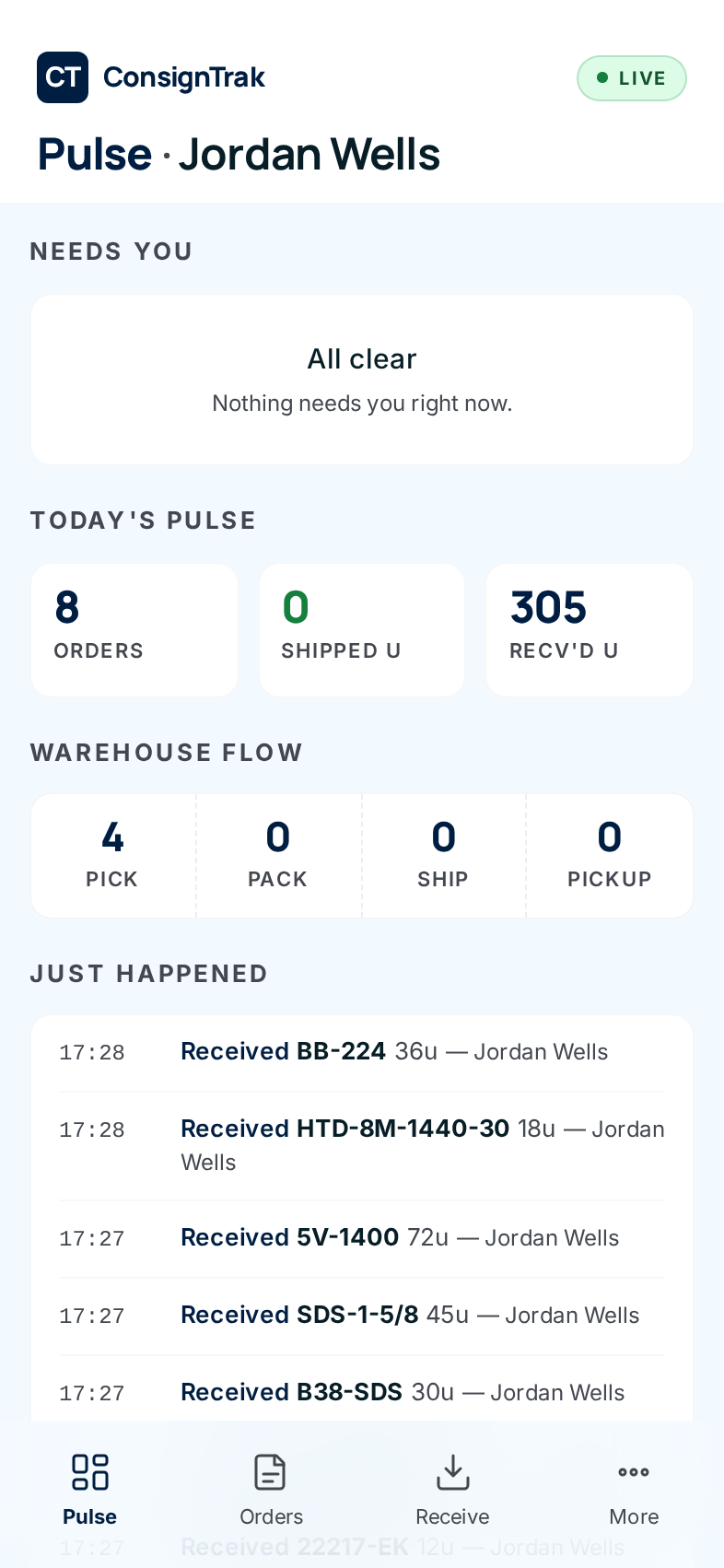
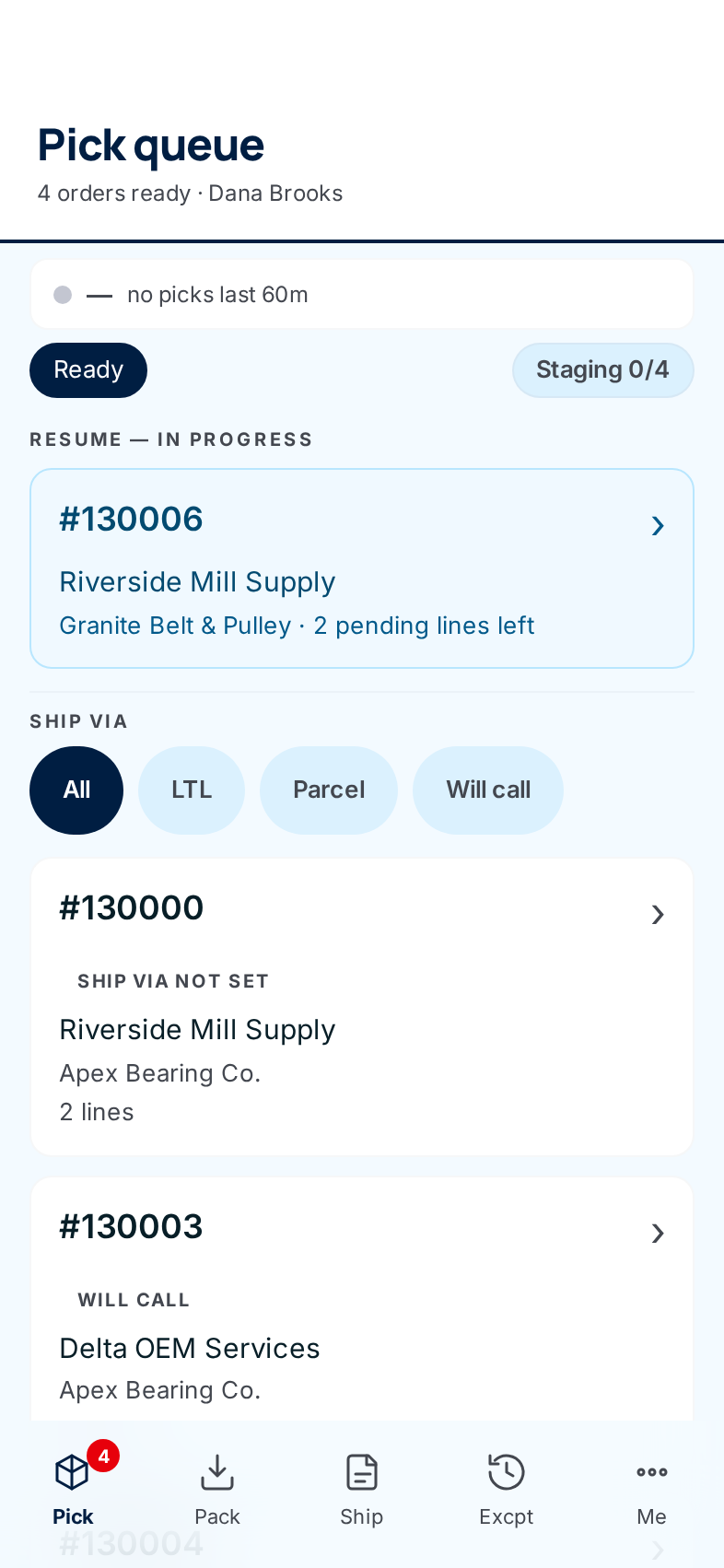
On a phone, read your home screen. An administrator sees Pulse. Office staff see a shorter home with the day's order flow. Warehouse staff have no home screen. Signing in, or tapping the home address, takes them straight to the pick queue.
Every field and option
Desktop dashboard
| Card, chart or control | What it counts or shows | Where it takes you |
|---|---|---|
| Live operations | Opens the wallboard. Hidden for supply-partner-bound users. | The Live operations wallboard. |
| Action queues section | Work sitting idle, waiting for someone. | — |
| Orders awaiting release | Orders entered but not yet released. | Orders, filtered to Entered. |
| Released — not yet picking | Released orders with warehouse lines that no picker has started. If this stays high, the floor is short of hands. | Orders, filtered to Released. |
| Awaiting direct shipment | Open orders with a direct-ship portion the supply partner hasn't confirmed as shipped. | Orders with a direct-ship portion still open. |
| Pick exceptions | Open shortages, mispicks and quality flags waiting for the office. See Pick exception. | Pick exceptions, filtered to Open. |
| Awaiting supply partner | Stock count problems the office has to settle with the supply partner before the order can move. | Pick exceptions waiting on a supply partner. |
| Draft receivings | Receiving batches not yet posted. Their stock isn't available until they're posted. | Receiving. |
| In flight section | Work moving through the warehouse. | — |
| Picking in progress | Pick batches a picker has started but not finished. | The pick queue. |
| Awaiting packer | Picked batches handed to packing with no packer yet. | The pack queue. |
| Packed — awaiting ship | Packed batches ready for the carrier. | The pack queue. |
| Shipped today | Orders that left the warehouse today. It resets at midnight. | Orders, filtered to Shipped. |
| Throughput section | Three bar charts. The highlighted bar is today, or the current hour. The charts aren't links. | — |
| Orders shipped · last 14 days | Orders shipped per day for the last two weeks, with the busiest day as Peak. | — |
| Receivings posted · last 14 days | Receiving batches posted per day, with the daily average. | — |
| Shipped today · by hour (6a — 8p) | Today's shipments by the hour. | — |
| Active pickers section | Who's holding a pick batch right now. If nobody is, it says so and links to the pick queue. | — |
| Picker | The person picking. | — |
| Order | The order number. | The order. |
| Customer | Who the order ships to. | — |
| Priority | Rush (red) or High (amber). A dash means normal. | — |
| Started | When they started the batch. | — |
| Attention section | Stuck or broken work. When there's none, it reads "Nothing looks broken. No rush orders overdue, no stuck packs, no negative stock." | — |
| Items with negative on-hand | Items whose stock count has dropped below zero. Usually something shipped that ConsignTrak didn't know was on the shelf. Shows only when there are some. | Inventory, filtered to negative stock. |
| Items committed beyond on-hand | Items with more promised to orders than on the shelf. Those orders will ship short unless stock arrives first. Shows only when there are some. | Inventory, filtered to oversold items. |
| Stuck orders table: Order, Customer, Priority, Reason, Age | One row per stuck order. Age is in minutes, then hours. | The order (from the order number). |
The Reason column uses these words:
| Reason | Meaning |
|---|---|
| Rush, not shipped | A rush order that hasn't left yet. |
| Released >24h, no picker | Released more than a day ago and nobody has started picking. |
| Picking stalled >8h | Picking started more than eight hours ago and hasn't finished. |
| Staged >2h, not packed | Waiting in a staging area for more than two hours. |
| Packed >4h, not shipped | Packed more than four hours ago and not handed to the carrier. |
Phone home: Administrator (Pulse)
| Card or control | What it counts or shows | Where it takes you |
|---|---|---|
| Pulse · your name | The title. Live is a label only. | — |
| N attn | The total of every Needs you row. Hidden when nothing needs you. | — |
| Needs you | Rows only for things that need attention. When there are none, it reads All clear · Nothing needs you right now. | — |
| Pick exceptions row | Open exceptions, broken down as, for example, 2 short, 1 mispick · oldest 1h 12m. | Pick exceptions. |
| Receipts staged, not posted row | Receiving batches not yet posted, with the age of the oldest. | Receiving, filtered to drafts. |
| Orders entered > 7 days, not released row | Orders sitting unreleased for more than a week. | Orders, filtered to Entered. |
| Today's pulse: Orders | Orders entered today. | — |
| Today's pulse: Shipped u | Units (pieces) shipped today. | — |
| Today's pulse: Recv'd u | Units received today. | — |
| Warehouse flow: Pick, Pack, Ship, Pickup | How many are waiting in each queue. Each number matches the list you land on. | The pick, pack, ship and pickup queues. |
| Just happened | The last eight stock movements: the time, Shipped, Received, Adjusted, Transferred or Returned, the part number (or N lines for a multi-line movement), the units, and who did it. When there are none, it reads Quiet so far today. | — |
Phone home: Office
| Card or control | What it counts or shows | Where it takes you |
|---|---|---|
| Your name | The title. | — |
| Items need attention | Shows only when some items have negative stock or are oversold. It gives both counts, for example 2 negative on-hand · 1 oversold. | Inventory, filtered to negative stock. |
| Order flow · today: Entered | Orders entered and not yet released. This is every open one, not just today's. | Orders, filtered to Entered. |
| Released | Released orders nobody has started picking. | Orders, filtered to Released. |
| Shipped | Orders shipped today. | Orders, filtered to Shipped. |
| Receipts open | Receiving batches not yet posted. The number turns amber when there are any. | Receiving, filtered to drafts. |
| Awaiting customer pickup | Will-call orders waiting for the customer. Shows only when there are some. | The pickup queue. |
| Recent activity | The last five stock movements, in the same format as Just happened. | — |
| All → | Meant to open the full activity list. It doesn't work yet (see Common problems). | — |
Phone home: Warehouse
There isn't one. A warehouse user lands on the Pick queue, and Pick in the bottom bar is their home. See Picking.
What happens next
Looking at the dashboard changes nothing. Each number takes you to a filtered list, and the work you do there moves the counts. For example, releasing an order moves it from Orders awaiting release to Released — not yet picking. Reload the dashboard to see the new count.
Common problems
A card says 3 but the list shows a different number. — The dashboard counts only when it loads. Reload it. Released — not yet picking can also read zero while the pick queue still has orders, if every released order already has a picker.
The office home's "All →" link says "Page not found". — That link points at a page that doesn't exist yet. Use Adjustments in the desktop sidebar, or open an item, to see its stock history.
Items need attention opens only the negative-stock list. — The link always opens negative stock, even when the count includes oversold items. On a desktop, use the Items committed beyond on-hand card for the oversold list.
I don't see Live operations. — It's hidden from supply-partner-bound users, who can't open the wallboard.
My phone shows the pick queue, not a home screen. — That's normal for warehouse users. See Who sees what.