Supply-partner scoping
What this is
Every item, order and receiving in ConsignTrak belongs to one supply partner. Scoping a user ties them to one supply partner, so they only ever see and act on that partner's records. There are two kinds of scoped user:
- Supply Partner users are always scoped. They sign in to the portal and see only their own partner's stock, orders, receivings, prices and reports.
- Staff users (Office or Warehouse) are normally not scoped: they see every supply partner. You can scope one when a member of staff works for a single supply partner only, for example someone who looks after one large partner's account.
Each supply partner owns its stock and trusts the warehouse to keep its figures private from the others. Scoping is how ConsignTrak keeps one partner's records out of another partner's view, including in reports and downloads.
Before you start
- Role: Administrator.
- Settings: none.
- You'll need: the supply partner already set up (see Creating and editing a supply partner), and the user already created (see Inviting and managing users).
Step by step
Scope a Supply Partner user
You choose the partner when you invite them: set Role to Supply Partner User (external — invited by email) and choose the Supply Partner. The form won't save without one.
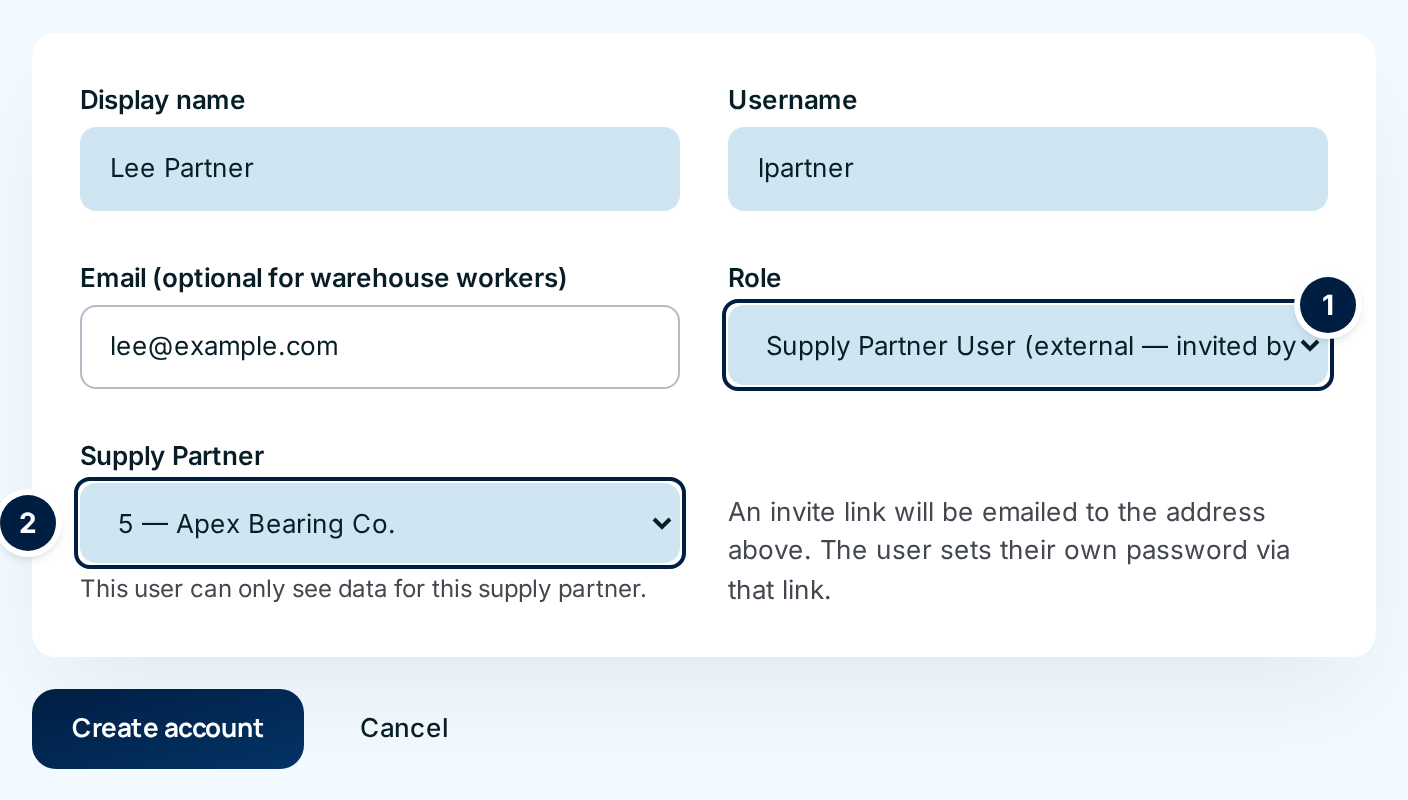
To move a Supply Partner user to a different partner:
- Choose Edit on their row in the Users list.
- Choose the new partner in Supply Partner ②.
- Choose Save changes.
From their next click they see only the new partner's records. What they did before stays in the history, still under their name.
Scope a staff user
The invite form doesn't offer a supply partner for staff roles, so create the user first, then scope them.
-
Add the user as Office or Warehouse Worker (see Add a staff user).
-
Choose Edit on their row.
-
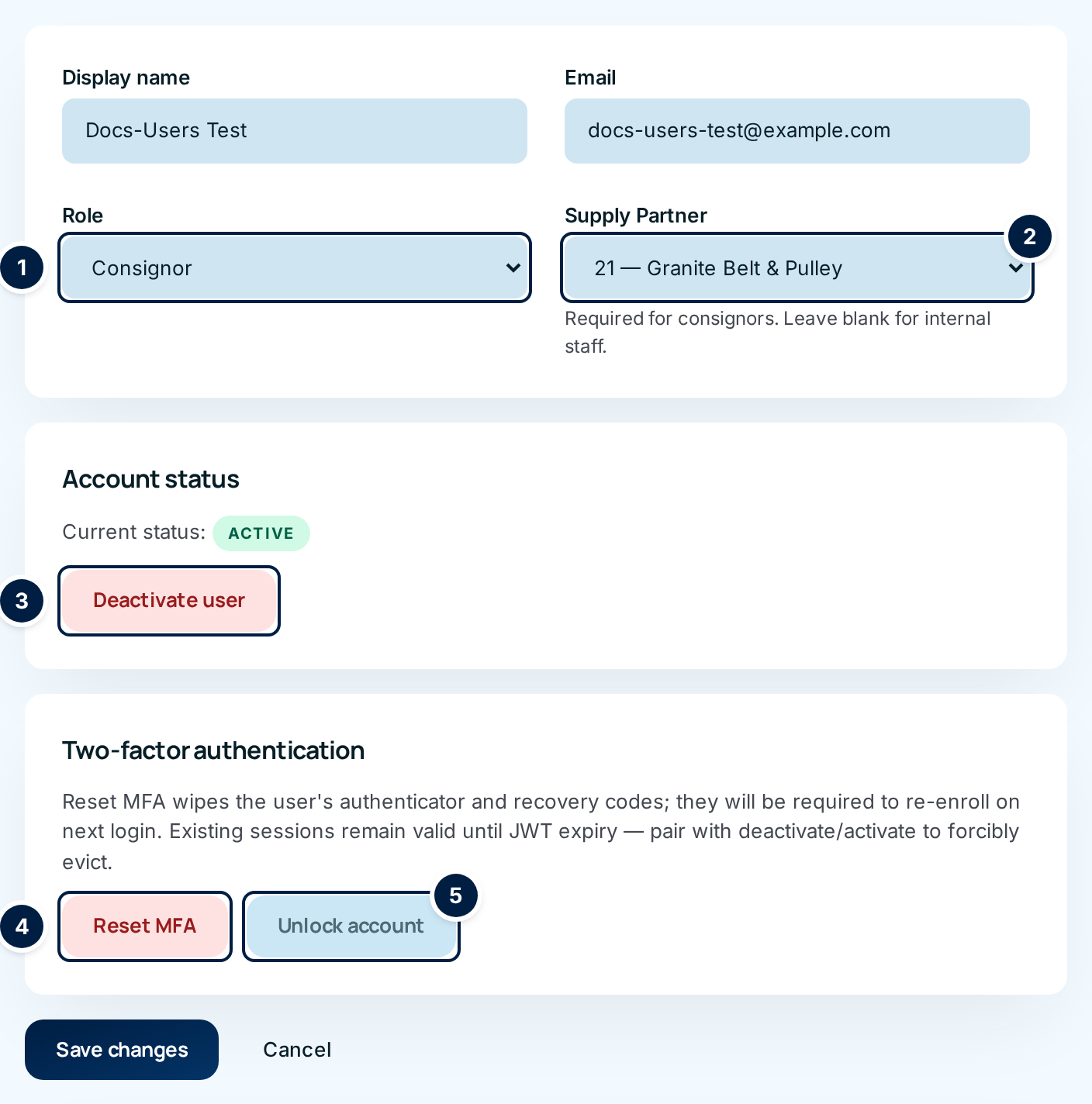
Choose their partner in Supply Partner ②.
-
Choose Save changes. The Users list now shows the partner in their Supply Partner column.
To remove the limit, set Supply Partner back to (None — not restricted to a supply partner) and save.
Scoping doesn't limit the Administrator-only screens. A scoped Administrator still manages every user and every setting. Only scope Office and Warehouse users.
Every field and option
| Field or control | What it means | Required | Default | What changes when you set it |
|---|---|---|---|---|
| Supply Partner on Invite new user | Shown only when Role is Supply Partner User. The partner they belong to. This user can only see data for this supply partner. | Yes for Supply Partner users | Select a supply partner... | The portal shows only this partner's records. |
| Supply Partner on Edit User | The partner a user is limited to. Each option shows the partner's manufacturer code and name. Required for consignors. Leave blank for internal staff. | Yes for Supply Partner users; optional for staff | (None — not restricted to a supply partner) | Limits what the user sees from their next click. |
| Supply Partner column on the Users list | Who each user is limited to, or a dash if they see every partner. | — | — | Read-only. |
What happens next
A scoped staff user works on the normal warehouse screens, but:
- Only their partner's records appear in items and stock, inventory check, orders, picking, packing and shipping, receiving, exceptions, adjustments review, history, the activity report, end-of-day shipments and downloads.
- Another partner's record is "not found" if they follow a link or type its address.
- Some screens are closed to them because they mix every partner together: the operations wallboard, bulk imports, and adding a new supply partner. They see Access denied.
- Customers aren't limited. Customers aren't owned by a supply partner, so a scoped user sees the full customer list.
- Their API keys are scoped too. A key acts as the user it was issued to, so it can't reach other partners' records either.
A Supply Partner user only ever sees the portal. Their dashboard, stock, orders, receivings, prices, statements, activity report and every download are limited to their partner.
Common problems
"Supply partner is required for consignor users" — You chose the Supply Partner role without choosing a partner. Pick one.
"Consignor users must have a supply partner assigned" — You tried to clear the partner of a Supply Partner user. Choose a partner, or change their Role to a staff role first.
A Supply Partner user gets Access denied on every portal page. — They have no partner. This happens when a staff user is changed to Consignor on the Edit page without choosing a partner (issue #1561). Edit them and choose their Supply Partner.
A staff user says records are missing. — Check the Supply Partner column on the Users list. If they're scoped by mistake, set them back to (None — not restricted to a supply partner).
A partner has two people who need the portal. — Invite each one separately and choose the same supply partner for both.