Inviting and managing users
What this is
The Users screens are where an administrator adds everyone who signs in to ConsignTrak and looks after their accounts afterwards. Staff users (Administrator, Office, Warehouse) get a password you choose. Supply Partner users get an emailed invitation and set their own password. From the same screens you change someone's role, deactivate them when they leave, set a new password when they forget theirs, and reset or unlock their two-factor authentication.
Before you start
- Role: Administrator. Nobody else can open these screens.
- Settings: for a Supply Partner invitation to arrive by email, the warehouse's email sending must be set up when ConsignTrak is installed. If it isn't, you copy the link and send it yourself. Nothing else needs switching on.
- You'll need: the person's name, the username they'll sign in with, and an email address. For a Supply Partner user, the supply partner must already exist in ConsignTrak.
- Use a desktop. The phone versions of these screens can't invite a supply partner and currently break part-way (see On a phone).
Step by step
Open the Users list
-
Open your account menu (your initials, top right) and choose Users.
-
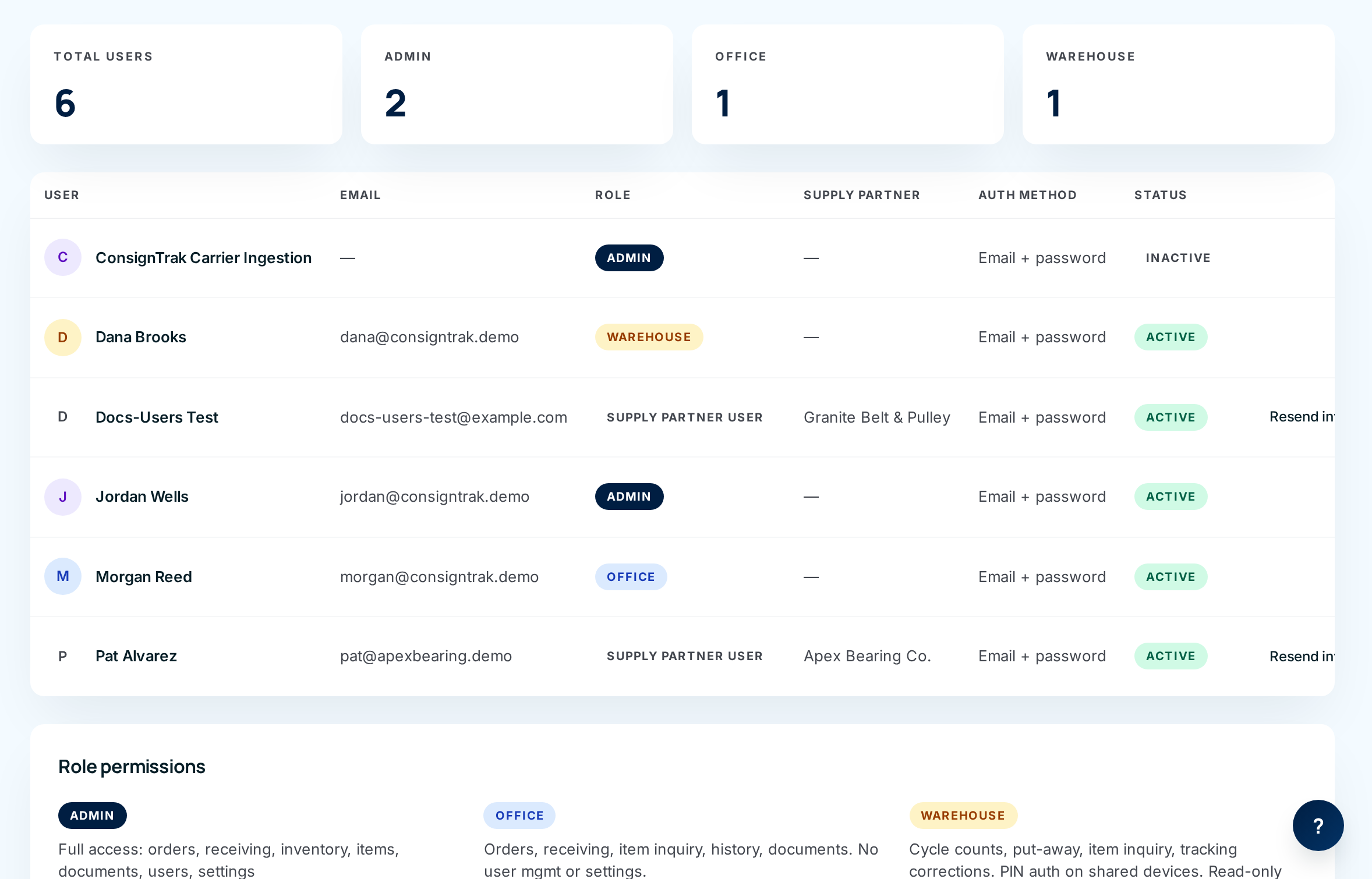
Read the list. Each row shows the person's name, email, role, the supply partner they're limited to (if any), how they sign in and whether they're Active or Inactive. On the right of each row are Edit and, for Supply Partner users only, Resend invite.
You may see an Inactive Administrator called ConsignTrak Carrier Ingestion with no email. ConsignTrak uses it behind the scenes to record tracking updates that arrive from carriers. Nobody signs in as it. Leave it inactive and don't change it.
Add a staff user (Administrator, Office or Warehouse)
-
Choose Invite user at the top right of the Users list.
-
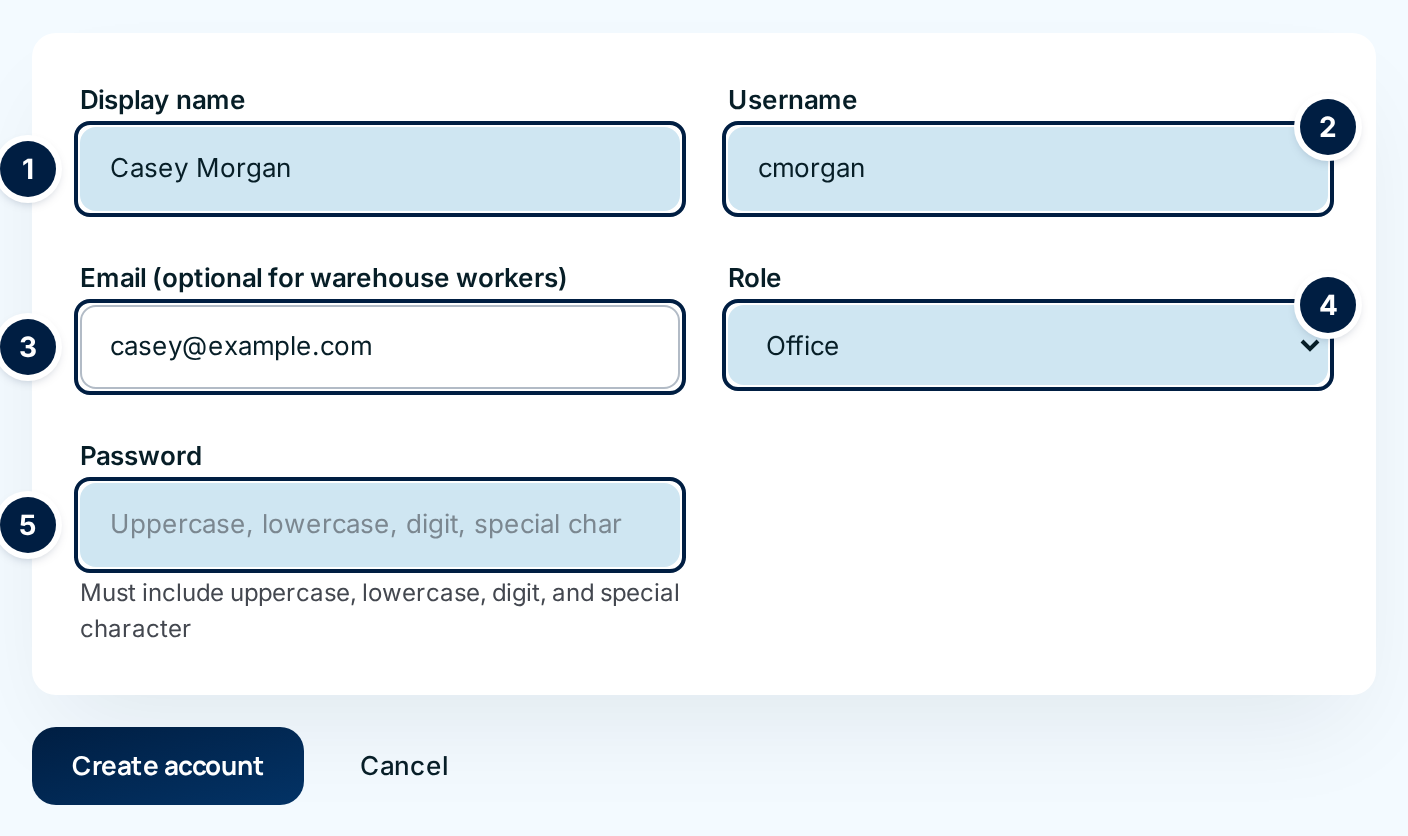
Type the Display name ①, the person's full name as it should appear on screens and history.
-
Type a Username ②. This is what they type to sign in. It must be at least 3 characters, no one else can have it, and capitals matter. You can't change it later.
-
Type an Email ③. See the caution below: give everyone an email, even warehouse staff.
-
Choose the Role ④: Admin, Office or Warehouse Worker. The form shows a Password box ⑤. See The four roles if you're not sure which to pick.
-
Type their first Password ⑤: at least 8 characters with an uppercase letter, a lowercase letter, a number and a symbol. Common passwords are refused.
-
Choose Create account. You're taken back to the Users list, where the new person appears as Active.
-
Tell them their username and password in person or by phone. They can sign in straight away.
The form says email is optional for warehouse workers, but today only one user in the whole system can have a blank email. The second one is refused with "A user with this username already exists", even though the username is new. Until that's fixed (issue #1564), give each person their own email. Two users can't share one either.
Invite a Supply Partner user
-
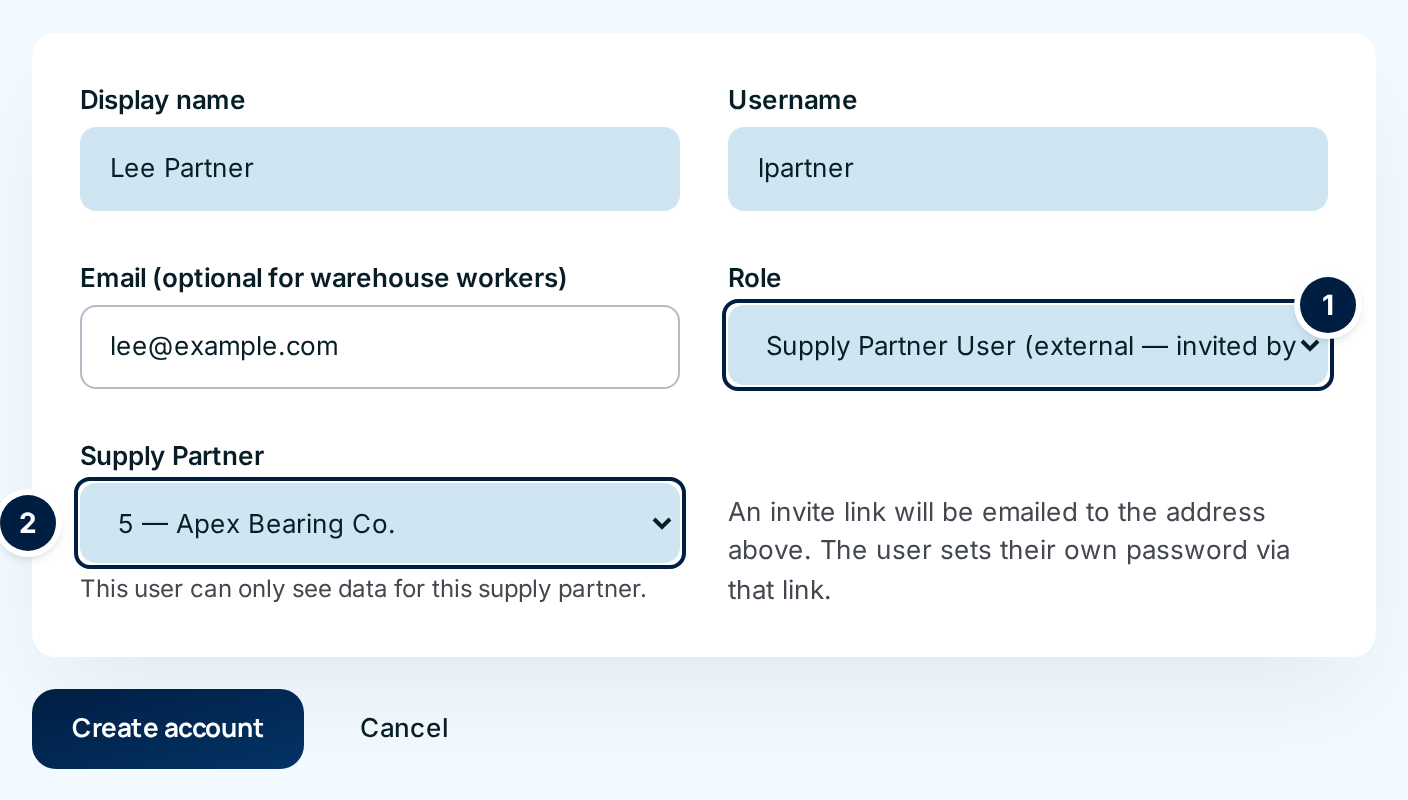
Choose Invite user, then fill in Display name, Username and Email as above. The email is required: that's where the invitation goes.
-
Choose the Role ① Supply Partner User (external — invited by email). The Password box disappears and a Supply Partner list ② appears in its place.
-
Choose the Supply Partner ② this person works for. They will only ever see that partner's records.
-
Choose Create account. ConsignTrak saves the user, makes a one-time link and tries to email it. You land on the invitation page.
-
Check what the page says at the top:
- Invite email sent successfully. The invitation is on its way. You're done, though you can still copy the link as a backup.
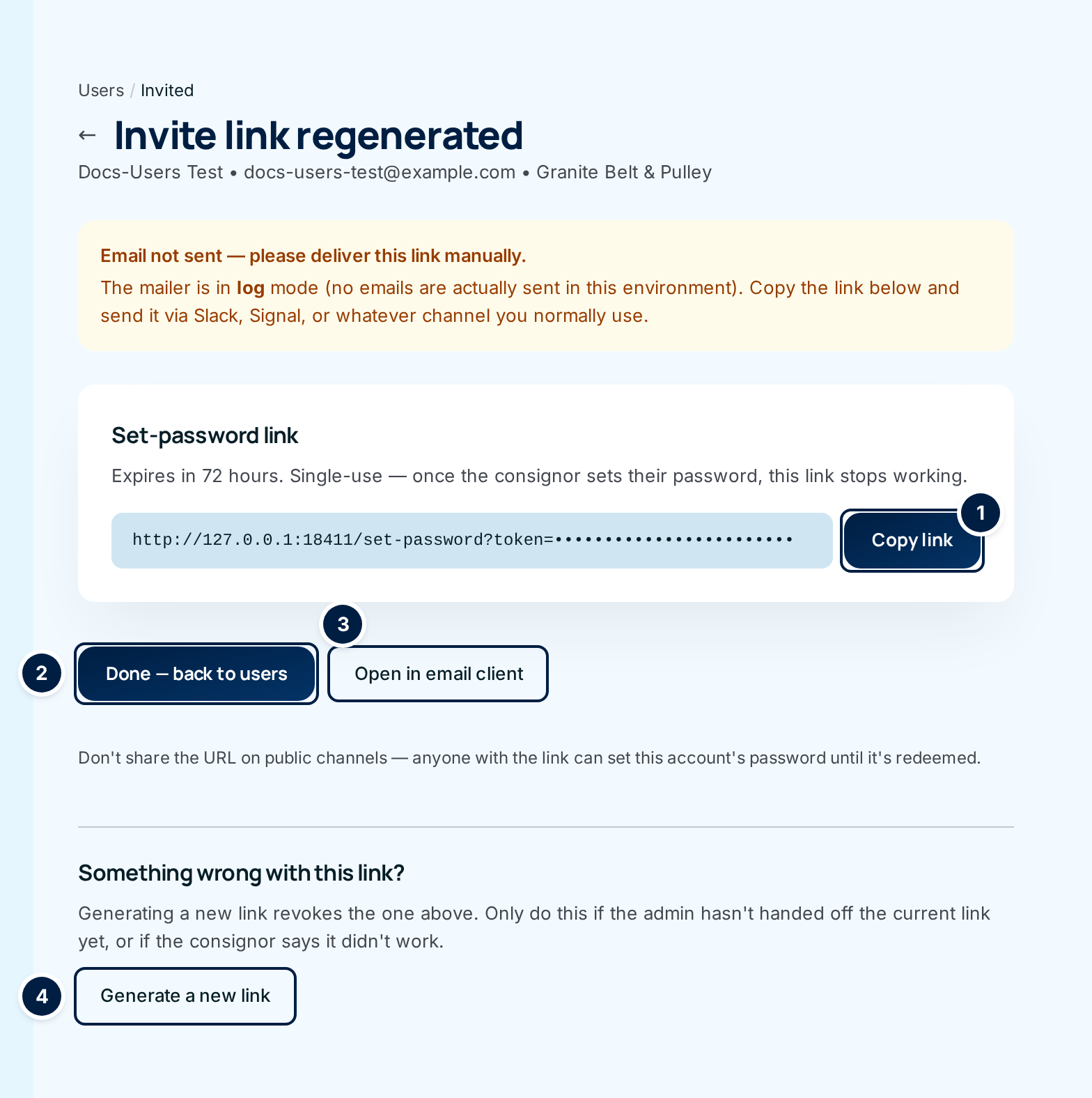
- Email not sent — please deliver this link manually. Either email isn't set up for your ConsignTrak, or sending failed. The user and the link are saved. Send the link yourself (next step).
-
Choose Copy link ① and send the Set-password link to the person directly, or choose Open in email client ③ to start an email with the link already in it.
-
Choose Done — back to users ②.
The person opens the link, chooses a password and lands in their portal (see Signing in). The link works for 72 hours and only once.
Anyone holding the link can set this account's password until it's used. Send it only to the person it's for, never in a group chat or public channel.
Resend a Supply Partner invitation
Use this when the link expired, the email never arrived, or a supply partner user has forgotten their password. It works whether or not they've signed in before.
- Choose Resend invite on their row in the Users list (or Generate a new link ④ on the invitation page).
- ConsignTrak makes a new link, cancels the old one, and tries to email the new one. The page title reads Invite link regenerated.
- Check the message at the top and send the link yourself if it says Email not sent, exactly as when inviting.
When they open the new link they choose a new password and are signed in. Their records and settings are unchanged. Only use Generate a new link if you haven't handed over the current one yet, or the person says it didn't work, because the link they already have stops working.
Change someone's details or role
-
Choose Edit on their row. The Edit User page opens with their name and username under the title.
-
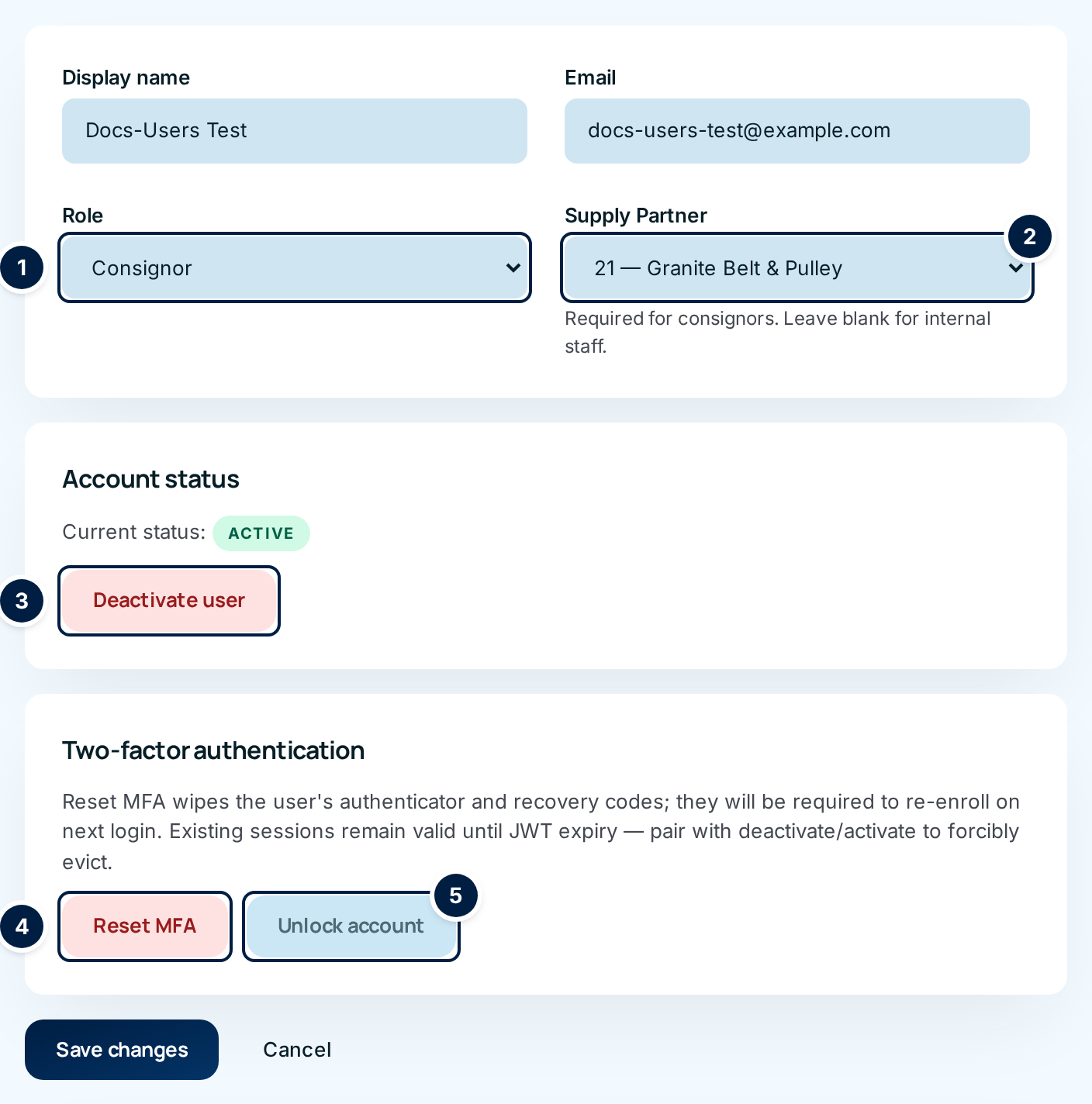
Change Display name, Email, Role ① or Supply Partner ②. On this page the Supply Partner role is labelled Consignor.
-
Choose Save changes. You're taken back to the Users list.
The change takes effect on the person's next click. They don't need to sign in again. A few things to know:
- Email can be changed but not cleared. Leaving the box empty keeps the old address.
- Username can't be changed. Create a new user if it has to be different, and deactivate the old one.
- Supply Partner limits a user to one supply partner's records. For a Supply Partner user it's required. For staff it's usually left at (None — not restricted to a supply partner). See Supply-partner scoping.
If you change someone's role to Consignor, choose their Supply Partner in the same save. ConsignTrak doesn't insist today, and a Supply Partner user with no partner gets Access denied on every portal page (issue #1561). A staff user changed this way keeps their current password and doesn't get an invitation. Use Set password or Resend invite afterwards.
Deactivate someone who has left
- Choose Edit on their row.
- Choose Deactivate user ③ in the Account status card. The button changes color and asks you to click again. Click it a second time to confirm.
You're taken back to the Users list, where they now show Inactive. If they're signed in anywhere, their next click takes them to the sign-in page. They can't sign in again. Everything they did stays in the history under their name.
To bring someone back, open Edit and choose Activate user. Their old password works again.
ConsignTrak doesn't stop you deactivating your own account, or changing the only Administrator into another role. Either one leaves nobody able to open Users or Settings (issue #1561). Keep at least two active Administrators.
Set a new password
Use this when a staff member forgets their password, or to give someone a new one. It also clears any lockout.
-
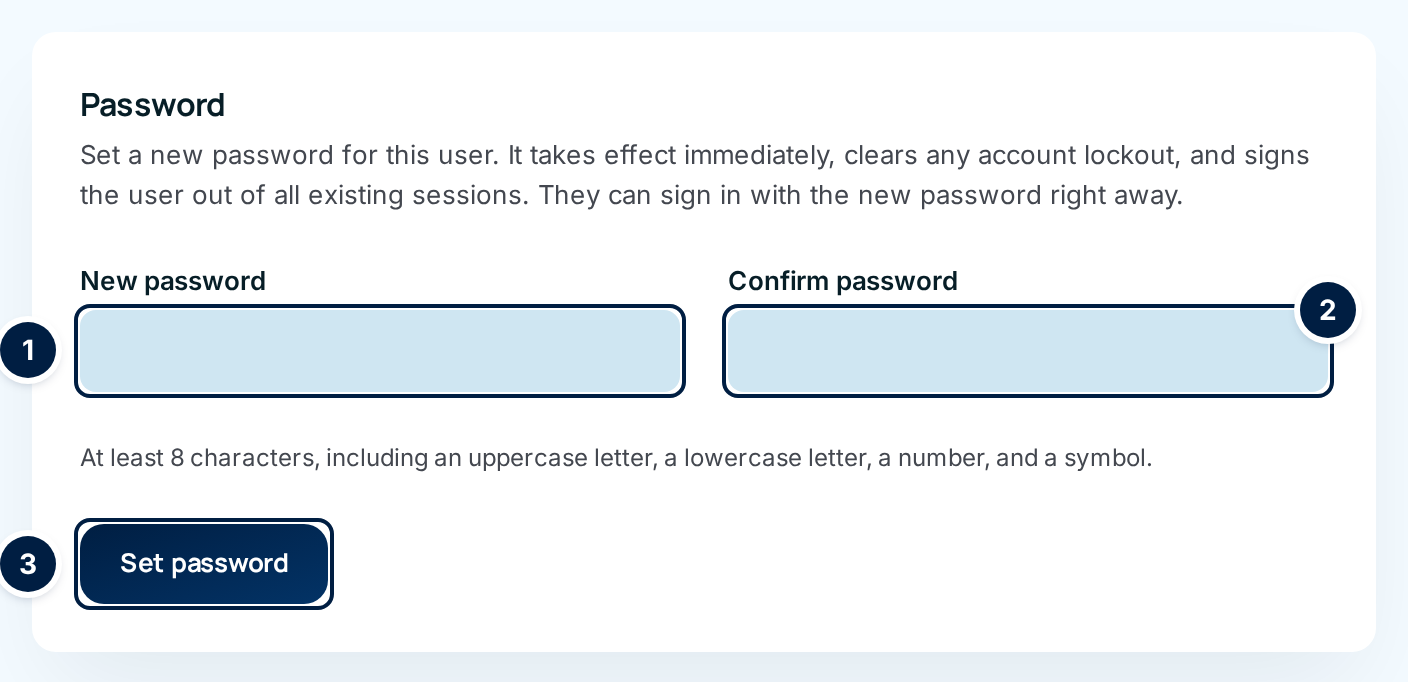
Choose Edit on their row and scroll to the Password card.
-
Type the new password in New password ① and again in Confirm password ②. The same rules apply: at least 8 characters with an uppercase letter, a lowercase letter, a number and a symbol.
-
Choose Set password ③. The page reloads with Password updated.
-
Tell them the new password. It works straight away.
Setting a password signs the person out of every device they were signed in on. It doesn't ask you to click twice: typing the password twice is the check.
For a Supply Partner user, prefer Resend invite, so they choose their own password without you ever knowing it.
Reset two-factor (Reset MFA)
Use this when someone has lost the phone with their authenticator app and their recovery codes. See Two-factor authentication for how two-factor works.
- Choose Edit on their row. The Two-factor authentication card says Enrolled. if they have it set up.
- Choose Reset MFA ④. It turns red and asks you to click again. Click it a second time to confirm.
ConsignTrak removes their authenticator, their recovery codes and every device they'd chosen to trust, and clears any lockout. What happens at their next sign-in depends on who they are:
- An Administrator, on a ConsignTrak that requires two-factor for administrators: they're asked to set it up again with their new phone.
- Everyone else: they sign in with just their password. Two-factor stays off, because nobody else can turn it on today (issue #1476).
Reset MFA doesn't sign them out of devices where they're already signed in. If you're resetting because a phone was lost or stolen, also choose Deactivate user and then Activate user. That signs them out everywhere.
Unlock an account (Unlock account)
Three wrong two-factor codes in a row, from the authenticator app or a recovery code, lock the account. The person sees "Account locked due to repeated authentication failures. Contact an administrator." The Users list shows a red Locked tag in their Auth Method column.
-
Choose Edit on their row.
-
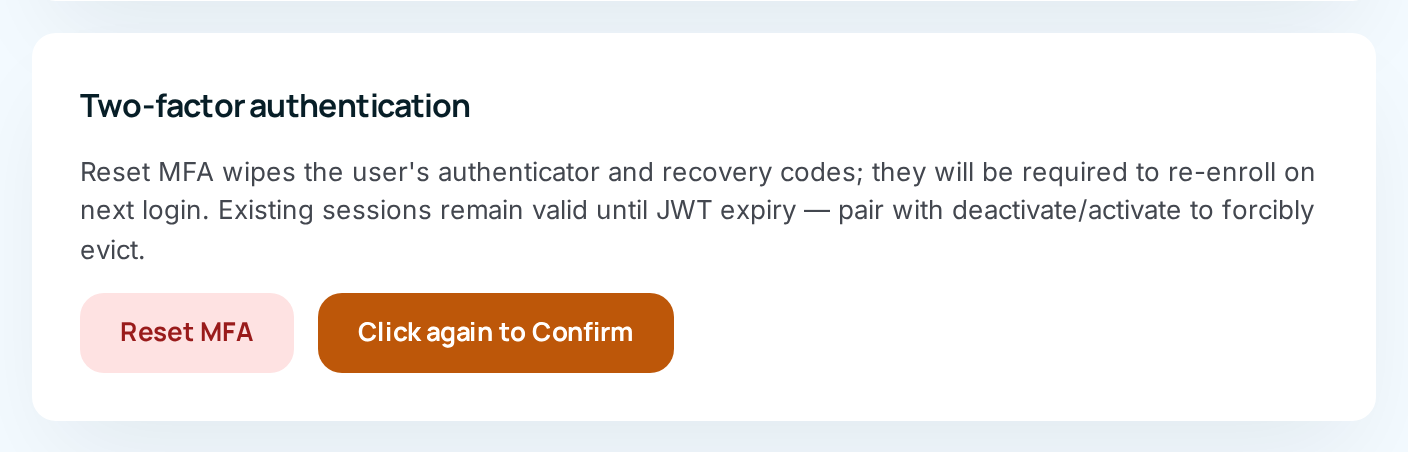
Choose Unlock account ⑤. It turns amber and says Click again to Confirm. Click it a second time.
They can sign in again straight away with their password and a code. Their two-factor set-up is untouched. If you're the only Administrator and it's your own account that's locked, nobody in ConsignTrak can unlock it. Contact whoever installed ConsignTrak for you.
Wrong passwords don't lock an account. After too many tries from one place, ConsignTrak asks the person to wait: "Too many login attempts. Please try again in N minutes." That clears by itself.
On a phone
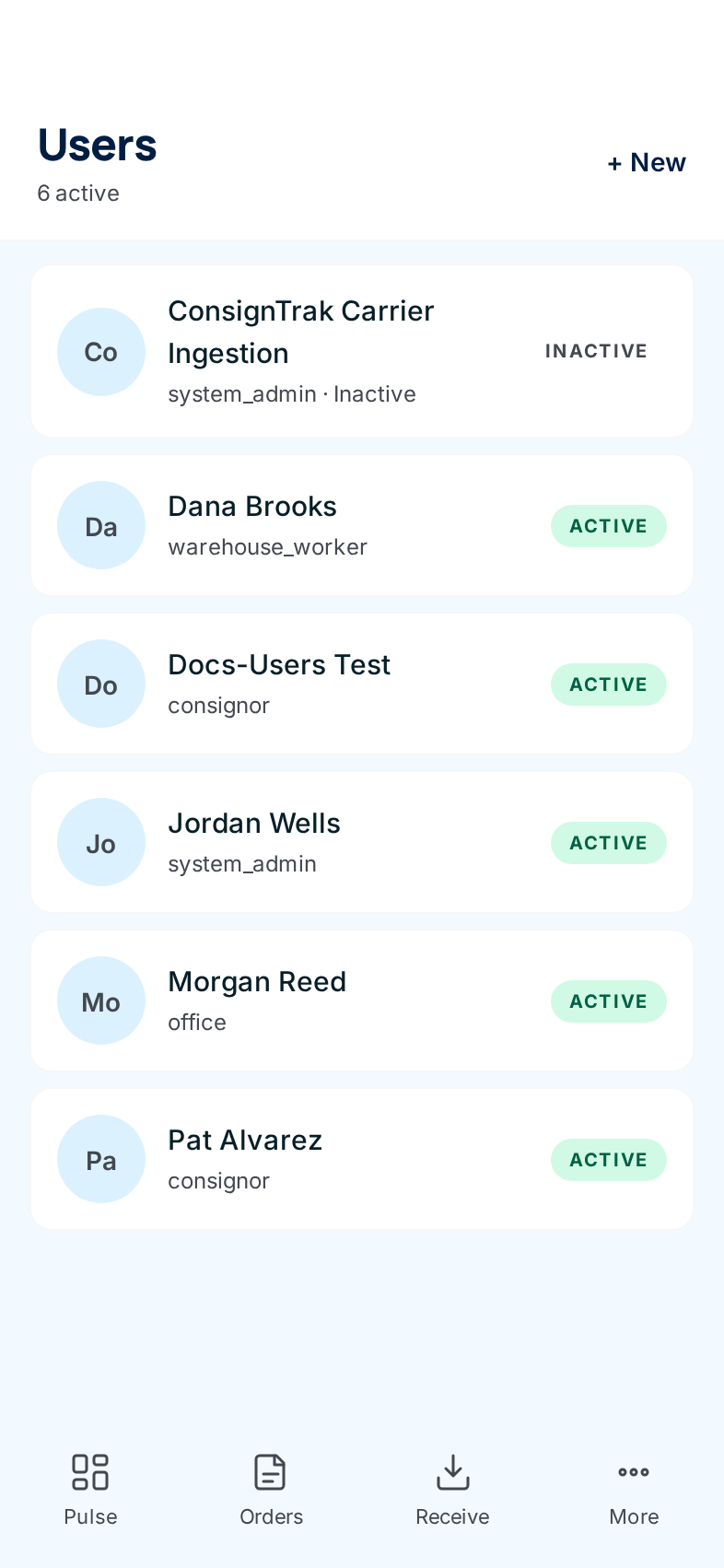
Users is under More on a phone, but the phone screens are incomplete today (issue #1559):
- The list shows internal role names such as system_admin and consignor, and its count says "active" but includes inactive users.
- New user always asks for a password and has no Supply Partner list, so you can't invite a Supply Partner user from a phone.
- Edit user stops part-way down the page, so Deactivate user, Set password, Reset MFA and Unlock account aren't there.
Use a desktop or laptop for anything more than looking.
Every field and option
Users list
| Field or control | What it means | Required | Default | What changes when you set it |
|---|---|---|---|---|
| Users (page title) | The list of everyone who can sign in. | — | — | — |
| Invite user | Opens the form for a new user. | — | — | Opens Invite new user. |
| Total Users, Admin, Office, Warehouse (count cards) | How many users exist in total and in each staff role. Supply Partner users count towards the total only. Inactive users are counted too. | — | — | Read-only. |
| User | The person's display name, with their initial. | — | — | Read-only. |
| Their email address, or a dash if none. | — | — | Read-only. | |
| Role | Admin, Office, Warehouse or Supply Partner User. | — | — | Read-only; change it on Edit. |
| Supply Partner | The one supply partner this user is limited to, or a dash for unrestricted staff. | — | — | Read-only. |
| Auth Method | How they sign in. Email + password is the normal case. Email + MFA means two-factor is set up; a red Locked tag means three wrong codes locked them out. PIN appears only for an account that had a PIN carried over; there's no PIN sign-in today. | — | — | Read-only. |
| Status | Active (can sign in) or Inactive (deactivated). | — | — | Read-only. |
| Actions | The buttons for that row. | — | — | — |
| Resend invite | Supply Partner users only. Makes a new set-password link, cancels the old one, and tries to email it. | — | — | Opens the invitation page. |
| Edit | Opens that user's Edit User page. | — | — | — |
| invite a team member | Shown instead of the table when there are no users. Same as Invite user. | — | — | Opens Invite new user. |
| Role permissions | A short summary of the staff roles. It's out of date (it omits Supply Partner and mentions PIN sign-in, which doesn't exist). Use The four roles instead. | — | — | Read-only. |
Invite new user
| Field or control | What it means | Required | Default | What changes when you set it |
|---|---|---|---|---|
| Invite new user (page title), ← and Users / Invite | The form for a new user. The arrow and Users go back to the list. | — | — | — |
| Display name | The person's name as shown on screens and in history. | Yes | Empty (hint: Full name) | Shown wherever they appear. Can be changed later. |
| Username | What they type to sign in. At least 3 characters, unique, capitals matter. | Yes | Empty (hint: Login username) | Their sign-in name. Can't be changed later. |
| Email (optional for warehouse workers) | Their email address. Must be unique. Give every user one (see the caution above). | Yes for Supply Partner users; in practice yes for everyone | Empty | Where the invitation goes for a Supply Partner user. |
| Role | Admin (the Administrator role), Office, Warehouse Worker or Supply Partner User (external — invited by email). | Yes | Select a role... | Swaps the box below: Password for staff roles, Supply Partner for a Supply Partner user. |
| Password | Staff roles only. Their first password: 8+ characters with an uppercase letter, a lowercase letter, a number and a symbol; common passwords refused. | Yes for staff | Empty | They sign in with it straight away. |
| Supply Partner | Supply Partner users only. The one partner whose records they'll see. This user can only see data for this supply partner. | Yes for Supply Partner users | Select a supply partner... | Everything they see in the portal is limited to this partner. |
| Create account | Saves the user. | — | — | Staff: back to the list. Supply Partner user: the invitation page. |
| Cancel | Leaves without saving. | — | — | Back to the list. |
Invitation page (after inviting or resending)
| Field or control | What it means | Required | Default | What changes when you set it |
|---|---|---|---|---|
| Supply Partner User invited / Invite link regenerated (page title), ←, Users / Invited | Which action brought you here. The line below names the person, their email and their supply partner. | — | — | — |
| Invite email sent successfully. / Email not sent — please deliver this link manually. | Whether ConsignTrak emailed the link. The second message explains whether email isn't set up for your ConsignTrak or the send failed. | — | — | Tells you whether to send the link yourself. |
| Set-password link | The one-time link. It expires in 72 hours and stops working once used. | — | — | — |
| Copy link | Copies the link so you can paste it into a message. | — | — | Copies to your clipboard. |
| Done — back to users | Finishes. | — | — | Back to the list. |
| Open in email client | Starts an email in your own mail program, addressed to the person, with the link and a short note already written. | — | — | Opens your email app. |
| Something wrong with this link? → Generate a new link | Makes a fresh link and cancels this one. Use it only if you haven't sent the link yet or it didn't work. | — | — | The link on screen stops working; the page reloads with a new one. |
Edit User (desktop)
| Field or control | What it means | Required | Default | What changes when you set it |
|---|---|---|---|---|
| Edit User (page title), ←, Users / Edit | The page for one user; their display name and username are under the title. | — | — | — |
| Display name | Their name as shown on screens. | Yes | Current name | Updates everywhere, including past records' display. |
| Their email. Must be unique. Clearing it keeps the old one. | No | Current email | Where future invitations go. | |
| Role | Admin, Office, Warehouse Worker or Consignor (the Supply Partner role). | Yes | Current role | Takes effect on their next click. |
| Supply Partner | Limits the user to one supply partner. Required for consignors. Leave blank for internal staff. | Yes for Supply Partner users | Current partner, or (None — not restricted to a supply partner) | See Supply-partner scoping. |
| Account status | Current status: Active or Inactive. | — | — | — |
| Deactivate user | Stops them signing in and signs them out on their next click. Asks you to click again. | — | — | Status becomes Inactive. |
| Activate user | Shown instead when they're inactive. Lets them sign in again with their old password. | — | — | Status becomes Active. |
| Two-factor authentication | Says Enrolled. when they have two-factor set up, and what the buttons do. | — | — | — |
| Reset MFA | Removes their authenticator, recovery codes and trusted devices, and clears a lockout. Asks you to click again (red). | — | — | See Reset two-factor. |
| Unlock account | Clears a two-factor lockout without changing their set-up. Asks you to click again (amber). | — | — | They can sign in again. |
| Save changes | Saves name, email, role and supply partner. Status and password have their own buttons. | — | — | Back to the list. |
| Cancel | Leaves without saving. | — | — | Back to the list. |
| Password card | Sets a new password for this user. | — | — | — |
| New password | The new password: 8+ characters with an uppercase letter, a lowercase letter, a number and a symbol. | Yes | Empty | — |
| Confirm password | The same password again. | Yes | Empty | Must match. |
| Set password | Saves the new password, clears any lockout and signs them out everywhere. | — | — | Password updated. |
Phone screens
| Field or control | What it means | Required | Default | What changes when you set it |
|---|---|---|---|---|
| Users list: each row, + New | Everyone, with their role shown as an internal code and an Active / Inactive tag. The count under the title includes inactive users. + New opens New user; a row opens Edit user. | — | — | — |
| New user: Full name, Username, Email, Password, Role, Create account, Cancel | Same as the desktop form, except Password is always required and there's no Supply Partner list. Works for staff roles only. | Full name, Username, Password, Role | Select role | Creates a staff user. |
| Edit user: Full name, Username (greyed out), Email, Role, Save | Same as the desktop fields, without Supply Partner. | Full name, Role | Current values | Saves the user. |
| Edit user: Deactivate user, Activate user, Password, New password, Confirm password, Set password | Built into the phone page but not shown today: the page stops after Save (issue #1559). Use a desktop. | — | — | — |
What happens next
- A new staff user appears in the list as Active and can sign in immediately with the password you gave them.
- A new Supply Partner user appears as Active straight away, but can't sign in until they've used the link to choose a password. After that they land in the portal.
- Role or supply partner changes apply on the person's next click. Their session still ends at the time set by the role they signed in with (see The four roles).
- Deactivation, Set password and a changed role all take effect on the person's next click, wherever they're signed in. Reset MFA and Unlock account take effect at their next sign-in.
- ConsignTrak records each of these actions, and who did it, in its security history.
Common problems
"Username, display name, and role are required" — Fill in all three and choose Create account again.
"A user with this username already exists" — Either the username is taken, or the email is: it's the same message for both. If the username is new, check no one else has that email, and that you haven't left the email blank (only one user can have a blank email). See issue #1564.
"Password is required" — Staff users need a first password. Type one in Password.
"password must be at least 8 characters", "password must include at least one uppercase letter, digit" (or similar), "password is too common, please choose a stronger one" — The password breaks a rule. Use at least 8 characters with an uppercase letter, a lowercase letter, a number and a symbol, and avoid obvious passwords.
"Passwords do not match" — On Set password, New password and Confirm password must be the same. Type both again.
"Email is required for consignor users (the invite link is emailed)" — Supply Partner users need an email. Fill in Email.
"Supply partner is required for consignor users" — Choose their partner in the Supply Partner list.
"Consignor users must have a supply partner assigned" — You tried to clear the Supply Partner of a Supply Partner user. Choose a partner. To turn them into staff, change the Role first.
"Display name is required" — Don't leave Display name empty on Edit User.
"Failed to update user" — Usually the email already belongs to someone else. Use a different one.
I can't see the Edit button. — On a screen about 1440 pixels wide or smaller, the right-hand end of the table is cut off once a Supply Partner row has Resend invite (issue #1560). Widen the window, zoom out, or press Tab until Edit is highlighted.
The person says their invitation link doesn't work. — It may have expired (72 hours), already been used, or been replaced by a newer one. Choose Resend invite and send the new link. An old link still shows the set-password page but won't save (issue #1478).
Someone forgot their password. — There's no reset link on the sign-in page. For staff, use Set password. For a Supply Partner user, use Resend invite.
A deactivated person says their sign-in doesn't work. — That's expected. They see "Invalid username or password", the same as a wrong password. Choose Activate user if they should be back.
Someone other than an Administrator opens Users. — They see Access denied. The menu item shows for every role today (issue #1481).