System configuration
What this is
The System Configuration page holds the settings that apply to the whole warehouse, not to one supply partner or one item. Most warehouses set it once during setup and rarely touch it again. Only an Administrator can open it.
The page also shows a small System Info panel with the size of the database and a few record counts.
Before you start
- Role: Administrator. Everyone sees Settings in the account menu, but it opens only for an Administrator. Other roles get Access denied.
- Settings: none.
- You'll need: nothing. Every setting starts with a sensible default.
Save changes saves the whole form at once, and there's no undo. Note the current values before you start, so you can put them back if needed.
Step by step
-
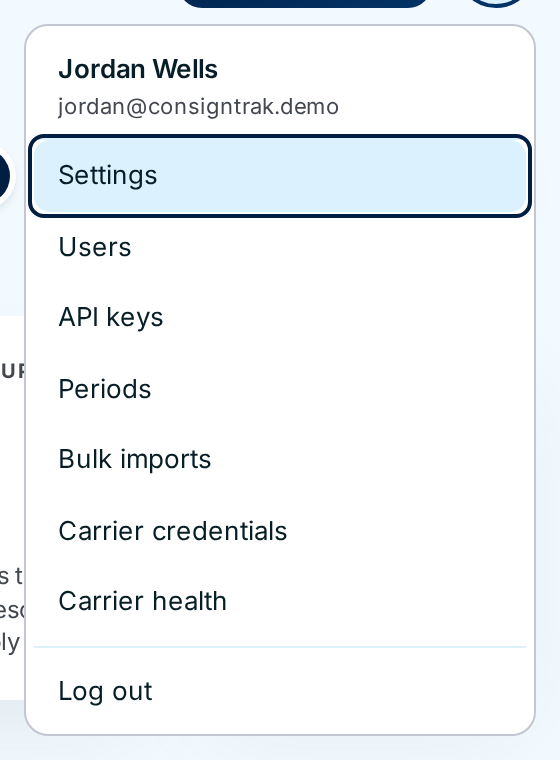
Open the account menu (your initials, top right) and choose Settings ①.
-
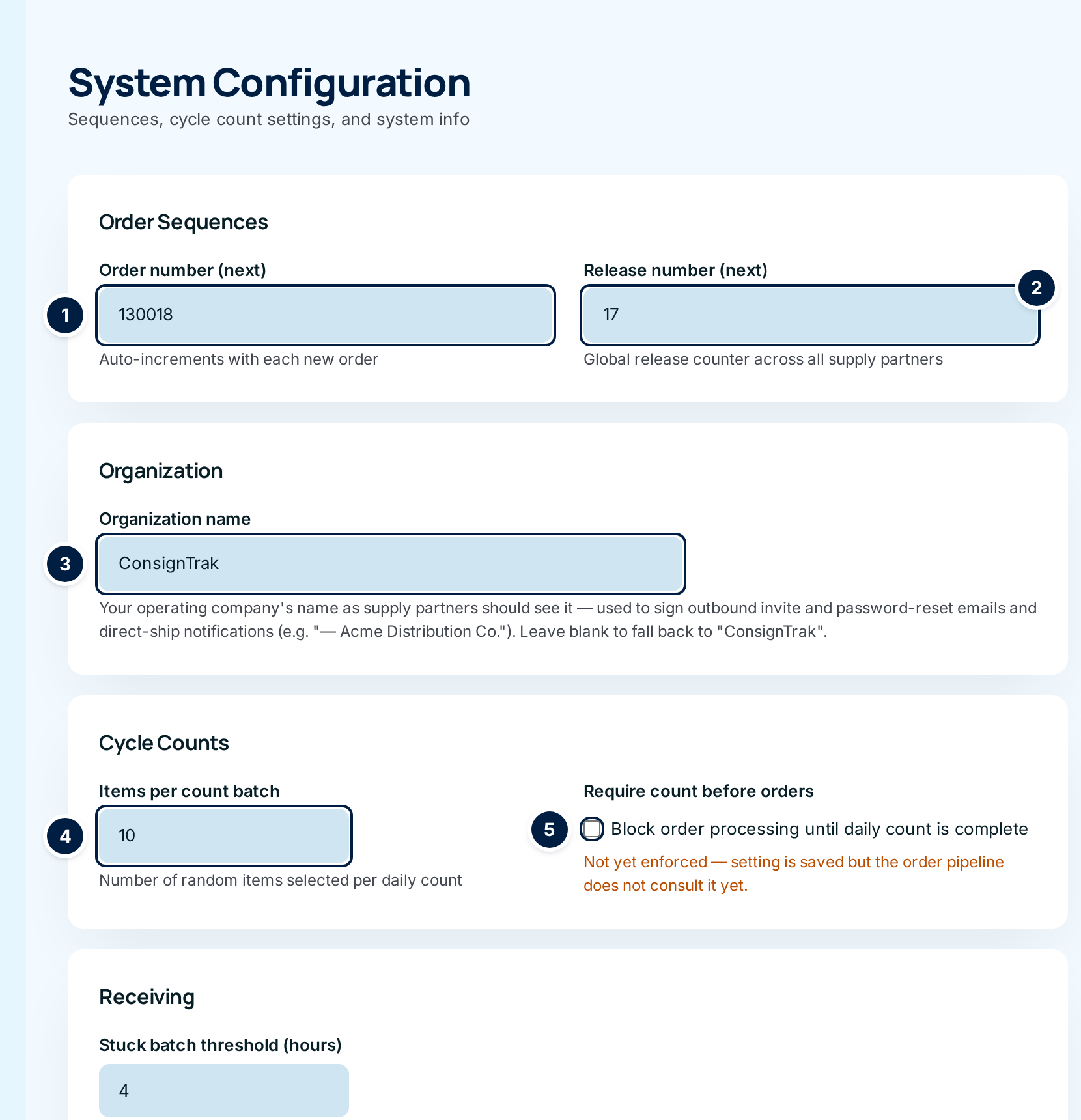
Review the top of the form. It holds the numbering, your organization name and the cycle-count settings, marked ① to ⑤ below and explained in Every field and option.
-
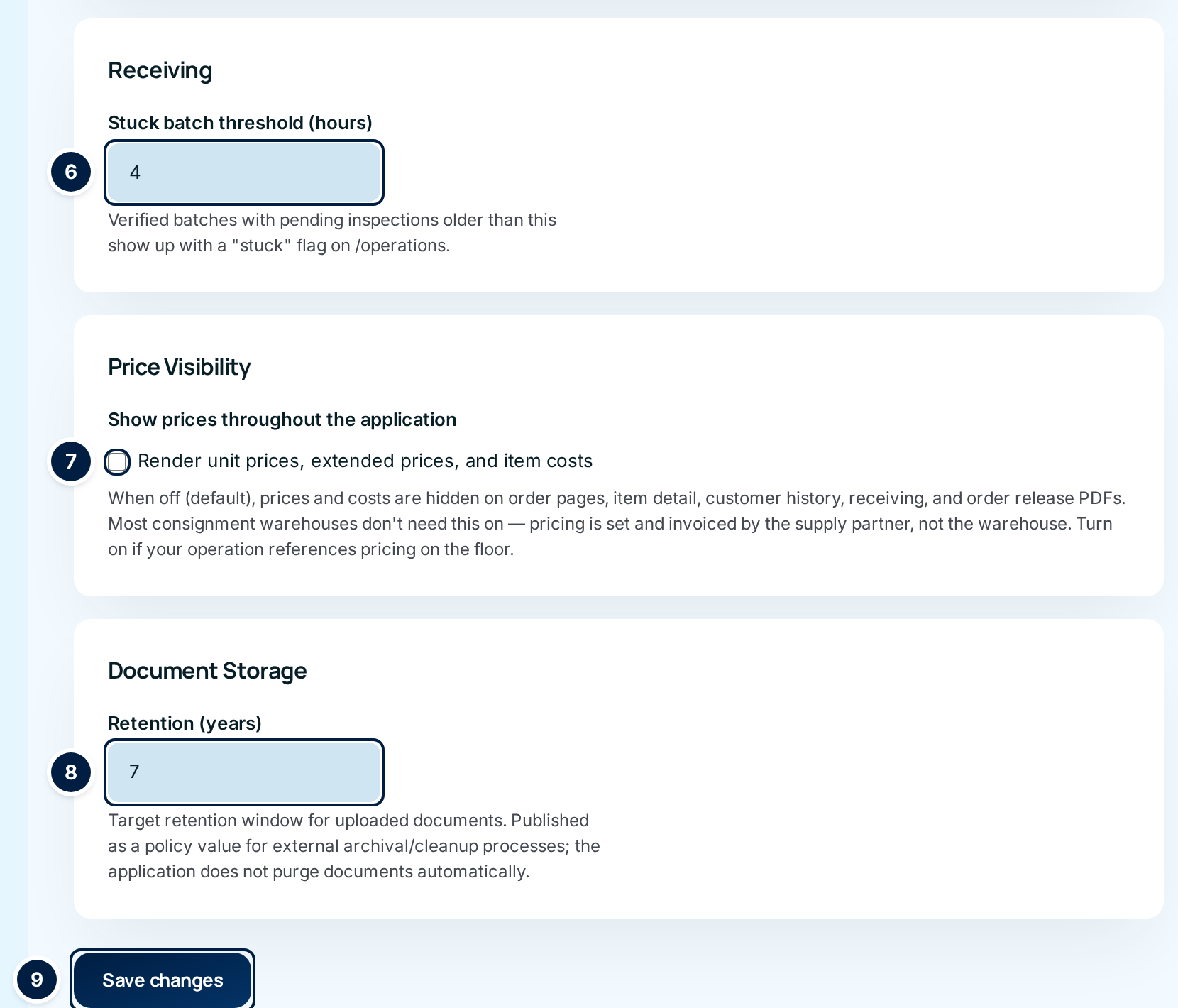
Scroll down for the receiving, price and document settings, ⑥ to ⑧.
-
Change only the settings you mean to change.
-
Choose Save changes ⑨. The page reloads with the saved values. There is no "Saved" message, so check the field you changed shows your new value. If it shows the old value, the new one was rejected (see Common problems).
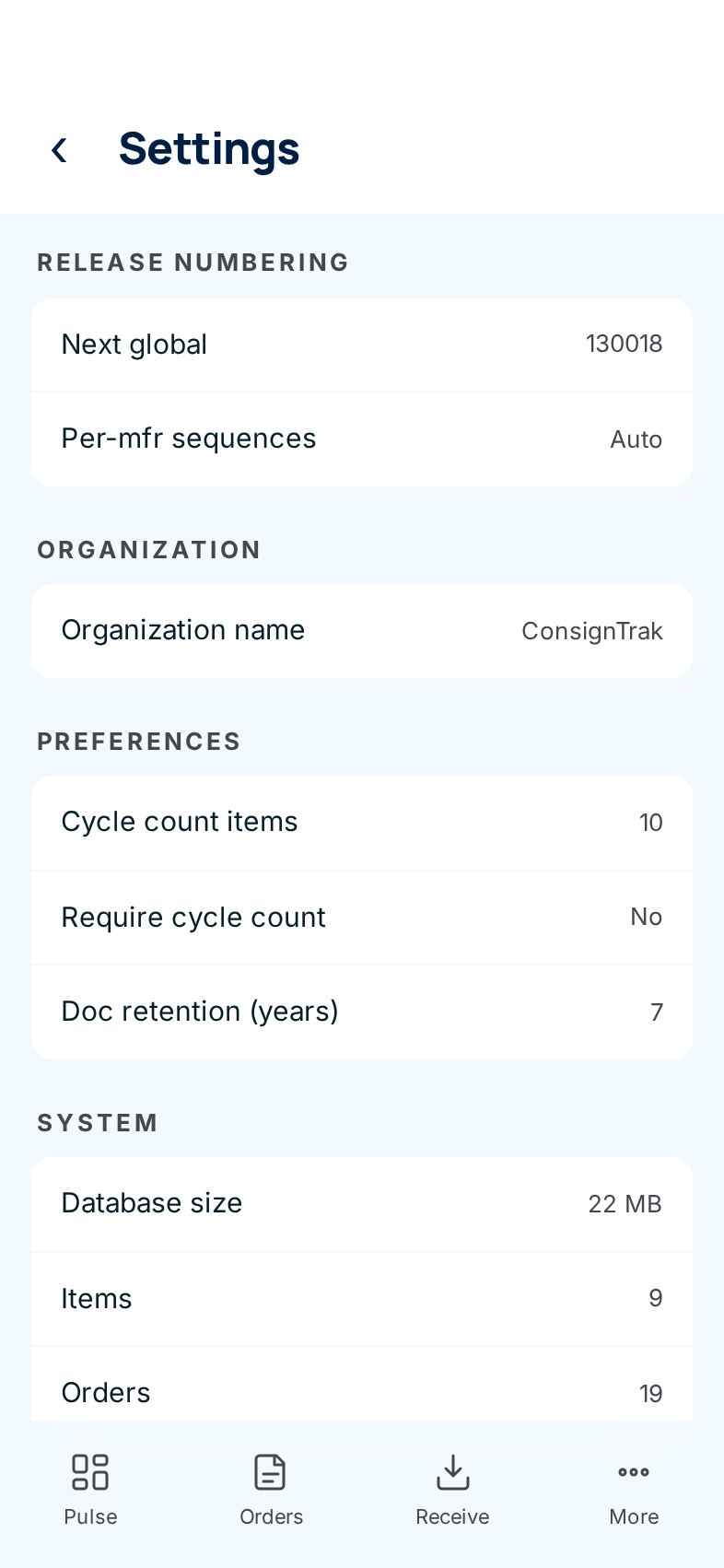
On a phone, Settings is under More. The phone screen only shows the current values; to change anything, use a computer.
Every field and option
Order Sequences
These two numbers are covered in depth in Release numbers.
| Field or control | What it means | Default | Who it affects | When to change it |
|---|---|---|---|---|
| ① Order number (next) | Despite the label, the box shows the last order number given out. The next new order gets this number plus one. Type a higher number and save to skip ahead: if you save 200000, the next order is 200001. | First order is 130000. A new system shows 0 until the first order exists. | Office staff entering orders; anyone who quotes order numbers. | Once, at setup, to carry on from your old system's numbering. |
| ② Release number (next) | The count behind the Original Release #, the number every release gets whatever the supply partner. Like the order number, the box shows the last one given out and the next release gets it plus one. Each supply partner's own Release # count is separate, runs by itself, and isn't on this page. | First release is 1. | Office staff releasing orders; supply partners matching releases. | Once, at setup, to carry on from your old system. |
Both numbers only go up. A lower number than the current one is ignored, so two orders can never share a number.
Organization
| Field or control | What it means | Default | Who it affects | When to change it |
|---|---|---|---|---|
| ③ Organization name | Your company's name as supply partners and customers should see it. ConsignTrak signs outgoing emails with it: invitations, password resets, and the direct-ship emails office staff send to supply partners. Up to 120 characters. | Blank, which signs emails "ConsignTrak". | Everyone who receives an email from ConsignTrak (see Users & roles). | At setup, before you invite anyone. Clear the box to go back to "ConsignTrak". |
Cycle Counts
Both settings govern Cycle counts.
| Field or control | What it means | Default | Who it affects | When to change it |
|---|---|---|---|---|
| ④ Items per count batch | How many items each new cycle-count batch picks at random. The box accepts 1 to 100. | 10 | Warehouse staff doing the count; office staff approving it. | If the daily count takes too long, lower it. If you want to cover the whole warehouse faster, raise it. 5 to 15 suits a small warehouse. |
| ⑤ Require count before orders (Block order processing until daily count is complete) | Meant to stop orders going through until the day's count is finished. It isn't enforced. Ticking it saves your choice, but orders are processed as usual. The orange note under the box says the same. | Off | Nobody, today. | Leave it off. |
Receiving
| Field or control | What it means | Default | Who it affects | When to change it |
|---|---|---|---|---|
| ⑥ Stuck batch threshold (hours) | How long a receiving batch may wait with inspections pending before ConsignTrak flags it as stuck on the Live operations wallboard and the Receiving list. The box accepts 1 to 168 (one week). | 4 | Office and warehouse staff watching receiving (see Stuck receipts). | Raise it if batches routinely wait overnight for inspection and the flags have become noise. Lower it if goods sit on the dock too long unnoticed. |
Price Visibility
| Field or control | What it means | Default | Who it affects | When to change it |
|---|---|---|---|---|
| ⑦ Show prices throughout the application (Render unit prices, extended prices, and item costs) | One switch for every price in ConsignTrak. When it's on, prices and costs show on order pages, printed releases, item detail, customer history, receiving, the phone pick screen, the accounting-period reports and supply partners' portal statements. When it's off, all of them are hidden. | Off | Everyone, including supply partners in the portal. | Leave it off if the supply partners set and invoice prices themselves, as they usually do. Turn it on if your staff need to see prices while they work. See Inventory & items. |
Document Storage
| Field or control | What it means | Default | Who it affects | When to change it |
|---|---|---|---|---|
| ⑧ Retention (years) | How long your policy says uploaded files should be kept. It's a number on record for your records team and any outside archiving tool. ConsignTrak never deletes files automatically, whatever this says. | 7 | Nobody inside ConsignTrak. | Set it to match your records policy or a supply partner's contract. See Documents. |
Buttons and panels
| Field or control | What it means |
|---|---|
| ⑨ Save changes | Saves every setting on the form at once. No second click is needed and there's no undo. |
| System Info | A read-only panel under the form. See below. |
The System Info panel
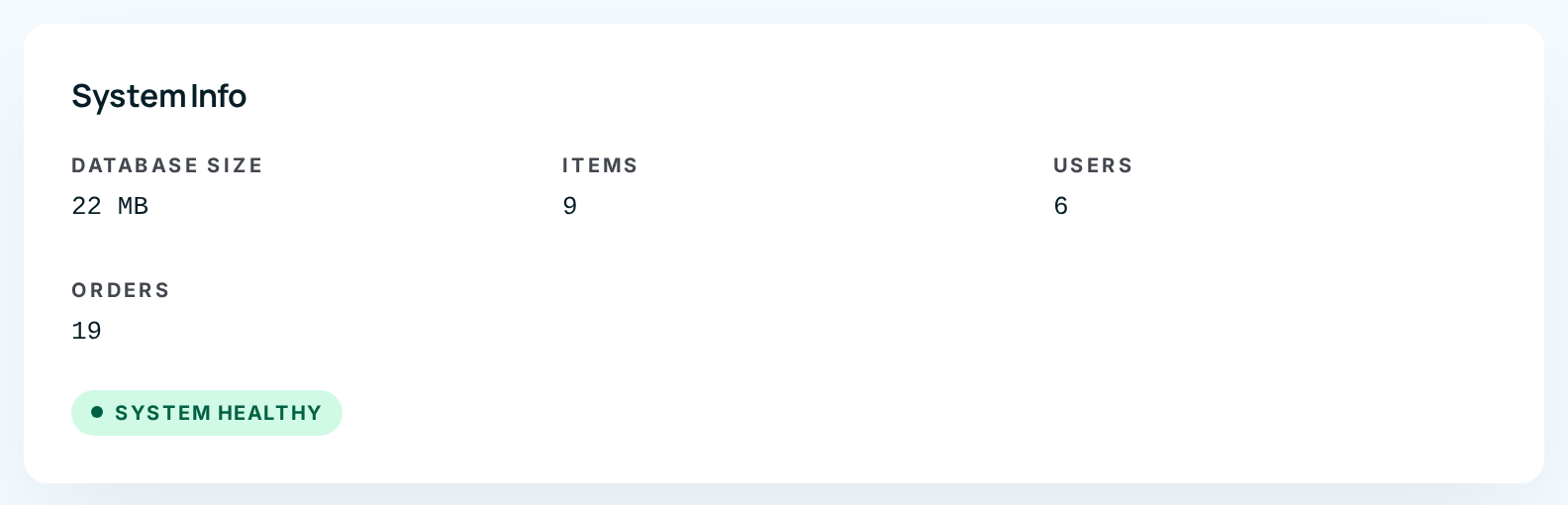
| Item | What it shows |
|---|---|
| Database Size | How much space ConsignTrak's data takes up. Uploaded files aren't included. |
| Items | How many items exist, for every supply partner together. |
| Users | How many user accounts exist, including inactive ones. |
| Orders | How many orders exist, in any status. |
| System healthy | Always shows while the page loads. If ConsignTrak were down, the page wouldn't open at all. |
Use it for a quick capacity check. Nothing here can be changed.
The phone Settings screen
The phone screen lists some of the same values under Release numbering, Organization, Preferences and System. It has nothing to edit and leaves out the stuck-batch threshold and price visibility. Two labels are wrong: Next global actually shows the last order number, not a release number. Per-mfr sequences: Auto means each supply partner's release count runs by itself. This has been reported (#1542).
Settings without an on-screen switch
ConsignTrak's database holds three more settings from its original setup. None has a switch on this page or in the API, and none changes anything today. Nothing in ConsignTrak reads them.
| Setting | Stored value | What it would mean | What it does today |
|---|---|---|---|
| Inventory valuation method | Average cost | How stock is valued (average cost, first in first out, last in first out). | Nothing. ConsignTrak doesn't value stock, because the supply partner owns it. |
| Backorder control | Off | Whether backorder processing is active. | Nothing. Supply partners handle their own backorders. The separate per-item Backorder control flag is covered in Creating and editing an item. |
| Salesmen | On | Whether salesperson tracking is active. | Nothing. ConsignTrak doesn't track salespeople or commissions. |
The only way to change them is a direct edit of the database by whoever runs your ConsignTrak server, and changing them has no effect. You can ignore them. Removing them has been proposed (#1542).
Settings made where ConsignTrak runs
A few settings belong to the server itself. They're set by whoever installs and runs ConsignTrak, and can't be changed from any screen. You may hear about them:
| Setting | Default | What it does |
|---|---|---|
| Two-factor required | Off | When on, every Administrator must set up two-factor sign-in before continuing. Other roles aren't affected. |
| Remember this device | 30 days | How long a trusted device can skip the two-factor code. |
| Sign-in length | 8 hours | How long you stay signed in before you're asked to sign in again. |
| Email sending | Not sent | Whether ConsignTrak actually sends emails. Until it's set up, no email goes out, and an Administrator copies each invitation link by hand (see Users & roles). |
| Web address in emails | — | The address that links in emails point to. It must be the address your users actually reach. |
| Automatic period close | On | Closes each month's accounting period on its own. |
| Warehouse time zone | US Eastern | Decides when "today" starts and ends on the dashboard and end-of-day lists. |
What happens next
- Numbering: the next order or release takes the next number after the one you saved. Existing orders keep their numbers.
- Organization name: the next email ConsignTrak sends is signed with it. Emails already sent don't change.
- Items per count batch: applies to the next batch generated. Batches already generated keep their items.
- Stuck batch threshold: the wallboard and Receiving list use the new number the next time they load.
- Show prices: prices appear or disappear everywhere as soon as each page is reloaded, including in the supply partner portal.
- Retention: nothing changes inside ConsignTrak.
- Every save is recorded in the audit trail.
Common problems
I saved a new order number, but the box still shows the old one. — The number you typed was lower than the current one, or below 1. ConsignTrak ignores it without a message, so numbers are never reused. Type a higher number.
My new order got one more than the number I typed. — Expected. The box shows the last number given out, not the next one. Save one less than the number you want next.
The browser won't save and points at a box with a message like "Value must be less than or equal to 168". — Items per count batch takes 1 to 100 and Stuck batch threshold (hours) takes 1 to 168. Fix the number and choose Save changes again.
Retention (years) saved as 0 or a negative number. — The box doesn't check the number. Since nothing is deleted automatically, no harm is done, but set it back to your real policy.
I ticked Require count before orders, but orders still go through. — Correct. The setting is saved but not enforced yet.
"Access denied" when I choose Settings. — The page is for Administrators only. Ask an Administrator to make the change.
The audit trail shows a "password change" when someone edited a sequence. — A known labelling fault: order-number changes are recorded under that name. The details on the entry show which sequence changed and from what to what (#1542).