The operations wallboard
What this is
Live Operations is a read-only wallboard of what the warehouse is doing right now: what needs attention, how today is going, what's being picked and received, and what just finished. It updates itself every few seconds, so nobody has to touch it. It's built to hang on a TV in the office or on the floor, and it works just as well on a second monitor while you answer "where's my order?" calls.
Before you start
- Role: Administrator, Office or Warehouse. Supply partner portal users can't open it. The wallboard shows every supply partner's work at once, by design.
- Settings: the Stuck batch threshold (hours) in System configuration sets when a receiving batch counts as stuck. It's 4 hours unless someone changed it.
- You'll need: nothing else.
Step by step
-
Open the Dashboard and choose Live operations ① at the top right.

-
Read it top to bottom. The most urgent things are at the top.
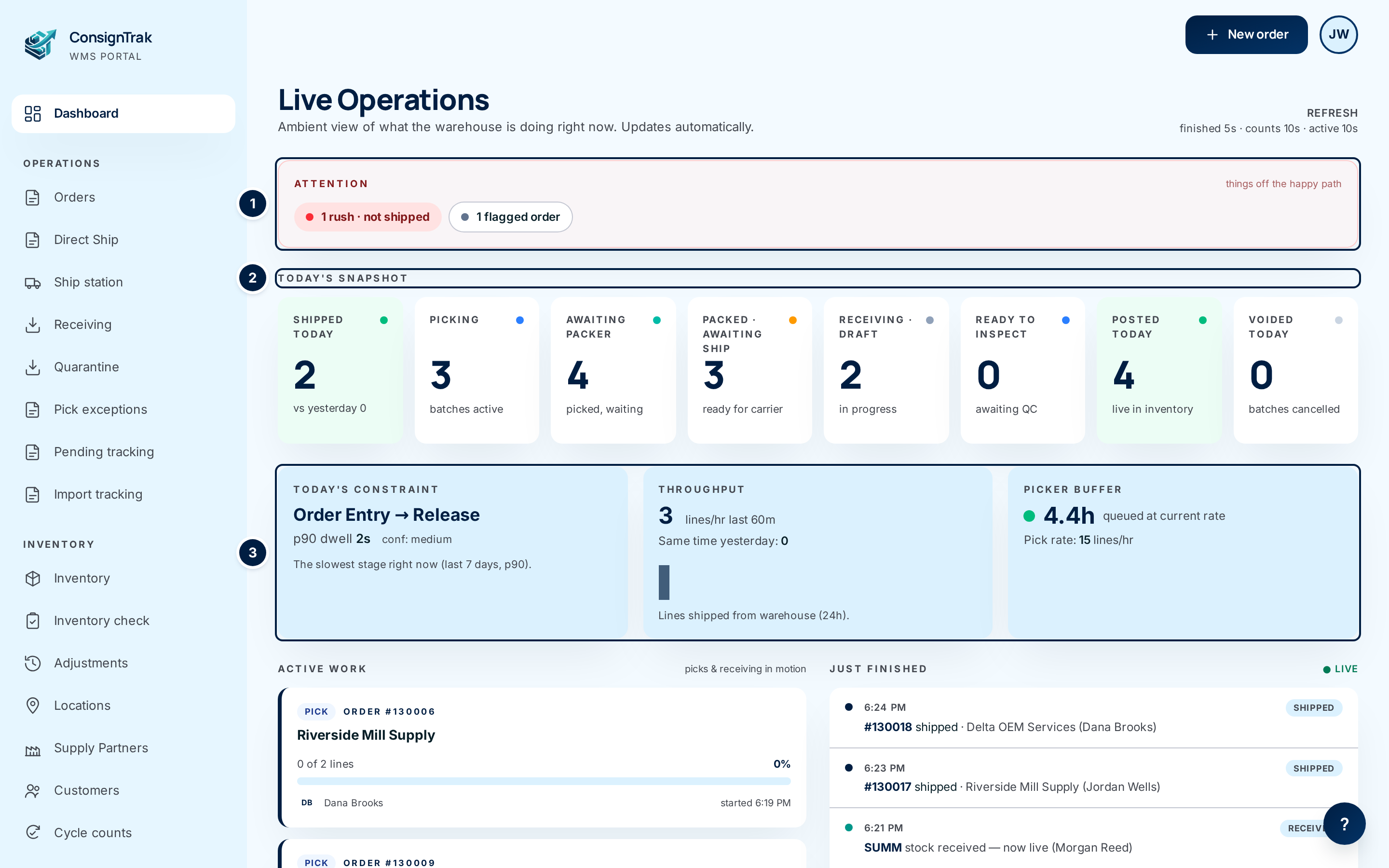
- ① Attention: things off the normal path. On a quiet day this red strip disappears completely.
- ② Today's snapshot: eight counts for today.
- ③ The flow row: where work is slowest, how fast lines are shipping, and how much picking is queued.
-
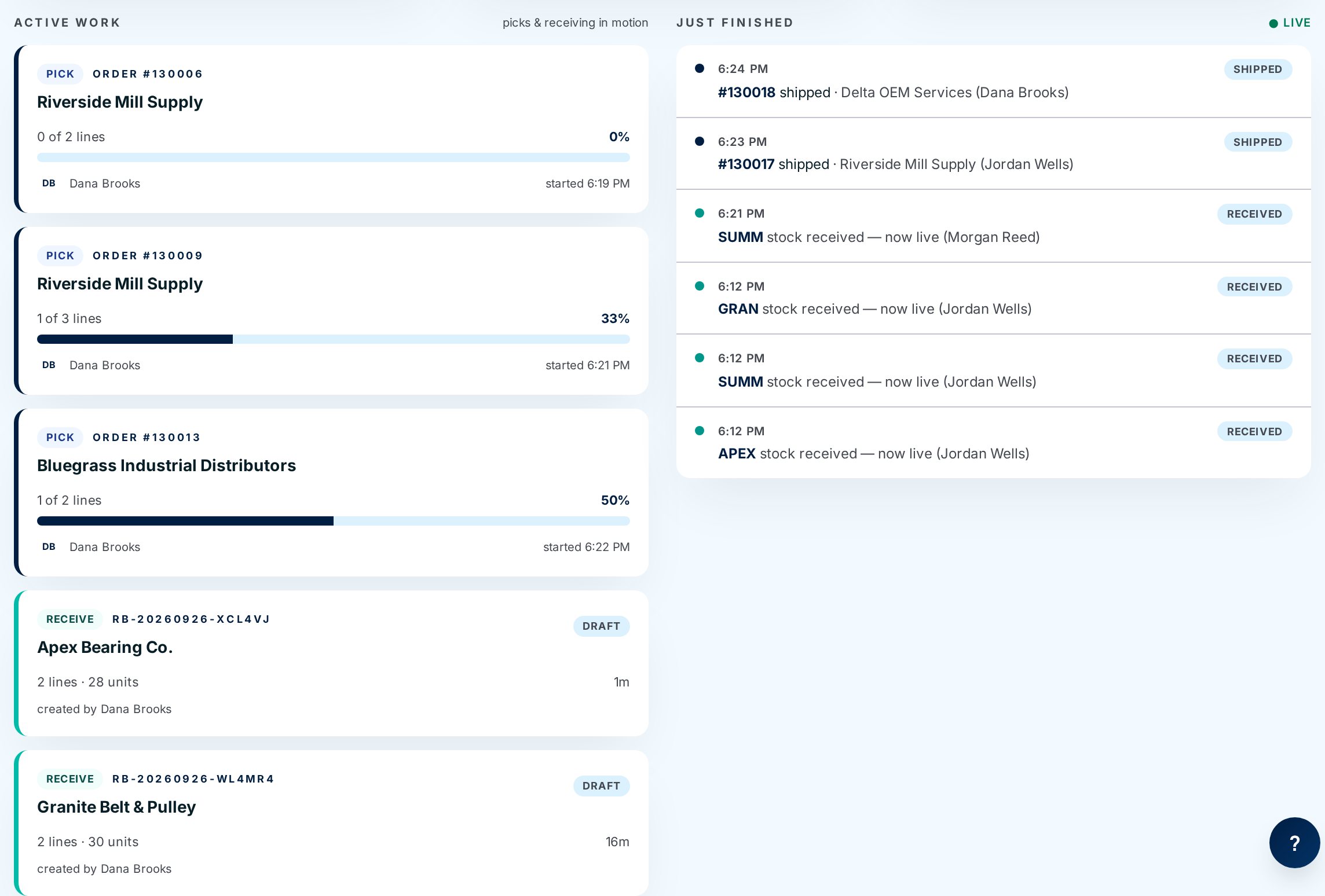
Scroll down for the lists. Active work on the left shows picks and receiving in progress. Just finished on the right shows what completed in the last 8 hours. Throughput · last hour at the bottom shows who has shipped what.
-
Click through when you need to act. Every chip, order number and batch number is a link to the page where you can deal with it. The wallboard itself has no buttons.
Putting it on a TV
- Use a computer or stick PC connected to the TV with a normal web browser. A phone is too small to be read from across a room.
- Sign in as an Office or Warehouse user, not an Administrator. The TV is in a shared space, and anyone walking past can use a signed-in screen.
- Open Live operations from the Dashboard.
- Go full screen (F11 in most browsers) and zoom in (Ctrl and +) until the numbers read well from where people stand.
- Keep the tab in front. Some browsers slow down tabs that aren't visible, and the board stops updating.
- If the screen shows the sign-in page after a while, sign in again. That happens when the session expires, not because anything broke.
Every field and option
Header
| Field or control | What it means | Required | Default | What changes when you set it |
|---|---|---|---|---|
| Live Operations | The page title. | — | — | — |
| Refresh note | How often each part updates: Just finished every 5 seconds, the counts and Active work every 10. The flow row and Throughput update every 30 seconds. | — | — | Read-only. |
Attention (shown only when something is off the normal path)
| Field or control | What it means | Required | Default | What changes when you set it |
|---|---|---|---|---|
| N rush · not shipped | Rush orders that haven't shipped yet. | — | Hidden at 0 | Opens the order list filtered to open rush orders. |
| N high >24h | High-priority orders still entered or released after 24 hours. | — | Hidden at 0 | Opens the order list filtered to those orders. |
| N direct ship · awaiting notify | Direct-ship orders whose supply partner hasn't been told to ship yet. | — | Hidden at 0 | Opens Direct Ship. |
| N receiving stuck >Nh | Receiving batches that have sat past the stuck threshold. See the caution below. | — | Hidden at 0 | Opens the Receiving list with Stuck only on. See Stuck receipts. |
| N quarantine · needs docs | Quarantined lines that have no document attached yet. | — | Hidden at 0 | Opens Quarantine filtered to those lines. |
| N variance alerts | Receiving batches where a line's received quantity doesn't match what the spreadsheet said was coming. Choose it to expand the list: batch number, supply partner, lines off. | — | Hidden at 0 | Each batch number opens that batch. |
| N flagged orders | Orders that have waited too long at a stage. Choose it to expand: order number, customer, reason and how long. Reasons: Rush, not shipped, Released >24h, Picking >8h, Packed >4h, Staged >2h. | — | Hidden at 0 | Each order number opens the order. |
The receiving stuck chip counts batches waiting on inspection whose lines haven't changed for the threshold. The Stuck only list it opens counts every unposted batch that hasn't been touched for the threshold. So the chip can say 1 while the list shows 3, or none. Trust the list for what to work on. This is being fixed (issue #1504).
Today's snapshot
| Field or control | What it means | Required | Default | What changes when you set it |
|---|---|---|---|---|
| Shipped today | Orders shipped today, in the warehouse's time zone. The line underneath compares with yesterday. Turns green when above 0. | — | 0 | Read-only. |
| Picking | Pick batches being picked right now. | — | 0 | Read-only. |
| Awaiting packer | Picked and handed off, but nobody has started packing. | — | 0 | Read-only. |
| Packed · awaiting ship | Packed and waiting for the carrier. | — | 0 | Read-only. |
| Receiving · draft | Receiving batches still being counted. | — | 0 | Read-only. |
| Ready to inspect | Counted batches waiting for their quality check. | — | 0 | Read-only. |
| Posted today | Receiving batches put into inventory today. Turns green when above 0. | — | 0 | Read-only. |
| Voided today | Receiving batches cancelled today. Turns red when above 0, because that's unusual. | — | 0 | Read-only. |

Flow row
| Field or control | What it means | Required | Default | What changes when you set it |
|---|---|---|---|---|
| Today's constraint | The slowest step in the order flow over the last 7 days: Order Entry → Release, Release → Pick Start, Picking, Pick → Pack or Pack → Ship. p90 dwell is how long 9 orders in 10 wait at that step. conf is how sure the estimate is (medium or high). Says Not enough data yet until at least 10 orders have shipped in 7 days. | — | Not enough data yet | Read-only. |
| Throughput | Order lines shipped from the warehouse in the last 60 minutes, and the same hour yesterday with the change in percent. The small bars show the last 24 hours. | — | 0 | Read-only. |
| Picker buffer | How many hours of picking are queued at the current pick rate. Green is 1½ hours or more. Amber is between half an hour and 1½ hours. Red is under half an hour: pickers are about to run out of released work, so release more orders. Pick rate is lines picked in the last hour. Shows "—" when nothing was picked in the last hour. | — | — | Read-only. |

Active work
| Field or control | What it means | Required | Default | What changes when you set it |
|---|---|---|---|---|
| PICK card | An order being picked. Shows the Order #, customer, Rush or High tag (and a red or amber edge), lines picked of total with a progress bar, the picker and start time. Rush and high orders come first. | — | — | Order # opens the order. |
| RECEIVE card | A receiving batch not yet posted (up to 10, most recent first). Shows batch number, supply partner, Draft or Ready to inspect, a Stuck tag if it's past the threshold, lines and units, how long ago it changed, and who created it. | — | — | The batch number opens the batch. |
| No active work right now. | Nothing in progress. | — | — | — |
Just finished (last 8 hours, newest first)
| Field or control | What it means | Required | Default | What changes when you set it |
|---|---|---|---|---|
| SHIPPED, CLOSED, CANCELLED | An order reached that state. Shows the time, #order number, customer and who did it. | — | — | The order number opens the order. |
| RECEIVED | A receiving batch was posted: "supply partner stock received — now live". | — | — | The supply partner's name opens the batch. |
| VOIDED | A receiving batch was cancelled. | — | — | Receiving batch opens it. |
| ● Live | This list updates every 5 seconds. | — | — | — |
| Nothing crossed the finish line in the last 8 hours. | Nothing finished recently. | — | — | — |
Steps in between (released, packed) aren't listed here. The Active work cards show those.
Throughput · last hour
| Field or control | What it means | Required | Default | What changes when you set it |
|---|---|---|---|---|
| One row per person | Everyone who confirmed a shipment in the last hour, busiest first: their initials, name, number of shipments and the time of their last one. | — | — | Read-only. |
| No shipments in the last hour. | Nobody shipped in the last hour. | — | — | — |

What happens next
Nothing changes when you look at the wallboard. It reads the same records as the rest of ConsignTrak, so a count moves within seconds of someone picking, packing, shipping or receiving. To fix anything the Attention rail shows, click the chip and act on the page it opens.
Common problems
The board stopped updating. — The browser tab was probably in the background, or the computer went to sleep. Bring the tab to the front, or reload the page. Turn off sleep on a computer that drives a TV.
The receiving stuck chip doesn't match the list it opens. — Known; see the caution above. Work from the list.
Today's constraint says "Not enough data yet". — It needs at least 10 orders shipped in the last 7 days. It appears on its own once there are.
Picker buffer shows "—". — Nothing was picked in the last hour (lunch, or end of shift), so there's no rate to estimate from.
"Access denied" for a supply partner user — Correct. The wallboard shows every supply partner's work, so portal users can't see it.
The in-app help panel describes different panels. — The ? help on this page is out of date. This page describes the wallboard as it is.