End-of-day shipment report
What this is
The end-of-day shipment report lists every order that left the warehouse on a given day, grouped by supply partner. Each order shows its lines, how much shipped, the tracking number for every box, and the files attached to it. The office runs it at close of business and sends each supply partner their own section. That way each supply partner knows exactly what shipped from their consigned stock today, with the customer's purchase order attached.
Before you start
- Role: Office or Administrator. Warehouse users don't see Reporting in the sidebar. Supply partner portal users can't open this report.
- Settings: none. "Today" is today in the warehouse's time zone, which is shown on the page.
- You'll need: orders shipped on the day you want. Tracking numbers should be on every box first. The Tracking pending card tells you if any are missing.
Step by step
-
Open End-of-day shipments under Reporting in the desktop sidebar. It opens on today.
-
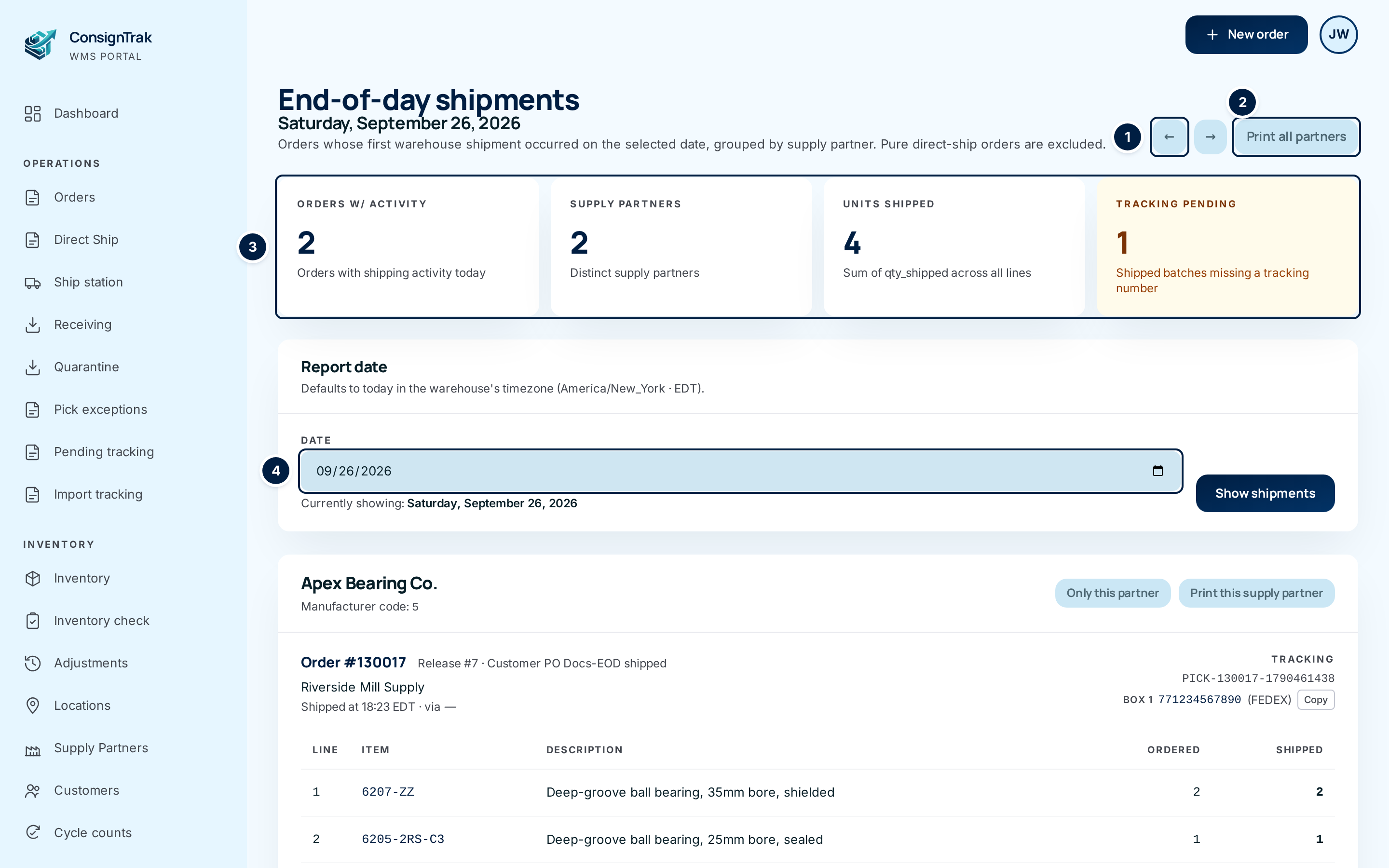
Pick the day. Use the arrows ① to step a day back or forward, or choose a date in Date ④. The report changes as soon as you pick a date. Show shipments does the same. When you're looking at another day, a Today button takes you back.
-
Check the totals ③. If Tracking pending is above 0 and amber, some shipped boxes have no tracking number. Choose the card to open Pending tracking, fill them in, and come back.
-
Read each supply partner's section. Each order shows:
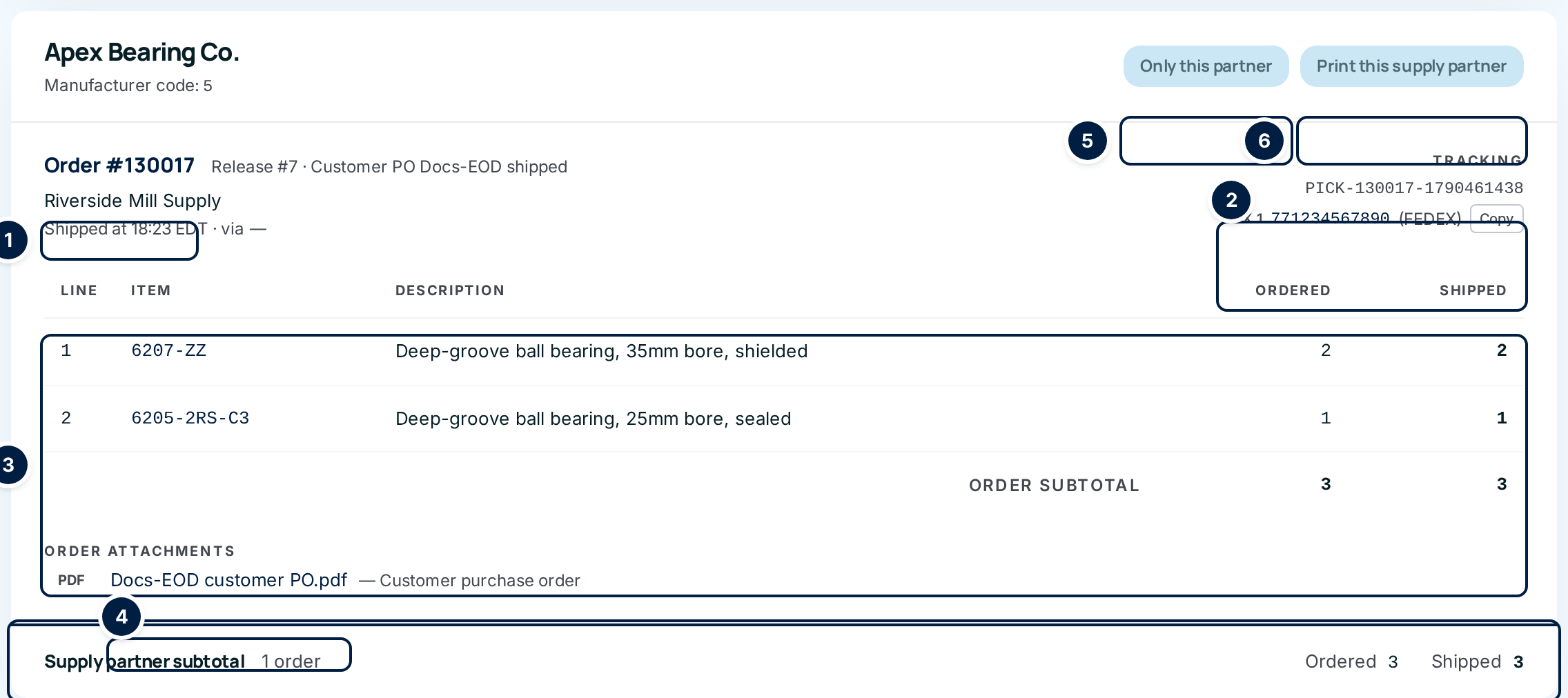
- ① Order #, release number, customer PO, customer, time shipped and ship-via.
- ② Tracking: the pick batch, then each box's tracking number. The number links to the carrier's tracking page, and Copy copies it.
- ③ The lines shipped, with an Order subtotal.
- ④ Order attachments: files attached to the order, such as the customer's PO. Choose one to download it.
- ⑦ Supply partner subtotal: orders, units ordered and units shipped for that supply partner.
-
Print or send one supply partner's section. Choose Print this supply partner ⑥ to print just that section. To see only that supply partner on screen, choose Only this partner ⑤.
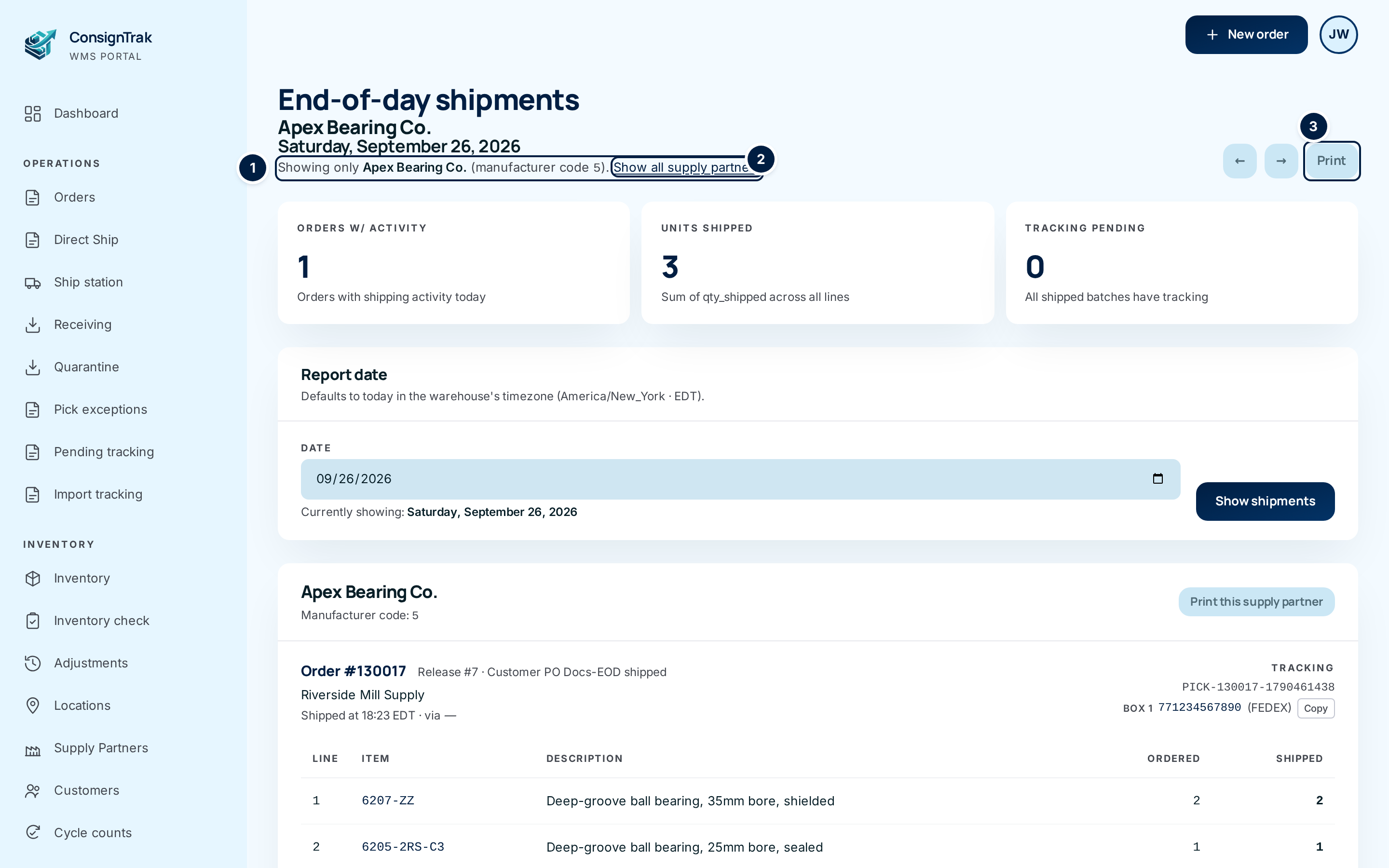
The single-partner view says Showing only supply partner ①. Show all supply partners ② goes back. Print ③ prints that partner, and the arrows keep you on the same supply partner as you change days.
-
Or print everything. Print all partners ② (on the first screenshot) prints every section, each on its own sheet.
Choose Save as PDF as the printer in your browser's print window. You get a file per supply partner that you can email. Attachments print as a list of file names only. Download the files you need and attach them to the email yourself.
Every field and option
Top of the page
| Field or control | What it means | Required | Default | What changes when you set it |
|---|---|---|---|---|
| End-of-day shipments and the date | The report and the day it shows. In the single-partner view, the supply partner's name appears too. | — | Today | — |
| Showing only … (manufacturer code …) | You're looking at one supply partner. | — | Hidden | — |
| Show all supply partners | Back to every supply partner for the same day. | — | — | Opens the full report. |
| ← / → | The day before or after. Keeps the single-partner view if you're in it. | — | — | Changes the day. |
| Today | Jumps to today. Shown only when you're on another day. | — | — | Changes the day. |
| Print all partners | Prints every supply partner's section, each starting on a new sheet. | — | — | Opens the print window. |
| Print (single-partner view) | Prints this supply partner. | — | — | Opens the print window. |
Totals (on screen only, never printed)
| Field or control | What it means | Required | Default | What changes when you set it |
|---|---|---|---|---|
| Orders w/ activity | Orders on this report. The caption says "today" even for past days. | — | — | Read-only. |
| Supply partners | How many supply partners shipped. Not shown in the single-partner view. | — | — | Read-only. |
| Units shipped | Units shipped across every line. | — | — | Read-only. |
| Tracking pending | Shipped batches with no tracking number. Amber when above 0. | — | 0 | When above 0, opens Pending tracking. |
Report date
| Field or control | What it means | Required | Default | What changes when you set it |
|---|---|---|---|---|
| Date | The day to show. The time zone is printed above it. | Yes | Today | Picking a date reloads the report. |
| Currently showing | The day on screen, written out. | — | — | Read-only. |
| Show shipments | Loads the report for the date in Date. | — | — | Reloads the report. |
Each supply partner section
| Field or control | What it means | Required | Default | What changes when you set it |
|---|---|---|---|---|
| Supply partner name, Manufacturer code | Whose stock shipped. | — | — | Read-only. |
| Only this partner | Shows just this supply partner. Not shown when you already are. | — | — | Opens the single-partner view. |
| Print this supply partner | Prints only this section. | — | — | Opens the print window. |
| Order # | The order. | — | — | Opens the order. |
| Release #, Customer PO | The supply partner's release number and the customer's PO number, if given. | — | — | Read-only. |
| Customer, Shipped at, via | Who it went to, the time (24-hour clock, warehouse time) and the ship-via. "—" when no ship-via was set. | — | — | Read-only. |
| Tracking | The pick batch, then Box 1, Box 2 … with each tracking number and carrier. The number links to the carrier's own tracking page when ConsignTrak knows the carrier. A batch with no number says Tracking pending. | — | — | Tracking link opens the carrier's site in a new tab. |
| Copy | Copies that box's tracking number. Not printed. | — | — | — |
| Line | The line number on the order. | — | — | Read-only. |
| Item | The part number. | — | — | Opens the item. |
| Description | The item's description. | — | — | Read-only. |
| Ordered | Quantity ordered on that line. | — | — | Read-only. |
| Shipped | Quantity shipped from the warehouse. Partial means less than ordered. | — | — | Read-only. |
| Order subtotal | Totals of the Ordered and Shipped columns for the order. | — | — | Read-only. |
| Order attachments | Every file attached to the order: its type, name and description. See Attaching files to an order. | — | Hidden when none | The name downloads the file. |
| Supply partner subtotal | Orders, units ordered and units shipped for this supply partner on this day. | — | — | Read-only. |
When there's nothing to show
| Field or control | What it means | Required | Default | What changes when you set it |
|---|---|---|---|---|
| No warehouse shipments on this date. | Nothing shipped from the warehouse that day. Orders shipped entirely by the supply partner don't count. | — | — | — |
| No warehouse shipments for supply partner on this date. | The same, in the single-partner view. | — | — | — |
| ← Try yesterday | The day before. | — | — | Changes the day. |
| Today | Back to today. | — | — | Changes the day. |
| This date is in the future. | Nothing can have shipped yet. Today takes you back. | — | — | — |

What happens next
Running or printing the report changes nothing. It's a view of orders already shipped. What decides what's on it:
- The day an order first shipped. An order shipped partly on Monday and finished on Wednesday appears on Monday's report only. The heading line says so: "Orders whose first warehouse shipment occurred on the selected date".
- Warehouse lines only. Orders the supply partner shipped entirely themselves (direct ship) never appear. On split orders, only the lines the warehouse shipped appear.
- Printing is per supply partner. Each section prints on its own sheet with a heading "End-of-day shipments — Shipped from the warehouse on date. Prepared with ConsignTrak." The page header, totals and date picker don't print, so a supply partner never sees how many other supply partners shipped that day. An order is never split across two sheets.
- Connected tools can read the same report through the API. See For developers.
Each supply partner owns its own stock and bills its own customers, so each needs its own record of what left the warehouse. They mustn't see each other's business. Sending a whole printout to one supply partner would show them everyone else's orders.
Common problems
An order I shipped today isn't on today's report. — It probably started shipping on an earlier day. Step back with ←. If it was a direct-ship order, it's left out by design.
Tracking pending is above 0. — Some boxes went out without a scanned label. Choose the card and add the numbers in Pending tracking before you send the report.
The Print button printed everything. — Print all partners at the top prints every supply partner. Use Print this supply partner on the section you want, or open Only this partner first.
The attachment isn't in the printout. — Printing lists attachment names only. Download the file from the report and attach it to the email.
"Access denied" — Your role can't view history. Warehouse users don't have this report. Ask an Administrator if you need it.