Running an import
What this is
This page walks through one import from start to finish: upload the file, read the preview ConsignTrak builds from it, fix any rows it flags, and commit. The steps are the same for items, customers and contacts. Nothing in ConsignTrak changes until you choose Commit, and a commit is all or nothing: either every row goes in, or none do.
Before you start
- Role: Office or Administrator, with the tab for the import you want (see Bulk imports).
- Settings: none.
- You'll need: a file prepared as described in Preparing the spreadsheet. Any supply partner your rows name by manufacturer code must already exist, and so must any customer your contact rows name by Account number.
Step by step
Choose the mode
-
Open Bulk imports from your account menu and choose the Items, Customers or Contacts tab.
-
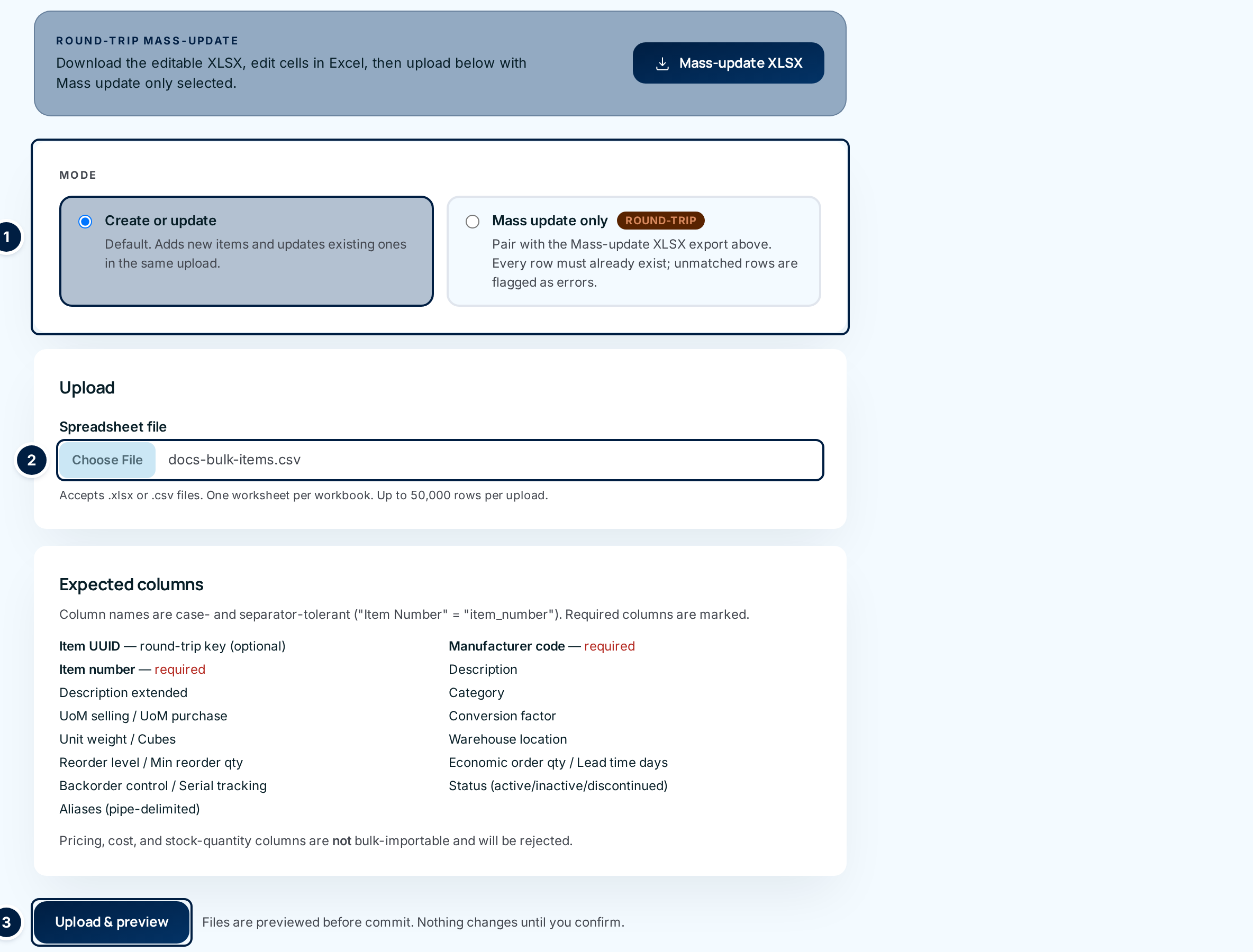
Choose the mode ① (Items and Customers only; contacts always use the first one):
Mode Rows that match an existing record Rows that match nothing Create or update (default) Update it Create a new record Mass update only Update it Error: nothing new is created Use Mass update only when you start from the Mass-update XLSX file. Then a row you accidentally changed so it no longer matches is caught, instead of quietly becoming a new record.
Upload the file
-
Choose the file ② under Spreadsheet file.
-
Choose Upload & preview ③. ConsignTrak reads every row and opens the preview. If the file itself has a problem (a missing column, two worksheets, the wrong file type), you stay on the tab and a message at the top says what's wrong. See Messages about the whole file.
Read the preview
-
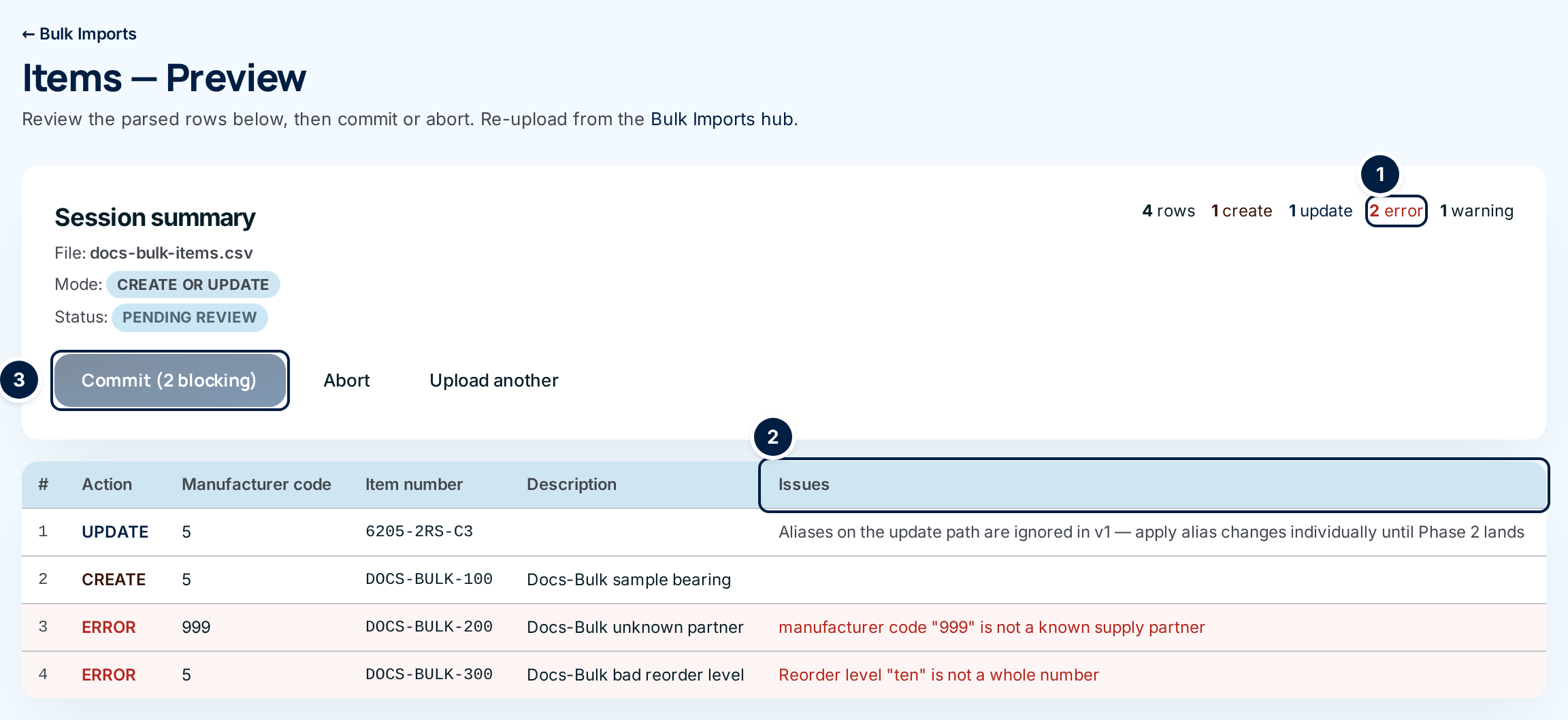
Read the summary at the top. It counts the rows and how many will create, update, or are in error ①, plus how many carry a warning.
-
Read each row. The Action column says what will happen to that row: Create, Update or Error. The Issues column ② explains anything wrong:
- Red text is an error. The row can't be imported as it is.
- Grey text is a warning. The row will import, but check it's what you meant.
The middle columns repeat a few cells from your file so you can tell the rows apart: Manufacturer code, Item number and Description for items; Account number, Name and City / State for customers; Parent, Last name, Email and Role for contacts. The # column is the row's position among the data rows (the header doesn't count, and blank rows are skipped).
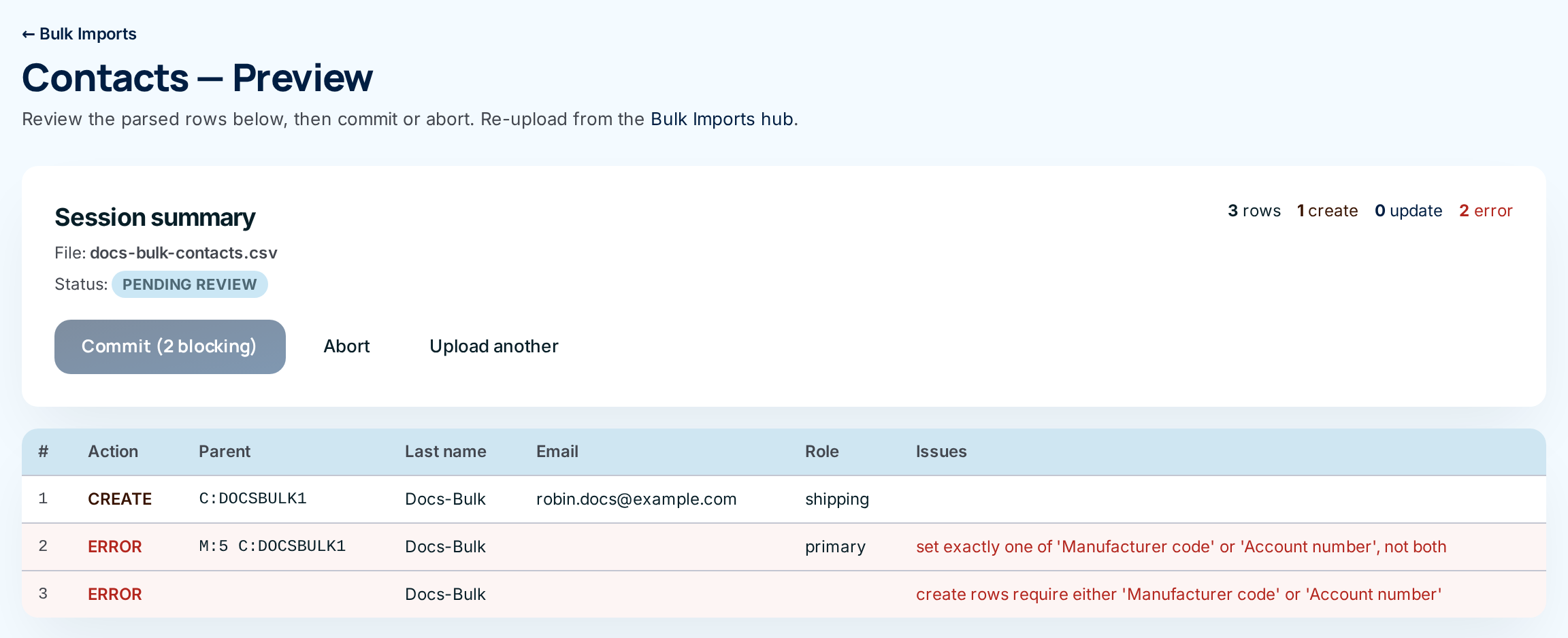
In the contacts preview, Parent shows
C:and an account number for a customer's contact, orM:and a manufacturer code for a supply partner's contact.
Fix errors
-
Fix the rows in error in your spreadsheet, not in ConsignTrak. While any row is in error, the commit button is greyed out and reads Commit (N blocking) ③. Each error message is listed under Messages on a row with what to do.
-
Upload the corrected file from the tab again (Upload another or ← Bulk Imports). Each upload is a fresh preview. Abort the old one so it doesn't sit in History as Pending (see step 10).
Commit or abort
-
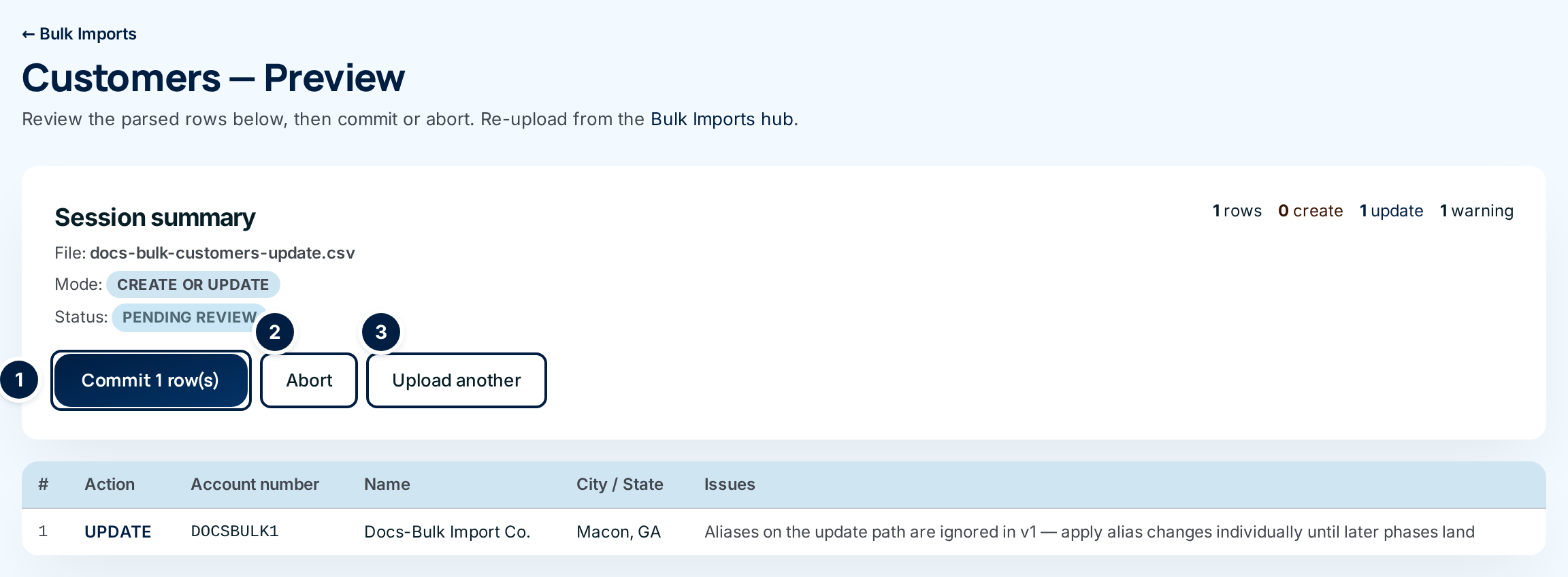
Choose Commit N row(s) ① once there are no errors.
 A commit can't be undone in one step
Committing creates and changes records immediately. There's no single "undo import": you'd have to upload a corrected file or edit records one by one. Read the preview first.
For a file of more than 5,000 rows, a box appears above the button: I confirm this commit affects N rows. Large commits cannot be undone in one step. Tick it before you commit.
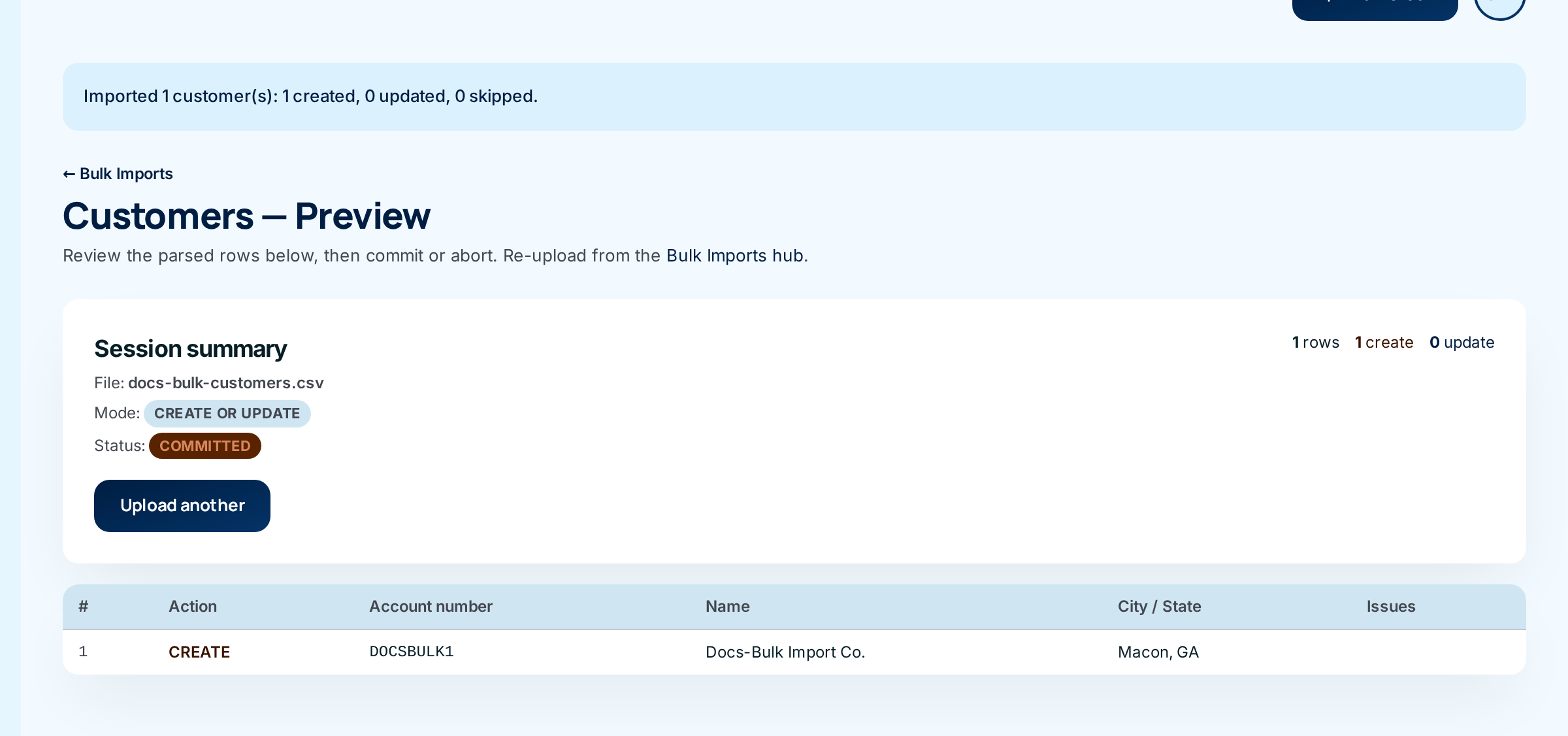
When the commit finishes, the page shows the result, for example Imported 1 customer(s): 1 created, 0 updated, 0 skipped., and the status changes to Committed.
-
Or choose Abort ② to throw the upload away. Nothing is changed, and the upload stays in History as Aborted. Upload another ③ goes back to the tab without deciding; the upload stays Pending and anyone who can run that import can open it from History later and commit or abort it.
Every field and option
These are the controls on the preview page. The upload form is covered on Bulk imports.
| Field or control | What it means | Required | Default | What changes when you set it |
|---|---|---|---|---|
| Items — Preview / Customers — Preview / Contacts — Preview | The page title, naming the kind of import. | — | — | — |
| ← Bulk Imports | Back to that import's tab. | — | — | Leaves the upload Pending if you haven't decided. |
| Bulk Imports hub (link in the intro) | The same as ← Bulk Imports. | — | — | Same. |
| Session summary → File | The file name you uploaded. | — | — | Read-only. |
| Session summary → Mode | Create or update or Mass update (items and customers only). | — | — | Read-only. |
| Session summary → Status | Pending review, Committed or Aborted. | — | — | Read-only. |
| N rows / N create / N update / N error / N warning | Counts for the whole file. error and warning show only when there are some. | — | — | Read-only. |
| Commit (N blocking) | Shown, greyed out, while N rows are in error. It can't be clicked. | — | — | Nothing. Fix and upload again. |
| I confirm this commit affects N rows. Large commits cannot be undone in one step. | Shown only for files over 5,000 rows. | Yes, when shown | Unticked | Lets the commit go ahead. |
| Commit N row(s) | Applies every row. All or nothing. | — | — | Creates and updates the records; status becomes Committed. |
| Abort | Throws the upload away. | — | — | Status becomes Aborted. Nothing else changes. |
| Upload another | Back to the tab to upload a new file. After a commit or abort it's the only button. | — | — | Nothing. |
| # | The row's position among the data rows. | — | — | Read-only. |
| Action | Create, Update or Error for this row. | — | — | Read-only. |
| Manufacturer code, Item number, Description (items) | Cells copied from your file. | — | — | Read-only. |
| Account number, Name, City / State (customers) | Cells copied from your file. | — | — | Read-only. |
| Parent, Last name, Email, Role (contacts) | Cells copied from your file; Parent is C: account number or M: manufacturer code. | — | — | Read-only. |
| Issues | Errors (red) and warnings (grey) for the row. | — | — | Read-only. |
What happens next
- Created and updated records are live straight away. The counts in the result message and in History (Create / Update / Skip) say how many. Skip is always 0 for items, customers and contacts.
- Updates only touch the columns you filled in. Blank cells leave the existing value alone. An import never changes an item's part number or supply partner, a customer's account number, or a contact's parent and role.
- Stock doesn't move. Imports change item details only, so no stock movement is recorded. Stock arrives through receiving.
- Every committed row is recorded in the audit trail against your name, tagged with this upload, and the upload appears in History as Committed with Committed by filled in.
- Aliases you gave on rows that created a record are searchable at once.
Common problems
Messages about the whole file
These appear at the top of the tab after Upload & preview. No preview is created.
"Column validation failed: column validation failed: …" — A required column is missing or a refused column is present. The words "column validation failed" appear twice; that's a known wording issue (#1553). The rest of the message lists each problem, separated by semicolons:
| Part of the message | What to do |
|---|---|
| missing required column 'Manufacturer code' / 'Item number' | Add that column to the header row (items). |
| missing required column 'Account number' / 'Name' | Add that column (customers). |
| missing required column 'Last name' | Add it (contacts). |
| must include either 'Manufacturer code' or 'Account number' (or both) to associate new contacts with a parent | A contacts file needs at least one of those two columns. |
| forbidden column "qty on hand" present (pricing/cost/stock-quantity columns cannot be bulk-imported) | The item file has a stock or price column (the name in quotes varies). Delete it. Usually this means you uploaded the plain Download export; use Mass-update XLSX instead. |
"Workbook has more than one sheet — keep one sheet only." — Delete the extra worksheets, or copy your data into a new single-sheet workbook.
"Upload had no data rows." — The file has no header row, or a header and nothing under it.
"Upload is not a CSV or XLSX file." — The file was empty and its name didn't end in .csv or .xlsx. Save your data as .xlsx or .csv.
Any other file (including an older Excel .xls file) is read as if it were a CSV. It then fails with a Column validation failed message because no column names can be found. Save it as .xlsx and upload again.
"Upload exceeded the row cap. upload exceeds row cap (limit 50000)" — Split the file into parts of 50,000 rows or fewer.
"Upload failed: file too large or malformed." — The file is over 32 MB or damaged. Split it, or re-save it from your spreadsheet program.
"No file uploaded." — Choose a file before Upload & preview.
"Upload failed: …" followed by anything else — The file couldn't be read (for example, a damaged .xlsx). Re-save it and try again.
Messages on a row
These appear in red (errors) or grey (warnings) in the preview's Issues column. Text in quotes is the value from your file. Warnings don't stop the commit.
Items
| Message | What to do |
|---|---|
| Manufacturer code is required / Item number is required | Fill in the blank cell. |
| manufacturer code "999" is not a known supply partner | Correct the code, or create the supply partner first. |
| Description is required when creating a new item | The row makes a new item, so it needs a description. If you expected it to update an existing item, check the manufacturer code and part number. |
| Status "…" is not one of: active, inactive, discontinued | Use one of those three words. |
| Reorder level "ten" is not a whole number (also Min reorder qty, Economic order qty, Lead time days) | Type a whole number. |
| Reorder level "…" must not be negative (and the same three) | Use 0 or more. |
| Conversion factor "…" is not a number (also Unit weight, Cubes) | Type a number, without units. |
| Backorder control "…" is not a boolean (try yes/no, true/false, 1/0) (also Serial tracking) | Use a yes/no value. |
| alias entry "…" has no value | An alias like upc: has nothing after the colon. Add the value or remove it. |
| alias type "…" is not one of: manufacturer_part, superseded, customer_part, upc, barcode, internal, shorthand | Fix the word before the colon. See Aliases. |
| item UUID … does not resolve to an item — UUIDs from a stale export will not match | The Item UUID doesn't belong to any item. Download a fresh Mass-update XLSX, or clear the cell to match by part number instead. |
| no existing item matched — mass-update mode does not create new items | In Mass update only, this row matches nothing. Fix the part number, or upload in Create or update if it really is new. |
| Warning: Aliases on the update path are ignored in v1 — apply alias changes individually until Phase 2 lands | This row updates an existing item, so its aliases are skipped. There is currently no other way to add them (see Aliases). |
| Warning: row Manufacturer code does not match the item's stored supply partner — Excel-edit drift? | The Item UUID points at an item from a different supply partner than this row's code. The UUID wins; the supply partner isn't changed. Check you didn't edit the wrong row. |
| Warning: row Item number "…" differs from the item's stored part number "…" | Same idea: the UUID wins, and the part number is not changed. |
Customers
| Message | What to do |
|---|---|
| Account number is required | Fill in the account number. |
| Name is required when creating a new customer | The row makes a new customer, so it needs a name. |
| Status "…" is not one of: active, inactive | Use one of those two words. |
| Complete shipments only "…" is not a boolean (try yes/no, true/false, 1/0) | Use a yes/no value. |
| alias entry "…" has no value | As for items. |
| alias type "…" is not one of: account_number, legacy_cas, crm_id, manufacturer_account, tax_id, other | Fix the word before the colon. |
| customer UUID … does not resolve to a customer — UUIDs from a stale export will not match | Download a fresh Mass-update XLSX, or clear the cell to match by account number. |
| no existing item matched — mass-update mode does not create new items | Shown for customers too (the word "item" is a known wording issue, #1553). The account number matches no customer. |
| Warning: Aliases on the update path are ignored in v1 — apply alias changes individually until later phases land | The customer already exists, so its aliases are skipped. |
| Warning: row Account number "…" differs from the customer's stored account number "…" | The Customer UUID wins; the account number isn't changed. |
| Warning: row Name "…" differs from the customer's stored name "…" | The UUID wins and the name is changed to the one in your file. Check that's intended. |
Contacts
| Message | What to do |
|---|---|
| Last name is required | Fill in the last name. |
| set exactly one of 'Manufacturer code' or 'Account number', not both | Clear one of the two cells. Use two rows to link a person to two companies. |
| create rows require either 'Manufacturer code' or 'Account number' | Fill in one of them. |
| manufacturer code "…" is not a known supply partner | Correct the code. |
| account number "…" is not a known customer | Correct it, or import the customer first. |
| Status "…" is not one of: active, inactive | Use one of those two words. |
| Is primary "…" is not a boolean (try yes/no, true/false, 1/0) | Use a yes/no value. |
| contact UUID … does not resolve to a contact | The Contact UUID is wrong or the contact was removed. Download a fresh contacts export. |
| Warning: Manufacturer code / Account number on the update path are ignored — apply association changes via the manufacturer/customer detail pages | The row updates an existing contact, so who it belongs to isn't changed. Do that on the supply partner's or customer's page. |
| Warning: row Last name "…" differs from the contact's stored last name "…" | The Contact UUID wins and the last name is changed. Check that's intended. |
Messages after Commit or Abort
"This commit affects more than the large-commit threshold — tick the confirmation box and commit again." — Tick I confirm this commit affects N rows… and choose Commit again.
"Session is already committed or aborted." — Someone (maybe you, in another tab) already finished this upload. Check History.
"Commit failed: …" — Something went wrong while saving, and nothing was imported. The rest of the message says why, often naming the row (commit row N: …). Fix that row in your file and upload again. If the message doesn't make sense, send it to your administrator.
"Session aborted. No items were changed." (or customers, contacts) — Confirms an abort. Nothing was changed.
Other problems
The preview says Create for a row I expected to update. — The row didn't match. For items, check the manufacturer code and part number (dashes and spaces don't matter, but extra characters do). For customers, check the account number. For contacts, a row without Contact UUID always creates.
Commit is greyed out and I can't see why. — Scroll the preview: at least one row is marked Error. Hover the button to see how many.