Preparing the spreadsheet
What this is
Before you upload, the file has to be laid out the way ConsignTrak reads it: one header row with the column names, then one row per record. This page lists every column for the item, customer and contact imports, says which are required, and gives you a blank template for each.
Before you start
- Role: Office or Administrator.
- Settings: none.
- You'll need: Excel or any spreadsheet program that saves .xlsx or .csv. For items and contacts, the supply partner's manufacturer code; for contacts on a customer, the customer's account number.
Step by step
-
Start from a template. Pick the one that fits:
You want to… Start from Add new records A blank template: items, customers, contacts. Each has the header row only. Change many existing items or customers The Mass-update XLSX button on that tab of Bulk imports. It already holds every record, one per row. Change many existing contacts The Contacts tab's Download (CSV) or XLSX export. Keep its Contact UUID column. Don't upload the ordinary item exportThe Items tab's plain Download export includes stock quantity columns (Qty on hand, Qty allocated, Qty available). The import refuses any file with stock or price columns, so that file is rejected as it is. Use Mass-update XLSX instead.
-
Keep one header row. The first non-blank row must be the column names. Names don't need exact capitals or spacing: "Item Number", "item_number" and "ITEM-NUMBER" are all read as Item number. Columns ConsignTrak doesn't know are ignored, so extra columns of your own are harmless (except stock and price columns on items).
-
Fill one row per record. Blank rows are skipped. Use one worksheet only; a workbook with two or more sheets is refused. The limit is 50,000 rows per file.
-
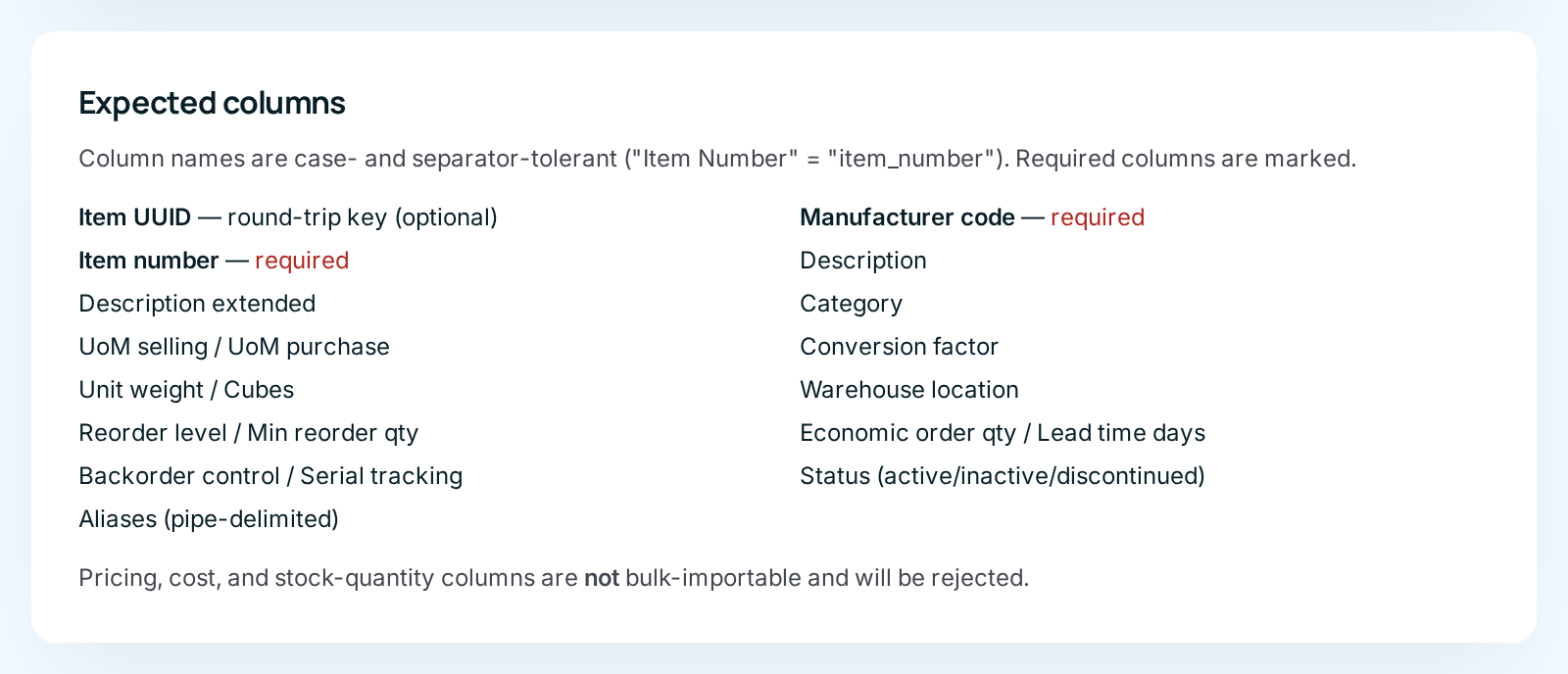
Check the required columns in the tables below. The tab's Expected columns box shows the same list.
-
Save as .xlsx or .csv, then run the import.
How ConsignTrak matches a row to an existing record
Each row either creates a new record or updates one that already exists. ConsignTrak decides by looking, in order, for:
| Import | First it looks for | Then for | If nothing matches |
|---|---|---|---|
| Items | Item UUID | The same Manufacturer code and Item number, ignoring dashes, spaces and capitals (so 6205-2RS finds 6205 2rs) | Creates a new item |
| Customers | Customer UUID | The same Account number | Creates a new customer |
| Contacts | Contact UUID | — | Creates a new contact |
Without a Contact UUID, every contact row creates a new contact, even if someone with that name already exists. To change existing contacts, start from the Contacts export so each row keeps its Contact UUID.
Blank cells leave things alone
On a row that updates a record, a blank cell means "don't change this". You can't clear a value by blanking it. That also means you can upload a file with just the identifying columns and the one column you want to change.
Every field and option
Item columns
| Column | What it means | Required | Default on a new item | Notes |
|---|---|---|---|---|
| Item UUID | ConsignTrak's own id for the item, filled in by Mass-update XLSX. | No | — | Leave as exported. If it doesn't match an item, the row is an error. |
| Manufacturer code | The supply partner's code, for example 5. | Yes | — | Must be an existing supply partner's code. |
| Item number | The supply partner's part number, as you want it displayed. | Yes | — | Can't be changed by an import; it identifies the item. |
| Description | The item description. | Yes, on new items | — | Optional on updates. |
| Description extended | A longer second description. | No | Blank | |
| Category | Your category label. | No | Blank | Free text. |
| UoM selling | The unit the item is sold in, as a code. | No | EA (each) | Use a code from Units of measure. The import doesn't check it. |
| UoM purchase | The unit it's bought in. | No | Blank | Same codes. |
| Conversion factor | How many selling units are in one purchase unit. | No | Blank | A number, decimals allowed. |
| Unit weight | Weight of one unit. | No | Blank | A number. |
| Cubes | Volume of one unit. | No | Blank | A number. |
| Warehouse location | The item's usual location, as text. | No | Blank | Not checked against your locations. |
| Reorder level | Stock level that counts as low. | No | 0 | Whole number, 0 or more. |
| Min reorder qty | Smallest reorder amount. | No | 0 | Whole number, 0 or more. |
| Economic order qty | Preferred reorder amount. | No | 0 | Whole number, 0 or more. |
| Lead time days | Days a reorder takes to arrive. | No | 0 | Whole number, 0 or more. |
| Backorder control | Recorded only; see the glossary. | No | yes | A yes/no value. |
| Serial tracking | Whether the item is serial-tracked. | No | no | A yes/no value. |
| Status | active, inactive or discontinued. | No | active | Any other word is an error. |
| Aliases | Other part numbers for the item. | No | — | New items only. See Aliases. |
The item import refuses the whole file if it has any of these columns: Price 1, Price 2, Price 3, Price code, Average cost, Last cost, Qty on hand, Qty committed, Qty available, Qty on order, Qty on backorder, YTD returns. Stock only changes through receiving and adjustments so that every change is on record, and prices belong to the supply partner.
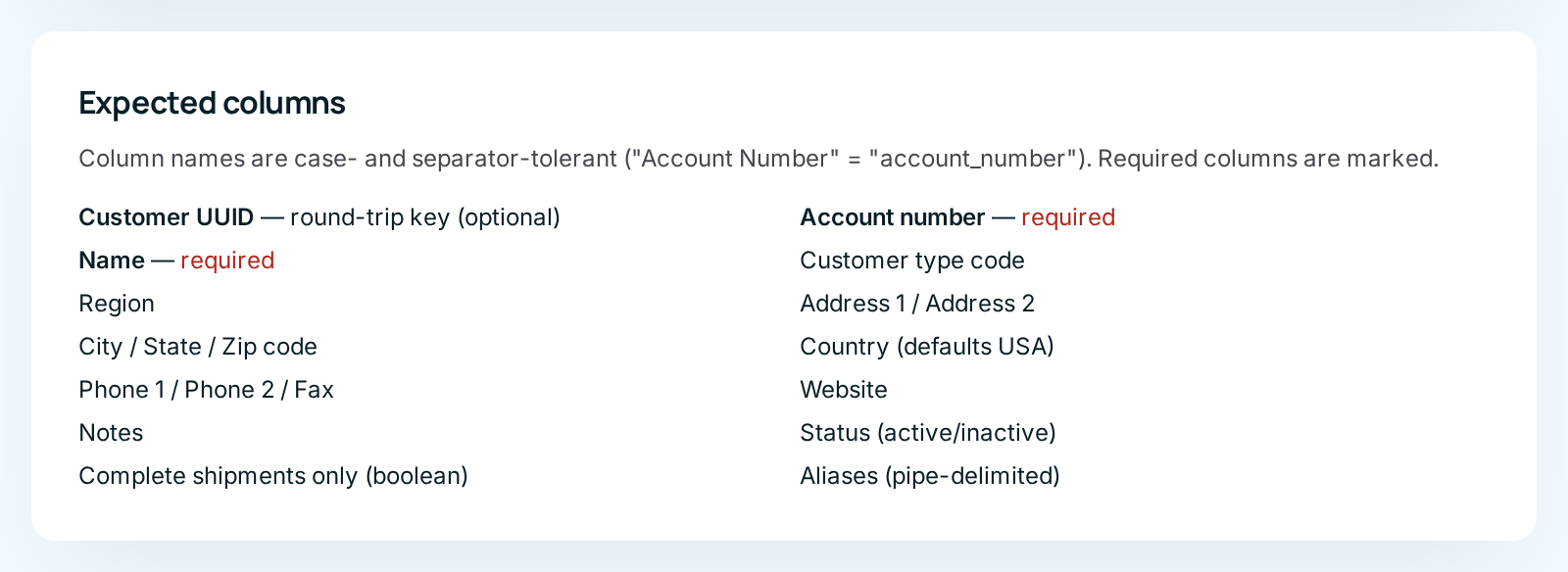
Customer columns
| Column | What it means | Required | Default on a new customer | Notes |
|---|---|---|---|---|
| Customer UUID | ConsignTrak's own id for the customer, filled in by Mass-update XLSX. | No | — | If it doesn't match a customer, the row is an error. |
| Account number | The customer's account number. | Yes | — | Identifies the customer; an import can't change it. |
| Name | The company name. | Yes, on new customers | — | On updates, blank leaves the name alone. |
| Customer type code | Your customer-type label. | No | Blank | |
| Region | Your region label. | No | Blank | |
| Address 1 / Address 2 | Street address lines. | No | Blank | |
| City / State / Zip code | The rest of the address. | No | Blank | |
| Country | Country. | No | USA | |
| Phone 1 | Main phone. | No | Blank | |
| Phone 2 | Second phone. | No | Blank | Import only: the Edit form has no field for it. |
| Fax | Fax number. | No | Blank | Import only. |
| Website | Web address. | No | Blank | Import only. |
| Notes | Free-form notes shown on the customer page. | No | Blank | Import only. |
| Status | active or inactive. | No | active | Import only. Setting inactive is how you archive a customer today. |
| Complete shipments only | A flag shown on the customer page. | No | no | Import only. Yes/no value. It is displayed but doesn't stop partial shipments. |
| Aliases | Other names and codes for the customer. | No | — | New customers only. See Aliases. |
The fields marked "Import only" can't be set anywhere else in ConsignTrak today. See Customer records.
Contact columns
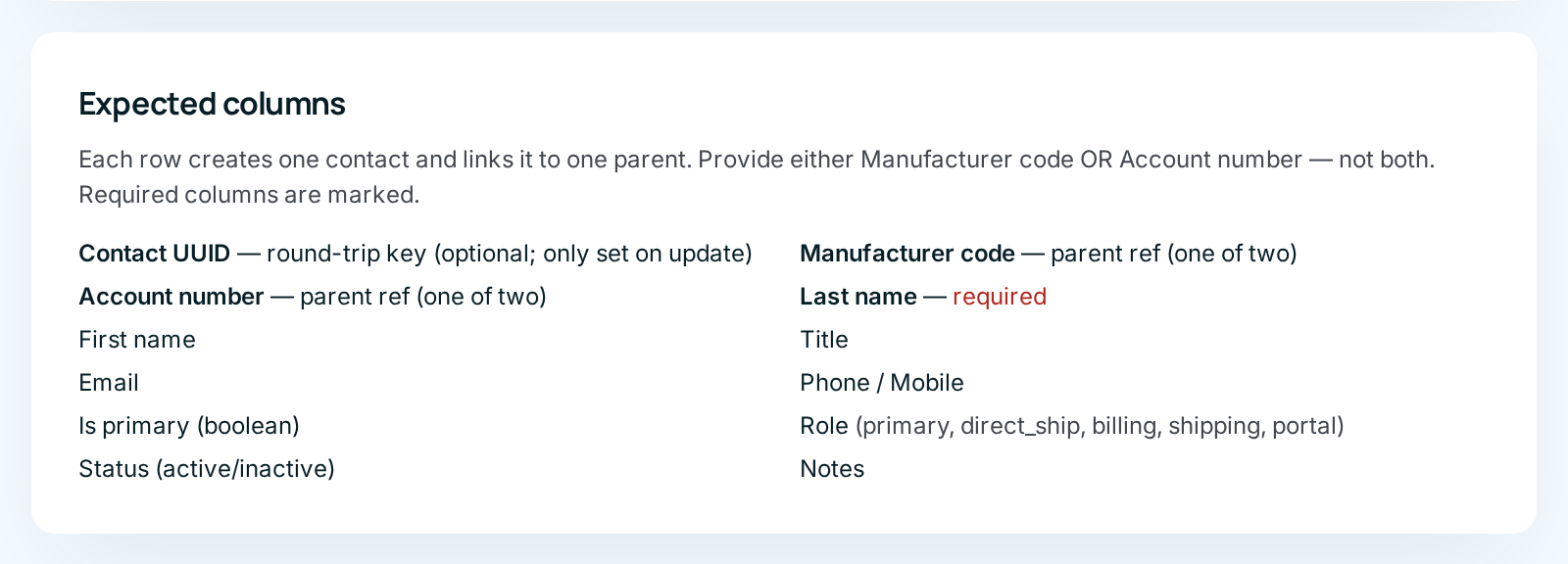
Each contact row belongs to one supply partner or one customer. Fill in Manufacturer code for a supply partner's contact, or Account number for a customer's contact. Never both on one row. To link the same person to two companies, give them two rows.
| Column | What it means | Required | Default on a new contact | Notes |
|---|---|---|---|---|
| Contact UUID | ConsignTrak's own id for the contact, from the Contacts export. | No | — | When present, the row updates that contact. |
| Manufacturer code | The supply partner this contact belongs to. | One of these two, on new contacts | — | The file must have at least one of the two columns. Ignored on updates. |
| Account number | The customer this contact belongs to. | One of these two, on new contacts | — | Ignored on updates. |
| Last name | Family name. | Yes | — | |
| First name | Given name. | No | Blank | |
| Title | Job title. | No | Blank | |
| Email address. | No | Blank | Not checked for format. | |
| Phone / Mobile | Phone numbers. | No | Blank | |
| Is primary | Whether this is the main contact. | No | no | Yes/no value. |
| Role | What the contact is for. | No | Blank | See the role values below. Ignored on updates. |
| Status | active or inactive. | No | active | |
| Notes | Free-form notes. | No | Blank |
Role values. You can type anything, but these five are the ones ConsignTrak acts on (see Contacts & roles):
| Type this | Meaning |
|---|---|
primary | Main contact. |
direct_ship | Receives direct-ship notices. If nobody has it, the primary contact is used. |
billing | Billing contact. |
shipping | Shipping contact. |
portal | Supply-partner portal contact. |
A contact's role and parent can't be changed by an import. Change them on the supply partner's or customer's page.
Yes and no values
For Backorder control, Serial tracking, Complete shipments only
and Is primary, type any of: yes / no, y / n, true / false,
t / f, 1 / 0. Capitals don't matter. Anything else is an error.
Aliases
An alias is another number or name the same item or customer is known by (see the glossary). Searching by any alias finds the record.
There is no screen for adding or editing an alias on an item or a customer. A bulk import is the only way, and only on a row that creates the record. On a row that updates an existing record, the Aliases column is ignored and the preview shows a warning. Plan your aliases before the first import of each record.
Write aliases in one cell, separated by a vertical bar |. Each one can
start with a type and a colon; without a type it gets the default type.
customer_part:RIV-100|upc:012345678905|DB100
That cell gives the item three aliases: a customer's part number, a UPC, and a shorthand code.
Item alias types
| Type this | Meaning |
|---|---|
shorthand | A short or informal code. The default when no type is given. |
manufacturer_part | Another form of the supply partner's own part number. |
superseded | An old part number this item replaced. |
customer_part | A customer's own number for the item. |
upc | The UPC barcode number. |
barcode | Any other barcode value. |
internal | Your warehouse's internal code. |
The item's own part number is always added as an alias automatically. You don't need to repeat it.
Customer alias types
| Type this | Meaning |
|---|---|
other | Anything else. The default when no type is given. |
legacy_cas | The customer's code from the previous system (see Legacy account code). |
crm_id | The customer's id in your CRM. |
manufacturer_account | The account number a supply partner uses for this customer. |
account_number | Another account number. |
tax_id | A tax id. |
The customer's own account number is always added as an alias automatically.
What happens next
Nothing happens until you upload the file. Go on to Running an import.
Common problems
My file is rejected with "forbidden column". — You uploaded a file with stock or price columns, usually the plain item Download export. Delete those columns, or start from Mass-update XLSX.
Leading zeros disappeared from account numbers or part numbers. — Excel drops leading zeros from anything that looks like a number. Format those columns as Text before typing or pasting, or save as .xlsx rather than opening a .csv directly in Excel.
An alias I added to an existing item didn't appear. — Aliases are only read on rows that create a record (see Aliases).
I can't find a column for price, stock or the item's supply partner name. — Those aren't importable. The supply partner is set by Manufacturer code.