Bulk imports
What this is
Bulk Imports is where you add or change many records at once from a spreadsheet instead of typing them in one by one. There are three imports:
| Import | What it creates or changes | Typical use |
|---|---|---|
| Items | Item records: description, units, reorder settings, status, extra part numbers | Loading a new supply partner's catalog; changing reorder levels across hundreds of items |
| Customers | Customer records: name, address, phones, status, other names and codes | Loading a customer list from your CRM; updating addresses in bulk |
| Contacts | People linked to a supply partner or a customer | Loading a contact list; setting up who gets direct-ship notices |
Every import works the same way. You upload a file, ConsignTrak shows you exactly what it would do to each row, and nothing changes until you choose Commit. The History tab keeps a record of every upload.
Two kinds of change have no other screen in ConsignTrak today:
- Extra part numbers and names (aliases). Adding an alias to an item or a customer is only possible through a bulk import, and only when the row creates the record. See Aliases.
- Several customer fields. A customer's Status (active or inactive), Phone 2, Fax, Website, Notes, country and Complete shipments only can't be set on the New or Edit customer form. The customer import is the only way to set them. See Customer records.
Before you start
- Role: Office or Administrator. Each tab appears only if your role can run that import. Warehouse and Supply Partner users can't open this page.
- Settings: none.
- You'll need: a spreadsheet laid out as described in Preparing the spreadsheet. Items and contacts that belong to a supply partner need that supply partner to exist first; contacts for a customer need the customer to exist.
Bulk imports are a desktop task. Use a computer, not a phone.
Step by step
-
Open your account menu (your initials, top right) and choose Bulk imports.
-
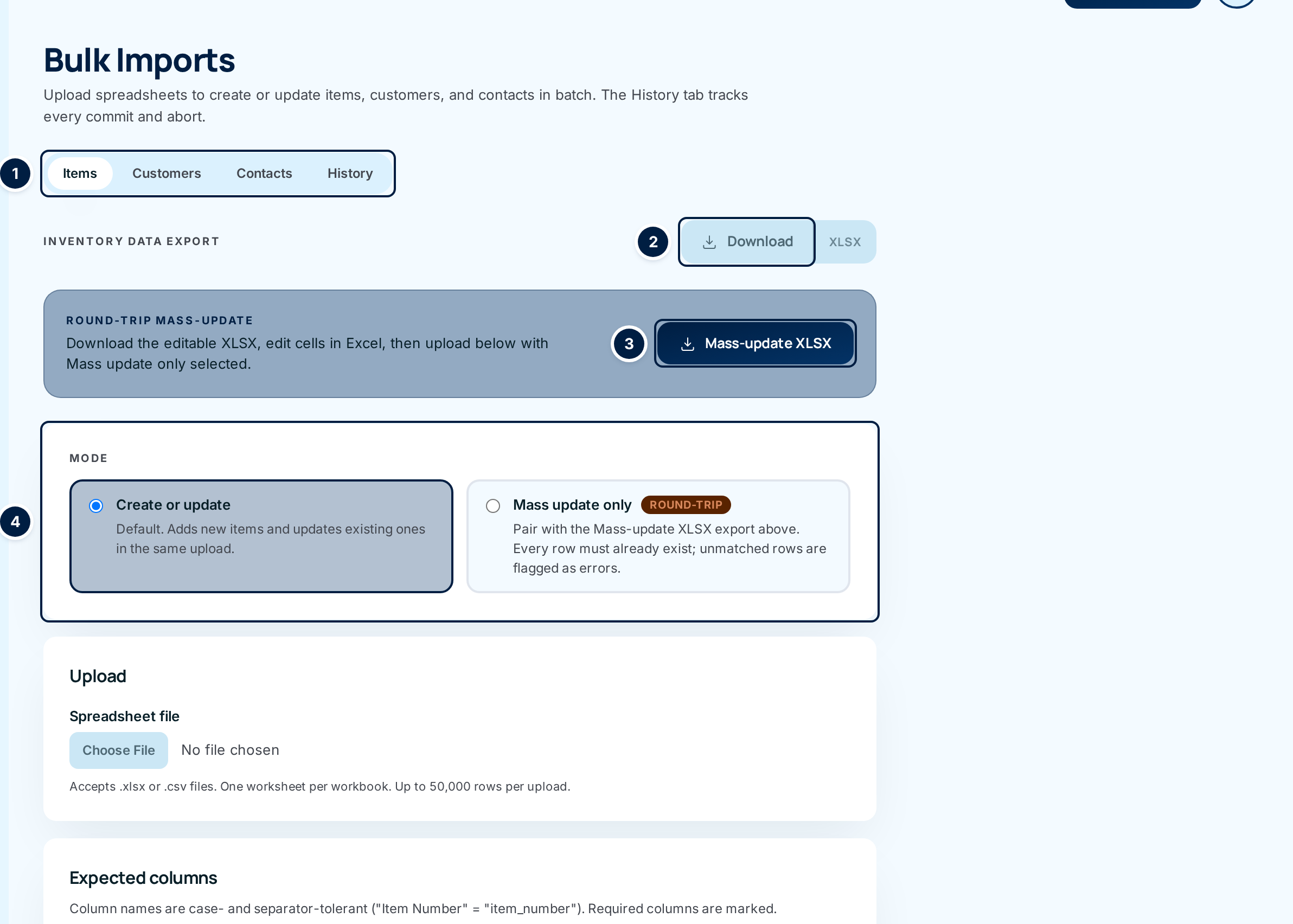
Choose a tab ①: Items, Customers, Contacts or History. Each import tab has the same layout, top to bottom:
- a Download button ② that exports what's already in ConsignTrak (CSV, or XLSX for Excel);
- on Items and Customers, a Mass-update XLSX button ③ that downloads a file ready to edit and upload again;
- on Items and Customers, the Mode choice ④;
- the Upload box, the Expected columns list, and Upload & preview.
-
Run the import. The full walkthrough is in Running an import.
-
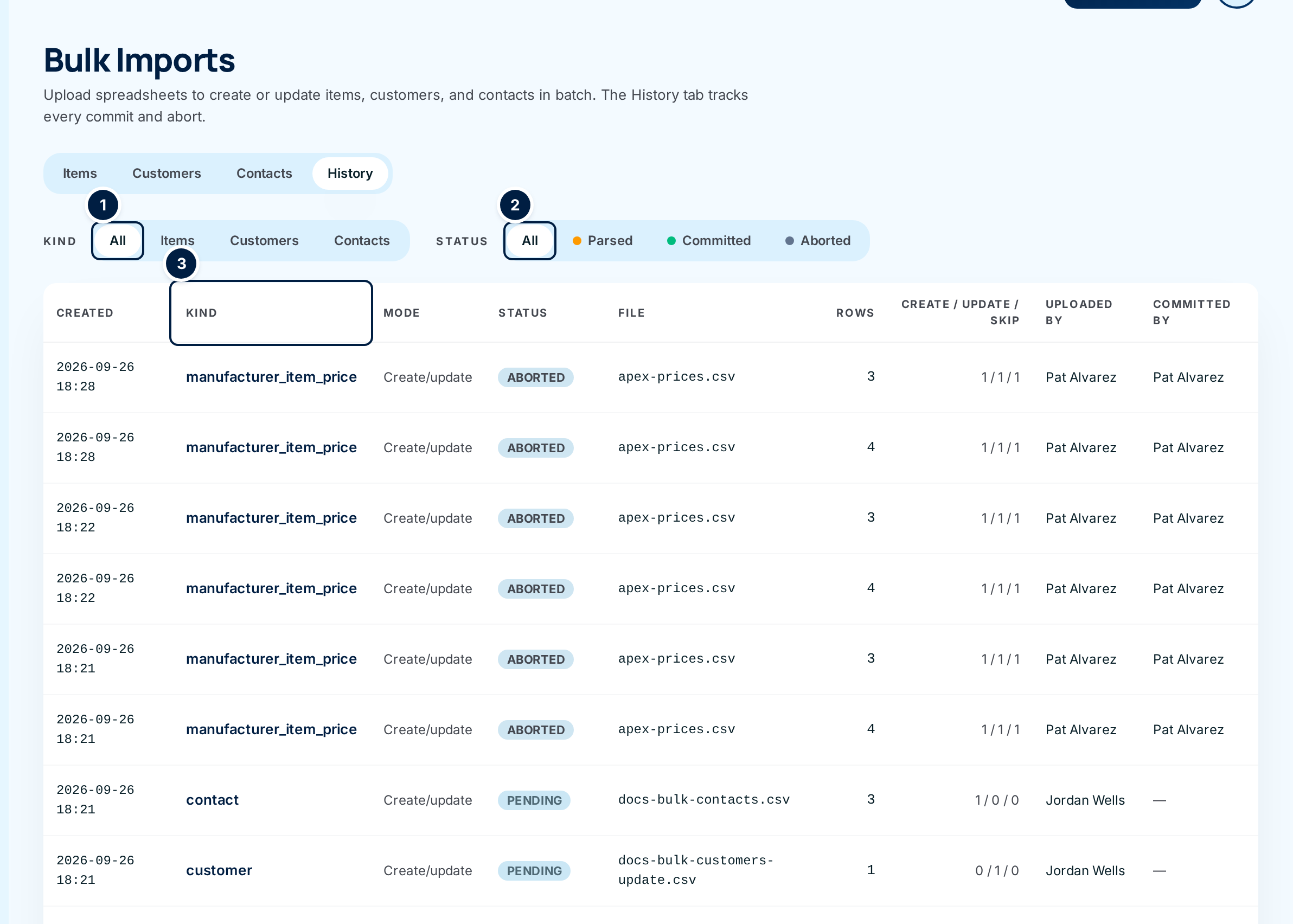
Check the History tab to see past uploads. Filter by Kind ① and Status ②, and choose a row's kind ③ to open that upload again.
Every field and option
| Field or control | What it means | Required | Default | What changes when you set it |
|---|---|---|---|---|
| Items / Customers / Contacts / History tabs | Switch between the three imports and the history. You only see the import tabs your role allows; History is always there. | — | The first import tab you can use | Shows that tab. |
| Inventory data export / Customer data export / Contact data export → Download | Downloads everything already in ConsignTrak for that kind as a CSV file. | — | — | Nothing changes; it's a download. |
| XLSX (beside Download) | The same export as an Excel file. | — | — | Nothing changes. |
| Round-trip mass-update → Mass-update XLSX (Items and Customers only) | Downloads an Excel file with every column the import accepts, plus an Item UUID or Customer UUID column that ties each row to its record. Edit it and upload it back with Mass update only. | — | — | Nothing changes until you upload it. |
| Mode (Items and Customers only) | Create or update or Mass update only. See Running an import. | Yes | Create or update | Decides whether rows that match nothing become new records or errors. |
| Upload → Spreadsheet file | The file to import: .xlsx or .csv, one worksheet, up to 50,000 rows. | Yes | — | Nothing until you choose Upload & preview. |
| Expected columns | The list of columns this import reads. Required ones are marked. See Preparing the spreadsheet. | — | — | Read-only. |
| Upload & preview | Reads the file and opens the preview. | — | — | Records an upload in History as Pending. Nothing else changes. |
| History → Kind: All / Items / Customers / Contacts | Shows uploads of one kind only. | — | All | Filters the list. |
| History → Status: All / Parsed / Committed / Aborted | Shows uploads in one state. Parsed means uploaded and waiting for a decision (the row shows Pending). | — | All | Filters the list. |
| History → Created | When the file was uploaded. | — | — | Read-only. |
| History → Kind (column, a link) | What was imported: item, customer or contact. Choose it to open that upload's preview. | — | — | Opens the preview, where a pending upload can still be committed or aborted. |
| History → Mode | Create/update or Mass. | — | — | Read-only. |
| History → Status | Pending, Committed or Aborted. | — | — | Read-only. |
| History → File | The uploaded file's name. | — | — | Read-only. |
| History → Rows | How many data rows the file had. | — | — | Read-only. |
| History → Create / Update / Skip | How many rows created, updated or skipped a record. | — | — | Read-only. |
| History → Uploaded by / Committed by | Who uploaded the file and who committed it (a dash if nobody has). | — | — | Read-only. |
Price imports that supply partners run in the portal also appear in History, with the kind manufacturer_item_price. Their kind link doesn't open a preview from here, and the Kind filter has no option for them. This is a known issue (#1553).
What happens next
- An upload that you commit creates and updates records straight away. Items show up in Finding an item, customers in the customer list, contacts on the supply partner's or customer's page.
- Every committed row is written to the audit trail, tagged with the upload it came from.
- An upload you don't commit stays in History as Pending until someone commits or aborts it.
Common problems
I can't see Bulk imports in my account menu. — Your role can't run any import. Ask an Administrator (see Users & roles).
I can see Customers but not Items. — Each import is allowed separately. Your role has some imports but not others.
I want to change stock quantities or prices. — Imports never change stock or prices. Stock changes through receiving and adjustments; supply partners manage their own prices in the portal.