API keys & connecting other tools
What this is
An API key is a password for another program instead of a person. You give one to a tool such as an n8n workflow, a supply partner's script or a CRM sync. That tool can then read from ConsignTrak, or make changes in it, without anyone signing in.
This page is for administrators. It covers creating a key, choosing what the key may do, handing it over, and switching it off. You don't need to know how the tool itself works. Whoever builds the connection needs the technical details, which are in the API overview.
Every key belongs to one user, the Associated User. Whatever the tool does with the key is recorded as that user, exactly as if they had done it in the app. A key can never do more than that user's role allows. There is no way for a tool to borrow someone else's identity.
Before you start
- Role: Administrator. The API keys item in your account menu appears only for administrators.
- Settings: none.
- You'll need:
- an active user for the key to belong to. Supply Partner portal users can't have API keys. For a tool that runs unattended, ask for a dedicated user, such as "n8n automation", with the Office or Warehouse role (see Users & roles). Then the key doesn't stop working when a person leaves.
- a list of what the tool needs to do: read stock, create orders, and so on. Ask the person setting it up.
- a safe place to paste the key once it's created, such as the tool's own credentials screen or your password manager.
Step by step
-
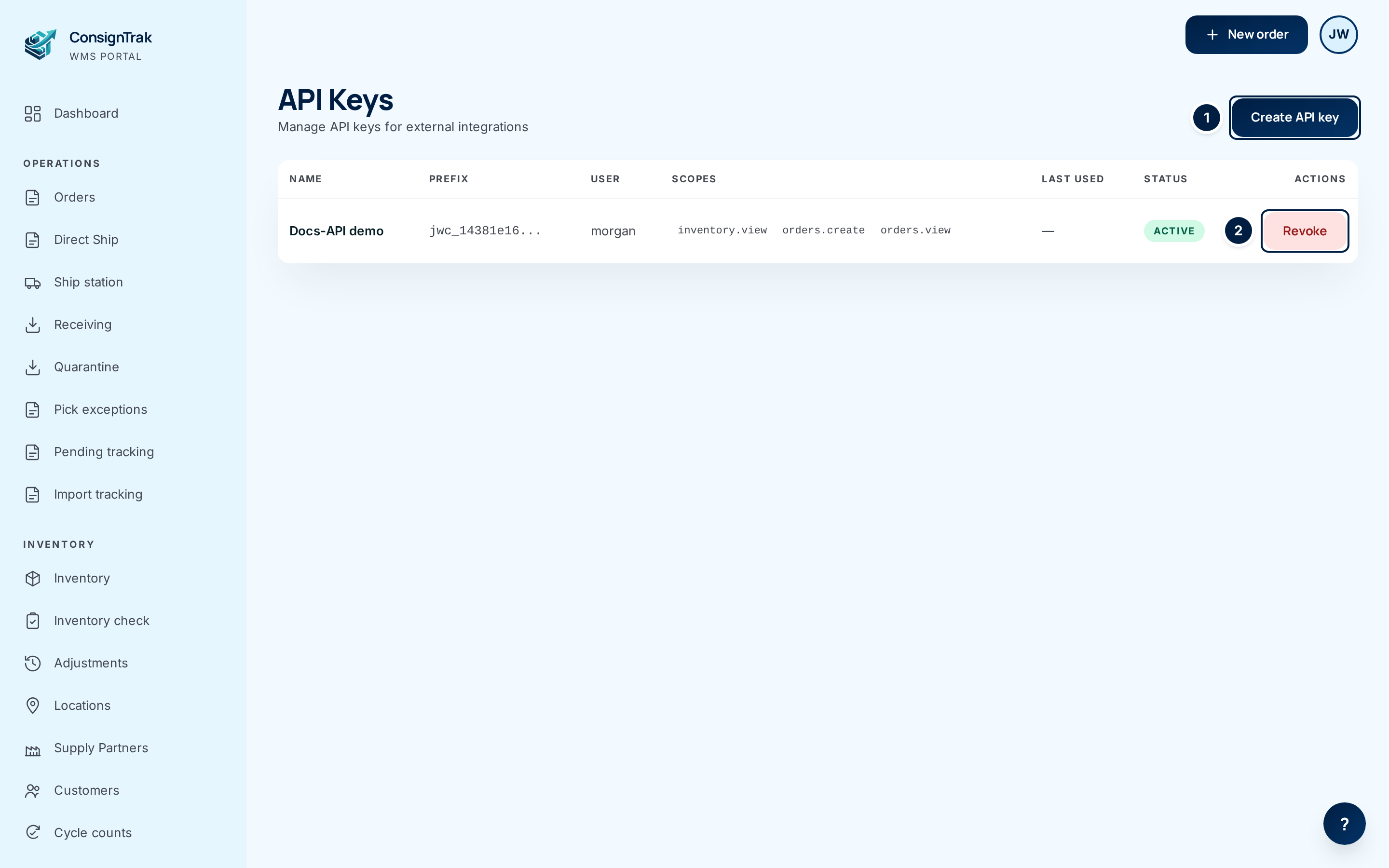
Open your account menu (the round button with your initials, top right) and choose API keys. The list shows every key ever created, and whether it's still Active.
-
Choose ① Create API key.
-
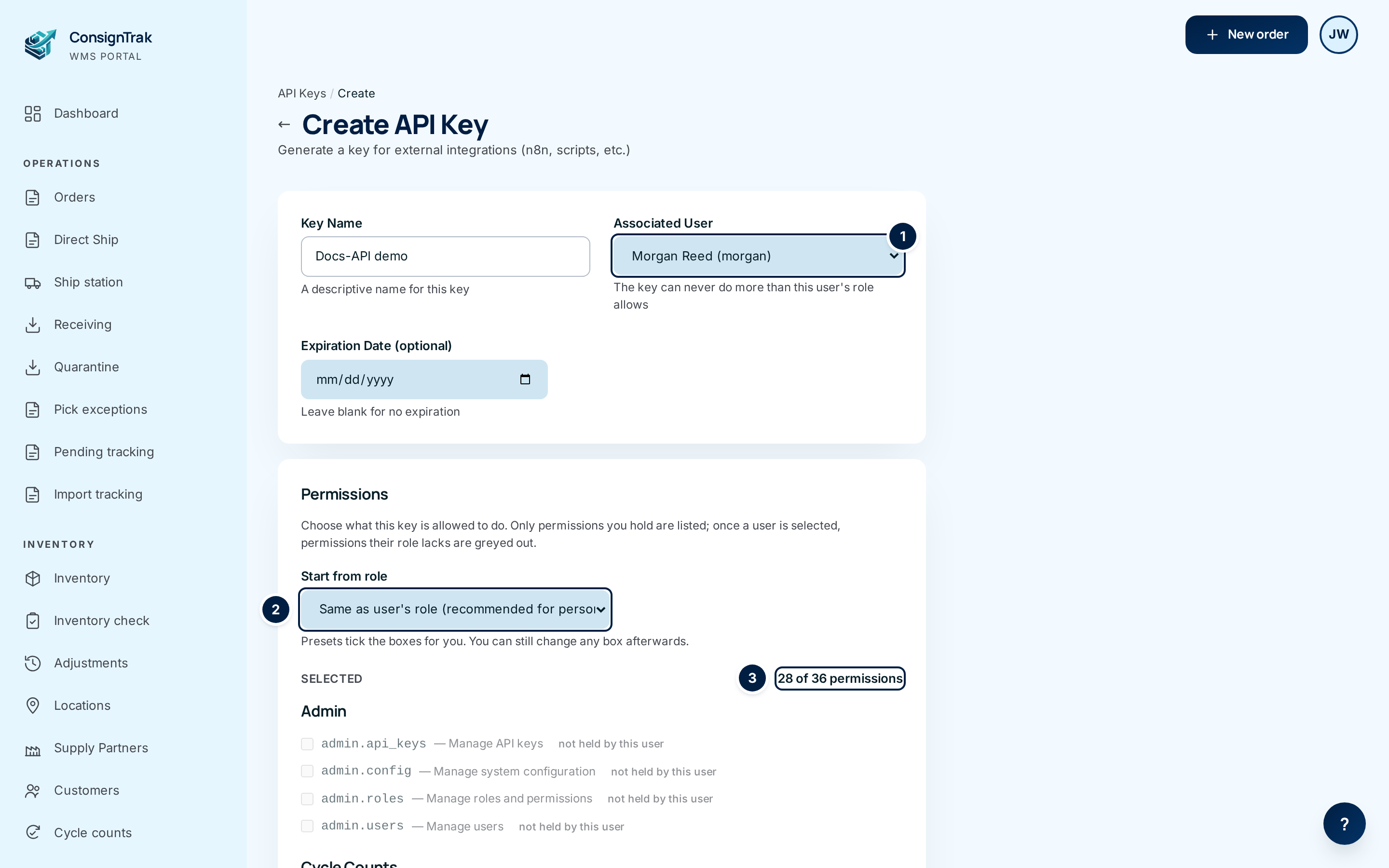
Name the key in Key Name after the tool and its job, for example "n8n order intake" or "Apex stock export". You will see this name in the list later, so make it obvious which tool it belongs to.
-
Choose the user in ① Associated User. Only active users who can have a key are listed. As soon as you choose one, the permissions their role doesn't have turn grey and can't be ticked.
-
Set an expiry date in Expiration Date (optional) if the tool only needs access for a while. Examples are a one-off data export, or a supply partner's script you want to review each year. The key works through the end of that day, warehouse time. Leave it blank and the key works until you revoke it.
-
Pick a starting point in ② Start from role. A preset ticks the boxes for you:
- Same as user's role ticks everything the chosen user's role allows. This suits a personal key, where someone runs their own script.
- Office, Warehouse Worker or Admin ticks what that role allows, leaving out any box the chosen user can't have.
- Custom (choose below) leaves the boxes alone so you tick them yourself.
③ The count shows how many permissions are ticked. It updates as you go.
-
Trim the permissions to what the tool actually needs. Untick anything it won't use. Changing any box switches Start from role back to Custom. That's expected, because the key no longer matches a preset. The permissions are described below.
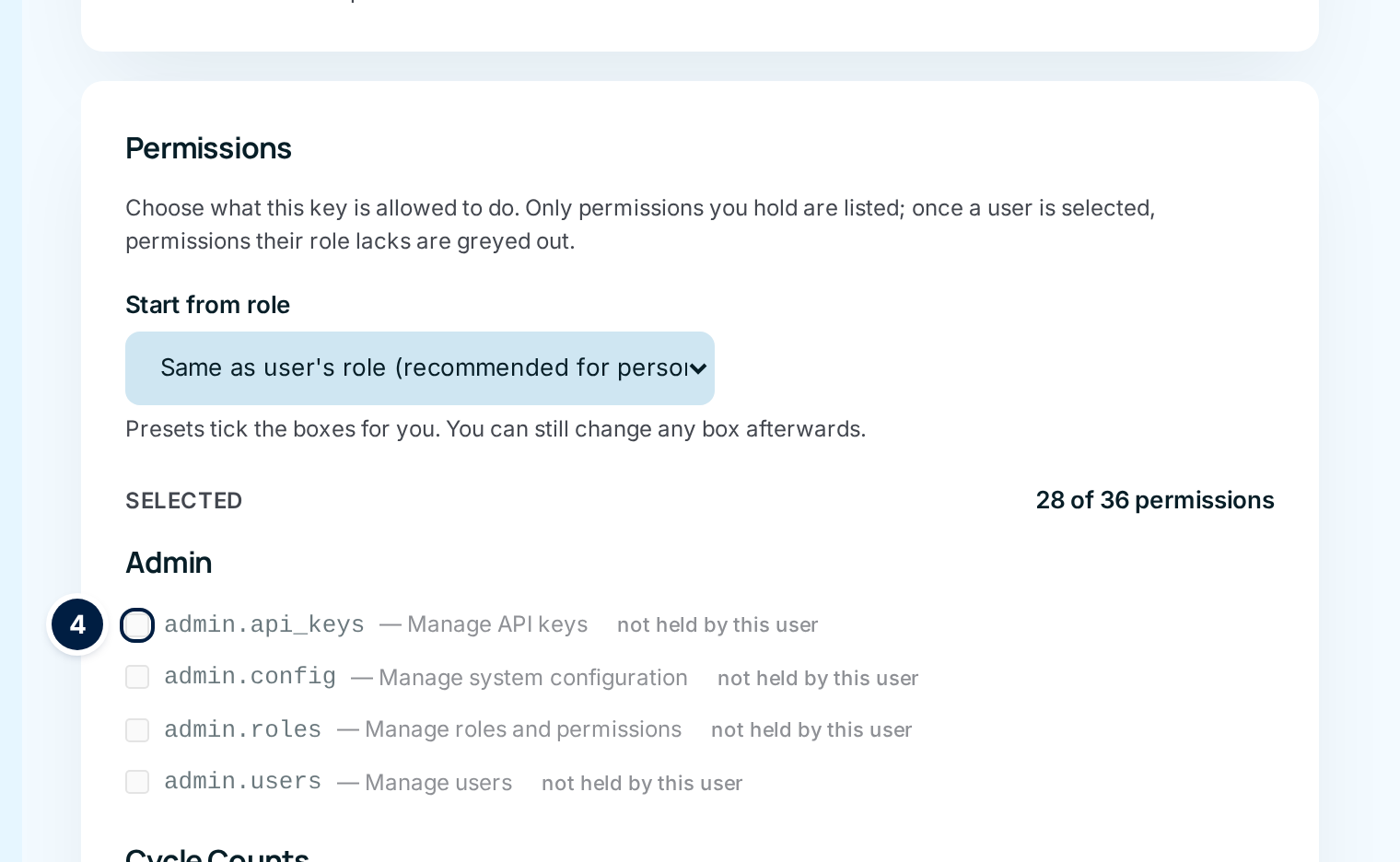
④ A grey box marked not held by this user is a permission the chosen user's role doesn't include. It can't be given to their key.
-
Choose Create API Key. The API Key Created page opens.
-
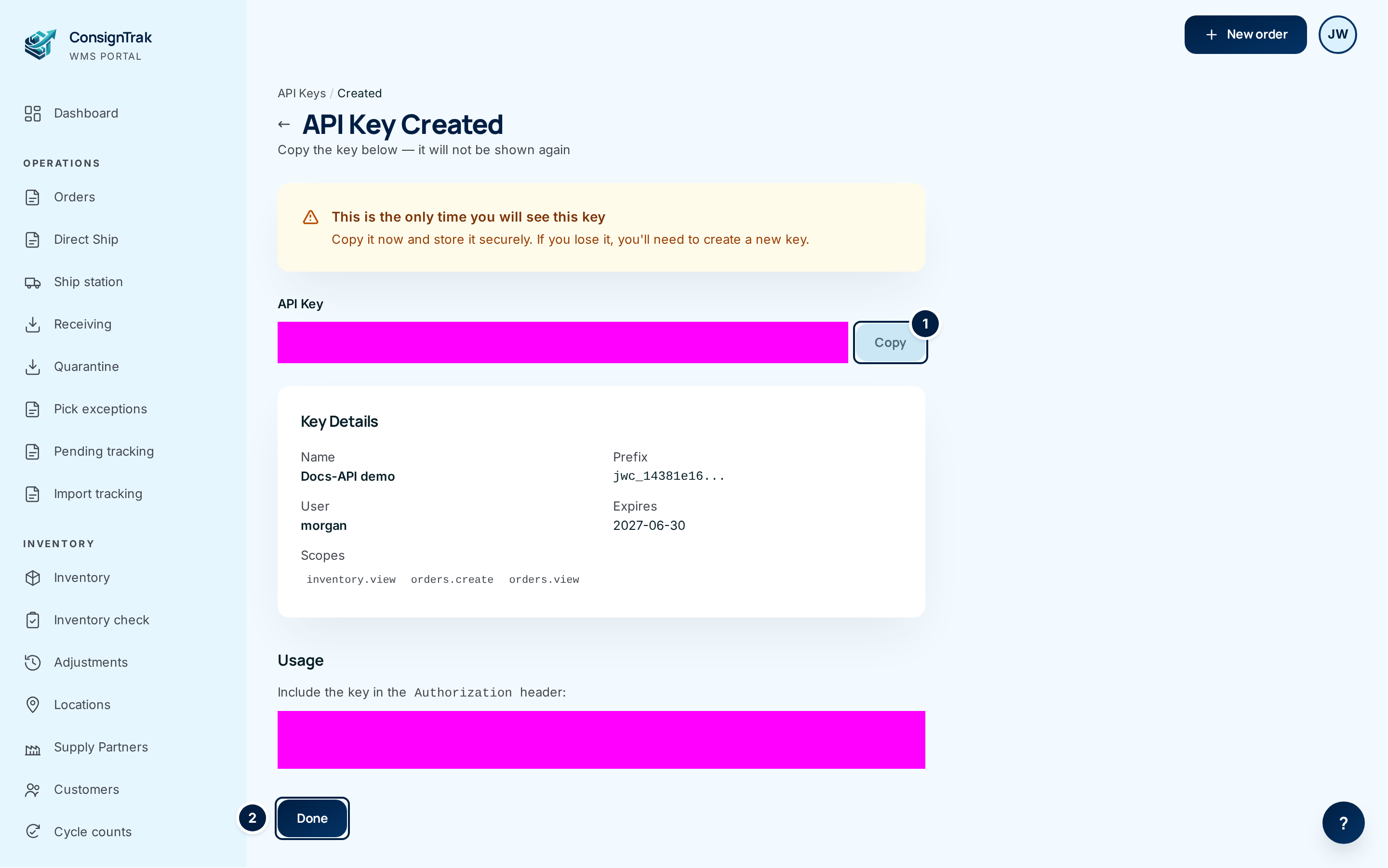
Copy the key with ① Copy and paste it straight into the tool, or into your password manager. This is the only time ConsignTrak shows the whole key. It keeps only a scrambled fingerprint, so nobody can look the key up later, including you.
-
Choose ② Done once the key is stored safely. You're back on the list, and the new key shows as Active.
Revoking a key
Revoke a key when a tool is retired, when someone who knew the key leaves, or when you think the key has been seen by someone who shouldn't have it.
- Open API keys from your account menu.
- Find the key by its Name. If a tool's settings show the start of a key, match it against Prefix.
- Choose Revoke on that row. The button turns red and asks you to click again. Click it a second time to confirm.
A revoked key stays Revoked for good. If the tool still needs access, create a new key and give it the new one.
What each permission allows
On screen, each permission shows a short code, such as orders.view, and a description. The list only includes permissions you hold yourself. The Office, Warehouse Worker and Admin columns show which permissions each preset ticks in a standard setup. Your site's roles may have been adjusted, so the presets follow whatever your roles currently allow.
| Group | Permission | What a tool with it can do | Office | Warehouse Worker | Admin |
|---|---|---|---|---|---|
| Admin | admin.api_keys | Create, list and revoke API keys, including new keys for other tools. | ✓ | ||
| Admin | admin.config | Change system settings. | ✓ | ||
| Admin | admin.roles | Change which permissions each role has. | ✓ | ||
| Admin | admin.users | Invite, edit and deactivate users. | ✓ | ||
| Cycle Counts | cycle_counts.approve | Approve the stock adjustments a cycle count found. | ✓ | ✓ | |
| Cycle Counts | cycle_counts.count | Enter counts for a cycle count. | ✓ | ✓ | |
| Cycle Counts | cycle_counts.view | See cycle counts and their results. | ✓ | ✓ | ✓ |
| Documents | documents.delete | Delete attached documents and photos. | ✓ | ✓ | |
| Documents | documents.upload | Attach documents and photos. | ✓ | ✓ | ✓ |
| Documents | documents.view | See and download attached documents. | ✓ | ✓ | ✓ |
| History | history.view | See an item's or customer's past orders and movements. | ✓ | ✓ | |
| Integrations | events.read | Read ConsignTrak's feed of things that happened, such as an order shipping or stock arriving, and mark each one handled. Tools like n8n use this to react to what happens. | ✓ | ||
| Inventory | inventory.adjust | Adjust stock quantities. | ✓ | ✓ | |
| Inventory | inventory.bulk_import | Load or update many items at once from a spreadsheet (see Bulk imports). | ✓ | ✓ | |
| Inventory | inventory.edit | Change item details: description, unit, bin and so on. | ✓ | ✓ | |
| Inventory | inventory.import | Import a supply partner's stock transfer spreadsheet into receiving (see Spreadsheet import). | ✓ | ✓ | |
| Inventory | inventory.view | See items and their stock levels. | ✓ | ✓ | ✓ |
| Inventory | periods.close | Close an accounting period. | ✓ | ||
| Inventory | periods.view | See accounting periods and their reconciliation. | ✓ | ✓ | |
| Orders | orders.create | Enter new orders. | ✓ | ✓ | |
| Orders | orders.edit | Change existing orders. | ✓ | ✓ | |
| Orders | orders.release | Release orders to the warehouse. | ✓ | ✓ | |
| Orders | orders.ship | Mark orders shipped. | ✓ | ✓ | ✓ |
| Orders | orders.tracking_correct | Correct a shipment's tracking numbers. | ✓ | ✓ | ✓ |
| Orders | orders.view | See orders. | ✓ | ✓ | ✓ |
| Receiving | receiving.create | Start receiving batches and add lines to them. | ✓ | ✓ | ✓ |
| Receiving | receiving.inspect | Mark a receiving batch verified, or undo that. | ✓ | ✓ | |
| Receiving | receiving.post | Post a receiving batch into stock. | ✓ | ✓ | |
| Receiving | receiving.qc | Record the quality check on receiving lines and work with Quarantine. | ✓ | ✓ | ✓ |
| Receiving | receiving.view | See receiving batches. | ✓ | ✓ | ✓ |
| Reference Data | contacts.bulk_import | Load or update many contacts at once from a spreadsheet. | ✓ | ✓ | |
| Reference Data | customers.bulk_import | Load or update many customers at once from a spreadsheet. | ✓ | ✓ | |
| Reference Data | customers.edit | Add and change customers. | ✓ | ✓ | |
| Reference Data | customers.view | See customers. | ✓ | ✓ | |
| Reference Data | manufacturers.edit | Add and change supply partners. The screen says "Edit manufacturers". | ✓ | ||
| Reference Data | manufacturers.view | See supply partners. The screen says "View manufacturers". | ✓ | ✓ |
Most tools only need to read. A stock report needs inventory.view and nothing else. An order-intake workflow needs orders.create and orders.view. Leave out the Admin group unless the tool truly manages ConsignTrak itself.
Every field and option
API Keys list
| Field or control | What it means | Required | Default | What changes when you set it |
|---|---|---|---|---|
| Create API key | Opens the Create API Key form. If there are no keys yet, the empty list shows a Create an API key link that does the same. | — | — | Opens the form. |
| Name | The name given when the key was created. | — | — | Read-only. |
| Prefix | The first few characters of the key, followed by "...". Safe to share when you need to say which key you mean. The rest of the key is never shown again. | — | — | Read-only. |
| User | The username of the Associated User. Everything the tool does is recorded as this user. | — | — | Read-only. |
| Scopes | The permission codes this key was given (see What each permission allows). | — | — | Read-only. |
| Last Used | When a tool last used the key successfully. A dash means never. It's the best sign of whether a tool is still running. | — | — | Read-only. |
| Status | Active, or Revoked once someone revokes the key. An expired key still shows Active, so check the expiry in the key's details when you create it. | — | — | Read-only. |
| Actions → Revoke | Switches the key off for good. Shown only on active keys. Asks you to click again. | — | — | The key stops working immediately. |
Create API Key form
| Field or control | What it means | Required | Default | What changes when you set it |
|---|---|---|---|---|
| ← (back arrow) and the API Keys breadcrumb | Return to the list without creating anything. | — | — | Nothing is saved. |
| Key Name | A name that says which tool uses the key. | Yes | Empty (hint: "e.g. n8n-order-intake") | Shown in the list. |
| Associated User | The user the key acts as. Lists active users who can hold a key, shown as name and username. Supply Partner portal users and deactivated users aren't listed. | Yes | Select a user... | Greys out permissions that user's role lacks. Unlocks Same as user's role. |
| Expiration Date (optional) | The last day the key works, up to the end of that day in warehouse time. | No | Blank (never expires) | After that day, calls with the key are refused. |
| Permissions | The card holding the preset, the count and the permission boxes. Only permissions you hold yourself are listed. | — | — | — |
| Start from role | Ticks a set of boxes for you. The choices are Custom (choose below), Same as user's role (recommended for personal keys), and one entry per role under Roles: Office, Warehouse Worker and Admin. It isn't saved with the key; only the ticked boxes are. | No | Custom (choose below) | Ticks exactly that role's permissions and unticks the rest. Same as user's role can only be chosen once a user is picked. |
| Selected "N of M permissions" | How many boxes are ticked, out of how many are offered. | — | 0 | Updates as boxes change. |
| Group headings (Admin, Cycle Counts, Documents, History, Integrations, Inventory, Orders, Receiving, Reference Data) | Groups of related permissions. | — | — | — |
| Permission boxes (code — description) | One box per permission. See What each permission allows. | At least one | Unticked | The key may do that thing. Changing a box by hand sets Start from role back to Custom. |
| not held by this user | The tag on a greyed-out box: the chosen user's role doesn't have that permission. | — | — | The box can't be ticked. |
| Create API Key | Creates the key and opens the one-time API Key Created page. | — | — | The key exists and works straight away. |
| Cancel | Return to the list. | — | — | Nothing is saved. |
API Key Created page
| Field or control | What it means | Required | Default | What changes when you set it |
|---|---|---|---|---|
| This is the only time you will see this key | The reminder that the full key can't be shown again. | — | — | — |
| API Key | The whole key. It starts with "jwc_". | — | — | — |
| Copy | Copies the key to your clipboard. You can also triple-click the key to select it. | — | — | — |
| Key Details | The key's Name, Prefix, User, Expires date ("Never" if blank) and Scopes. | — | — | Read-only. |
| Usage | The exact line the tool's builder puts in each request, with the key filled in. Pass it on with the key; it's as secret as the key itself. | — | — | — |
| Done, ← (back arrow) and the API Keys breadcrumb | Return to the list. Leave only once the key is stored. | — | — | The key can't be shown again. |
What happens next
- The key works immediately. The tool can use it from the moment the API Key Created page appears.
- Everything the tool does is recorded as the Associated User. Changes appear in history and the audit trail under that user's name. That's one reason to use a dedicated user for automations.
- The key follows its user's role. ConsignTrak checks the user's current role every time the key is used. If you later remove a permission from the role, the key loses it too. If you deactivate the user, all their keys stop working. Adding a permission to the role doesn't add it to an existing key. Create a new key for that.
- Each use is logged. Every call a tool makes with the key is noted in the audit trail against the key and its user.
- Revoking or expiry stops calls immediately. Any tool still using a revoked or expired key has its requests refused with "invalid or expired API key", and nothing it sends is saved. The tool doesn't retry with anything else. Whoever runs it has to put a new key in.
- Revoking is recorded. The audit trail notes who revoked which key and when.
Common problems
"Name, user, and at least one scope are required" — You chose Create API Key with no permission boxes ticked. Tick at least one, or pick a Start from role preset.
"Expiration date must be YYYY-MM-DD format" — The date didn't come through as a date. Pick it from the calendar in the field rather than typing it.
"requested scope not allowed: …" — The key asked for a permission you or the chosen user don't hold. The form normally stops this by greying boxes out. If you see it, reload the form, choose the user again and re-tick the boxes.
"API keys are not available for consignor users in v1" or "target user is not active" — Supply Partner portal users and deactivated users can't hold keys. Choose an active Office, Warehouse or Administrator user.
I closed the page before copying the key. — The key can't be recovered. Revoke it and create a new one.
The tool says "invalid or expired API key". — The key was revoked, has passed its expiry date, or belongs to a user who's been deactivated. The list still shows an expired key as Active. Check the expiry date you set when you created it. Create a new key and give it to whoever runs the tool.
The tool says "too many failed authentication attempts". — A tool kept trying with a bad key, so ConsignTrak paused further attempts from that address for a while. Fix the key in the tool first, then wait a few minutes.
I set an expiry date in the past by mistake. — ConsignTrak accepts it without warning, and the key is refused from the start. Revoke it and create another with the right date.
The tool can do something, but not everything it needs. — The key is missing a permission, or the Associated User's role lacks it. Keys can't be edited. Create a new key with the right permissions, swap it into the tool, then revoke the old one.
The user I want isn't in Associated User. — They're a Supply Partner portal user, or deactivated. See Users & roles.
Watch the video
A focused episode on this page is planned: