Rollup, reconcile and close
What this is
The Periods screens are where an administrator checks a month's stock before and after it's closed. There are three screens:
- The Periods list shows every month and whether it's open or closed. Closing happens here.
- The rollup shows one month, with a card for every supply partner.
- The reconciliation shows one supply partner's month in full: opening balance, activity by category, and closing balance.
Office users can look at all three. Only an Administrator can close a period.
Before you start
- Role: Administrator to close a period. Office or Administrator to view.
- Settings: the Unit cost columns appear only when Show prices throughout the application is on (see System configuration).
- You'll need: at least one month in the Periods list. Months are usually added by the scheduled close job. See Common problems if your list is empty.
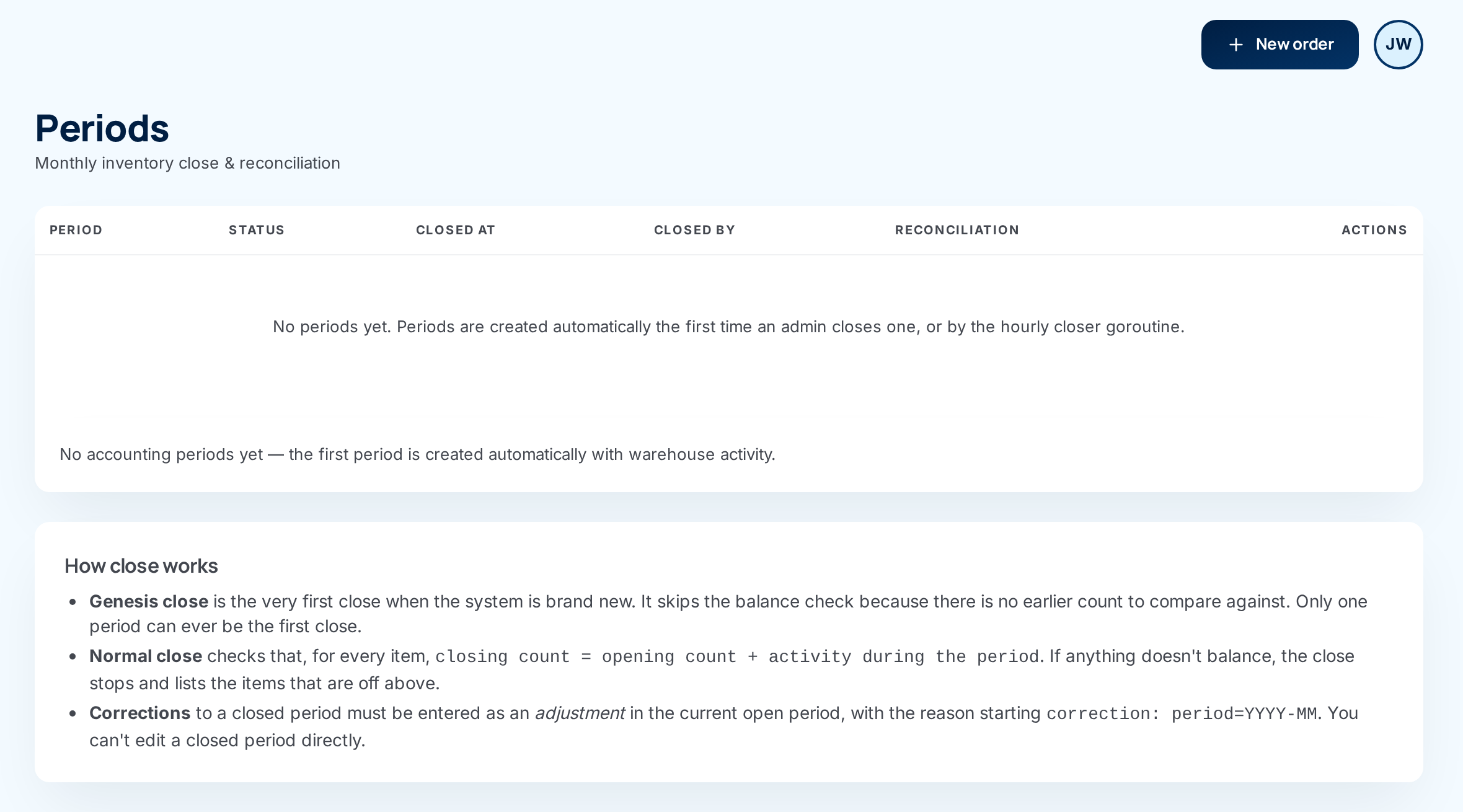
The demonstration system used for these screenshots has no accounting periods yet, so it can only show the empty Periods list. The rollup, reconciliation and Close button are described from the screens themselves, without pictures.
Step by step
1. Open the Periods list
-
Open your account menu (your initials, top right) and choose Periods.
-
Read the list. Each row is one calendar month, newest first. The Status column says Open or Closed. A month marked Genesis was the very first close on this installation.
2. Look at a month's rollup
- Choose Preview → on an open month, or View reconciliation → on
a closed one. The rollup opens, titled with the month, for example
August 2026 reconciliation. A pill at the top right says:
- Preview (period still open) — the numbers are live and can still change.
- Closed — the numbers are frozen.
- Genesis close — this was the first close. See the note on Genesis below.
- Scan the supply partner cards. Each card shows the partner's
manufacturer code and name, then three summaries:
- Opening — total units at the start of the month, and how many items.
- Activity — how many movements, and the net change in units.
- Closing — total units at the end of the month, and how many items.
- Click a card to open it. You'll see:
- an item table with Opening, Δ (the change) and Closing for every item, 15 items a page, with the whole partner's totals on the bottom row;
- a Totals box: Opening, Δ, Closing and Items;
- an Activity box listing each kind of movement, with how many there were and the net units. The kinds are Receipts, Shipments, Adjustments, Transfers, Returns, Cycle counts and Prior corrections.
- Page through a long item table with the arrows or page numbers under it. Only that card's table changes.
3. Check one supply partner's reconciliation
The reconciliation shows one partner's month as three separate tables. It's the same layout the partner's statement uses.
- Open the reconciliation. Today there's no link to it from the rollup, so you reach it only by its web address (reported as a problem).
- Read the three sections:
- Opening balance — each item's quantity at the start of the month. This is last month's closing balance.
- Activity during this period — each kind of movement, with a Count and a Net qty.
- Closing balance — each item's quantity at the end of the month. While the month is open this says (live projection — not final).
- Check the pill. Verified means the month is closed and the numbers are the frozen snapshot. Preview (period still open) means they can still change.
4. Close a period
The scheduled job closes finished months by itself. Close one by hand only for the very first close, or when the automatic close stopped (see Common problems).
-
Make sure the month is over. Only close a month whose last day has passed.
Never close the month you're inThe Close button appears on every open month, including the current one. Closing a month that isn't over blocks every receipt, shipment, adjustment and count for the rest of that month, and the partner's statement is taken half-way through. This can't be undone.
-
Make sure the month before it is closed. Months close in order, oldest first.
-
Tick Genesis (first close), but only if this is the first month ever closed on this installation. The checkbox disappears once any month is closed.
-
Choose Close on the month's row. The button changes color and asks you to click again. Click it a second time to confirm.
-
Check the result. If the close worked, the row now says Closed, with the time under Closed at. If it didn't, a Close failed banner at the top says why. See Common problems.
A normal close checks that every item's closing stock equals its opening stock plus the month's activity. The first close has no earlier month to start from, so it skips that check and simply records what's on the shelves. Only one month can ever be the Genesis close. Every later close runs the full check.
Every field and option
Periods list
| Field or control | What it means | Required | Default | What changes when you set it |
|---|---|---|---|---|
| Periods (title) / Monthly inventory close & reconciliation | The screen. | — | — | — |
| Period | The month's name and its first and last day. A Genesis tag marks the first close. | — | — | Read-only. |
| Status | Open (still collecting activity) or Closed (frozen). | — | Open | Changes when the month is closed. |
| Closed at | When the month was closed, in UTC. A dash while open. | — | — | Read-only. |
| Closed by | admin if a person closed it, system if the scheduled job did. It doesn't show the person's name (reported as a problem). | — | — | Read-only. |
| Reconciliation — Preview → / View reconciliation → | Opens the month's rollup. Preview on an open month, View reconciliation on a closed one. | — | — | Opens the rollup. |
| Actions — Genesis (first close) checkbox | Makes this close the first-ever close, skipping the balance check. Shown only until any month has been closed. | No | Unticked | Marks the month Genesis. Only one month can ever have it. |
| Actions — Close | Closes the month. Administrators only. Asks you to click again. | — | — | Freezes the month (see What happens next). |
| Close failed banner | Why the last close didn't happen. | — | — | Read-only. |
| Banner table: Item, Opening, Movements, Closing, Unaccounted Qty | The items that failed the balance check. Opening plus Movements should equal Closing. Unaccounted Qty is the difference nobody recorded. | — | — | Read-only. This is your to-do list. |
| How close works card | A short reminder of Genesis, normal close and corrections. | — | — | Read-only. |
| No periods yet… / No accounting periods yet… | Shown when the list is empty. See Common problems. | — | — | Read-only. |
Rollup (one month)
| Field or control | What it means | Required | Default | What changes when you set it |
|---|---|---|---|---|
| Periods › Month breadcrumb | Back to the list. | — | — | Leaves the page. |
| Month reconciliation (title) and dates | Which month you're looking at. | — | — | — |
| Preview (period still open) / Closed / Genesis close pill | The month's state. | — | — | Read-only. |
| Supply partner card: code, name, Opening, Activity, Closing | One partner's month in one line. Click to open. | — | Collapsed | Opens the card. |
| Item table: Item, Opening, Δ, Closing, Unit cost | Each item's month. Δ is green for more, red for less. Unit cost shows only when prices are on. The bottom row, Totals (N items), covers every page. | — | — | Read-only. |
| Page arrows and numbers | Move through the item table, 15 at a time. | — | Page 1 | Changes only that card's table. |
| Totals box: Opening, Δ, Closing, Items | The partner's totals for the month. | — | — | Read-only. |
| Activity box: Receipts, Shipments, Adjustments, Transfers, Returns, Cycle counts, Prior corrections | How many movements of each kind, and their net units. Only kinds that happened are listed. | — | — | Read-only. |
| No supply partners had snapshots or activity in this period. | Nobody had stock or activity that month. | — | — | Read-only. |
| ← Back to periods | Back to the list. | — | — | Leaves the page. |
Reconciliation (one supply partner, one month)
| Field or control | What it means | Required | Default | What changes when you set it |
|---|---|---|---|---|
| Periods › Month › code breadcrumb | Back to the list or the month. | — | — | Leaves the page. |
| Month · Supply partner (title), dates and manufacturer code | Which partner and month. | — | — | — |
| Preview (period still open) / Genesis close / Verified pill | Verified means the month is closed and these are the frozen numbers. | — | — | Read-only. |
| Opening balance: Item, Qty, Unit cost | Stock at the start of the month. Unit cost only when prices are on. | — | — | Read-only. |
| Activity during this period: Category, Count, Net qty | Movements by kind: Receipts, Shipments, Adjustments, Transfers, Returns, Cycle-count corrections, Corrections from prior period. | — | — | Read-only. |
| Closing balance: Item, Qty, Unit cost | Stock at the end of the month. (live projection — not final) while open. | — | — | Read-only. |
| Empty messages | No prior snapshot — this is the first close for this supply partner. / No activity recorded… / No closing inventory… | — | — | Read-only. |
| ← Back to periods | Back to the list. | — | — | Leaves the page. |
What happens next
When a month closes:
-
A snapshot is taken. ConsignTrak records every supply partner's opening, activity and closing for every item that had stock or movement. The snapshot can never be changed.
-
The month is locked. Nothing dated inside it can be recorded any more: no receipt, shipment, adjustment, transfer, return or count correction. The rollup and reconciliation now show the frozen numbers.
-
The next month starts from it. Next month's opening balance is exactly this month's closing balance.
-
Statements appear in the portal. Each supply partner gets a statement on the cadence set on their record (see Creating and editing supply partners):
- Monthly — a statement for this month, straight away.
- Quarterly — a statement for the quarter (for example Q3) once all three of its months are closed.
The statement shows the opening balance, activity by category and closing balance, the same as the reconciliation. It downloads as a PDF. Downloading the same statement twice gives an identical file, which is what lets a partner prove it wasn't changed. The month you're in never appears. See Orders, receiving, reports & statements.
-
Other systems are told. ConsignTrak sends a "period closed" notice to any connected integration, if your installation has one.
Fixing a mistake in a closed month
You can't edit a closed month. Instead, record the fix in the current, open month with an adjustment. The mistake and its correction both stay visible.
The How close works card says to start the adjustment's reason with correction: period= and the month. That labels the fix as a Correction from prior period on the partner's statement. The Adjust inventory screen offers only a fixed list of reasons, so you can't type that label there today (reported as a problem). An adjustment made on screen shows under Adjustments instead. An integration using the API can add the label.
Common problems
The Periods list is empty: "No periods yet…" — On a brand-new installation, no months are listed, and the scheduled job is waiting for a first (Genesis) close that has nowhere to appear. You can't fix this from the screen today (reported as a problem). Ask whoever runs your ConsignTrak installation to add the months, then do the Genesis close on the oldest one.
"Integrity check failed — close aborted. Fix the items below and retry." — One or more items don't add up: their closing stock isn't their opening stock plus the month's movements. The table under the message lists them. The usual cause is a quantity changed outside ConsignTrak's normal screens. Record an adjustment for each listed item in the current open month, then choose Close again. If you can't explain a difference, ask whoever runs your installation before closing.
"prior period is not closed: …" — The month before this one is still open. Close the months in order, oldest first.
"period is already closed" — Someone, or the scheduled job, closed it first. Refresh the list.
I closed the current month by mistake. — Every stock change dated this month now fails with an error. A closed month can't be reopened from the screen. Contact whoever runs your installation straight away.
I don't see the Close button. — You're an Office user, or the month is already closed.
The automatic close didn't happen. — The scheduled job stops at the first month that fails the balance check, and waits. Open the list, choose Close on that month to see which items are off, fix them, and close it. The job then carries on with later months by itself.